
.Zipfiles are compressed folders that make sending and receiving files faster and easier. Below, you will find steps for zipping and un-zipping files on both PC and Mac.
NOTEIf your file is too large even after zipping it, please try the alternative compression methods in Compressing your File(s) to Upload to Halo | Learn
.
Zipping Your File
- Click on the file to select it.
- Right-click on the file, select Compress to...and then select ZIP File.
- A new file with the same name will populate. This new file will have a .zipextension.
NOTE To add files to a zipped folder, drag them to the zipped folder.
Un-Zipping Your File
- Click on your file to select it.
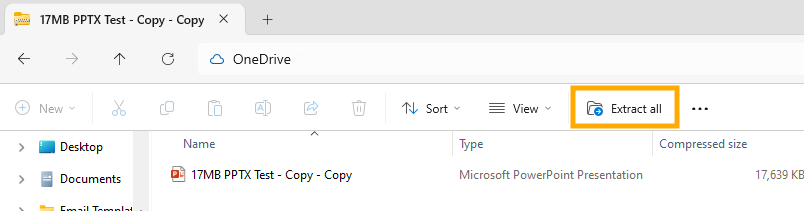
- Right-click on the folder and select Extract All...
NOTE If you double click the Zipped file, you can select Extract Allfrom the top menu bar.
- The Extract Compressed (Zipped) Folders dialog box will ask where you would like to extract these files to. The default location will be where the zipped file is located, but you can choose any place on your computer by selecting Browse...
- To extract the files, click Extract.
Zipping Your File
- Right-click on the file, select Compress “file name”.
- A new file with the same name will populate. This new file will have a .zipextension.
Un-Zipping Your File
To decompress a file, double-click the .zip file. This will automatically create a new folder under the same name with the files unzipped.
NOTEIf you experience any problems extracting data from a Zip folder with the built in extractors, you can try to use a program like 7-zip to unzip your file. Please note that programs like 7-zip is out of our scope of service and GCU Technical Support cannot assist with accessing or using these programs.
