
This document provides information about how disk clones work and how to create a disk clone. Disk cloning lets you make instantly usable copies of existing disks in the same location (zone or region). Create a disk clone in scenarios where you want a copy of an existing disk that you can instantly attach to a VM, such as the following:
- Creating staging environments by duplicating production data to debug without disturbing production
- Performing non-disruptive malware scans of a disk without impacting the performance of a production workload
- Creating copies for database backup verification
- Moving non-boot disk data to a new project
- Duplicating disks while scaling out your VMs
To enable disaster recovery for your data, back up your disk with standard snapshots instead of using disk clones. To capture disk contents at regular intervals without creating new disks, use instant snapshots because they're more storage-efficient than clones. For additional disk protection options, see Data protection options .
Before you begin
- If you haven't already, set up authentication
.
Authentication verifies your identity for access to Google Cloud services and APIs. To run
code or samples from a local development environment, you can authenticate to
Compute Engine by selecting one of the following options:
Select the tab for how you plan to use the samples on this page:
Console
When you use the Google Cloud console to access Google Cloud services and APIs, you don't need to set up authentication.
gcloud
-
Install the Google Cloud CLI. After installation, initialize the Google Cloud CLI by running the following command:
gcloud
init
If you're using an external identity provider (IdP), you must first sign in to the gcloud CLI with your federated identity .
- Set a default region and zone .
Terraform
To use the Terraform samples on this page in a local development environment, install and initialize the gcloud CLI, and then set up Application Default Credentials with your user credentials.
-
Install the Google Cloud CLI.
-
If you're using an external identity provider (IdP), you must first sign in to the gcloud CLI with your federated identity .
-
If you're using a local shell, then create local authentication credentials for your user account:
gcloud
auth
application-default
login
You don't need to do this if you're using Cloud Shell.
If an authentication error is returned, and you are using an external identity provider (IdP), confirm that you have signed in to the gcloud CLI with your federated identity .
For more information, see Set up authentication for a local development environment .
Go
To use the Go samples on this page in a local development environment, install and initialize the gcloud CLI, and then set up Application Default Credentials with your user credentials.
-
Install the Google Cloud CLI.
-
If you're using an external identity provider (IdP), you must first sign in to the gcloud CLI with your federated identity .
-
If you're using a local shell, then create local authentication credentials for your user account:
gcloud
auth
application-default
login
You don't need to do this if you're using Cloud Shell.
If an authentication error is returned, and you are using an external identity provider (IdP), confirm that you have signed in to the gcloud CLI with your federated identity .
For more information, see Set up authentication for a local development environment .
Java
To use the Java samples on this page in a local development environment, install and initialize the gcloud CLI, and then set up Application Default Credentials with your user credentials.
-
Install the Google Cloud CLI.
-
If you're using an external identity provider (IdP), you must first sign in to the gcloud CLI with your federated identity .
-
If you're using a local shell, then create local authentication credentials for your user account:
gcloud
auth
application-default
login
You don't need to do this if you're using Cloud Shell.
If an authentication error is returned, and you are using an external identity provider (IdP), confirm that you have signed in to the gcloud CLI with your federated identity .
For more information, see Set up authentication for a local development environment .
Python
To use the Python samples on this page in a local development environment, install and initialize the gcloud CLI, and then set up Application Default Credentials with your user credentials.
-
Install the Google Cloud CLI.
-
If you're using an external identity provider (IdP), you must first sign in to the gcloud CLI with your federated identity .
-
If you're using a local shell, then create local authentication credentials for your user account:
gcloud
auth
application-default
login
You don't need to do this if you're using Cloud Shell.
If an authentication error is returned, and you are using an external identity provider (IdP), confirm that you have signed in to the gcloud CLI with your federated identity .
For more information, see Set up authentication for a local development environment .
REST
To use the REST API samples on this page in a local development environment, you use the credentials you provide to the gcloud CLI.
Install the Google Cloud CLI.
If you're using an external identity provider (IdP), you must first sign in to the gcloud CLI with your federated identity .
For more information, see Authenticate for using REST in the Google Cloud authentication documentation.
-
Summary of use cases
In addition to duplicating a disk for quick testing and debugging, you can enable high availability for a zonal disk by creating a regional clone from the zonal disk. When you create a regional disk from a zonal disk, the regional disk has a replica of the disk in two zones within the same region. After you create the regional disk, you then use the new regional disk instead of the zonal disk. In the rare event of an outage in one zone, you can still access the data from the replica in the other zone.
This table summarizes the different types of clones that Compute Engine supports.
- Scaling out workloads by duplicating existing disks for new VMs.
- Staging, debugging, or test environments with production data.
- Scanning a disk that's in production for malware.
- Moving a disk to a new project.
- Persistent Disk: Standard, Balanced, and SSD Persistent Disk
- Hyperdisk: All Hyperdisk types, except Hyperdisk Balanced High Availability
- Making a zonal workload highly available by adding a replica of the data in another zone.
- Scanning a disk that's in production for malware.
- Persistent Disk: Standard, Balanced, and SSD Persistent Disk
- Hyperdisk: Hyperdisk Extreme and Hyperdisk Balanced
- Testing or scaling out regional, highly available (HA) workloads.
- Maintaining data redundancy across two zones while performing administrative tasks or testing.
- Creating copies of HA database volumes for verification.
- Persistent Disk: Regional Balanced, SSD, and Standard Persistent Disk
- Hyperdisk: Hyperdisk Balanced High Availability
How disk cloning works
When you clone a disk, you create a new disk that contains all the data on the source disk. You can create a disk clone even if the existing disk is attached to a VM instance. After you clone a disk, you can delete the source disk without any risk of deleting the clone.
By default, a disk's clones inherit its size, performance limits, type, and the exact zone or region. You can change some of these properties, as follows:
-
Size: you can create a clone that has a larger size than its source disk, but not a smaller size.
-
Performance: for Hyperdisk volumes, you can specify a different performance limit for the clone. Regional clones of zonal Hyperdisk volumes are Hyperdisk Balanced High Availability volumes and might have different performance limits.
-
Location: by default, a disk's clone is created in the same zone for zonal disks and the same region for regional disks. However, to create a regional clone of a zonal disk, you can specify a second zone that's within the same region of the zonal disk. The new clone is also referred to as a regional clone and has one replica each in the zone of the source disk and the second zone that you specified.
-
Type: Regional clones of a zonal Hyperdisk Balanced or Hyperdisk Extreme volumes are Hyperdisk Balanced High Availability volumes.
Regional Hyperdisk volumes cloned from zonal Hyperdisk volumes
A regional clone of a existing zonal Hyperdisk volume is always a new Hyperdisk Balanced High Availability volume. This is because Hyperdisk Balanced High Availability is the only supported regional Hyperdisk. The way you create a regional Hyperdisk from a zonal Hyperdisk depends on its type.
-
For zonal Hyperdisk ML and Hyperdisk Throughput volumes, you can't create a regional disk by cloning the source disk. You must create a new Hyperdisk Balanced High Availability volume from a snapshot of the zonal disk .
-
For zonal Hyperdisk Balanced and Hyperdisk Extreme volumes, you create a new Hyperdisk Balanced High Availability volume by creating a regional clone of a zonal Hyperdisk Balanced or Hyperdisk Extreme volume.
Performance of Hyperdisk Balanced High Availability volumes cloned from zonal disks
When you create a new Hyperdisk Balanced High Availability volume from a Hyperdisk Balanced or Hyperdisk Extreme volume, the new disk inherits the size of the source disk, but you can specify a different size.
The new disk's maximum provisioned performance might be less than those of the source disk, because Hyperdisk Extreme and Hyperdisk Balanced have higher performance limits than Hyperdisk Balanced High Availability, as listed in the following table.
| Hyperdisk type | Max I/O operations per second (IOPS) | Max throughput ( MiB/s) |
|---|---|---|
|
Hyperdisk Balanced High Availability
|
100,000 | 2,400 |
|
Hyperdisk Balanced
|
160,000 | 2,400 |
|
Hyperdisk Extreme
|
350,000 | 5,000 |
You can specify limits for the new regional disk but the limits can't exceed the maximum performance limits offered by Hyperdisk Balanced High Availability—100,000 IOPS and 2,400 MiB/s.
If you don't specify a performance limit for the new disk, then Compute Engine provisions the disk with the default IOPS and throughput that depends on the Hyperdisk Balanced High Availability volume's size. For the default limits, see Default size and performance limits of Hyperdisk Balanced High Availability .
To reach 100,000 IOPS, a Hyperdisk Balanced High Availability volume's size must be at least 200 GiB, so you might also need to increase the provisioned size of the regional clone.
Example
Consider a 150 GiB Hyperdisk Extreme volume, hdx-1
, provisioned with 180,000 IOPS.
If you create a regional clone of hdx-1
and you don't specify a new size or
performance limit, Compute Engine creates a 150 GiB
Hyperdisk Balanced High Availability volume that has the default IOPS limit for that size: 3,900 IOPS.
If you don't increase the size, you can specify up to 75,000 IOPS for the regional clone.
Regional Persistent Disk volumes cloned from zonal Persistent Disk volumes
A regional Persistent Disk volume that was cloned from a zonal Persistent Disk has the same type as the clone. For example, if you clone a zonal Standard Persistent Disk, you create a regional Standard Persistent Disk volume.
However, regional clones of Persistent Disk volumes might have different size and performance limits than the zonal source disk, as follows.
-
Lower performance limits: Regional clones of Persistent Disk might have lower IOPS and throughput performance limit than the source disk. This is because zonal Persistent Disk offers higher maximum instance performance limits. For example, zonal Balanced Persistent Disk has a maximum instance limit of 80,000 write IOPS, but regional Balanced Persistent Disk has a limit of 60,000 write IOPS.
For detailed performance limits, compare the performance limits for zonal Persistent Disk and the performance limits for regional Persistent Disk .
-
For regional Standard Persistent Disk, a 200 GiB minimum size: regional Standard Persistent Disk has a minimum size of 200 GiB. So to create a regional clone of a 10 to 199 GiB zonal Standard Persistent Disk volume, you must specify a size of at least 200 GiB for the regional disk.
Supported disk types
You can clone all Persistent Disk and Hyperdisk types if the clone is in the same location (zone or region) as the source disk.
Cloning a zonal disk to a regional disk is supported only for the following disk types:
-
Google Cloud Hyperdisk:
- Hyperdisk Balanced
- Hyperdisk Extreme
To create a regional disk from a Hyperdisk ML or Hyperdisk Throughput volume, create a snapshot, then create a Hyperdisk Balanced High Availability volume from the snapshot.
-
Persistent Disk:
- Balanced Persistent Disk
- SSD Persistent Disk
- Standard Persistent Disk
Restrictions
Disk clones have the following restrictions:
- You can't create a Hyperdisk Balanced High Availability volume by cloning a zonal Hyperdisk ML or Hyperdisk Throughput volume. To create a Hyperdisk Balanced High Availability volume for these Hyperdisk types, complete the steps in Change a zonal disk to a regional Hyperdisk Balanced High Availability volume .
- You can't clone a disk that's in a storage pool.
- You can't create a zonal disk clone of an existing zonal disk in a different zone.
- The size of the clone must be at least the size of the source disk. If you create a clone using the Google Cloud console, then you can't specify a disk size and the clone will be the same size as the source disk.
- If you clone a Hyperdisk or Persistent Disk volume from the Google Cloud console, then you can't specify the provisioned performance for the cloned disk.
- If you use a customer-supplied encryption key (CSEK) or a customer-managed encryption key (CMEK) to encrypt the source disk, you must use the same key to encrypt the clone. For more information, see Creating a clone of an encrypted source disk .
- You can't delete the source disk while its clone is being created.
- The compute instance that the source disk is attached to won't be able to power on while the clone is being created.
- If the source disk was marked to be deleted along with the VM that it is attached to, then you can't delete the VM while the clone is being created.
- You can create at most one clone of a given source disk or its clones every 30 seconds.
- You can have at most 1,000 simultaneous disk clones of a given source
disk or its clones.
Exceeding this limit returns an
internalError. However, if you create a disk clone and delete it later, then the deleted disk clone is not included in this limit. - After a disk is cloned, any subsequent clones of that disk or of its clones are counted against the limit of 1,000 simultaneous disk clones for the original source disk and are counted against the limit of creating at most one clone every 30 seconds.
- If you create a regional disk by cloning a zonal disk, then you can clone at most 1 TiB of capacity every 15 minutes, with a burst request limit of 257 TiB.
- You can't create a zonal disk clone from a regional disk.
- To create a regional disk clone from a zonal source disk, one of the replica zones of the regional disk clone must match the zone of the source disk.
- After creation, a regional disk clone is usable within 3 minutes, on average. However, the disk might take tens of minutes to become fully replicated and reach a state where the recovery point objective (RPO) is near zero.
- If you created a zonal disk from an image, then you can't use that zonal disk to create a regional disk clone.
Error messages
If you exceed the cloning frequency limits, the request fails with the following error:
RATE LIMIT: ERROR: (gcloud.compute.disks.create) Could not fetch resource:
 - Operation rate exceeded for resource RESOURCE
. Too frequent operations from the source resource.
Create disk clones
This section explains how you can duplicate an existing disk and create a disk clone.
For detailed steps, depending on the type of disk clone creation, see one of the following sections in this document:
- To clone a disk for quick testing, debugging, or scaling out, Create a disk clone in the same location as the source
- To make a zonal disk highly available, Create a regional disk clone from a zonal disk
- Create a clone of an encrypted source disk
Create a disk clone in the same location as the source
You can create a clone of an existing zonal or regional disk that's in the same zone or region, respectively, as the source disk using the Google Cloud console, the Google Cloud CLI, REST, or Cloud Client Libraries.
Google Cloud console
-
In the Google Cloud console, go to the Diskspage.
-
In the list of disks, navigate to the disk that you want to clone.
-
In the Actionscolumn, click the menu button and select Clone disk.
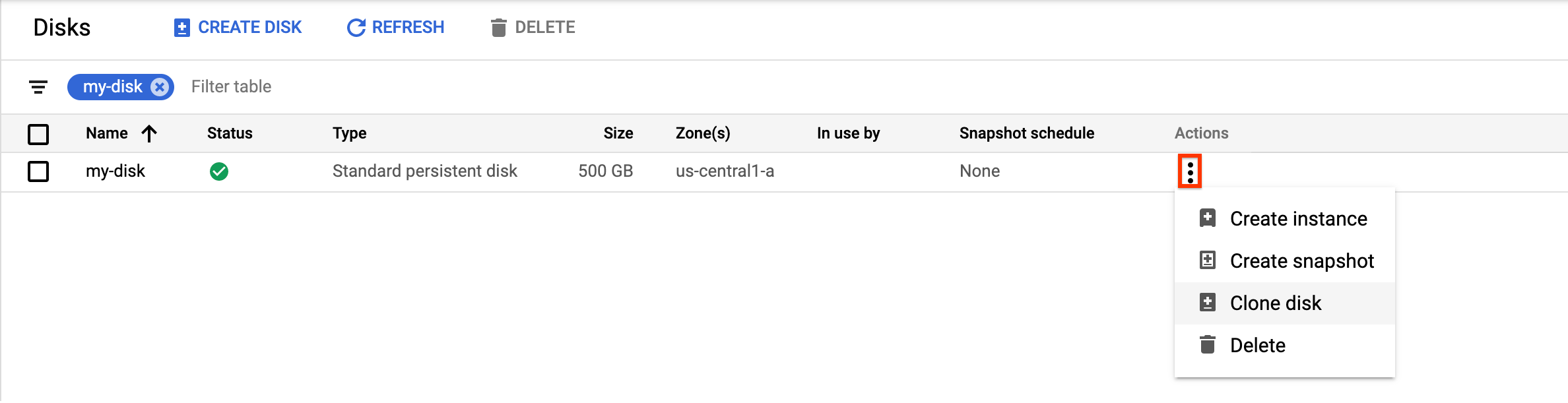
In the Clone diskpanel that appears, do the following:
- In the Namefield, specify a name for the cloned disk.
- Optional: For zonal disks, under Location, verify that Single zoneis selected.
- Under Properties, review other details for the cloned disk.
- To finish creating the cloned disk, click Create.
Google Cloud CLI
To clone a zonal source disk and create a new zonal disk, run the disks create
command
and specify the --source-disk
flag:
gcloud compute disks create TARGET_DISK_NAME
\
    --description="cloned disk" \
    --source-disk=projects/ PROJECT_ID
/zones/ ZONE
/disks/ SOURCE_DISK_NAME
Replace the following:
-
TARGET_DISK_NAME: the name for the new disk. -
PROJECT_ID: the project ID where you want to clone the disk. -
ZONE: the zone of the source and new disk. -
SOURCE_DISK_NAME: the name of the source disk.
Terraform
To create a disk clone, use the google_compute_disk
resource
.
To learn how to apply or remove a Terraform configuration, see Basic Terraform commands .
Go
Go
Before trying this sample, follow the Go setup instructions in the Compute Engine quickstart using client libraries . For more information, see the Compute Engine Go API reference documentation .
To authenticate to Compute Engine, set up Application Default Credentials. For more information, see Set up authentication for client libraries .
Java
Java
Before trying this sample, follow the Java setup instructions in the Compute Engine quickstart using client libraries . For more information, see the Compute Engine Java API reference documentation .
To authenticate to Compute Engine, set up Application Default Credentials. For more information, see Set up authentication for client libraries .
Python
Python
Before trying this sample, follow the Python setup instructions in the Compute Engine quickstart using client libraries . For more information, see the Compute Engine Python API reference documentation .
To authenticate to Compute Engine, set up Application Default Credentials. For more information, see Set up authentication for client libraries .
REST
To clone a zonal source disk and create a new zonal disk, make a POST
request to the compute.disks.insert
method
.
In the request body, specify the name
and sourceDisk
parameters. The
disk clone inherits all omitted properties from the source disk.
POST https://compute.googleapis.com/compute/v1/projects/ PROJECT_ID
/zones/ ZONE
/disks

{
  "name": " TARGET_DISK_NAME
"
  "sourceDisk": "projects/ PROJECT_ID
/zones/ ZONE
/disks/ SOURCE_DISK_NAME
"
}
Replace the following:
-
PROJECT_ID: the project ID where you want to clone the disk. -
ZONE: the zone of the source and new disk. -
TARGET_DISK_NAME: the name for the new disk. -
SOURCE_DISK_NAME: the name of the source disk
Create a regional disk clone from a zonal disk
You can create a new regional disk by cloning an existing zonal disk of any of the following types:
- Hyperdisk Balanced
- Hyperdisk Extreme
- Standard, Balanced, and SSD Persistent Disk
If the source disk is a Hyperdisk Balanced or Hyperdisk Extreme volume, the regional disk is always a Hyperdisk Balanced High Availability volume and doesn't inherit the same provisioned performance of the zonal disk. To set the provisioned performance of the regional disk, you must clone the disk with the Google Cloud CLI or the REST. If you clone the disk with the Google Cloud console, you can't specify a performance limit and the disk is provisioned with the default limits for its size.
Console
-
In the Google Cloud console, go to the Diskspage.
-
In the list of disks, navigate to the zonal Persistent Disk volume that you want to clone.
-
In the Actionscolumn, click the menu button and select Clone disk.
In the Clone diskpanel that appears, do the following:
- In the Namefield, specify a name for the cloned disk.
- For Location, select Regionaland then select the secondary replica zone for the new regional cloned disk.
- Under Properties, review other details for the cloned disk.
- To finish creating the cloned disk, click Create.
gcloud
To create a regional disk clone from a zonal disk, run the gcloud compute disks create
command
and specify the --region
and --replica-zones
parameters.
If the zonal disk is a Hyperdisk Balanced or Hyperdisk Extreme volume, specify
the --disk-type=hyperdisk-balanced-high-availability
flag since the regional
disk must be a Hyperdisk Balanced High Availability volume.
To clone a Persistent Disk volume, omit the --disk-type
flag.
gcloud compute disks create TARGET_DISK_NAME
\
  --description="zonal to regional cloned disk" \
  --region= CLONED_REGION
\
  --source-disk= SOURCE_DISK_NAME
\
  --source-disk-zone= SOURCE_DISK_ZONE
\
  --replica-zones= SOURCE_DISK_ZONE
, REPLICA_ZONE_2
\
  --project= PROJECT_ID
\
  [ --disk-type=hyperdisk-balanced-high-availability ] \
  [ --provisioned-iops= IOPS_LIMIT
] \
  [ --provisioned-throughput= THROUGHPUT_LIMIT
]
Replace the following:
-
TARGET_DISK_NAME: the name for the new regional disk clone. -
CLONED_REGION: the region of the source and cloned disks. -
SOURCE_DISK_NAME: the name of the zonal disk to clone. -
SOURCE_DISK_ZONE: the zone for the source disk. This will also be the first replica zone for the regional disk clone. -
REPLICA_ZONE_2: the second replica zone for the new regional disk clone. -
PROJECT_ID: the project ID where you want to clone the disk. -
IOPS_LIMIT: Optional: To create a regional Hyperdisk Balanced High Availability disk, you can specify a number of IOPS that the disk can handle, up to 100,000 IOPS. -
THROUGHPUT_LIMIT: Optional: To create a regional Hyperdisk Balanced High Availability disk, you can specify the maximum throughput in MiB/s, that the disk can provide, up to 2,400 MiB/s.
Terraform
To create a regional disk clone from a zonal disk use the
following resource. If the source disk is a Hyperdisk Balanced or Hyperdisk Extreme volume,
set the type
argument to hyperdisk-balanced-high-availability
.
To learn how to apply or remove a Terraform configuration, see Basic Terraform commands .
Go
Go
Before trying this sample, follow the Go setup instructions in the Compute Engine quickstart using client libraries . For more information, see the Compute Engine Go API reference documentation .
To authenticate to Compute Engine, set up Application Default Credentials. For more information, see Set up authentication for client libraries .
Java
Java
Before trying this sample, follow the Java setup instructions in the Compute Engine quickstart using client libraries . For more information, see the Compute Engine Java API reference documentation .
To authenticate to Compute Engine, set up Application Default Credentials. For more information, see Set up authentication for client libraries .
Python
Python
Before trying this sample, follow the Python setup instructions in the Compute Engine quickstart using client libraries . For more information, see the Compute Engine Python API reference documentation .
To authenticate to Compute Engine, set up Application Default Credentials. For more information, see Set up authentication for client libraries .
REST
To create a regional disk clone from a zonal disk, make a POST
request to
the compute.disks.insert
method
and specify the sourceDisk
and replicaZone
parameters.
If the zonal disk is a Hyperdisk Balanced or Hyperdisk Extreme volume, include the type
field to
create a Hyperdisk Balanced High Availability volume.
POST https://compute.googleapis.com/compute/v1/projects/ PROJECT_ID
/regions/ CLONED_REGION
/disks

{
  "name": " TARGET_DISK_NAME
",
  "sourceDisk": "projects/ PROJECT_ID
/zones/ SOURCE_DISK_ZONE
/disks/ SOURCE_DISK_NAME
",
  "replicaZone": " SOURCE_DISK_ZONE
, REPLICA_ZONE_2
",
  "type": "projects/ PROJECT_ID
/regions/ CLONED_REGION
/diskTypes/hyperdisk-balanced-high-availability",
  "provisionedIops": " IOPS_LIMIT
",
  "provisionedThroughput": " THROUGHPUT_LIMIT
"
}
Replace the following:
-
PROJECT_ID: the project ID where you want to clone the disk. -
TARGET_DISK_NAME: the name for the new regional disk clone. -
CLONED_REGION: the region of the source and cloned disks. -
SOURCE_DISK_NAME: the name of the zonal disk to clone. -
SOURCE_DISK_ZONE: the zone for the source disk. This will also be the first replica zone for the regional disk clone. -
REPLICA_ZONE_2: the second replica zone for the new regional disk clone. -
IOPS_LIMIT: Optional: To create a regional Hyperdisk Balanced High Availability disk, you can specify a number of IOPS that the disk can handle, up to 100,000 IOPS. -
THROUGHPUT_LIMIT: Optional: To create a regional Hyperdisk Balanced High Availability disk, you can specify the maximum throughput in MiB/s, that the disk can provide, up to 2,400 MiB/s.
Create a disk clone of a CMEK- or CSEK- encrypted source disk
To create a zonal or regional clone of a disk that is encrypted with CSEK or CMEK, follow the procedures described in the preceding sections. However, you must also provide the key used to encrypt the source disk.
Create disk clones for CSEK-encrypted disks
If you use a CSEK to encrypt your source disk, you must also use the same key to encrypt the clone.
Console
-
In the Google Cloud console, go to the Diskspage.
-
In the list of zonal persistent disks, find the disk that you want to clone.
-
In the Actionscolumn, click the menu button and select Clone disk.
In the Clone diskpanel that appears, do the following:
- In the Namefield, specify a name for the cloned disk.
- In the Decryption and encryptionfield, provide the source disk encryption key.
- Under Properties, review other details for the cloned disk.
- To finish creating the cloned disk, click Create.
gcloud
To create a disk clone for a CSEK-encrypted source disk, run the gcloud compute disks create
command
and provide the source disk encryption key using the --csek-key-file
flag. If you are using an RSA-wrapped key, use the gcloud beta compute disks create
command
.
gcloud compute disks create TARGET_DISK_NAME
\
  --description="cloned disk" \
  --source-disk=projects/ PROJECT_ID
/zones/ ZONE
/disks/ SOURCE_DISK_NAME
\
  --csek-key-file example-key-file.json
Replace the following:
-
TARGET_DISK_NAME: the name for the new disk. -
PROJECT_ID: the project ID where you want to clone the disk. -
ZONE: the zone of the source and new disk. -
SOURCE_DISK_NAME: the name of the source disk
Go
Go
Before trying this sample, follow the Go setup instructions in the Compute Engine quickstart using client libraries . For more information, see the Compute Engine Go API reference documentation .
To authenticate to Compute Engine, set up Application Default Credentials. For more information, see Set up authentication for client libraries .
Java
Java
Before trying this sample, follow the Java setup instructions in the Compute Engine quickstart using client libraries . For more information, see the Compute Engine Java API reference documentation .
To authenticate to Compute Engine, set up Application Default Credentials. For more information, see Set up authentication for client libraries .
Python
Python
Before trying this sample, follow the Python setup instructions in the Compute Engine quickstart using client libraries . For more information, see the Compute Engine Python API reference documentation .
To authenticate to Compute Engine, set up Application Default Credentials. For more information, see Set up authentication for client libraries .
REST
To create a disk clone for a CSEK-encrypted source disk, make a POST
request
to the compute.disks.insert
method
and provide the source disk encryption key using the diskEncryptionKey
property. If you are using an RSA-wrapped key, use the beta
version of the method
.
POST https://compute.googleapis.com/compute/v1/projects/ PROJECT_ID
/zones/ ZONE
/disks

{
  "name": " TARGET_DISK_NAME
"
  "sourceDisk": "projects/ PROJECT_ID
/zones/ ZONE
/disks/ SOURCE_DISK_NAME
"
  "diskEncryptionKey": {
    "rsaEncryptedKey": "ieCx/NcW06PcT7Ep1X6LUTc/hLvUDYyzSZPPVCVPTVEohpeHASqC8uw5TzyO9U+Fka9JFHz0mBibXUInrC/jEk014kCK/NPjYgEMOyssZ4ZINPKxlUh2zn1bV+MCaTICrdmuSBTWlUUiFoDD6PYznLwh8ZNdaheCeZ8ewEXgFQ8V+sDroLaN3Xs3MDTXQEMMoNUXMCZEIpg9Vtp9x2oeQ5lAbtt7bYAAHf5l+gJWw3sUfs0/Glw5fpdjT8Uggrr+RMZezGrltJEF293rvTIjWOEB3z5OHyHwQkvdrPDFcTqsLfh+8Hr8g+mf+7zVPEC8nEbqpdl3GPv3A7AwpFp7MA=="
  },
}
Replace the following:
-
PROJECT_ID: the project ID where you want to clone the disk. -
ZONE: the zone of the source and new disk. -
TARGET_DISK_NAME: the name for the new disk. -
SOURCE_DISK_NAME: the name of the source disk
Create disk clones for CMEK-encrypted disks
If you use a CMEK to encrypt your source disk, you must also use the same key to encrypt the clone.
Console
Compute Engine automatically encrypts the clone using the source disk encryption key.
gcloud
To create a disk clone for a CMEK-encrypted source disk, run the gcloud compute disks create
command
and provide the source disk encryption key using the --kms-key
flag.
If you are using an RSA-wrapped key, use the gcloud beta compute disks create
command
.
gcloud compute disks create TARGET_DISK_NAME
\
  --description="cloned disk" \
  --source-disk=projects/ PROJECT_ID
/zones/ ZONE
/disks/ SOURCE_DISK_NAME
\
  --kms-key projects/ KMS_PROJECT_ID
/locations/ REGION
/keyRings/ KEY_RING
/cryptoKeys/ KEY
Replace the following:
-
TARGET_DISK_NAME: the name for the new disk. -
PROJECT_ID: the project ID where you want to clone the disk. -
ZONE: the zone of the source and new disk. -
SOURCE_DISK_NAME: the name of the source disk. -
KMS_PROJECT_ID: the project ID for the encryption key. -
REGION: the region of the encryption key. -
KEY_RING: the key ring of the encryption key. -
KEY: the name of the encryption key.
Go
Go
Before trying this sample, follow the Go setup instructions in the Compute Engine quickstart using client libraries . For more information, see the Compute Engine Go API reference documentation .
To authenticate to Compute Engine, set up Application Default Credentials. For more information, see Set up authentication for client libraries .
Java
Java
Before trying this sample, follow the Java setup instructions in the Compute Engine quickstart using client libraries . For more information, see the Compute Engine Java API reference documentation .
To authenticate to Compute Engine, set up Application Default Credentials. For more information, see Set up authentication for client libraries .
Python
Python
Before trying this sample, follow the Python setup instructions in the Compute Engine quickstart using client libraries . For more information, see the Compute Engine Python API reference documentation .
To authenticate to Compute Engine, set up Application Default Credentials. For more information, see Set up authentication for client libraries .
REST
To create a disk clone for a CMEK-encrypted source disk, make a POST
request
to the compute.disks.insert
method
and provide the source disk encryption key using the kmsKeyName
property.
If you are using an RSA-wrapped key, use the beta
version of the method
.
POST https://compute.googleapis.com/compute/v1/projects/ PROJECT_ID
/zones/ ZONE
/disks

{
  "name": " TARGET_DISK_NAME
"
  "sourceDisk": "projects/ PROJECT_ID
/zones/ ZONE
/disks/ SOURCE_DISK_NAME
"
  "diskEncryptionKey": {
    "kmsKeyName": "projects/ KMS_PROJECT_ID
/locations/ REGION
/keyRings/ KEY_RING
/cryptoKeys/ KEY
"
  },
}
Replace the following:
-
PROJECT_ID: the project ID where you want to clone the disk. -
ZONE: the zone of the source and new disk. -
TARGET_DISK_NAME: the name for the new disk. -
SOURCE_DISK_NAME: the name of the source disk. -
KMS_PROJECT_ID: the project ID for the encryption key. -
REGION: the region of the encryption key. -
KEY_RING: the key ring of the encryption key. -
KEY: the name of the encryption key.
What's next
- Learn how to regularly backup your disks using standard snapshots to prevent unintended data loss.
- Learn how to backup your disks in place using instant snapshots .
- Learn about using regional persistent disks for synchronous replication between two zones.
- Learn about Asynchronous Replication .
