"Managed Service for Apache Spark" is the new name for the product formerly known as "Dataproc on Compute Engine" (cluster deployment) and "Google Cloud Serverless for Apache Spark" (serverless deployment).
Create an Apache Iceberg table with the Lakehouse REST CatalogStay organized with collectionsSave and categorize content based on your preferences.
This document shows you how to create an Apache Iceberg table with metadata in
theLakehouse REST Catalogusing the
Managed Service for Apache Spark Jobs service, theSpark SQL
CLIor theZeppelinweb interface
running on a Managed Service for Apache Spark cluster.
Before you begin
If you haven't done so, create a Google Cloud project, a
Cloud Storagebucket,
and a Managed Service for Apache Spark cluster.
Set up your project
Sign in to your Google Cloud account. If you're new to
Google Cloud,create an accountto evaluate how our products perform in
real-world scenarios. New customers also get $300 in free credits to
run, test, and deploy workloads.
In the Google Cloud console, on the project selector page,
select or create a Google Cloud project.
Roles required to select or create a project
Select a project: Selecting a project doesn't require a specific
IAM role—you can select any project that you've been
granted a role on.
Create a project: To create a project, you need the Project Creator role
(roles/resourcemanager.projectCreator), which contains theresourcemanager.projects.createpermission.Learn how to grant
roles.
Enable the Dataproc, BigLake, BigQuery, and Cloud Storage APIs.
Roles required to enable APIs
To enable APIs, you need the Service Usage Admin IAM
role (roles/serviceusage.serviceUsageAdmin), which
contains theserviceusage.services.enablepermission.Learn how to grant
roles.
Toinitializethe gcloud CLI, run the following command:
gcloudinit
In the Google Cloud console, on the project selector page,
select or create a Google Cloud project.
Roles required to select or create a project
Select a project: Selecting a project doesn't require a specific
IAM role—you can select any project that you've been
granted a role on.
Create a project: To create a project, you need the Project Creator role
(roles/resourcemanager.projectCreator), which contains theresourcemanager.projects.createpermission.Learn how to grant
roles.
Enable the Dataproc, BigLake, BigQuery, and Cloud Storage APIs.
Roles required to enable APIs
To enable APIs, you need the Service Usage Admin IAM
role (roles/serviceusage.serviceUsageAdmin), which
contains theserviceusage.services.enablepermission.Learn how to grant
roles.
To filter objects to replicate by object name prefix,
enter a prefix that you want to include or exclude objects from, then clickaddAdd a prefix.
To set a storage class for the replicated objects,
select a storage class from theStorage classmenu.
If you skip this step, the replicated objects will use the
destination bucket's storage class by default.
ClickDone.
In theChoose how to store your datasection, do the following:
To enablehierarchical namespace, in theOptimize storage for data-intensive workloadssection, selectEnable hierarchical namespace on this bucket.
In theChoose how to control access to objectssection, select
whether or not your bucket enforcespublic access prevention,
and select anaccess control methodfor your bucket's objects.
In theChoose how to protect object datasection, do the
following:
Select any of the options underData protectionthat you
want to set for your bucket.
To enablesoft delete, click theSoft delete policy (For data recovery)checkbox,
and specify the number of days you want to retain objects
after deletion.
To setObject Versioning, click theObject versioning (For version control)checkbox,
and specify the maximum number of versions per object and the number of days after which
the noncurrent versions expire.
To enable the retention policy on objects and buckets, click theRetention (For compliance)checkbox, and then do the following:
If you want to run the Zeppelin web interface example in this guide,
you must use or create a Managed Service for Apache Spark cluster with
theZeppelin optional component enabled.
This section shows you how to create an Iceberg table with metadata in
the Lakehouse REST Catalog by submitting Spark SQL code to theManaged Service for Apache Spark service,
theSpark SQL CLI,
and theZeppelin componentweb interface,
which run on a Managed Service for Apache Spark cluster.
The examples in this section show you how to submit a Managed Service for Apache Spark
Spark SQL job to the Managed Service for Apache Spark
service to create an Iceberg table with metadata in the Lakehouse REST Catalog
using the gcloud CLI, Google Cloud console, or
Managed Service for Apache Spark REST API.
Prepare job files
Perform the following steps to create a Spark SQL job file. The file contains
Spark SQL commands to create and update an Iceberg table.
In a local terminal window or inCloud Shell,
use a text editor, such asviornano, to copy the
following commands into aniceberg-table.sqlfile, then save the
file in the current directory.
USECATALOG_NAME;
CREATE NAMESPACE IF NOT EXISTS example_namespace;
USE example_namespace;
DROP TABLE IF EXISTS example_table;
CREATE TABLE example_table (id int, data string) USING ICEBERG LOCATION 'gs://BUCKET/WAREHOUSE_FOLDER';
INSERT INTO example_table VALUES (1, 'first row');
ALTER TABLE example_table ADD COLUMNS (newDoubleCol double);
DESCRIBE TABLE example_table;
Replace the following:
CATALOG_NAME: Iceberg catalog name.
BUCKETandWAREHOUSE_FOLDER: Cloud Storage bucket
and folder used for the Iceberg warehouse.
Usegcloud CLIto copy the localiceberg-table.sqlto your bucket in Cloud Storage.
gcloud storage cp iceberg-table.sql gs://BUCKET/
Submit the Spark SQL job
Select a tab to follow the instructions to submit the Spark SQL job to the
Managed Service for Apache Spark service using the gcloud CLI,
Google Cloud console, or Managed Service for Apache Spark
REST API.
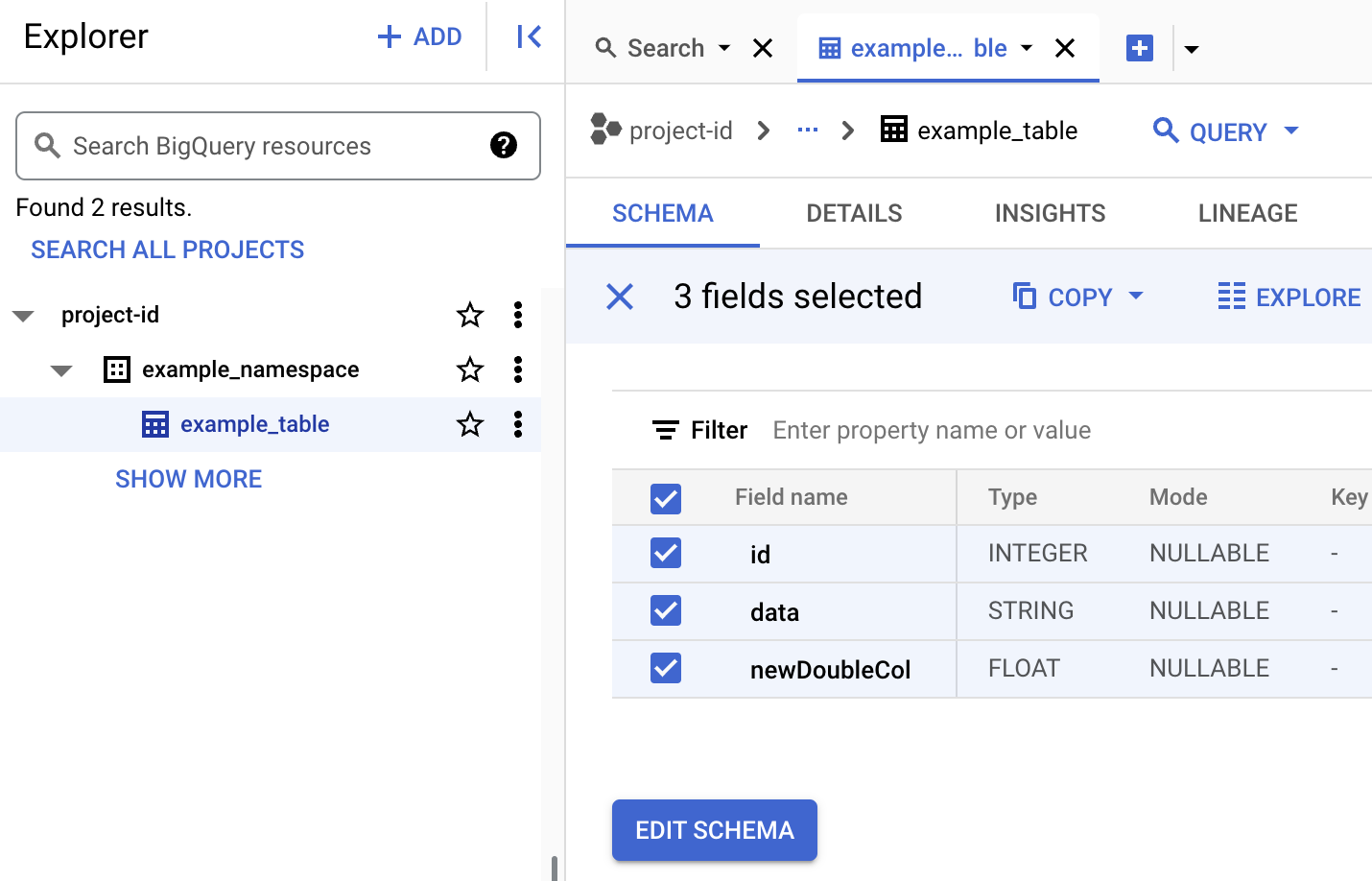
View Iceberg table metadata. The table identifier uses theproject.catalog.namespace.tablesyntax.
Console
Perform the following steps to use the Google Cloud console to submit
the Spark SQL job to the Managed Service for Apache Spark service to create an
Iceberg table with metadata in the Lakehouse REST Catalog.
In the Google Cloud console, go to the Managed Service for Apache SparkSubmit a job.
BUCKETandWAREHOUSE_FOLDER: Cloud Storage bucket
and folder used for the Iceberg warehouse.
ClickSubmit
To monitor job progress and view job output, go to the Managed Service for Apache SparkJobspage in the Google Cloud console,
then click theJob IDto open theJob detailspage.
To view table metadata in BigQuery
In the Google Cloud console, go to theBigQuerypage.
You can use the Managed Service for Apache Sparkjobs.submitAPI
to submit the Spark SQL job to the Managed Service for Apache Spark service to create an
Iceberg table with metadata in the Lakehouse REST Catalog.
Before using any of the request data,
make the following replacements:
PROJECT_ID: Your Google Cloud project ID.
Project IDs are listed in theProject infosection on
the Google Cloud consoleDashboard.
CLUSTER_NAME: The name of your Managed Service for Apache Spark cluster.
BUCKETandWAREHOUSE_FOLDER: Cloud Storage bucket
and folder used for the Iceberg warehouse.
LOCATION: A supportedBigQuery location.
The default location is "US".
BIGLAKE_ICEBERG_CATALOG_JAR: the Cloud Storage URI of the Iceberg
custom catalog plugin to use. Depending on your Iceberg version number, select one of the following:
To monitor job progress and view job output, go to the Managed Service for Apache SparkJobspage in the Google Cloud console,
then click theJob IDto open theJob detailspage.
To view table metadata in BigQuery
In the Google Cloud console, go to theBigQuerypage.
The following steps show you how to create an Iceberg table with table metadata
stored in the Lakehouse REST Catalog using the Spark SQL CLI running on the
master node of a Managed Service for Apache Spark cluster.
UseSSHto connect to the master node
of your Managed Service for Apache Spark cluster.
In the SSH session terminal, use theviornanotext editor to copy the
following commands into aniceberg-table.sqlfile.
SET CATALOG_NAME = `CATALOG_NAME`;
SET BUCKET = `BUCKET`;
SET WAREHOUSE_FOLDER = `WAREHOUSE_FOLDER`;
USE `${CATALOG_NAME}`;
CREATE NAMESPACE IF NOT EXISTS `${CATALOG_NAME}`.example_namespace;
DROP TABLE IF EXISTS `${CATALOG_NAME}`.example_namespace.example_table;
CREATE TABLE `${CATALOG_NAME}`.example_namespace.example_table (id int, data string) USING ICEBERG LOCATION 'gs://${BUCKET}/${WAREHOUSE_FOLDER}';
INSERT INTO `${CATALOG_NAME}`.example_namespace.example_table VALUES (1, 'first row');
ALTER TABLE `${CATALOG_NAME}`.example_namespace.example_table ADD COLUMNS (newDoubleCol double);
DESCRIBE TABLE `${CATALOG_NAME}`.example_namespace.example_table;
Replace the following:
CATALOG_NAME: Iceberg catalog name.
BUCKETandWAREHOUSE_FOLDER: Cloud Storage bucket
and folder used for the Iceberg warehouse.
In the SSH session terminal, run the followingspark-sqlcommand to create
the iceberg table.
The following steps show you how to create an Iceberg table with table
metadata stored in the Lakehouse REST Catalog using the Zeppelin web
interface running on the master node of a Managed Service for Apache Spark cluster.
In the Google Cloud console, go to the Managed Service for Apache SparkClusterspage.
[[["Easy to understand","easyToUnderstand","thumb-up"],["Solved my problem","solvedMyProblem","thumb-up"],["Other","otherUp","thumb-up"]],[["Hard to understand","hardToUnderstand","thumb-down"],["Incorrect information or sample code","incorrectInformationOrSampleCode","thumb-down"],["Missing the information/samples I need","missingTheInformationSamplesINeed","thumb-down"],["Other","otherDown","thumb-down"]],["Last updated 2026-04-21 UTC."],[],[]]