


This guide shows you how to deploy a highly available, multi-region Cloud Run service with automated failover and failback for external traffic. You can configure a Cloud Run service with these features by setting up Serverless NEGs, a global external Application Load Balancer, and a readiness probe. For more information, see Serve traffic from multiple regions .
Objectives
In this tutorial, you will:
Before you begin
- Sign in to your Google Cloud account. If you're new to Google Cloud, create an account to evaluate how our products perform in real-world scenarios. New customers also get $300 in free credits to run, test, and deploy workloads.
-
In the Google Cloud console, on the project selector page, select or create a Google Cloud project.
Roles required to select or create a project
- Select a project : Selecting a project doesn't require a specific IAM role—you can select any project that you've been granted a role on.
- Create a project
: To create a project, you need the Project Creator role
(
roles/resourcemanager.projectCreator), which contains theresourcemanager.projects.createpermission. Learn how to grant roles .
-
Verify that billing is enabled for your Google Cloud project .
-
In the Google Cloud console, on the project selector page, select or create a Google Cloud project.
Roles required to select or create a project
- Select a project : Selecting a project doesn't require a specific IAM role—you can select any project that you've been granted a role on.
- Create a project
: To create a project, you need the Project Creator role
(
roles/resourcemanager.projectCreator), which contains theresourcemanager.projects.createpermission. Learn how to grant roles .
-
Verify that billing is enabled for your Google Cloud project .
-
Enable the Artifact Registry, Cloud Build, Cloud Run Admin API, Network Services API, and Compute Engine APIs.
Roles required to enable APIs
To enable APIs, you need the Service Usage Admin IAM role (
roles/serviceusage.serviceUsageAdmin), which contains theserviceusage.services.enablepermission. Learn how to grant roles . - Install and initialize the gcloud CLI .
- Update components:
gcloud
components
update
- Set the configuration variables used in this tutorial:
 PROJECT_ID
 =

gcloud
config
 set

core/project
 PROJECT_ID
 PROJECT_NUMBER
 =
 $(
gcloud
projects
describe
 PROJECT_ID

--format =
 "value(projectNumber)"
 )
 SERVICE
 =
health-example REGION_A
 =
us-west1 REGION_B
 =
europe-west1
Set required roles
To deploy from source with build, you or your administrator must grant the Cloud Build service account the following IAM roles.
Click to view required roles for the Cloud Build service account
Cloud Build automatically uses the Compute Engine default service
account
as the default Cloud Build service account to build your source code and
Cloud Run resource, unless you override this behavior. For
Cloud Build to build your sources, ask your administrator to grant Cloud Run Builder
( roles/run.builder
) to the Compute Engine default
service account on your project:
gcloud
projects
add-iam-policy-binding
 PROJECT_ID

 \

--member =
serviceAccount: PROJECT_NUMBER
-compute@developer.gserviceaccount.com
 \

--role =
roles/run.builder
Replace PROJECT_NUMBER
with your Google Cloud
project number, and PROJECT_ID
with your Google Cloud
project ID. For detailed instructions on how to find your project ID, and project number,
see Creating
and managing projects
.
Granting the Cloud Run builder role to the Compute Engine default service account takes a couple of minutes to propagate .
To get the permissions that your service identity
needs to access the file and Cloud Storage bucket, ask your
administrator to grant the service identity the Storage Admin
( roles/storage.admin
) role.
For more details on Cloud Storage roles and permissions, see IAM for Cloud Storage
.
For a list of IAM roles and permissions that are associated with Cloud Run, see Cloud Run IAM roles and Cloud Run IAM permissions . If your Cloud Run service interfaces with Google Cloud APIs, such as Cloud Client Libraries, see the service identity configuration guide . For more information about granting roles, see deployment permissions and manage access .
Prepare the sample application
To retrieve the code sample for use:
-
Clone the sample repository to your local machine:
git clone https://github.com/GoogleCloudPlatform/golang-samples -
Change to the directory that contains the Cloud Run sample code:
  cd

golang-samples/run/service-health
Deploy the Cloud Run service in two regions with readiness probes
Failovers require at least two services from different regions. To deploy your services from source in two different regions with readiness probes, run the following commands:
-
Deploy your service
health-exampleinus-west1andeurope-west1from the source directory. You need at least one minimum instance to configure service health with readiness probes:gcloud beta run deploy $SERVICE \ --source = . \ --regions = $REGION_A , $REGION_B \ --min = 10 \ --readiness-probe httpGet.path = "/are_you_ready" -
Respond to any prompts to install required APIs by responding
ywhen prompted. You only need to do this once for a project. Respond to other prompts by supplying the platform and region, if you haven't set defaults for these as described in the Before you begin section.
Set up a global external Application Load Balancer
To set up a global external Application Load Balancer to route traffic between us-west1
and europe-west1
, follow
these steps:
-
Create a backend service:
gcloud compute backend-services create $SERVICE-bs \ --load-balancing-scheme=EXTERNAL_MANAGED \ --global -
Set up a global static external IP address to reach your load balancer:
gcloud compute addresses create $SERVICE-ip \ --network-tier=PREMIUM \ --ip-version=IPV4 \ --global -
Create a URL map to route incoming requests to the backend service:
gcloud compute url-maps create $SERVICE-lb \ --default-service $SERVICE-bs -
Create a target HTTP proxy to route requests to your URL map:
gcloud compute target-http-proxies create $SERVICE-hp \ --url-map=$SERVICE-lb -
Create a forwarding rule to route incoming requests to the proxy:
 gcloud compute forwarding-rules create $SERVICE-fr \
  --load-balancing-scheme=EXTERNAL_MANAGED \
  --network-tier=PREMIUM \
  --address=$SERVICE-ip \
  --target-http-proxy=$SERVICE-hp \
  --global \
  --ports=80
Add your services through a serverless NEG
To add the services you deployed in us-west1
and europe-west1
using the Serverless NEG, follow these
steps:
-
Create a serverless network endpoint group (NEG) for your Cloud Run service in
us-west1andeurope-west1:gcloud compute network-endpoint-groups create $SERVICE-neg-$REGION_A \ --region $REGION_A \ --network-endpoint-type=serverless \ --cloud-run-service=$SERVICEgcloud compute network-endpoint-groups create $SERVICE-neg-$REGION_B \ --region $REGION_B \ --network-endpoint-type=serverless \ --cloud-run-service=$SERVICE -
Add the serverless NEG as a backend to the backend services in
us-west1andeurope-west1:gcloud compute backend-services add-backend $SERVICE-bs \ --global \ --network-endpoint-group=$SERVICE-neg-$REGION_A \ --network-endpoint-group-region=$REGION_Agcloud compute backend-services add-backend $SERVICE-bs \ --global \ --network-endpoint-group=$SERVICE-neg-$REGION_B \ --network-endpoint-group-region=$REGION_B
For additional configuration options, see Set up a global external Application Load Balancer with Cloud Run .
Test failover
To test failover for ensuring the reliability and resilience of your Cloud Run services, follow these steps:
-
Run the following command to get your load balancer's IP address:
LBIP=$(gcloud compute addresses describe $SERVICE-ip --global --format='value(address)') -
Optional: Send a request to your load balancer if your services require authentication:
curl -H "Authorization: Bearer $(gcloud auth print-identity-token)" $LBIP -
Obtain the value of the LBIP variable by running the
echo $LBIPcommand. This outputs the load balancer's IP address. For example,11.22.33.44 -
To test a failover, navigate to the
http:// LOAD_BALANCER_IPURL where LOAD_BALANCER_IP is the value you obtained in the previous step. Click the toggle button for your region in the Serving Regionssection. This designates the healthy region and the instance serving traffic: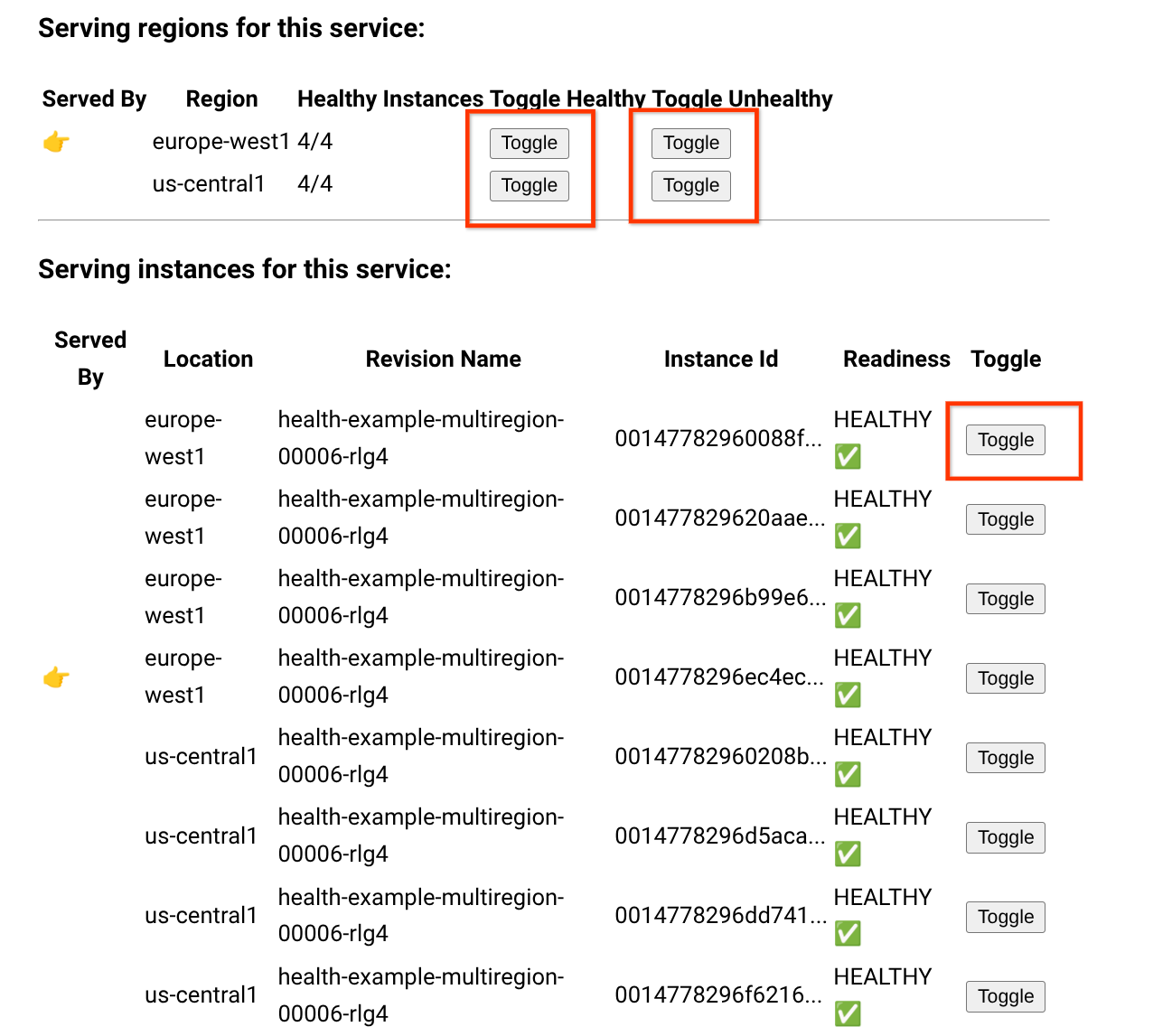
Clean up
To avoid additional charges to your Google Cloud account, delete all the resources you deployed with this tutorial.
Delete the project
If you created a new project for this tutorial, delete the project. If you used an existing project and need to keep it without the changes you added in this tutorial, delete resources that you created for the tutorial .
The easiest way to eliminate billing is to delete the project that you created for the tutorial.
To delete the project:
- In the Google Cloud console, go to the Manage resources page.
- In the project list, select the project that you want to delete, and then click Delete .
- In the dialog, type the project ID, and then click Shut down to delete the project.
Delete tutorial resources
-
Delete the Cloud Run service you deployed in this tutorial. Cloud Run services don't incur costs until they receive requests.
To delete your Cloud Run service, run the following command:
gcloud
run
services
delete
 SERVICE-NAME
Replace SERVICE-NAME with the name of your service.
You can also delete Cloud Run services from the Google Cloud console .
-
Remove the
gclouddefault region configuration you added during tutorial setup:gcloud config unset run / region -
Remove the project configuration:
gcloud config unset project
What's next
-
Learn more about multi-region configurations in other Google Cloud products:
-
Learn how to configure health checks for Cloud Run services
-
Set up a global external Application Load Balancer with Cloud Run
