In the 3D Maps in Maps JavaScript API, you manage the camera's focus using the cameraPosition option.
Key Behaviors:
- With
center: The latitude and longitude coordinates specify the exact point on the map the camera faces. - With
cameraPosition: The camera itself is placed at the coordinates provided during construction. This often makes it difficult to center the view on a specific point of interest.
The following example demonstrates initializing a map using the center
option
to ensure a specific focal point. The marker indicates the center point provided
in the center
:
<html> <head> <title>3D Camera Position</title> <link rel="stylesheet" type="text/css" href="./style.css" /> <script type="module" src="./index.js"></script> <!-- prettier-ignore --> <script>(g => { var h, a, k, p = "The Google Maps JavaScript API", c = "google", l = "importLibrary", q = "__ib__", m = document, b = window; b = b[c] || (b[c] = {}); var d = b.maps || (b.maps = {}), r = new Set, e = new URLSearchParams, u = () => h || (h = new Promise(async (f, n) => { await (a = m.createElement("script")); e.set("libraries", [...r] + ""); for (k in g) e.set(k.replace(/[A-Z]/g, t => "_" + t[0].toLowerCase()), g[k]); e.set("callback", c + ".maps." + q); a.src = `https://maps.${c}apis.com/maps/api/js?` + e; d[q] = f; a.onerror = () => h = n(Error(p + " could not load.")); a.nonce = m.querySelector("script[nonce]")?.nonce || ""; m.head.append(a) })); d[l] ? console.warn(p + " only loads once. Ignoring:", g) : d[l] = (f, ...n) => r.add(f) && u().then(() => d[l](f, ...n)) }) ({ key: "AIzaSyA6myHzS10YXdcazAFalmXvDkrYCp5cLc8", v: "weekly" });</script> </head> <body> <gmp-map-3d center="40.7860524,-73.9634983" range="1500" tilt="70" heading="-150" mode="satellite"> <gmp-marker position="40.7860524,-73.9634983" altitude-mode="clamp-to-ground"></gmp-marker> </gmp-map-3d> <div id="ui-container"> <button id="switch-mode-btn" type="button"> Switch to Camera Position </button> </div> </body> </html>
See the complete example source code
CSS
html , body { height : 100 % ; margin : 0 ; padding : 0 ; } # ui-container { position : absolute ; top : 20 px ; left : 20 px ; z-index : 10 ; } button { background : rgba ( 15 , 23 , 42 , 0.75 ); backdrop-filter : blur ( 12 px ); -webkit- backdrop-filter : blur ( 12 px ); border : 1 px solid rgba ( 255 , 255 , 255 , 0.1 ); color : #f8fafc ; padding : 12 px 20 px ; border-radius : 8 px ; cursor : pointer ; font-size : 0.9 rem ; font-weight : 600 ; transition : all 0.2 s ease ; box-shadow : 0 8 px 32 px 0 rgba ( 0 , 0 , 0 , 0.37 ); } button : hover { background : rgba ( 56 , 189 , 248 , 0.2 ); border-color : rgba ( 56 , 189 , 248 , 0.4 ); transform : translateY ( -1 px ); } button : active { transform : translateY ( 0 ); }
HTML
<html> <head> <title>3D Camera Position</title> <link rel="stylesheet" type="text/css" href="./style.css" /> <script type="module" src="./index.js"></script> <!-- prettier-ignore --> <script>(g => { var h, a, k, p = "The Google Maps JavaScript API", c = "google", l = "importLibrary", q = "__ib__", m = document, b = window; b = b[c] || (b[c] = {}); var d = b.maps || (b.maps = {}), r = new Set, e = new URLSearchParams, u = () => h || (h = new Promise(async (f, n) => { await (a = m.createElement("script")); e.set("libraries", [...r] + ""); for (k in g) e.set(k.replace(/[A-Z]/g, t => "_" + t[0].toLowerCase()), g[k]); e.set("callback", c + ".maps." + q); a.src = `https://maps.${c}apis.com/maps/api/js?` + e; d[q] = f; a.onerror = () => h = n(Error(p + " could not load.")); a.nonce = m.querySelector("script[nonce]")?.nonce || ""; m.head.append(a) })); d[l] ? console.warn(p + " only loads once. Ignoring:", g) : d[l] = (f, ...n) => r.add(f) && u().then(() => d[l](f, ...n)) }) ({ key: "AIzaSyA6myHzS10YXdcazAFalmXvDkrYCp5cLc8", v: "weekly" });</script> </head> <body> <gmp-map-3d center="40.7860524,-73.9634983" range="1500" tilt="70" heading="-150" mode="satellite"> <gmp-marker position="40.7860524,-73.9634983" altitude-mode="clamp-to-ground"></gmp-marker> </gmp-map-3d> <div id="ui-container"> <button id="switch-mode-btn" type="button"> Switch to Camera Position </button> </div> </body> </html>
Try Sample
Field of view and range
You can adjust how much of the map is visible in the viewport using two distinct parameters: range and fov. While they both affect the "zoom" level, they function differently:
-
range: Controls the physical distance between the camera and the center point. Adjusting this is equivalent to moving the camera closer to or further away from the map. -
fov(Field of View): Controls the angle of the camera's lens. A higher value acts like a wide-angle lens, showing more of the periphery, while a lower value acts like a telephoto lens.
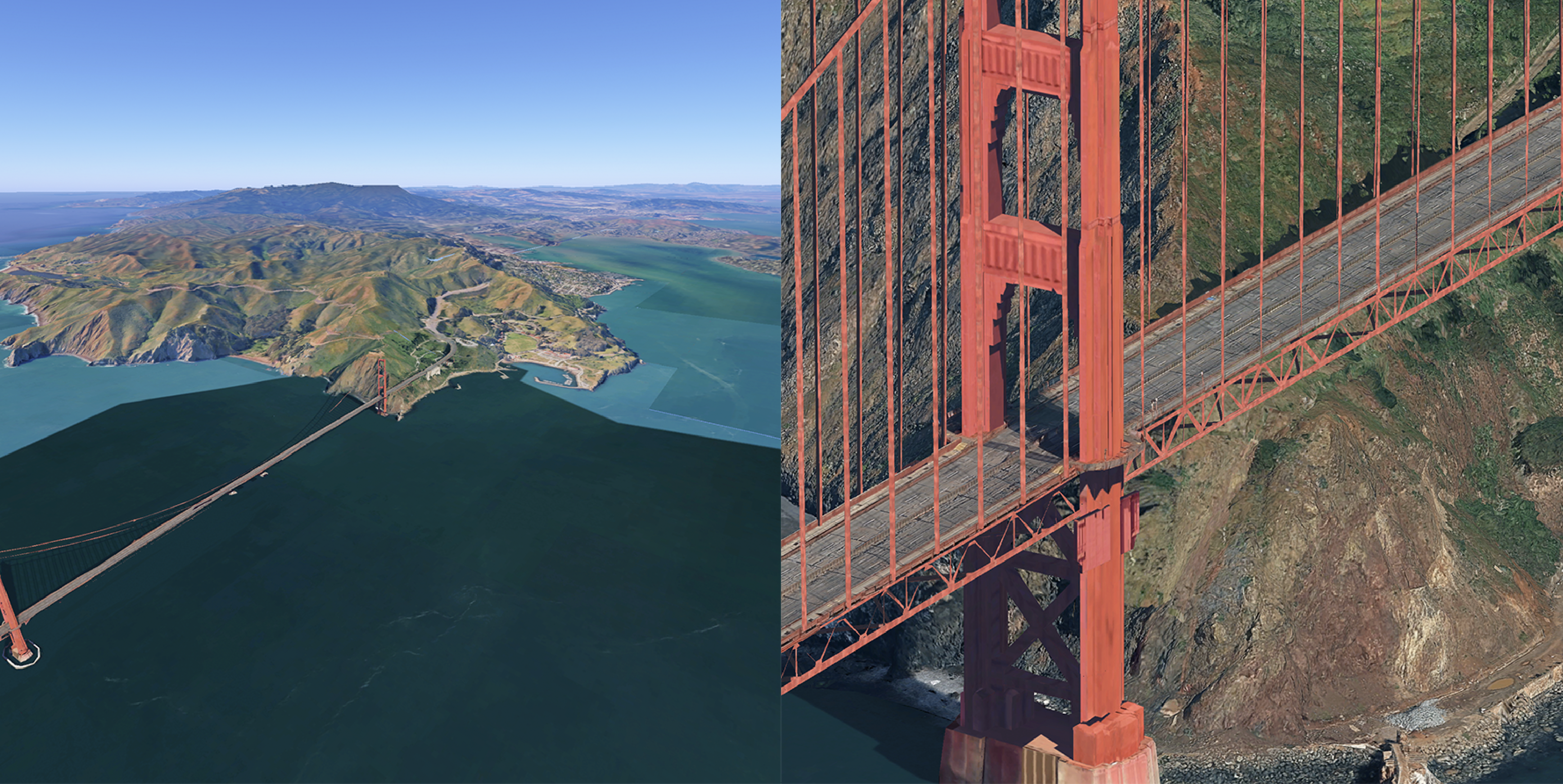
The following comparison shows the same map at opposite ends of the fov
spectrum. In the left map, the fov is set to 5 (narrow/telephoto); in the right
map, it is set to 80 (wide-angle).