
A factory reset will reset your Google speaker or display to its default factory settings. This action clears your data from the device and can't be undone.
Important:
- You can’t use your voice or the Google Home appto perform a factory reset.
- For Chromecast devices, go to How to factory reset your Chromecast or Google TV Streamer .
Step 1: Troubleshoot common issues
Before you factory reset your device, try troubleshooting common issues first. You can also try rebooting your device before you perform a factory reset. Learn how to reboot your Google smart speaker or display .
- Can't find Google smart speaker or display in the Google Home app
- Google smart speaker or display can’t connect to Wi-Fi
- Troubleshoot voice assistant connection issues
- Fix issues with “Hey Google” on a Google smart speaker or display
- Stop multiple devices responding to "Hey Google"
- Fix an incorrect Wi-Fi password on a Google smart speaker or display
- Fix a Google smart speaker or display that plays incorrectly
Step 2: Perform a factory reset
 Google Nest Hub Max
- Save any important footage from your device's video history. Learn how to save and download video clips .
- Remove your Nest Hub Max from the Google Home app. Learn how to remove Google devices from the Google Home app .
- On the back of Nest Hub Max, press and hold both volume buttons together for about 10 seconds. Your Nest Hub Max will let you know that it's resetting.

 Google Nest Hub (2nd gen)
- Review your Sleep Sensing data. Learn how to turn off Sleep Sensing and delete sleep data
.
If you're having issues with Sleep Sensing, go to Fix Sleep Sensing issues .
- On the back of Nest Hub, press and hold both volume buttons together for about 10 seconds. Your Nest Hub will let you know that it's resetting.
 Google Nest Audio
- On the back of your device, switch the mic off. The lights will turn orange.
- Press and hold the center of the Nest Audio, near the top. After 5 seconds, your device will begin the factory reset process.
- Continue to hold for about 10 seconds more, until a sound confirms that the device is resetting.

If you’re having trouble factory resetting a Nest Audio, go to Issues when you reset your Google speaker .
 Google Nest Mini (2nd gen)
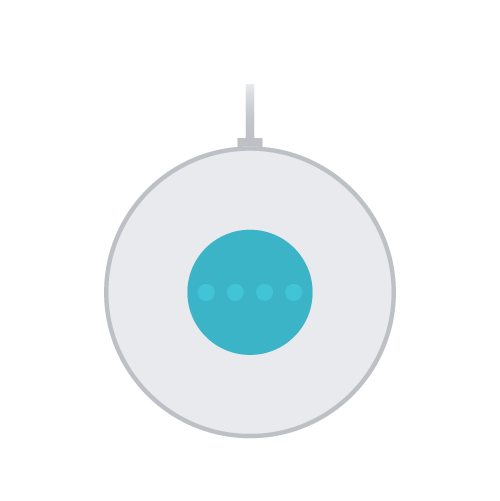
- On the side of your device, switch the mic off. The lights will turn orange.
- Press and hold the center of the Nest Mini, where the lights are on top. After 5 seconds, your device will begin the factory reset process.
- Continue to hold for about 10 seconds more, until a sound confirms that the device is resetting.
If you’re having trouble factory resetting a Nest Audio, go to Issues when you reset your Google speaker .
Google Nest Hub
On the back of Nest Hub, press and hold both volume buttons together for about 10 seconds. Your Nest Hub will let you know that it's resetting.
 Google Home Max
- On the back of Home Max, press and hold the factory reset button near the power cord, for about 12 seconds.
- Your Home Max will let you know that it's resetting.

If you’re having trouble factory resetting a Google Home Max, go to Issues when you reset your Google speaker .
 Google Home Mini (1st gen)
- On the bottom of Home Mini, press and hold the factory reset button below the power cord. Locate the circle etched into the base.
- After 5 seconds, your device will begin the factory reset process. Continue to hold for about 10 seconds more, until a sound confirms that the device is resetting.

If you’re having trouble factory resetting a Google Home Mini (1st gen), go to Issues when you reset your Google speaker .
 Google Home

If you’re having trouble factory resetting a Google Home, go to Issues when you reset your Google speaker .
