
After you create an app , you can enable visualization output during the deployment step. Then, view the output stream.
Deploy an app with visualization output enabled
After you have built an end-to-end application with all the necessary components you must deploy the app to start using it. When you deploy, you have the option to enable visualization.
Console
-
Open the Applicationstab of the Gemini Enterprise Agent Platform Vision dashboard.
-
Find your application from the list and, next to it, select View app.
-
From the application graph builder page, click Deploy.
-
In the Deploy applicationmenu that opens, select any other options that apply and Enable visualization.
-
Choose the input you want to visualize from the drop-down menu below the checkbox option.
-
Click Deploy.
After deployment, green check marks appear next to the nodes.
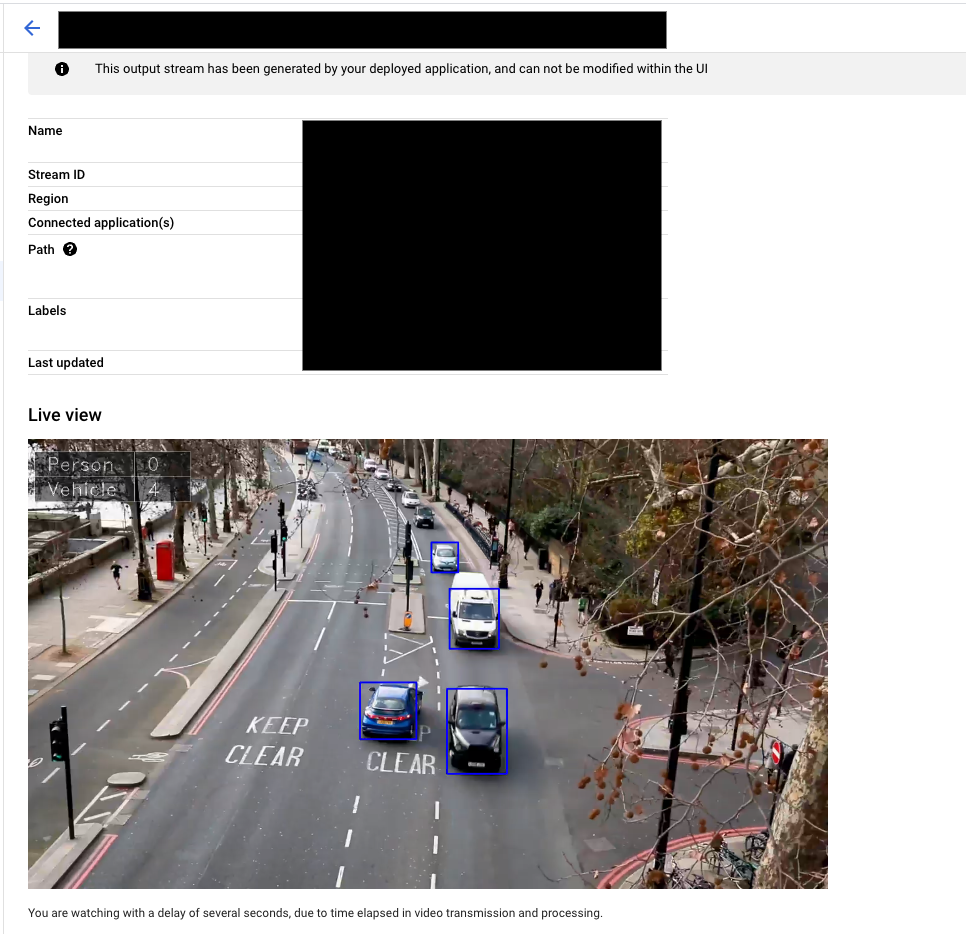
View output visualization
After an app has been deployed for some minutes, you can access a visualization of the selected input.
Console
-
Open the Applicationstab of the Gemini Enterprise Agent Platform Vision dashboard.
-
Find your application from the list and, next to it, select View app.
-
From the application graph builder page, click View Output Visualization.
You're then prompted to select the input and processor to visualize.
-
Select Viewto be directed to a stream page and view the visualization stream.
What's next
- Read instructions about how to begin data ingestion from an app's input stream in Create and manage streams .
- Learn how to list apps and view a deployed app's instances in Managing applications .
- Learn how to read app input data from an ingestion stream or analyzed model output data in Read stream data .
