When deploying LiteRT machine learning model to device or mobile app, you may want to enable the model to be improved or personalized based on input from the device or end user. Using on-device training techniques allows you to update a modelwithoutdata leaving your users' devices, improving user privacy, and without requiring users to update the device software.
For example, you may have a model in your mobile app that recognizes fashion items, but you want users to get improved recognition performance over time based on their interests. Enabling on-device training allows users who are interested in shoes to get better at recognizing a particular style of shoe or shoe brand the more often they use your app.
This tutorial shows you how to construct a LiteRT model that can be incrementally trained and improved within an installed Android app.
Setup
This tutorial uses Python to train and convert a TensorFlow model before incorporating it into an Android app. Get started by installing and importing the following packages.
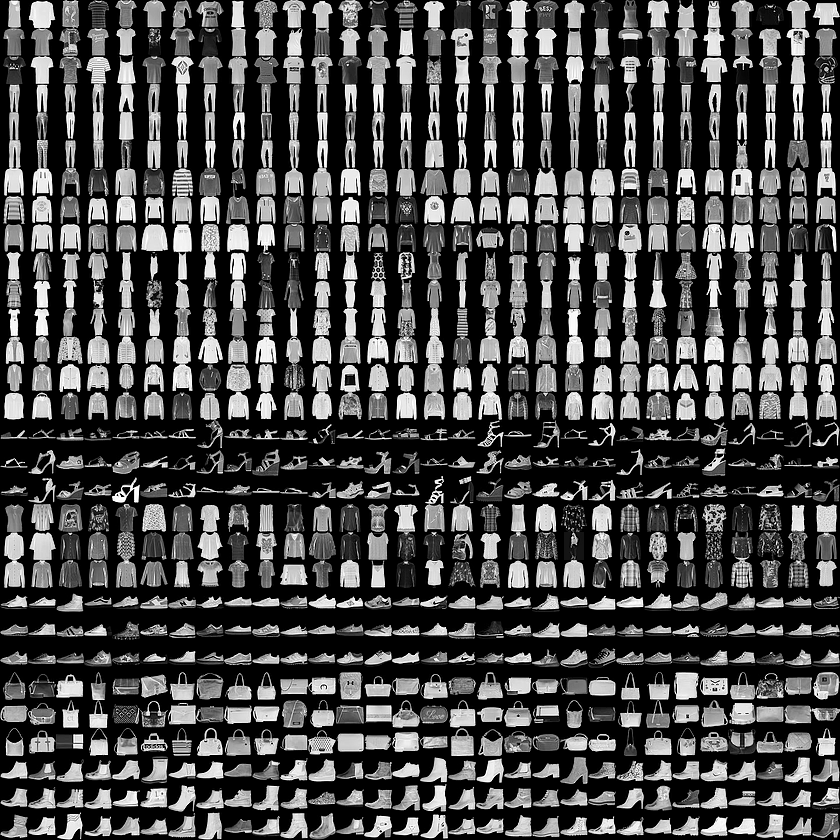
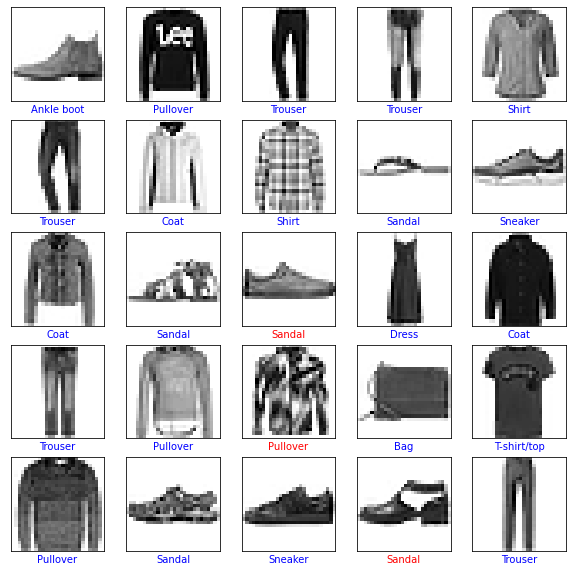
This example code uses theFashion MNIST datasetto train a neural network model for classifying images of clothing. This dataset contains 60,000 small (28 x 28 pixel) grayscale images containing 10 different categories of fashion accessories, including dresses, shirts, and sandals.
LiteRT models typically have only a single exposed function method (orsignature) that allows you to call the model to run an inference. For a model to be trained and used on a device, you must be able to perform several separate operations, including train, infer, save, and restore functions for the model. You can enable this functionality by first extending your TensorFlow model to have multiple functions, and then exposing those functions as signatures when you convert your model to the LiteRT model format.
The code example below shows you how to add the following functions to a TensorFlow model:
trainfunction trains the model with training data.
inferfunction invokes the inference.
savefunction saves the trainable weights into the file system.
restorefunction loads the trainable weights from the file system.
IMG_SIZE=28classModel(tf.Module):def__init__(self):self.model=tf.keras.Sequential([tf.keras.layers.Flatten(input_shape=(IMG_SIZE,IMG_SIZE),name='flatten'),tf.keras.layers.Dense(128,activation='relu',name='dense_1'),tf.keras.layers.Dense(10,name='dense_2')])self.model.compile(optimizer='sgd',loss=tf.keras.losses.CategoricalCrossentropy(from_logits=True))# The `train` function takes a batch of input images and labels.@tf.function(input_signature=[tf.TensorSpec([None,IMG_SIZE,IMG_SIZE],tf.float32),tf.TensorSpec([None,10],tf.float32),])deftrain(self,x,y):withtf.GradientTape()astape:prediction=self.model(x)loss=self.model.loss(y,prediction)gradients=tape.gradient(loss,self.model.trainable_variables)self.model.optimizer.apply_gradients(zip(gradients,self.model.trainable_variables))result={"loss":loss}returnresult@tf.function(input_signature=[tf.TensorSpec([None,IMG_SIZE,IMG_SIZE],tf.float32),])definfer(self,x):logits=self.model(x)probabilities=tf.nn.softmax(logits,axis=-1)return{"output":probabilities,"logits":logits}@tf.function(input_signature=[tf.TensorSpec(shape=[],dtype=tf.string)])defsave(self,checkpoint_path):tensor_names=[weight.nameforweightinself.model.weights]tensors_to_save=[weight.read_value()forweightinself.model.weights]tf.raw_ops.Save(filename=checkpoint_path,tensor_names=tensor_names,data=tensors_to_save,name='save')return{"checkpoint_path":checkpoint_path}@tf.function(input_signature=[tf.TensorSpec(shape=[],dtype=tf.string)])defrestore(self,checkpoint_path):restored_tensors={}forvarinself.model.weights:restored=tf.raw_ops.Restore(file_pattern=checkpoint_path,tensor_name=var.name,dt=var.dtype,name='restore')var.assign(restored)restored_tensors[var.name]=restoredreturnrestored_tensors
You could use theModel.train_stepmethod of the keras model here instead of a from-scratch implementation. Just note that the loss (and metrics) returned byModel.train_stepis the running average, and should be reset regularly (typically each epoch). SeeCustomize Model.fitfor details.
Prepare the data
Get the Fashion MNIST dataset for training your model.
Pixel values in this dataset are between 0 and 255, and must be normalized to a value between 0 and 1 for processing by the model. Divide the values by 255 to make this adjustment.
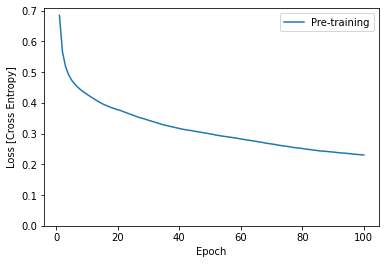
Before converting and setting up your LiteRT model, complete the initial training of your model using the preprocessed dataset and thetrainsignature method. The following code runs model training for 100 epochs, processing batches of 100 images at a time, and displaying the loss value after every 10 epochs. Since this training run is processing quite a bit of data, it may take a few minutes to finish.
After you have extended your TensorFlow model to enable additional functions for on-device training and completed initial training of the model, you can convert it to LiteRT format. The following code converts and saves your model to that format, including the set of signatures that you use with the LiteRT model on a device:train, infer, save, restore.
SAVED_MODEL_DIR="saved_model"tf.saved_model.save(m,SAVED_MODEL_DIR,signatures={'train':m.train.get_concrete_function(),'infer':m.infer.get_concrete_function(),'save':m.save.get_concrete_function(),'restore':m.restore.get_concrete_function(),})# Convert the modelconverter=tf.lite.TFLiteConverter.from_saved_model(SAVED_MODEL_DIR)converter.target_spec.supported_ops=[tf.lite.OpsSet.TFLITE_BUILTINS,# enable LiteRT ops.tf.lite.OpsSet.SELECT_TF_OPS# enable TensorFlow ops.]converter.experimental_enable_resource_variables=Truetflite_model=converter.convert()
Setup the LiteRT signatures
The LiteRT model you saved in the previous step contains several function signatures. You can access them through thetf.lite.Interpreterclass and invoke eachrestore,train,save, andinfersignature separately.
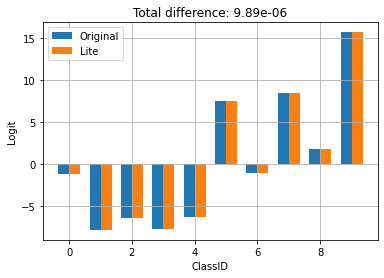
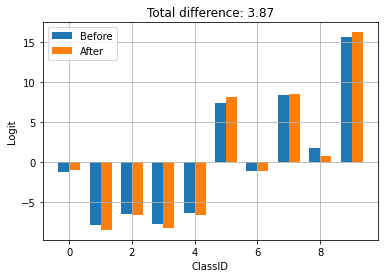
Above, you can see that the behavior of the model is not changed by the conversion to TFLite.
Retrain the model on a device
After converting your model to LiteRT and deploying it with your app, you can retrain the model on a device using new data and thetrainsignature method of your model. Each training run generates a new set of weights that you can save for re-use and further improvement of the model, as shown in the next section.
On Android, you can perform on-device training with LiteRT using either Java or C++ APIs. In Java, use theInterpreterclass to load a model and drive model training tasks. The following example shows how to run the training procedure using therunSignaturemethod:
try(Interpreterinterpreter=newInterpreter(modelBuffer)){intNUM_EPOCHS=100;intBATCH_SIZE=100;intIMG_HEIGHT=28;intIMG_WIDTH=28;intNUM_TRAININGS=60000;intNUM_BATCHES=NUM_TRAININGS/BATCH_SIZE;List<FloatBuffer>trainImageBatches=newArrayList<>(NUM_BATCHES);List<FloatBuffer>trainLabelBatches=newArrayList<>(NUM_BATCHES);// Prepare training batches.for(inti=0;i<NUM_BATCHES;++i){FloatBuffertrainImages=FloatBuffer.allocateDirect(BATCH_SIZE*IMG_HEIGHT*IMG_WIDTH).order(ByteOrder.nativeOrder());FloatBuffertrainLabels=FloatBuffer.allocateDirect(BATCH_SIZE*10).order(ByteOrder.nativeOrder());// Fill the data values...trainImageBatches.add(trainImages.rewind());trainImageLabels.add(trainLabels.rewind());}// Run training for a few steps.float[]losses=newfloat[NUM_EPOCHS];for(intepoch=0;epoch<NUM_EPOCHS;++epoch){for(intbatchIdx=0;batchIdx<NUM_BATCHES;++batchIdx){Map<String,Object>inputs=newHashMap<>();inputs.put("x",trainImageBatches.get(batchIdx));inputs.put("y",trainLabelBatches.get(batchIdx));Map<String,Object>outputs=newHashMap<>();FloatBufferloss=FloatBuffer.allocate(1);outputs.put("loss",loss);interpreter.runSignature(inputs,outputs,"train");// Record the last loss.if(batchIdx==NUM_BATCHES-1)losses[epoch]=loss.get(0);}// Print the loss output for every 10 epochs.if((epoch+1)%10==0){System.out.println("Finished "+(epoch+1)+" epochs, current loss: "+loss.get(0));}}// ...}
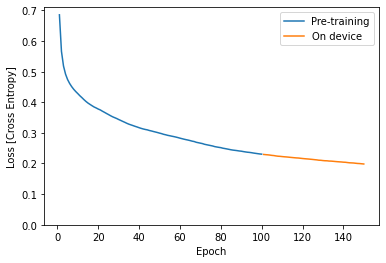
Run training for a few epochs to improve or personalize the model. In practice, you would run this additional training using data collected on the device. For simplicity, this example uses the same training data as the previous training step.
Above you can see that the on-device training picks up exactly where the pretraining stopped.
Save the trained weights
When you complete a training run on a device, the model updates the set of weights it is using in memory. Using thesavesignature method you created in your LiteRT model, you can save these weights to a checkpoint file for later reuse and improve your model.
In your Android application, you can store the generated weights as a checkpoint file in the internal storage space allocated for your app.
try(Interpreterinterpreter=newInterpreter(modelBuffer)){// Conduct the training jobs.// Export the trained weights as a checkpoint file.FileoutputFile=newFile(getFilesDir(),"checkpoint.ckpt");Map<String,Object>inputs=newHashMap<>();inputs.put("checkpoint_path",outputFile.getAbsolutePath());Map<String,Object>outputs=newHashMap<>();interpreter.runSignature(inputs,outputs,"save");}
Restore the trained weights
Any time you create an interpreter from a TFLite model, the interpreter will initially load the original model weights.
So after you've done some training and saved a checkpoint file, you'll need to run therestoresignature method to load the checkpoint.
A good rule is "Anytime you create an Interpreter for a model, if the checkpoint exists, load it". If you need to reset the model to the baseline behavior, just delete the checkpoint and create a fresh interpreter.
The checkpoint was generated by training and saving with TFLite. Above you can see that applying the checkpoint updates the behavior of the model.
In your Android app, you can restore the serialized, trained weights from the checkpoint file you stored earlier.
try(InterpreteranotherInterpreter=newInterpreter(modelBuffer)){// Load the trained weights from the checkpoint file.FileoutputFile=newFile(getFilesDir(),"checkpoint.ckpt");Map<String,Object>inputs=newHashMap<>();inputs.put("checkpoint_path",outputFile.getAbsolutePath());Map<String,Object>outputs=newHashMap<>();anotherInterpreter.runSignature(inputs,outputs,"restore");}
Run Inference using trained weights
Once you have loaded previously saved weights from a checkpoint file, running theinfermethod uses those weights with your original model to improve predictions. After loading the saved weights, you can use theinfersignature method as shown below.
In your Android application, after restoring the trained weights, run the inferences based on the loaded data.
try(InterpreteranotherInterpreter=newInterpreter(modelBuffer)){// Restore the weights from the checkpoint file.intNUM_TESTS=10;FloatBuffertestImages=FloatBuffer.allocateDirect(NUM_TESTS*28*28).order(ByteOrder.nativeOrder());FloatBufferoutput=FloatBuffer.allocateDirect(NUM_TESTS*10).order(ByteOrder.nativeOrder());// Fill the test data.// Run the inference.Map<String,Object>inputs=newHashMap<>();inputs.put("x",testImages.rewind());Map<String,Object>outputs=newHashMap<>();outputs.put("output",output);anotherInterpreter.runSignature(inputs,outputs,"infer");output.rewind();// Process the result to get the final category values.int[]testLabels=newint[NUM_TESTS];for(inti=0;i<NUM_TESTS;++i){intindex=0;for(intj=1;j<10;++j){if(output.get(i*10+index)<output.get(i*10+j))index=testLabels[j];}testLabels[i]=index;}}
Congratulations! You now have built a LiteRT model that supports on-device training. For more coding details, check out the example implementation in themodel personalization demo app.
If you are interested in learning more about image classification, checkKeras classification tutorialin the TensorFlow official guide page. This tutorial is based on that exercise and provides more depth on the subject of classification.
[[["Easy to understand","easyToUnderstand","thumb-up"],["Solved my problem","solvedMyProblem","thumb-up"],["Other","otherUp","thumb-up"]],[["Missing the information I need","missingTheInformationINeed","thumb-down"],["Too complicated / too many steps","tooComplicatedTooManySteps","thumb-down"],["Out of date","outOfDate","thumb-down"],["Samples / code issue","samplesCodeIssue","thumb-down"],["Other","otherDown","thumb-down"]],["Last updated 2026-05-28 UTC."],[],[]]