TheTensorFlow Lite Model Maker librarysimplifies the process of adapting and converting a TensorFlow model to particular input data when deploying this model for on-device ML applications.
This notebook shows an end-to-end example that utilizes the Model Maker library to illustrate the adaptation and conversion of a commonly-used text classification model to classify movie reviews on a mobile device. The text classification model classifies text into predefined categories. The inputs should be preprocessed text and the outputs are the probabilities of the categories. The dataset used in this tutorial are positive and negative movie reviews.
Prerequisites
Install the required packages
To run this example, install the required packages, including the Model Maker package from theGitHub repo.
In this tutorial, we will use theSST-2(Stanford Sentiment Treebank) which is one of the tasks in theGLUEbenchmark. It contains 67,349 movie reviews for training and 872 movie reviews for testing. The dataset has two classes: positive and negative movie reviews.
The SST-2 dataset is stored in TSV format. The only difference between TSV and CSV is that TSV uses a tab\tcharacter as its delimiter instead of a comma,in the CSV format.
Here are the first 5 lines of the training dataset. label=0 means negative, label=1 means positive.
sentence
label
hide new secretions from the parental units
0
contains no wit , only labored gags
0
that loves its characters and communicates something rather beautiful about human nature
1
remains utterly satisfied to remain the same throughout
0
on the worst revenge-of-the-nerds clichés the filmmakers could dredge up
0
Next, we will load the dataset into a Pandas dataframe and change the current label names (0and1) to a more human-readable ones (negativeandpositive) and use them for model training.
importpandasaspddefreplace_label(original_file,new_file):# Load the original file to pandas. We need to specify the separator as# '\t' as the training data is stored in TSV formatdf=pd.read_csv(original_file,sep='\t')# Define how we want to change the label namelabel_map={0:'negative',1:'positive'}# Execute the label changedf.replace({'label':label_map},inplace=True)# Write the updated dataset to a new filedf.to_csv(new_file)# Replace the label name for both the training and test dataset. Then write the# updated CSV dataset to the current folder.replace_label(os.path.join(os.path.join(data_dir,'train.tsv')),'train.csv')replace_label(os.path.join(os.path.join(data_dir,'dev.tsv')),'dev.csv')
Quickstart
There are five steps to train a text classification model:
Step 1. Choose a text classification model architecture.
Here we use the average word embedding model architecture, which will produce a small and fast model with decent accuracy.
Step 2. Load the training and test data, then preprocess them according to a specificmodel_spec.
Model Maker can take input data in the CSV format. We will load the training and test dataset with the human-readable label name that were created earlier.
Each model architecture requires input data to be processed in a particular way.DataLoaderreads the requirement frommodel_specand automatically executes the necessary preprocessing.
Step 3. Train the TensorFlow model with the training data.
The average word embedding model usebatch_size = 32by default. Therefore you will see that it takes 2104 steps to go through the 67,349 sentences in the training dataset. We will train the model for 10 epochs, which means going through the training dataset 10 times.
model = text_classifier.create(train_data, model_spec=spec, epochs=10)
Step 4. Evaluate the model with the test data.
After training the text classification model using the sentences in the training dataset, we will use the remaining 872 sentences in the test dataset to evaluate how the model performs against new data it has never seen before.
As the default batch size is 32, it will take 28 steps to go through the 872 sentences in the test dataset.
loss, acc = model.evaluate(test_data)
Step 5. Export as a TensorFlow Lite model.
Let's export the text classification that we have trained in the TensorFlow Lite format. We will specify which folder to export the model.
By default, the float TFLite model is exported for the average word embedding model architecture.
model.export(export_dir='average_word_vec')
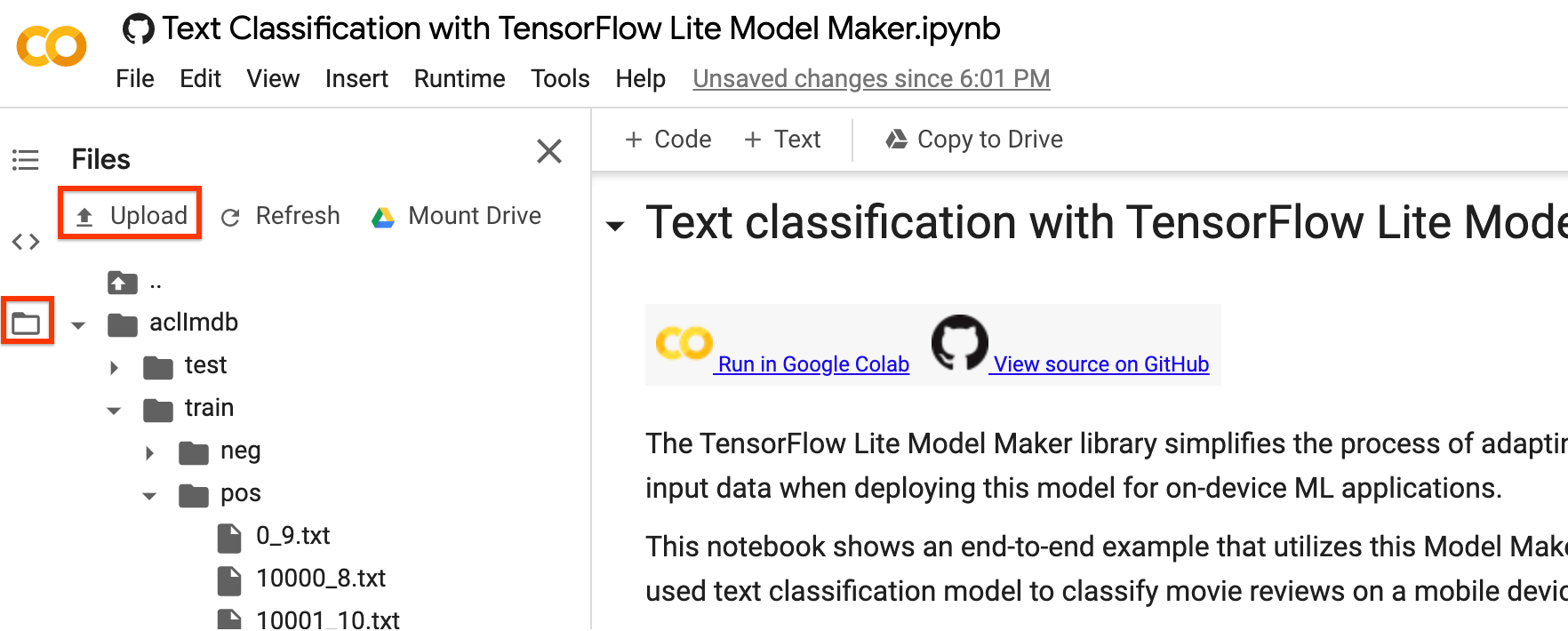
You can download the TensorFlow Lite model file using the left sidebar of Colab. Go into theaverage_word_vecfolder as we specified inexport_dirparameter above, right-click on themodel.tflitefile and chooseDownloadto download it to your local computer.
Note 1: Android Studio Model Binding does not support text classification yet so please use the TensorFlow Lite Task Library.
Note 2: There is amodel.jsonfile in the same folder with the TFLite model. It contains the JSON representation of themetadatabundled inside the TensorFlow Lite model. Model metadata helps the TFLite Task Library know what the model does and how to pre-process/post-process data for the model. You don't need to download themodel.jsonfile as it is only for informational purpose and its content is already inside the TFLite file.
Note 3: If you train a text classification model using MobileBERT or BERT-Base architecture, you will need to useBertNLClassifier APIinstead to integrate the trained model into a mobile app.
The following sections walk through the example step by step to show more details.
Step 6: UseTFLite Task Libraryto demo how to use the trained models
Read the dev.csv file into the sentence data to predict with the trained model
#Name of the TFLite text classification model.
_MODEL = '/content/average_word_vec/model.tflite'#Whether to run the model on EdgeTPU.
_ENABLE_EDGETPU = False#Number of CPU threads to run the model.
_NUM_THREADS = 4
Initialize model
We could also change the parameters likefile_name,use_coral, andnum_threadsthat could affect the model results. The parameters you can adjust are:
file_name: Name of the TFLite image classification model.
use_coral: If true, inference will be delegated to a connected Coral Edge TPU device.
num_threads: Number of CPU threads to run the model.
#Initialize the text classification model.
base_options = core.BaseOptions(file_name=_MODEL, use_coral=_ENABLE_EDGETPU, num_threads=_NUM_THREADS)
options = text.NLClassifierOptions(base_options)#Create NLClassifier from options.
classifier = text.NLClassifier.create_from_options(options)
Eachmodel_specobject represents a specific model for the text classifier. TensorFlow Lite Model Maker currently supportsMobileBERT, averaging word embeddings andBERT-Basemodels.
Supported Model
Name of model_spec
Model Description
Model size
Averaging Word Embedding
'average_word_vec'
Averaging text word embeddings with RELU activation.
<1MB
MobileBERT
'mobilebert_classifier'
4.3x smaller and 5.5x faster than BERT-Base while achieving competitive results, suitable for on-device applications.
25MB w/ quantization 100MB w/o quantization
BERT-Base
'bert_classifier'
Standard BERT model that is widely used in NLP tasks.
300MB
In the quick start, we have used the average word embedding model. Let's switch toMobileBERTto train a model with higher accuracy.
mb_spec = model_spec.get('mobilebert_classifier')
Load training data
You can upload your own dataset to work through this tutorial. Upload your dataset by using the left sidebar in Colab.
If you prefer not to upload your dataset to the cloud, you can also locally run the library by following theguide.
To keep it simple, we will reuse the SST-2 dataset downloaded earlier. Let's use theDataLoader.from_csvmethod to load the data.
Please be noted that as we have changed the model architecture, we will need to reload the training and test dataset to apply the new preprocessing logic.
The Model Maker library also supports thefrom_folder()method to load data. It assumes that the text data of the same class are in the same subdirectory and that the subfolder name is the class name. Each text file contains one movie review sample. Theclass_labelsparameter is used to specify which the subfolders.
Train a TensorFlow Model
Train a text classification model using the training data.
model = text_classifier.create(train_data, model_spec=mb_spec, epochs=3)
Examine the detailed model structure.
model.summary()
Evaluate the model
Evaluate the model that we have just trained using the test data and measure the loss and accuracy value.
loss, acc = model.evaluate(test_data)
Export as a TensorFlow Lite model
Convert the trained model to TensorFlow Lite model format withmetadataso that you can later use in an on-device ML application. The label file and the vocab file are embedded in metadata. The default TFLite filename ismodel.tflite.
In many on-device ML application, the model size is an important factor. Therefore, it is recommended that you apply quantize the model to make it smaller and potentially run faster.
The default post-training quantization technique is dynamic range quantization for the BERT and MobileBERT models.
model.export(export_dir='mobilebert/')
The TensorFlow Lite model file can be integrated in a mobile app using theBertNLClassifier APIinTensorFlow Lite Task Library. Please note that this isdifferentfrom theNLClassifierAPI used to integrate the text classification trained with the average word vector model architecture.
The export formats can be one or a list of the following:
ExportFormat.TFLITE
ExportFormat.LABEL
ExportFormat.VOCAB
ExportFormat.SAVED_MODEL
By default, it exports only the TensorFlow Lite model file containing the model metadata. You can also choose to export other files related to the model for better examination. For instance, exporting only the label file and vocab file as follows:
You can evaluate the TFLite model withevaluate_tflitemethod to measure its accuracy. Converting the trained TensorFlow model to TFLite format and apply quantization can affect its accuracy so it is recommended to evaluate the TFLite model accuracy before deployment.
 accuracy = model.evaluate_tflite('mobilebert/model.tflite', test_data)
print('TFLite model accuracy: ', accuracy)
Advanced Usage
Thecreatefunction is the driver function that the Model Maker library uses to create models. Themodel_specparameter defines the model specification. TheAverageWordVecSpecandBertClassifierSpecclasses are currently supported. Thecreatefunction comprises of the following steps:
Creates the model for the text classifier according tomodel_spec.
Trains the classifier model. The default epochs and the default batch size are set by thedefault_training_epochsanddefault_batch_sizevariables in themodel_specobject.
This section covers advanced usage topics like adjusting the model and the training hyperparameters.
Customize the MobileBERT model hyperparameters
The model parameters you can adjust are:
seq_len: Length of the sequence to feed into the model.
initializer_range: The standard deviation of thetruncated_normal_initializerfor initializing all weight matrices.
trainable: Boolean that specifies whether the pre-trained layer is trainable.
The training pipeline parameters you can adjust are:
model_dir: The location of the model checkpoint files. If not set, a temporary directory will be used.
dropout_rate: The dropout rate.
learning_rate: The initial learning rate for the Adam optimizer.
tpu: TPU address to connect to.
For instance, you can set theseq_len=256(default is 128). This allows the model to classify longer text.
You can change the model by changing themodel_spec. The following shows how to change to BERT-Base model.
Change themodel_specto BERT-Base model for the text classifier.
spec = model_spec.get('bert_classifier')
The remaining steps are the same.
Customize Post-training quantization on the TensorFlow Lite model
Post-training quantizationis a conversion technique that can reduce model size and inference latency, while also improving CPU and hardware accelerator inference speed, with a little degradation in model accuracy. Thus, it's widely used to optimize the model.
Model Maker library applies a default post-training quantization techique when exporting the model. If you want to customize post-training quantization, Model Maker supports multiple post-training quantization options usingQuantizationConfigas well. Let's take float16 quantization as an instance. First, define the quantization config.
config=QuantizationConfig.for_float16()
Then we export the TensorFlow Lite model with such configuration.
[[["Easy to understand","easyToUnderstand","thumb-up"],["Solved my problem","solvedMyProblem","thumb-up"],["Other","otherUp","thumb-up"]],[["Missing the information I need","missingTheInformationINeed","thumb-down"],["Too complicated / too many steps","tooComplicatedTooManySteps","thumb-down"],["Out of date","outOfDate","thumb-down"],["Samples / code issue","samplesCodeIssue","thumb-down"],["Other","otherDown","thumb-down"]],["Last updated 2026-05-28 UTC."],[],[]]