

Introduction
This Hello World! tutorial uses MediaPipe Framework to develop an iOS application that runs a MediaPipe graph on iOS.
What you will build
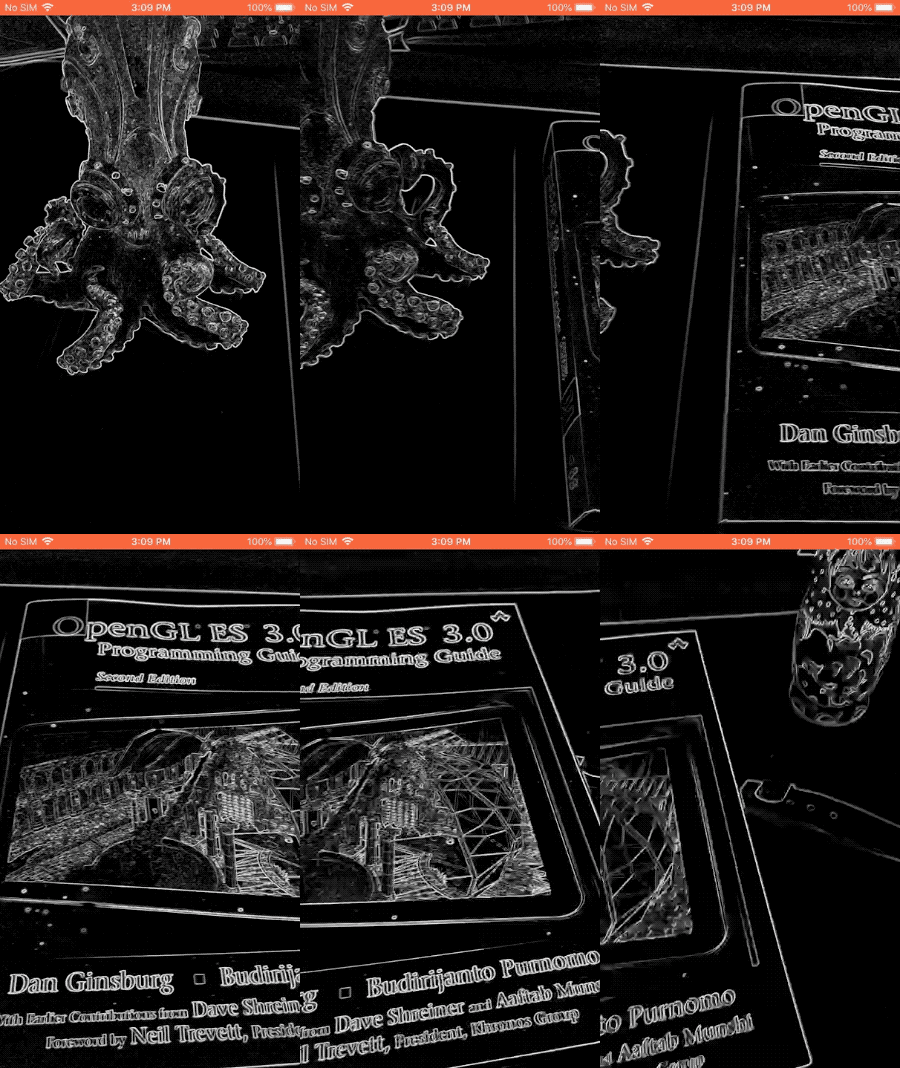
A simple camera app for real-time Sobel edge detection applied to a live video stream on an iOS device.
Setup
- Install MediaPipe Framework on your system, see Framework installation guide for details.
- Setup your iOS device for development.
- Setup Bazel on your system to build and deploy the iOS app.
Graph for edge detection
We will be using the following graph, edge_detection_mobile_gpu.pbtxt
:
  #
MediaPipe graph that performs GPU Sobel edge detection on a live video stream. #
Used in the examples #
mediapipe/examples/android/src/java/com/google/mediapipe/apps/basic:helloworld #
and mediapipe/examples/ios/helloworld. #
Images coming into and out of the graph.
input_stream: "input_video"
output_stream: "output_video" #
Converts RGB images into luminance images, still stored in RGB format.
node: {
  calculator: "LuminanceCalculator"
  input_stream: "input_video"
  output_stream: "luma_video"
} #
Applies the Sobel filter to luminance images stored in RGB format.
node: {
  calculator: "SobelEdgesCalculator"
  input_stream: "luma_video"
  output_stream: "output_video"
}
A visualization of the graph is shown below:
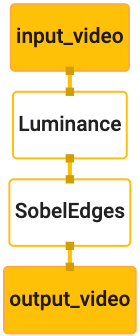
This graph has a single input stream named input_video
for all incoming frames
that will be provided by your device's camera.
The first node in the graph, LuminanceCalculator
, takes a single packet (image
frame) and applies a change in luminance using an OpenGL shader. The resulting
image frame is sent to the luma_video
output stream.
The second node, SobelEdgesCalculator
applies edge detection to incoming
packets in the luma_video
stream and outputs results in output_video
output
stream.
Our iOS application will display the output image frames of the output_video
stream.
Initial minimal application setup
We first start with a simple iOS application and demonstrate how to use bazel
to build it.
First, create an XCode project via File > New > Single View App.
Set the product name to "HelloWorld", and use an appropriate organization
identifier, such as com.google.mediapipe
. The organization identifier
alongwith the product name will be the bundle_id
for the application, such as com.google.mediapipe.HelloWorld
.
Set the language to Objective-C.
Save the project to an appropriate location. Let's call this $PROJECT_TEMPLATE_LOC
. So your project will be in the $PROJECT_TEMPLATE_LOC/HelloWorld
directory. This directory will contain
another directory named HelloWorld
and an HelloWorld.xcodeproj
file.
The HelloWorld.xcodeproj
will not be useful for this tutorial, as we will use
bazel to build the iOS application. The content of the $PROJECT_TEMPLATE_LOC/HelloWorld/HelloWorld
directory is listed below:
-
AppDelegate.handAppDelegate.m -
ViewController.handViewController.m -
main.m -
Info.plist -
Main.storyboardandLaunch.storyboard -
Assets.xcassetsdirectory.
Copy these files to a directory named HelloWorld
to a location that can access
the MediaPipe Framework source code. For example, the source code of the
application that we will build in this tutorial is located in mediapipe/examples/ios/HelloWorld
. We will refer to this path as the $APPLICATION_PATH
throughout the codelab.
Create a BUILD
file in the $APPLICATION_PATH
and add the following build
rules:
  MIN_IOS_VERSION

 =

 "11.0"
 load
 (

 "@build_bazel_rules_apple//apple:ios.bzl"
 ,

 "ios_application"
 ,
 )
 ios_application
 (

 name

 =

 "HelloWorldApp"
 ,

 bundle_id

 =

 "com.google.mediapipe.HelloWorld"
 ,

 families

 =

 [

 "iphone"
 ,

 "ipad"
 ,

 ],

 infoplists

 =

 [
 "Info.plist"
 ],

 minimum_os_version

 =

 MIN_IOS_VERSION
 ,

 provisioning_profile

 =

 "//mediapipe/examples/ios:developer_provisioning_profile"
 ,

 deps

 =

 [
 ":HelloWorldAppLibrary"
 ],
 )
 objc_library
 (

 name

 =

 "HelloWorldAppLibrary"
 ,

 srcs

 =

 [

 "AppDelegate.m"
 ,

 "ViewController.m"
 ,

 "main.m"
 ,

 ],

 hdrs

 =

 [

 "AppDelegate.h"
 ,

 "ViewController.h"
 ,

 ],

 data

 =

 [

 "Base.lproj/LaunchScreen.storyboard"
 ,

 "Base.lproj/Main.storyboard"
 ,

 ],

 sdk_frameworks

 =

 [

 "UIKit"
 ,

 ],

 deps

 =

 [],
 )
The objc_library
rule adds dependencies for the AppDelegate
and ViewController
classes, main.m
and the application storyboards. The
templated app depends only on the UIKit
SDK.
The ios_application
rule uses the HelloWorldAppLibrary
Objective-C library
generated to build an iOS application for installation on your iOS device.
To build the app, use the following command in a terminal:
bazel build -c opt --config=ios_arm64 <$APPLICATION_PATH>:HelloWorldApp'
For example, to build the HelloWorldApp
application in mediapipe/examples/ios/helloworld
, use the following command:
bazel build -c opt --config=ios_arm64 mediapipe/examples/ios/helloworld:HelloWorldApp
Then, go back to XCode, open Window > Devices and Simulators, select your
device, and add the .ipa
file generated by the command above to your device.
Here is the document on setting up and compiling
iOS Framework apps.
Open the application on your device. Since it is empty, it should display a blank white screen.
Use the camera for the live view feed
In this tutorial, we will use the MPPCameraInputSource
class to access and
grab frames from the camera. This class uses the AVCaptureSession
API to get
the frames from the camera.
But before using this class, change the Info.plist
file to support camera
usage in the app.
In ViewController.m
, add the following import line:
#import "mediapipe/objc/MPPCameraInputSource.h"
Add the following to its implementation block to create an object _cameraSource
:
  @implementation
 ViewController
 {

 // Handles camera access via AVCaptureSession library.

 MPPCameraInputSource
 *

 _cameraSource
 ;
 }
Add the following code to viewDidLoad()
:
  -(
 void
 )
 viewDidLoad

 {

 [
 super

 viewDidLoad
 ];

 _cameraSource

 =

 [[
 MPPCameraInputSource

 alloc
 ]

 init
 ];

 _cameraSource
 .
 sessionPreset

 =

 AVCaptureSessionPresetHigh
 ;

 _cameraSource
 .
 cameraPosition

 =

 AVCaptureDevicePositionBack
 ;

 // The frame's native format is rotated with respect to the portrait orientation.

 _cameraSource
 .
 orientation

 =

 AVCaptureVideoOrientationPortrait
 ;
 }
The code initializes _cameraSource
, sets the capture session preset, and which
camera to use.
We need to get frames from the _cameraSource
into our application ViewController
to display them. MPPCameraInputSource
is a subclass of MPPInputSource
, which provides a protocol for its delegates, namely the MPPInputSourceDelegate
. So our application ViewController
can be a delegate
of _cameraSource
.
Update the interface definition of ViewController
accordingly:
  @interface

 ViewController

 ()

< MPPInputSourceDelegate
>
To handle camera setup and process incoming frames, we should use a queue
different from the main queue. Add the following to the implementation block of
the ViewController
:
  // Process camera frames on this queue.
 dispatch_queue_t

 _videoQueue
 ;
In viewDidLoad()
, add the following line after initializing the _cameraSource
object:
  [
 _cameraSource

 setDelegate
 :
 self

 queue
 :
 _videoQueue
 ];
And add the following code to initialize the queue before setting up the _cameraSource
object:
 dispatch_queue_attr_t qosAttribute = dispatch_queue_attr_make_with_qos_class(
      DISPATCH_QUEUE_SERIAL, QOS_CLASS_USER_INTERACTIVE, /*relative_priority=*/0);
_videoQueue = dispatch_queue_create(kVideoQueueLabel, qosAttribute);
We will use a serial queue with the priority QOS_CLASS_USER_INTERACTIVE
for
processing camera frames.
Add the following line after the header imports at the top of the file, before
the interface/implementation of the ViewController
:
  static

 const

 char
 *

 kVideoQueueLabel

 =

 "com.google.mediapipe.example.videoQueue"
 ;
Before implementing any method from MPPInputSourceDelegate
protocol, we must
first set up a way to display the camera frames. Mediapipe Framework provides
another utility called MPPLayerRenderer
to display images on the screen. This
utility can be used to display CVPixelBufferRef
objects, which is the type of
the images provided by MPPCameraInputSource
to its delegates.
In ViewController.m
, add the following import line:
#import "mediapipe/objc/MPPLayerRenderer.h"
To display images of the screen, we need to add a new UIView
object called _liveView
to the ViewController
.
Add the following lines to the implementation block of the ViewController
:
  // Display the camera preview frames.
 IBOutlet

 UIView
 *

 _liveView
 ;
 // Render frames in a layer.
 MPPLayerRenderer
 *

 _renderer
 ;
Go to Main.storyboard
, add a UIView
object from the object library to the View
of the ViewController
class. Add a referencing outlet from this view to
the _liveView
object you just added to the ViewController
class. Resize the
view so that it is centered and covers the entire application screen.
Go back to ViewController.m
and add the following code to viewDidLoad()
to
initialize the _renderer
object:
  _renderer

 =

 [[
 MPPLayerRenderer

 alloc
 ]

 init
 ];
 _renderer
 .
 layer
 .
 frame

 =

 _liveView
 .
 layer
 .
 bounds
 ;
 [
 _liveView
 .
 layer

 addSublayer
 :
 _renderer
 .
 layer
 ];
 _renderer
 .
 frameScaleMode

 =

 MPPFrameScaleModeFillAndCrop
 ;
To get frames from the camera, we will implement the following method:
  // Must be invoked on _videoQueue.
 -
 (
 void
 )
 processVideoFrame:
 (
 CVPixelBufferRef
 )
 imageBuffer

 timestamp
 :(
 CMTime
 )
 timestamp

 fromSource
 :(
 MPPInputSource
 *
 )
 source

 {

 if

 (
 source

 !=

 _cameraSource
 )

 {

 NSLog
 (
 @"Unknown source: %@"
 ,

 source
 );

 return
 ;

 }

 // Display the captured image on the screen.

 CFRetain
 (
 imageBuffer
 );

 dispatch_async
 (
 dispatch_get_main_queue
 (),

 ^
 {

 [
 _renderer

 renderPixelBuffer
 :
 imageBuffer
 ];

 CFRelease
 (
 imageBuffer
 );

 });
 }
This is a delegate method of MPPInputSource
. We first check that we are
getting frames from the right source, i.e. the _cameraSource
. Then we display
the frame received from the camera via _renderer
on the main queue.
Now, we need to start the camera as soon as the view to display the frames is
about to appear. To do this, we will implement the viewWillAppear:(BOOL)animated
function:
  -(
 void
 )
 viewWillAppear:
 (
 BOOL
 )
 animated

 {

 [
 super

 viewWillAppear
 :
 animated
 ];
 }
Before we start running the camera, we need the user's permission to access it. MPPCameraInputSource
provides a function requestCameraAccessWithCompletionHandler:(void (^_Nullable)(BOOL
granted))handler
to request camera access and do some work when the user has
responded. Add the following code to viewWillAppear:animated
:
  [
 _cameraSource

 requestCameraAccessWithCompletionHandler
 :^
 void
 (
 BOOL

 granted
 )

 {

 if

 (
 granted
 )

 {

 dispatch_async
 (
 _videoQueue
 ,

 ^
 {

 [
 _cameraSource

 start
 ];

 });

 }
 }];
Before building the application, add the following dependencies to your BUILD
file:
 sdk_frameworks = [
    "AVFoundation",
    "CoreGraphics",
    "CoreMedia",
],
deps = [
    "//mediapipe/objc:mediapipe_framework_ios",
    "//mediapipe/objc:mediapipe_input_sources_ios",
    "//mediapipe/objc:mediapipe_layer_renderer",
],
Now build and run the application on your iOS device. You should see a live camera view feed after accepting camera permissions.
We are now ready to use camera frames in a MediaPipe graph.
Using a MediaPipe graph in iOS
Add relevant dependencies
We already added the dependencies of the MediaPipe framework code which contains
the iOS API to use a MediaPipe graph. To use a MediaPipe graph, we need to add a
dependency on the graph we intend to use in our application. Add the following
line to the data
list in your BUILD
file:
"//mediapipe/graphs/edge_detection:mobile_gpu_binary_graph",
Now add the dependency to the calculators used in this graph in the deps
field
in the BUILD
file:
"//mediapipe/graphs/edge_detection:mobile_calculators",
Finally, rename the file ViewController.m
to ViewController.mm
to support
Objective-C++.
Use the graph in ViewController
In ViewController.m
, add the following import line:
#import "mediapipe/objc/MPPGraph.h"
Declare a static constant with the name of the graph, the input stream and the output stream:
  static

 NSString
 *

 const

 kGraphName

 =

 @"mobile_gpu"
 ;
 static

 const

 char
 *

 kInputStream

 =

 "input_video"
 ;
 static

 const

 char
 *

 kOutputStream

 =

 "output_video"
 ;
Add the following property to the interface of the ViewController
:
  // The MediaPipe graph currently in use. Initialized in viewDidLoad, started in viewWillAppear: and
 // sent video frames on _videoQueue.
 @
 property
 (
 nonatomic
 )

 MPPGraph
 *

 mediapipeGraph
 ;
As explained in the comment above, we will initialize this graph in viewDidLoad
first. To do so, we need to load the graph from the .pbtxt
file
using the following function:
  +
 (
 MPPGraph
 *
 )
 loadGraphFromResource:
 (
 NSString
 *
 )
 resource

 {

 // Load the graph config resource.

 NSError
 *

 configLoadError

 =

 nil
 ;

 NSBundle
 *

 bundle

 =

 [
 NSBundle

 bundleForClass
 :
 [
 self

 class
 ]];

 if

 (
 !
 resource

 ||

 resource
 .
 length

 ==

 0
 )

 {

 return

 nil
 ;

 }

 NSURL
 *

 graphURL

 =

 [
 bundle

 URLForResource
 :
 resource

 withExtension
 :
 @"binarypb"
 ];

 NSData
 *

 data

 =

 [
 NSData

 dataWithContentsOfURL
 :
 graphURL

 options
 :
 0

 error
 :
& configLoadError
 ];

 if

 (
 !
 data
 )

 {

 NSLog
 (
 @"Failed to load MediaPipe graph config: %@"
 ,

 configLoadError
 );

 return

 nil
 ;

 }

 // Parse the graph config resource into mediapipe::CalculatorGraphConfig proto object.

 mediapipe
 ::
 CalculatorGraphConfig

 config
 ;

 config
 .
 ParseFromArray
 (
 data
 .
 bytes
 ,

 data
 .
 length
 );

 // Create MediaPipe graph with mediapipe::CalculatorGraphConfig proto object.

 MPPGraph
 *

 newGraph

 =

 [[
 MPPGraph

 alloc
 ]

 initWithGraphConfig
 :
 config
 ];

 [
 newGraph

 addFrameOutputStream
 :
 kOutputStream

 outputPacketType
 :
 MPPPacketTypePixelBuffer
 ];

 return

 newGraph
 ;
 }
Use this function to initialize the graph in viewDidLoad
as follows:
  self
 .
 mediapipeGraph

 =

 [[
 self

 class
 ]

 loadGraphFromResource
 :
 kGraphName
 ];
The graph should send the results of processing camera frames back to the ViewController
. Add the following line after initializing the graph to set the ViewController
as a delegate of the mediapipeGraph
object:
self.mediapipeGraph.delegate = self;
To avoid memory contention while processing frames from the live video feed, add the following line:
  // Set maxFramesInFlight to a small value to avoid memory contention for real-time processing.
 self
 .
 mediapipeGraph
 .
 maxFramesInFlight

 =

 2
 ;
Now, start the graph when the user has granted the permission to use the camera in our app:
  [
 _cameraSource

 requestCameraAccessWithCompletionHandler
 :^
 void
 (
 BOOL

 granted
 )

 {

 if

 (
 granted
 )

 {

 // Start running self.mediapipeGraph.

 NSError
 *

 error
 ;

 if

 (
 !
 [
 self
 .
 mediapipeGraph

 startWithError
 :
& error
 ])

 {

 NSLog
 (
 @"Failed to start graph: %@"
 ,

 error
 );

 }

 else

 if

 (
 !
 [
 self
 .
 mediapipeGraph

 waitUntilIdleWithError
 :
& error
 ])

 {

 NSLog
 (
 @"Failed to complete graph initial run: %@"
 ,

 error
 );

 }

 dispatch_async
 (
 _videoQueue
 ,

 ^
 {

 [
 _cameraSource

 start
 ];

 });

 }
 }];
Earlier, when we received frames from the camera in the processVideoFrame
function, we displayed them in the _liveView
using the _renderer
. Now, we
need to send those frames to the graph and render the results instead. Modify
this function's implementation to do the following:
  -
 (
 void
 )
 processVideoFrame:
 (
 CVPixelBufferRef
 )
 imageBuffer

 timestamp
 :(
 CMTime
 )
 timestamp

 fromSource
 :(
 MPPInputSource
 *
 )
 source

 {

 if

 (
 source

 !=

 _cameraSource
 )

 {

 NSLog
 (
 @"Unknown source: %@"
 ,

 source
 );

 return
 ;

 }

 [
 self
 .
 mediapipeGraph

 sendPixelBuffer
 :
 imageBuffer

 intoStream
 :
 kInputStream

 packetType
 :
 MPPPacketTypePixelBuffer
 ];
 }
We send the imageBuffer
to self.mediapipeGraph
as a packet of type MPPPacketTypePixelBuffer
into the input stream kInputStream
, i.e.
"input_video".
The graph will run with this input packet and output a result in kOutputStream
, i.e. "output_video". We can implement the following delegate
method to receive packets on this output stream and display them on the screen:
  -
 (
 void
 )
 mediapipeGraph:
 (
 MPPGraph
 *
 )
 graph

 didOutputPixelBuffer
 :(
 CVPixelBufferRef
 )
 pixelBuffer

 fromStream
 :(
 const

 std
 ::
 string
& )
 streamName

 {

 if

 (
 streamName

 ==

 kOutputStream
 )

 {

 // Display the captured image on the screen.

 CVPixelBufferRetain
 (
 pixelBuffer
 );

 dispatch_async
 (
 dispatch_get_main_queue
 (),

 ^
 {

 [
 _renderer

 renderPixelBuffer
 :
 pixelBuffer
 ];

 CVPixelBufferRelease
 (
 pixelBuffer
 );

 });

 }
 }
Update the interface definition of ViewController
with MPPGraphDelegate
:
  @interface

 ViewController

 ()

< MPPGraphDelegate
 ,

 MPPInputSourceDelegate
>
And that is all! Build and run the app on your iOS device. You should see the results of running the edge detection graph on a live video feed. Congrats!
Please note that the iOS examples now use a common
template app. The code in
this tutorial is used in the common
template app. The helloworld
app has the
appropriate BUILD
file dependencies for the edge detection graph.
