
This component is not supported for AMPHTML ads , video ads , or image ads .
Choosing the right gallery
Google Web Designer has four different gallery components:
- The 360° Gallery shows images of different sides of an object, letting you swipe back and forth to rotate the object. The 360° Gallery doesn't show groups or navigation elements.
- The Swipeable Gallery has a simple, flat look, and lets you swipe through images or groups either vertically or horizontally.
- The Carousel Gallery is similar to the Swipeable Gallery, but gives neighboring images a three-dimensional look, as if they were on a rotating display.
- The Transition Gallery offers a range of animation effects while switching from one image to the next.
To use the Transition Gallery:
-
Open the Componentspanel, then the Galleriesfolder.
-
Double-click the Transition Gallery
component, or drag it to the stage.
-
Double-click the component or click the Settings...button in the Propertiespanel. The Transition Gallery dialog opens.
-
The Librarypanel on the left displays images that you can include in the gallery. To add images, click the Import assetsbutton at the bottom of the panel, or drag in images from another window.
-
Drag the images you want in the gallery into the Framespanel at the bottom of the dialog, or on to the stage. To add multiple images from the Library, you can also select them all, then right-click the selection and select Add.
-
Select the transition type in the Transitionpanel.
-
Customize the transition duration, easing, and other properties (described below ).
To reorder gallery images:
- Open the Transition Gallery dialog by double-clicking the component on the stage or clicking Settings...in the Propertiespanel.
- In the Framespanel on the bottom, drag an image to its new position.
To remove a gallery image:
- Open the Transition Gallery dialog by double-clicking the component on the stage or clicking Settings...in the Propertiespanel.
- Select the image or images you want to remove in the Framespanel on the bottom.
- Either press the Deletekey, or right-click the selection and select Deletefrom the pop-up menu.
To swap a gallery image:
- Open the Transition Gallery dialog by double-clicking the component on the stage or clicking Settings...in the Propertiespanel.
- Right-click the image in the Framespanel and select Swap imagefrom the pop-up menu.
Properties
You can access properties for this component in the Transition Gallery dialog. To open the dialog, double-click the Transition Gallery on the stage, or click Settings...in the Properties panel.
Transition types
A different set of properties is available depending on the transition type.
NoneThere's no visual transition effect between frames.

The old image fades out of view to reveal the new image.

Property
Description
The duration of an animation from one frame to the next, in seconds. Defaults to 1.
The easing of the transition animation.
- Linear(default)
- Ease-in
- Ease-out
- Ease-in-out
The new image slides into view while pushing the old image out of view.
Property
Description
- Regular

- Split

The easing of the transition animation.
- Linear(default)
- Ease-in
- Ease-out
- Ease-in-out
(available if Styleis Regular)
The direction of the effect.
- Left to right(default)
- Right to left
- Top to bottom
- Bottom to top
(available if Styleis Split)
The orientation of the animation.
- Horizontal
- Vertical(default)
The new image gradually replaces the old image along a moving line or lines.
Property
Description
- Regular

- Door

- Iris
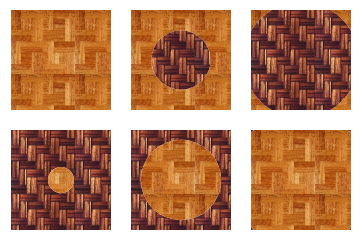
- Radial

- Stripe
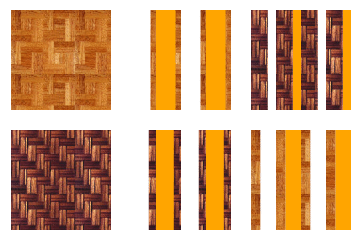
The easing of the transition animation.
- Linear(default)
- Ease-in
- Ease-out
- Ease-in-out
(available if Styleis Regular, Stripe, Door, or Radial)
The direction of the effect. Available options depend on the style:
- Regular:
- Left to right(default)
- Right to left
- Top to bottom
- Bottom to top
- Stripe:
- Left to right(default)
- Right to left
- Top to bottom
- Bottom to top
- Bottom left to top right
- Top left to bottom right
- Bottom right to top left
- Top right to bottom left
- Door:
- Opening(default)
- Closing
- Radial:
- Clockwise(default)
- Counter-clockwise
(available if Styleis Regular)
(available if Styleis Door)
The orientation of the animation.
- Horizontal
- Vertical(default)
(available if Styleis Irisor Radial)
The X and Y origin of the iris or the sweeping radius, as a percentage of the gallery frame.
(available if Styleis Stripe)
(available if Styleis Stripe)
The new image is revealed in slices or bars which slide into view one after another.

Property
Description
The duration of an animation from one frame to the next, in seconds. Defaults to 1.
The easing of the transition animation.
- Linear(default)
- Ease-in
- Ease-out
- Ease-in-out
The direction of the effect.
- Left to right(default)
- Right to left
- Top to bottom
- Bottom to top
The new image is revealed as though from behind window blinds.
Property
Description
- Regular

- Venetian

The easing of the transition animation.
- Linear(default)
- Ease-in
- Ease-out
- Ease-in-out
(available if Styleis Regular)
The direction of the effect.
- Left to right(default)
- Right to left
- Top to bottom
- Bottom to top
(available if Styleis Venetian)
The orientation of the animation.
- Horizontal
- Vertical(default)
The number of blinds, from 1-20. Defaults to 5.
(available if Styleis Regular)
Check this box to show a transparent background before transitioning to the new image, rather than overlaying the old image.
(available if Styleis Venetian)
The old image starts to spin while zooming in, then zooms back out on the new image while completing the spin rotation.

Property
Description
The duration of an animation from one frame to the next, in seconds. Defaults to 1.
The easing of the transition animation.
- Linear(default)
- Ease-in
- Ease-out
- Ease-in-out
The direction of the effect.
- Clockwise(default)
- Counter-clockwise
The new image is gradually revealed in a snaking grid pattern.

Property
Description
The duration of an animation from one frame to the next, in seconds. Defaults to 1.
The easing of the transition animation.
- Linear(default)
- Ease-in
- Ease-out
- Ease-in-out
The orientation of the animation.
- Horizontal(default)
- Vertical
Transition Gallery properties
Property
Description
Determines how various sized images are displayed within the fixed frame size. Learn more .
- Resize image to fit
- Crop image to fill
- None
- Stretch image to fill
When checked, automatically plays through the frames in the gallery.
The total time it takes to play through the entire gallery is displayed in the Framespanel when this option is enabled.
The user gesture that changes the current frame in the gallery.
- None
- Click(default)
- Swipe(only available for some transition types*)
In addition to the selected gesture, users can use navigation bullets if you enable them, or any custom navigation controls that you set up using events .
* Swipe support
The following transition types and styles support swiping:
- Push - Regular
- Slice
- Wipe - Regular
- Wipe - Stripe
- Blinds - Regular
Events and actions
Events sent by the Transition Gallery componentYou can trigger other actions based on the following Transition Gallery component events:
| Event | Description |
|---|---|
| Autoplay ended | Sent when autoplay has ended for any reason. If it ended naturally by reaching the intended loop count, event.detail.completed
will be true; otherwise it will be false. |
| Frame activated | Sent when a new frame has started to be activated, even if it's not yet visible. |
| Frame shown | Sent when a new frame is shown. |
| Frame tap | Sent when the user taps on a frame. |
| Rotate once ended | Sent when rotation has ended for any reason. If it ended naturally, event.detail.completed
will be true; otherwise it will be false. |
| Left end | Sent when the gallery reaches its left end. |
| Right end | Sent when the gallery reaches its right end. |
To select one of these events in the Event dialog, set the Transition Gallery component as the target.
The following Transition Gallery component actions can be triggered in response to other events:
- Frame number
- Animate
- Start from current frame
- Start from current frame
When you select one of these actions in the Eventdialog, set the Transition Gallery component as the receiver.
Learn how to configure events .
Preview
While you're in Designmode of the Transition Gallery dialog, you can click the Playbutton in the Framespanel to see how the basic transition looks, starting from the currently selected frame. You can modify properties while the preview is playing to see the changes take effect immediately.
Switch to the Previewtab to see how the Transition Gallery works with the properties you set, including autoplay and interaction options.
You can also preview your document in your preferred browser by clicking Savein the dialog, then clicking the Previewbutton.
