
Managed Airflow (Gen 3) | Managed Airflow (Gen 2) | Managed Airflow (Legacy Gen 1)
This page lists known Managed Airflow issues. For information about issue fixes, see Release notes .
First DAG run for an uploaded DAG file has several failed tasks
When you upload a DAG file, sometimes the first few tasks from the first DAG
run for it fail with the Unable to read remote log...
error. This
problem happens because the DAG file is synchronized between your
environment's bucket, Airflow workers, and Airflow schedulers of your
environment. If the scheduler gets the DAG file and schedules it to be executed
by a worker, and if the worker does not have the DAG file yet, then the task
execution fails.
To mitigate this issue, environments with Airflow 2 are configured to perform two retries for a failed task by default. If a task fails, it is retried twice with 5 minute intervals.
Managed Airflow shouldn't be impacted by Apache Log4j 2 Vulnerability (CVE-2021-44228)
In response to Apache Log4j 2 Vulnerability (CVE-2021-44228) , Managed Airflow has conducted a detailed investigation and we believe that Managed Airflow is not vulnerable to this exploit.
Airflow UI might sometimes not re-load a plugin once it is changed
If a plugin consists of many files that import other modules, then the Airflow UI might not be able to recognize the fact that a plugin should be re-loaded. In such a case, restart the Airflow web server of your environment.
Error 504 when accessing the Airflow UI
You can get the 504 Gateway Timeout
error when accessing the Airflow UI. This error can have several causes:
-
Transient communication issue. In this case, attempt to access the Airflow UI later. You can also restart the Airflow web server .
-
(Managed Airflow (Gen 3) only) Connectivity issue. If Airflow UI is permanently unavailable, and timeout or 504 errors are generated, make sure that your environment can access
*.composer.googleusercontent.com. -
(Managed Airflow (Gen 2) only) Connectivity issue. If Airflow UI is permanently unavailable, and timeout or 504 errors are generated, make sure that your environment can access
*.composer.cloud.google.com. If you use Private Google Access and send traffic overprivate.googleapis.comVirtual IPs, or VPC Service Controls and send traffic overrestricted.googleapis.comVirtual IPs, make sure that your Cloud DNS is configured also for*.composer.cloud.google.comdomain names. -
Unresponsive Airflow web server. If the error 504 persists, but you can still access the Airflow UI at certain times, then the Airflow web server might be unresponsive because it's overwhelmed. Attempt to increase the scale and performance parameters of the web server.
Error 502 when accessing Airflow UI
The error 502 Internal server exception
indicates that Airflow UI cannot
serve incoming requests. This error can have several causes:
-
Transient communication issue. Try to access Airflow UI later.
-
Failure to start the web server. In order to start, the web server requires configuration files to be synchronized first. Check web server logs for log entries that look similar to:
GCS sync exited with 1: gcloud storage cp gs://<bucket-name>/airflow.cfg /home/airflow/gcs/airflow.cfg.tmporGCS sync exited with 1: gcloud storage cp gs://<bucket-name>/env_var.json.cfg /home/airflow/gcs/env_var.json.tmp. If you see these errors, check if files mentioned in error messages are still present in the environment's bucket.In case of their accidental removal (for example, because a retention policy was configured), you can restore them:
-
Set a new environment variable in your environment. You can use use any variable name and value.
-
Override an Airflow configuration option. You can use a non-existent Airflow configuration option.
-
Hovering over task instance in Tree view throws uncaught TypeError
In Airflow 2, the Tree view in the Airflow UI might sometimes not work properly when a non-default timezone is used. As a workaround for this issue, configure the timezone explicitly in the Airflow UI.
Empty folders in Scheduler and Workers
Managed Airflow does not actively remove empty folders from Airflow workers and schedulers. Such entities might be created as a result of the environment bucket synchronization process when these folders existed in the bucket and were eventually removed.
Recommendation: Adjust your DAGs so they are prepared to skip such empty folders.
Such entities are eventually removed from local storages of Airflow schedulers and workers when these components are restarted (for example, as a result of scaling down or maintenance operations in your environment's cluster).
Support for Kerberos
Managed Airflow does not support Airflow Kerberos configuration .
Support for compute classes in Managed Airflow (Gen 2) and Managed Airflow (Gen 3)
Managed Airflow (Gen 3) and Managed Airflow (Gen 2) support only general-purpose compute class . It means that running Pods that request other compute classes (such as Balanced or Scale-Out ) is not possible.
The general-purpose class allows for running Pods requesting up to 110 GB of memory and up to 30 CPU (as described in Compute Class Max Requests .
If you want to use ARM-based architecture or require more CPU and Memory, then you must use a different compute class, which is not supported within Managed Airflow (Gen 3) and Managed Airflow (Gen 2) clusters.
Recommendation: Use GKEStartPodOperator
to run Kubernetes Pods on
a different cluster that supports the selected compute class. If you
run custom Pods requiring a different compute class, then they also must run
on a non-Managed Airflow cluster.
It's not possible to reduce Cloud SQL storage
Managed Airflow uses Cloud SQL to run Airflow database. Over time, disk storage for the Cloud SQL instance might grow because the disk is scaled up to fit the data stored by Cloud SQL operations when Airflow database grows.
It's not possible to scale down the Cloud SQL disk size.
As a workaround, if you want to use the smallest Cloud SQL disk size, you can re-create Managed Airflow environments with snapshots .
Database Disk usage metric doesn't reduce after removing records from Cloud SQL
Relational databases, such as Postgres or MySQL, don't physically remove rows when they're deleted or updated. Instead, it marks them as "dead tuples" to maintain data consistency and avoid blocking concurrent transactions.
Both MySQL and Postgres implement mechanisms of reclaiming space after deleted records.
While it's possible to force the database to reclaim unused disk space, this is a resource hungry operation which additionally locks the database making Managed Airflow unavailable. Therefore it's recommended to rely on the building mechanisms for reclaiming the unused space.
Access blocked: Authorization Error
If this issue affects a user, the Access blocked: Authorization Errordialog contains the Error 400: admin_policy_enforced
message.
If the API Controls > Unconfigured third-party apps > Don't allow users to access any third-party appsoption is enabled in Google Workspace and the Apache Airflow in Managed Airflow app is not explicitly allowed, users are not able to access the Airflow UI unless they explicitly allow the application.
To allow access, perform steps provided in Allow access to Airflow UI in Google Workspace .
Login loop when accessing the Airflow UI
This issue might have the following causes:
-
If Chrome Enterprise Premium Context-Aware Access bindings are used with access levels that rely on device attributes, and the Apache Airflow in Managed Airflow app is not exempted, then it's not possible to access the Airflow UI because of a login loop. To allow access, perform steps provided in Allow access to Airflow UI in Context-Aware Access bindings .
-
If ingress rules are configured in a VPC Service Controls perimeter that protects the project, and the ingress rule that allows access to the Managed Airflow service uses
ANY_SERVICE_ACCOUNTorANY_USER_ACCOUNTidentity type, then users can't access the Airflow UI, ending up in a login loop. For more information about addressing this scenario, see Allow access to Airflow UI in VPC Service Controls ingress rules .
The /data folder is not available in Airflow web server
In Managed Airflow (Gen 2) and Managed Airflow (Gen 3), the Airflow web server is meant to be mostly read-only component and Managed Airflow does not synchronize the data/
folder
to this component.
Sometimes, you might want to share common files between all Airflow components, including the Airflow web server.
Solution:
-
Wrap the files to be shared with the web server into a PYPI module and install it as a regular PYPI package. After the PYPI module is installed in the environment, the files are added to the images of Airflow components and are available to them.
-
Add files to the
plugins/folder. This folder is synchronized to the Airflow web server.
Non-continuous DAG parse times and DAG bag size diagrams in monitoring
Non-continuous DAG parse times and DAG bag size diagrams on the monitoring dashboard indicate problems with long DAG parse times (more than 5 minutes).
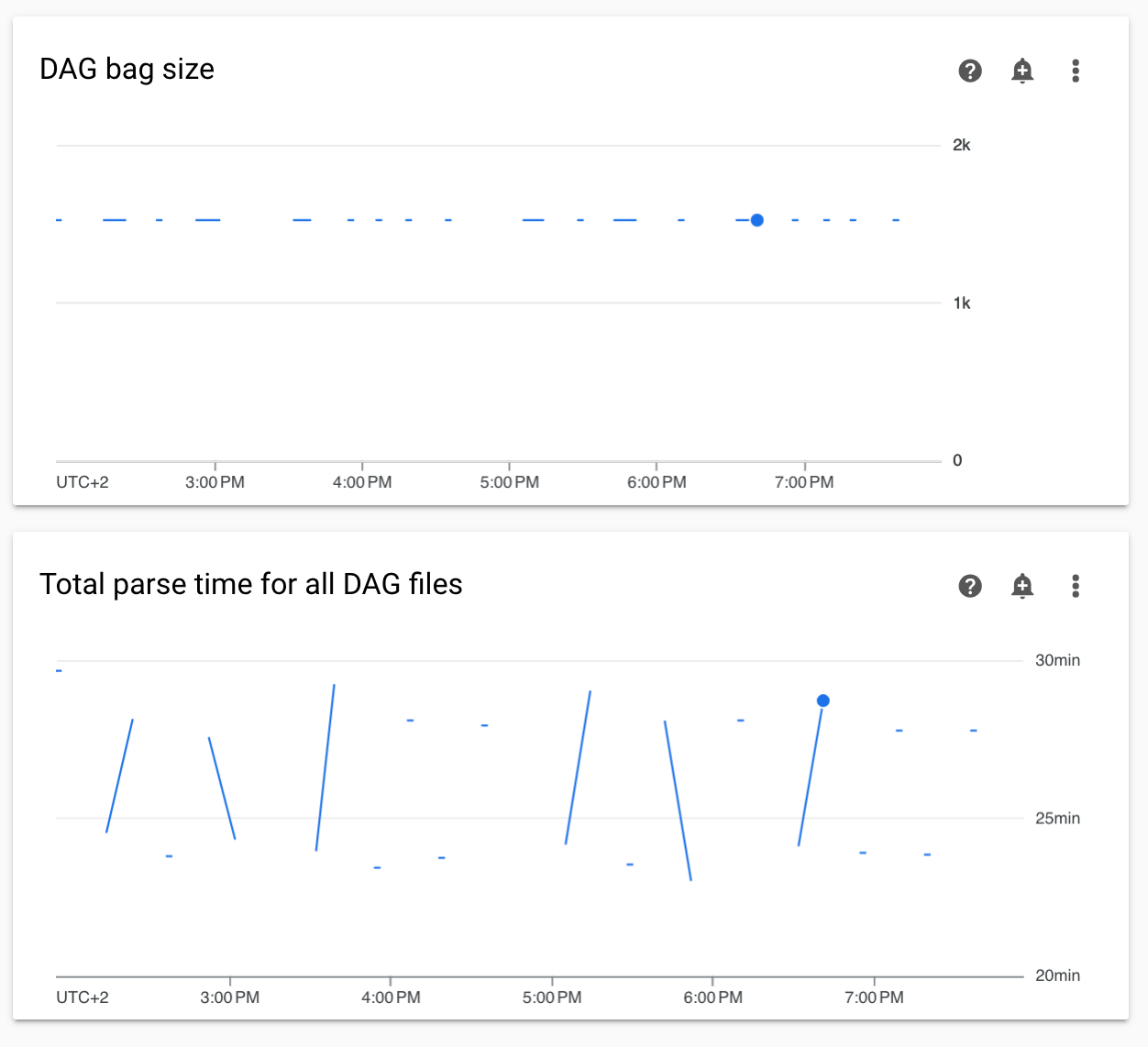
Solution:We recommend keeping total DAG parse time under 5 minutes. To reduce DAG parsing time, follow DAG writing guidelines .
Task logs appear with delays
Symptom:
- In Managed Airflow (Gen 3), Airflow task logs do not appear immediately and are delayed for a few minutes.
- You might find
Logs not found for Cloud Logging filtermessages in the Airflow logs
Cause:
If your environment runs a large number of tasks at the same time, task logs can be delayed because the environment's infrastructure size is not enough to process all logs fast enough.
Solutions:
- Consider increasing the environment's infrastructure size to increase performance.
- Distribute DAG runs over time, so that tasks are not executed at the same time.
Increased startup times for KubernetesPodOperator and KubernetesExecutor
Pods created with KubernetesPodOperator and tasks executed with KubernetesExecutor experience increased startup times. Managed Airflow team is working on a solution and will announce when the issue is resolved.
Workarounds:
- Launch Pods with more CPU.
- If possible, optimize images (less layers, smaller size).
Environment is in the ERROR state after the project's billing account was deleted or deactivated, or the Cloud Composer API was disabled
Managed Airflow environments affected by these problems are non-recoverable:
- After the project's billing account was deleted or deactivated, even if another account was linked later.
- After the Cloud Composer API was disabled in the project, even if it was enabled later.
You can do the following to address the problem:
-
You still can access data stored in your environment's buckets, but the environments themselves are no longer usable. You can create a new Managed Airflow environment and then transfer your DAGs and data.
-
If you want to perform any of the operations that make your environments non-recoverable, make sure to back up your data, for example, by creating an environment's snapshot . In this way, you can create another environment and transfer its data by loading this snapshot.
Logs for Airflow tasks aren't collected if [core]execute_tasks_new_python_interpreter is set to True
Managed Airflow doesn't collect logs for Airflow tasks if the [core]execute_tasks_new_python_interpreter
Airflow configuration option is set to True
.
Possible solution:
- Remove the override
for this configuration option, or set
its value to
False.
Error while removing Network Attachment when an environment is deleted
If several environments that share the same network attachment are deleted at the same time, some deletion operations fail with an error.
Symptoms:
The following error is generated:
Got error while removing Network Attachment: <error code>
The reported error code can be Bad request: <resource> is not ready
, or Precondition failed: Invalid fingerprint
.
Possible workarounds:
-
Delete environments that use the same network attachment one by one.
-
Disable connection to a VPC network for your environments before deleting them. We recommend this workaround for automated environment deletion.
