
You can no longer use Nest Guard as a bridge to connect your Nest x Yale Lock to Wi-Fi. Only a Nest Connect can connect your lock to Wi-Fi. If your lock goes offline, you won't be able to operate your lock with the Nest app, but you can still operate it with the keypad.
If you previously used Nest Guard as a bridge to connect your Nest x Yale Lock to Wi-Fi, you must replace your Nest Guard with a Nest Connect. Eligible owners received an email in January 2024 with instructions on how to receive a Nest Connect at no cost. Once you have a Nest Connect, you can reconnect your lock. Learn how to Keep your Nest x Yale Lock connected after support ends for Nest Secure .
If you currently own a Nest Connect, you may need to move it closer to your Nest x Yale Lock to connect it to Wi-Fi. If your lock goes offline, you won't be able to operate your lock with the Nest app, but you can still use the keypad.
To install a Nest Connect, go to Set up Nest Connect .
For more details, go to Nest Secure Community Forum update .
The Google Nest × Yale Lock’s History provides a quick overview of events that your lock detects throughout the day, such as someone locking and unlocking your door or putting it into Privacy Mode. You can tap a specific day to see a detailed list of all lock events.
There are two different views: a quick 10-day overview with the number of events that occurred and a detailed view showing each lock event on a specific day. On most days, a quick glance at the overview will keep you informed about key activities. If something happens that needs your attention, like the lock being tampered with, the detailed view makes it easy to spot exactly when the event occurred as well as the activity leading up to it. Both views capture 10 days of history.
How to view your lock’s history
1. On the Nest app home screen, select your lock.
2. Select History
You’ll see a 10-day overview with the number of events and
timelines for each day. To keep it simple, this view won’tshow everything your system detected and responded to.
You’ll only see important events.
What the colors mean:
: Unlocked
: Locked
: Privacy mode enabled
: Errors
: Tamper
3. To see everything that happened on a particular day, tapthe day.
The view will expand to show a chronological list of each activity triggered by your lock.
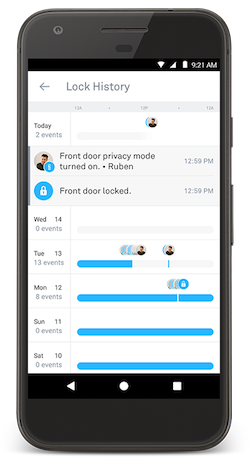
How to update the events in History
Each time you open History, it gets updated with the latest available information. To refresh the view, tap the back arrow
Who can see History
The Owner of the Nest home, as well as anyone who has Full access, can see History. People who have Home Entry Only access will not be able to see it.
What the icons mean
Event icons appear in your History, making it easy for you to visually scan through a particular day.

Door locked. Your door was locked by someone.
If it was locked by a person with Full access
, then their picturein the Nest app will show as the main icon with a smaller lock
icon.
Note: If you have One Touch Locking enabled or if someone
locks the door by turning the thumb turn inside your home, you
won’t know who locked the door, but you’ll know when it was
locked.

Door auto-locked. Your door was automatically locked after a
certain period of time based on your settings (after 10 seconds,
1 minute, or 5 minutes).

Door unlocked. Your door was unlocked by someone.
If it was unlocked by a person with Full access
, then theirpicture in the Nest app will show as the main icon with a
smaller unlock icon.
Note: If someone unlocks the door by turning the thumb turn
inside your home, you won’t know who unlocked the door, but
you’ll know when it was unlocked.

Privacy mode. Privacy mode was enabled. This disables the
keypad so no one will be able to unlock the door using a
passcode on the keypad.
If someone has Full access
, they can disable Privacy mode in
the app.

Warning. A triangle warning icon can mean one of two things:
- Your device failed to lock or unlock
- Someone entered too many incorrect passcodes
Tap a specific day to get details on what the warning wasabout.

Tamper. Your lock has been tampered with.

Offline. Your lock is offline. This can happen when your home
Wi-Fi or internet connection goes down.
Note: When this happens, you are still able to lock and unlock
your device directly on the keypad using a passcode. You just
can’t use the app.
Other icons you might see
Your lock’s history will only show events for your lock.
The following events happen less frequently, but History makes a note of them to help keep you informed.

Software update. Nest has updated the software on your lock.
How to keep your Nest products and the Nest app up to date >
