


This document describes how to locate the charging cycle of your Cloud Billing account, including how often you're charged for your Google Cloud costs and how you pay your bill. This document also describes Google payments accounts and how they are related to your Cloud Billing account charging cycles.
Overview
A Cloud Billing account defines who pays for a given set of Google Cloud resources, and is associated with a Google payments profile, and linked to a Google payments account for payment management. The Cloud Billing account can be linked to one or more Google Cloud projects, enabling billing on the projects. As you use Google Cloud products and other eligible services, such as Gemini API in AI Studio, Google Maps Platform, and Firebase, your Cloud Billing account tracks all of the costs (charges and savings) incurred in all the projects that are linked to the Cloud Billing account, then routes those costs to the appropriate Google payments account to be paid (for example, Invoiced, Postpay, or Prepay).
Your Cloud Billing account can be one of two types, which determines what type of Google payments account is used to pay for your usage and differentiates how and when you pay for your Google Cloud usage and other eligible services:
-
Invoiced billing
If you have invoiced billing , you accrue costs first, then receive a monthly invoice, or multiple invoices when split invoicing applies. You pay your invoice with a check or bank transfer. An invoice for a particular month should be available by the fifth business day of the following month.
-
Self-serve (online) billing
If you have a self-serve Cloud Billing account , and the billable status of the account is Paid account , your costs are charged in the following ways, depending on the charging cycle assigned to the linked Google payments account :
- Postpay costs automatically charged when your account has accrued a certain amount of charges (threshold billing).
- Postpay costs automatically charged on a regular monthly cycle (monthly billing).
- Prepay costs automatically deducted from your credit balance as you incur charges (available for Gemini API in AI Studio usage).
For Postpay charging cycles, your charge covers your current Google Cloud and other product usage costs, as well as any unpaid costs from previous billing cycles.
Free trial accounts
If your self-serve (online) billing account's billable status is Free trial account , your billing cycle works differently. You aren't charged for usage during the Google Cloud Free Trial and your costs are paid for by your Free Trial Welcome credit. You might see billing warnings or notifications about your free trial status to help you monitor your remaining credit and days. You are only billed if you upgrade to a paid account . For more information about how the free trial works and what happens when it ends, see the Google Cloud Google Cloud Free Program features .
How the charging cycle is set
- For invoicingCloud Billing accounts, you typically receive one invoice per month, or multiple invoices when split invoicing applies. The amount of time you have to pay your invoice (your payment terms) is determined by the agreement you made with Google.
- For self-serve onlineCloud Billing accounts, your charging cycle is automatically assigned when you create the account. Every self-serve Cloud Billing account is assigned a Postpay charging cycle. Depending on the services you use, your self-serve account might also be assigned a Prepay charging cycle that is used to pay for certain services. Learn more about split charging cycles . You don't get to choose your Postpay charging cycle type, and you can't edit the charging cycle type.
View your Cloud Billing charging cycle
To view your Cloud Billing cycle to determine how and when you are charged, view the Payment overview for your Cloud Billing account:
-
In the Cloud Billing console, go to the Payment overviewpage.
-
At the prompt, choose the Cloud Billing account for which you'd like to view your charging cycle. The Payment overviewpage opens for the selected billing account.
-
Find your charging cycle, along with your current outstanding balance and your last payment date and amount:
Charging cycle When you pay Description InvoicingTerms, per your agreement with Google. For example, Net 30 days This Cloud Billing account is an invoiced Cloud Billing account, meaning you accrue costs first, then receive a monthly invoice, or multiple invoices when split invoicing applies. You pay for these costs with a check or bank transfer. An invoice for a particular month should be available by the fifth business day of the following month. The payment terms are displayed in parentheses, including the number of days you have to pay your invoice (for example, Net 30 days). You are required to pay your invoice within the timeframe that you've agreed to with Google, according to terms and conditions.
PostpayAutomatic payments triggered by threshold billing This Cloud Billing account has a threshold billing cycle and the linked payment instrument (such as a credit card or bank account) is charged automatically when your accrued Google Cloud costs meet an automatically assigned threshold amount. In addition, the balance of the charges accrued by the end of the month is charged automatically to the linked payment instrument on the first of the next month.
PostpayAutomatic monthly payments This Cloud Billing account has a monthly billing cycle and the linked payment instrument (such as a credit card or bank account) is charged automatically on the second day of every month for charges accrued during the previous month.
PrepayPurchase credits before you use Gemini API services Prepay Google payments accounts are limited to Gemini API in AI Studio usage. In addition to a Postpay payments account, the Cloud Billing account is linked to a Prepay Google payments account that uses credits to pay for costs as you incur charges. Using the linked payment instrument (such as a credit card or bank account), you purchase credits before you can use any eligible services. Your credits are used immediately to pay for the usage costs of eligible services as they run. When your available credits are depleted, your services are stopped until you purchase more credits.
With a Prepay Google payments account, you can optionally enable auto-reload to automatically purchase credits whenever your balance falls below a value you specify. Learn more about Prepay billing .
About threshold billing
Threshold billing is an automatically paid Cloud Billing account with a Postpay charging cycle, where you pay later for the resources you consume during the billing cycle. With threshold billing, your payment threshold amount is automatically assigned based on your usage and payment history. A threshold amount is a level of spending that, when met, triggers a charge to the payment instrument (such as a credit card or bank account) that is assigned to your linked Google payments account.
When you are on a Postpay threshold billing charging cycle, the following applies:
- You'll be charged automatically on the 1st of each month and any time your balance reaches your payment threshold amount.
- Your charge covers your current Google Cloud and Google Maps Platform costs and any unpaid balance from the previous month, plus tax and fees that might apply to some countries.
- The amount charged could exceed the payment threshold amount if the account accrues costs very quickly.
- You can be charged multiple times in the same month if your account reaches your Cloud Billing payment threshold repeatedly over that time.
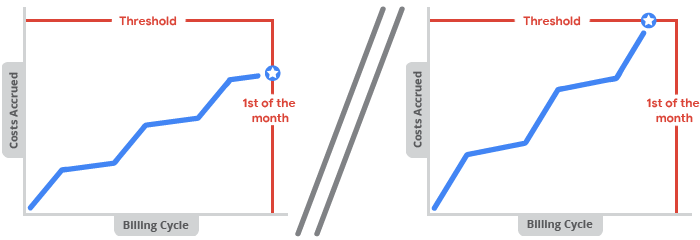
The following chart shows two typical cases of threshold billing. In the first case, the total accrued costs for a month are lower than the payment threshold, so you're automatically charged for the balance on the 1st of the next month, and your payment threshold amount remains the same. In the second case, the accrued costs cross the payment threshold before the end of the month, triggering an automatic charge, and possibly increasing your threshold amount.
How your threshold amount is determined
- When you first create a self-serve online Cloud Billing account that is assigned a Postpay threshold charging cycle, you are automatically granted an initial payment threshold amount (for example, $100). You don't get to choose your threshold amount and you can't directly edit the threshold amount.
- For Cloud Billing accounts in good standing, if your accrued costs trigger a threshold payment , your threshold amount is automatically raised. This adjustment might happen several times until your account reaches a final threshold amount.
- Threshold amounts depend on your account, country, and currency.
- You aren't emailed or notified when your Cloud Billing threshold increases, but you can find your current threshold amount any time by going to your billing pages in the Google Cloud console.
Find your payment threshold amount
To find out what your payment threshold is, view the Payment overview page for your Cloud Billing account:
-
In the Cloud Billing console, go to the Payment overviewpage.
-
At the prompt, choose the Cloud Billing account for which you'd like to view your payment threshold. The Payment overviewpage opens for the selected billing account.
-
On the Payment overviewpage, your assigned threshold amount is listed in the Your balancecard, along with your charging cycle.
For example, if your Cloud Billing threshold is $100.00, and you have not yet incurred any costs for the month, you might see a message that says Your entire $100.00 payment threshold is available .
You can also view your payment threshold in payment settings, using these steps:
- In the Billing navigation menu, click Payment settings.
-
View the threshold amount in the Payments accountcard.
For example, if your Cloud Billing threshold is $1000.00, you might see a message that says "You'll be charged automatically on the 1st of each month. If your balance reaches your $1,000.00 payment threshold before then, you'll be charged immediately."
About Prepay billing
Some Google Cloud products like Gemini API in AI Studio allow you to use a Prepay payment model to pay for usage. Here's an overview of how Prepay billing works:
- Purchase credits: You purchase credits in your Prepay account before using any services. The minimum purchase is $10. The maximum amount of credits you can prepay for is based on your tier level. Your tier level is determined by your projects' billable status and by your usage and payment history.
- Credits pay for usage: As your services run, the service costs are deducted from your available credit balance. When your credits are depleted, your services stop.
- Auto-reload credits: For Prepay accounts, to prevent stoppage of your services, you can enable auto-reload to automatically purchase credits whenever your balance falls below a threshold amount that you specify. When you set up auto-reload, you specify the reload amount, and set the balance that triggers an auto-reload. For example, you can choose to purchase $50.00 in credits whenever your balance falls below $10.00.
- Expiry and Refunds: Unused credits expire after 1 year from the date of purchase and are non-refundable, with a few exceptions. For example, if you meet the criteria to upgrade your Prepay account to a Postpay billing tier, remaining Prepay credits are automatically refunded during the upgrade process. Learn more about refund policies for Prepay accounts .
- Quota tiers and rate limits: The number of API requests you can make per minute (RPM) and the number of tokens you can use per minute (TPM) depend on your usage tier level. Certain models also set a requests per day (RPD) quota.
Prepay billing is configured in Google AI Studio: Refer to the Gemini API in AI Studio billing documentation for more information .
Manage your Google payments accounts
Your Cloud Billing account might be linked to two or more different Google payments accounts to separately process payment for usage charges based on the applicable charging cycle.
-
If you have an invoicedbilling account that is subject to split invoicing, you might receive multiple invoices in a month. Each invoice is connected to a separate Google payments account. Learn more about split invoicing .
-
If you have a self-serve onlinebilling account, depending on the products and services that you use, your Cloud Billing account might be subject to split charging cycles. If so, your Cloud Billing account will have two different Google payments accounts: one account for the Postpay charging cycle and one account for the Prepay charging cycle.
- PostpayGoogle payments accounts are managed from the Cloud Billing console.
- PrepayGoogle payments accounts are managed in the Google AI Studio interface.
Delayed billing
Due to the complexity of our billing and processing systems for both Prepay and Postpay charging cycles, there might be delays in our ability to deduct from your prepaid credit balance or charge you as soon as your costs reach your billing thresholds.
- For Postpay with threshold billing, this delay might cause the amount charged to exceed the payment threshold amount if the account accrues costs very quickly.
- For Prepay accounts with a positive credit balance, this delay might cause excess usage charges that result in a negative credit balance in your AI Studio billing dashboard. If this happens, your service is paused, and your negative balance is deducted from your next credit purchase. To avoid a pause in your Gemini API service, we recommend setting up auto-reload to automatically purchase more credits when your balance falls below a threshold you specify. Learn more about Prepay billing and auto-reload .
Also note that charges typically occur sooner than the usage and cost details are available to view in the various cost reports and dashboards. Typically, your cost details are available to view within a day, but can sometimes take more than 24 hours. Because of this difference in timing, you might notice charges on your Postpay or Prepay payments accounts occur before you can view the details of those charges in a cost report or billing dashboard. These system delays also impact budget alerts, anomaly detection, and billing data exported to BigQuery.
Related topics
- View your Cloud Billing reports and cost trends
- Get an invoice, statement, or receipt
- Export Cloud Billing data to BigQuery
- View your cost and payment history
- Create, modify, or close your Cloud Billing account
- Split invoicing for agency model transactions
- Split charging cycles for self-serve (online) Cloud Billing accounts .
