


Objectives
-
Use Dataproc Hub to create a single-user JupyterLab notebook environment running on a Dataproc cluster.
-
Create a notebook and run a Spark job on the Dataproc cluster.
-
Delete your cluster and preserve your notebook in Cloud Storage.
Before you begin
- The administrator must grant you
notebooks.instances.usepermission (see Set Identity and Access Management (IAM) roles ).
Create a Dataproc JupyterLab cluster from Dataproc Hub
-
Select the User-Managed Notebookstab on the Dataproc→Workbench page in the Google Cloud console.
-
Click Open JupyterLabin the row that lists the Dataproc Hub instance created by the administrator.
- If you do not have access to the Google Cloud console, enter the Dataproc Hub instance URL that an administrator shared with you in your web browser.
-
On the Jupyterhub→Dataproc Optionspage, select a cluster configuration and zone. If enabled, specify any customizations, then click Create.
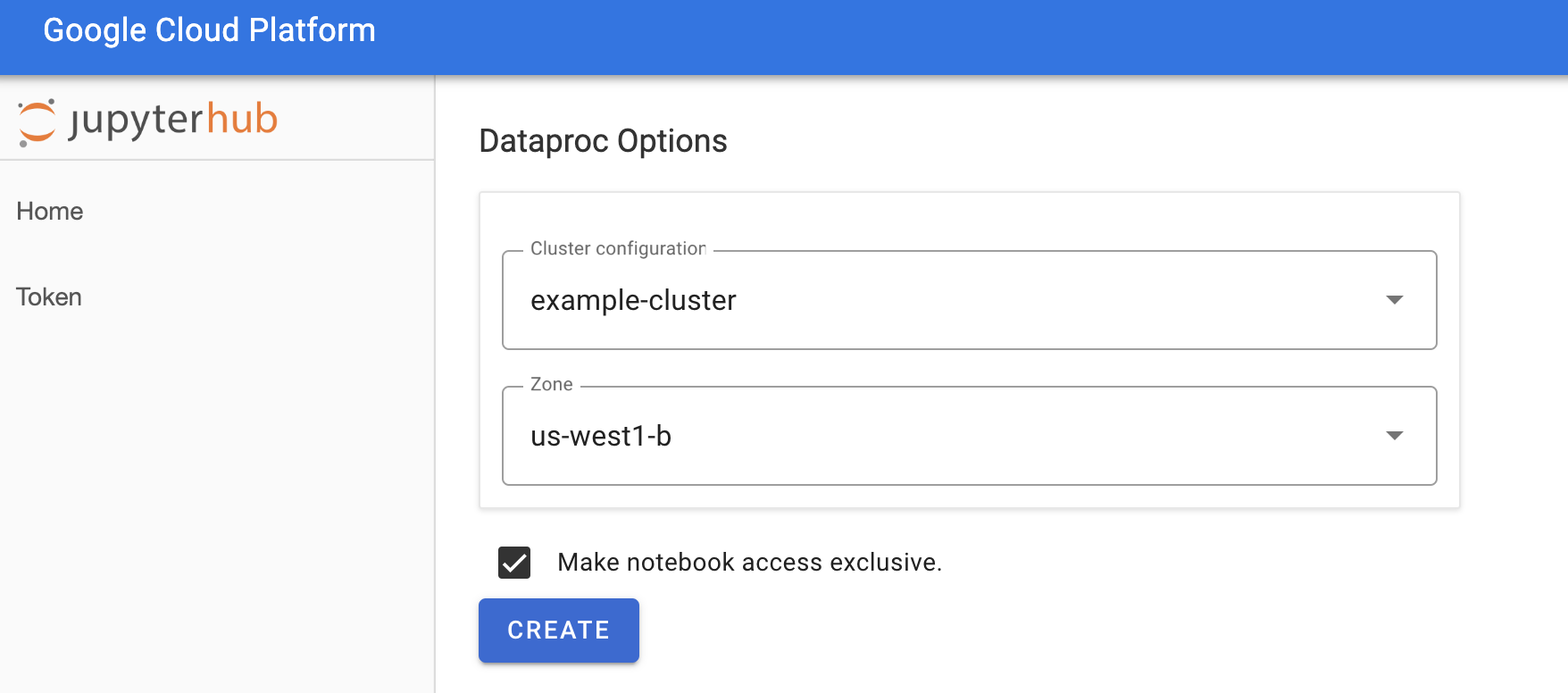
After the Dataproc cluster is created, you are redirected to the JupyterLab interface running on the cluster.
Create a notebook and run a Spark job
-
On the left panel of the JupyterLab interface, click on
GCS(Cloud Storage). -
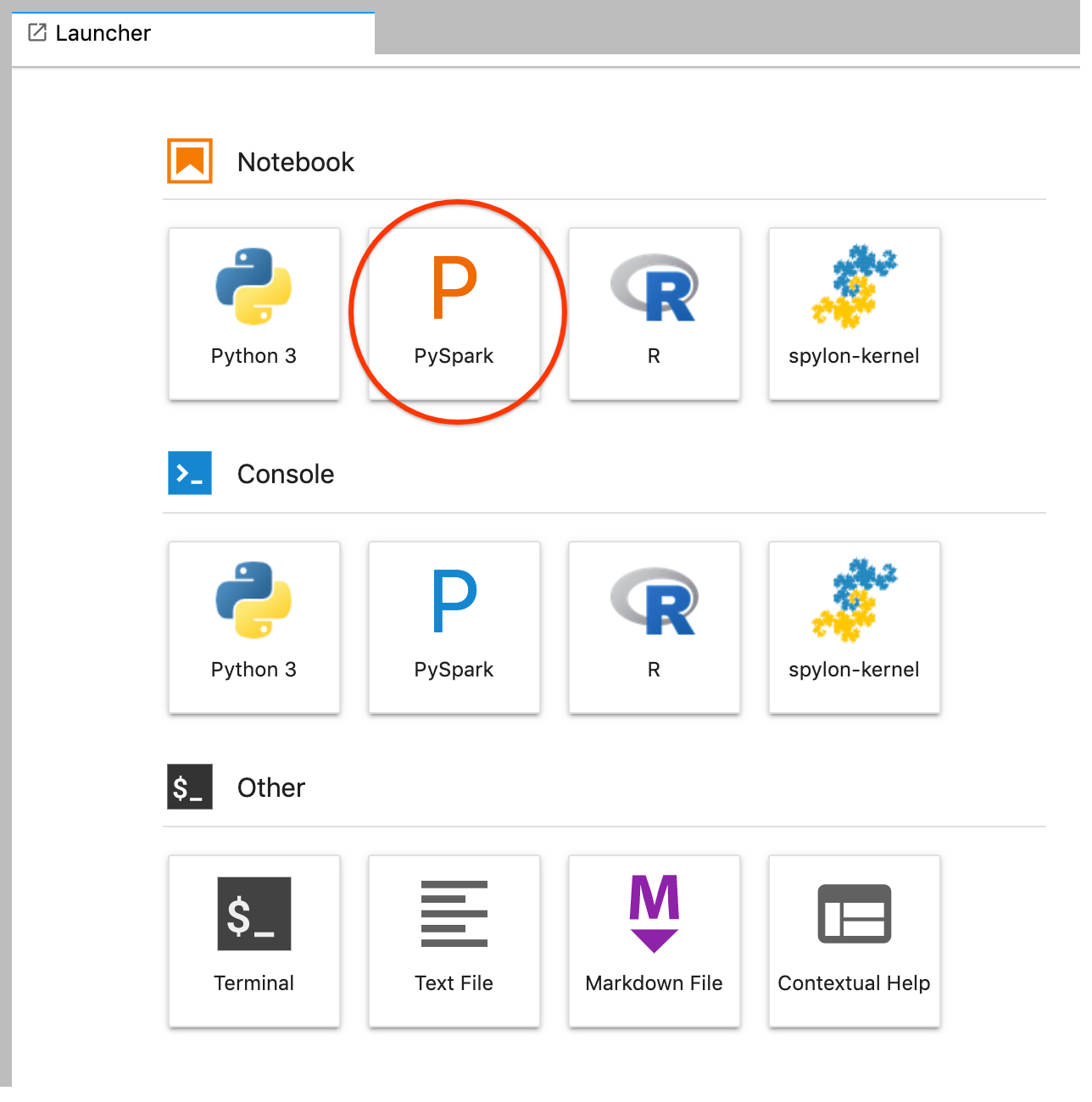
Create a PySpark notebook from the JupyterLab launcher.
-
The PySpark kernel initializes a SparkContext (using the
scvariable). You can examine the SparkContext and run a Spark job from the notebook.rdd = (sc.parallelize(['lorem', 'ipsum', 'dolor', 'sit', 'amet', 'lorem']) .map(lambda word: (word, 1)) .reduceByKey(lambda a, b: a + b)) print(rdd.collect())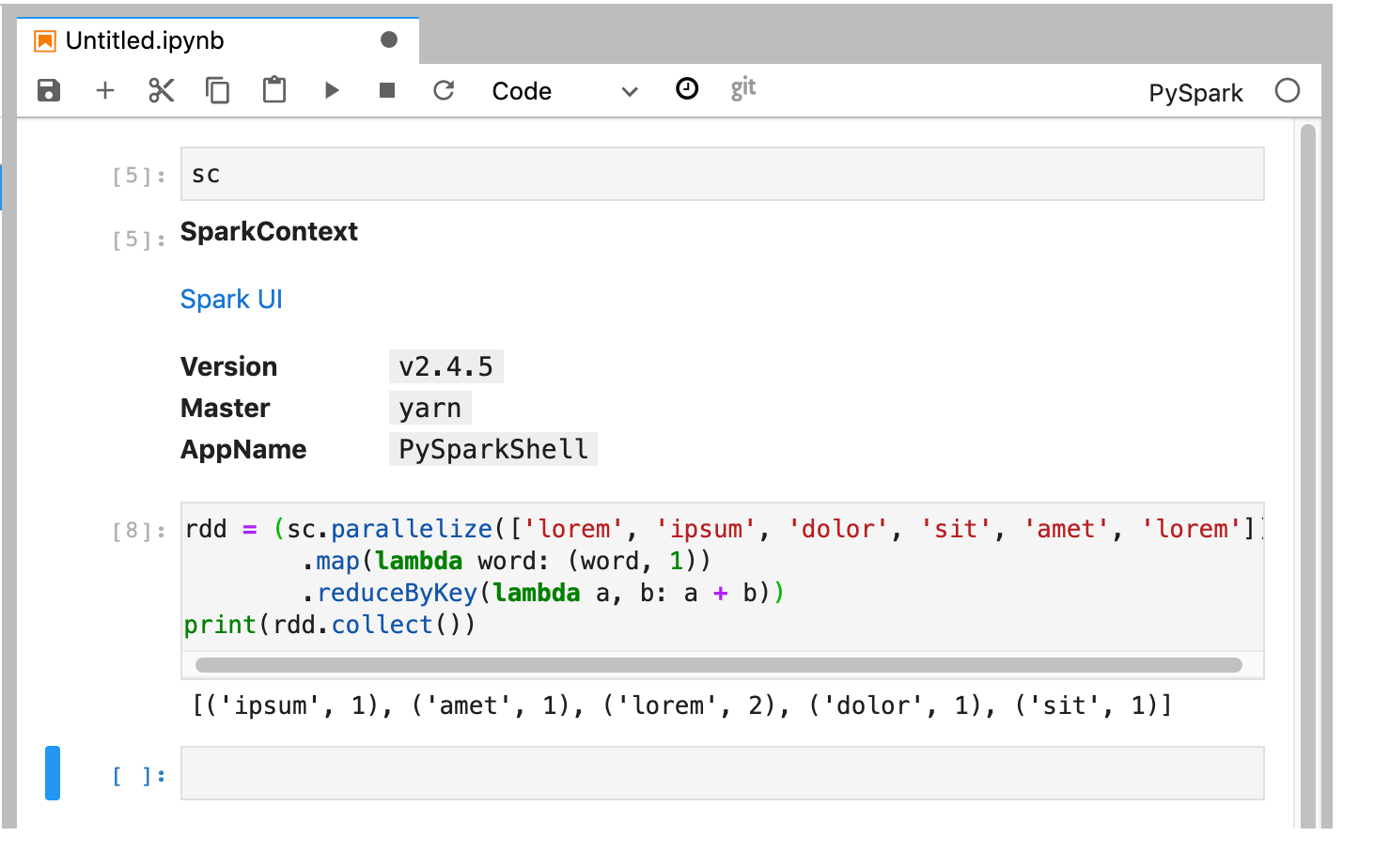
-
Name and save the notebook. The notebook is saved and remains in Cloud Storage after the Dataproc cluster is deleted.
Shut down the Dataproc cluster
-
From the JupyterLab interface, select File→Hub Control Panelto open the Jupyterhubpage.
-
Click Stop My Clusterto shut down (delete) the JupyterLab server, which deletes the Dataproc cluster.
What's next
- Explore Spark and Jupyter Notebooks on Dataproc on GitHub.
