

1. Before you begin
This codelab teaches you how to build a fully interactive local search application by using Google Maps Platform Places UI Kit.
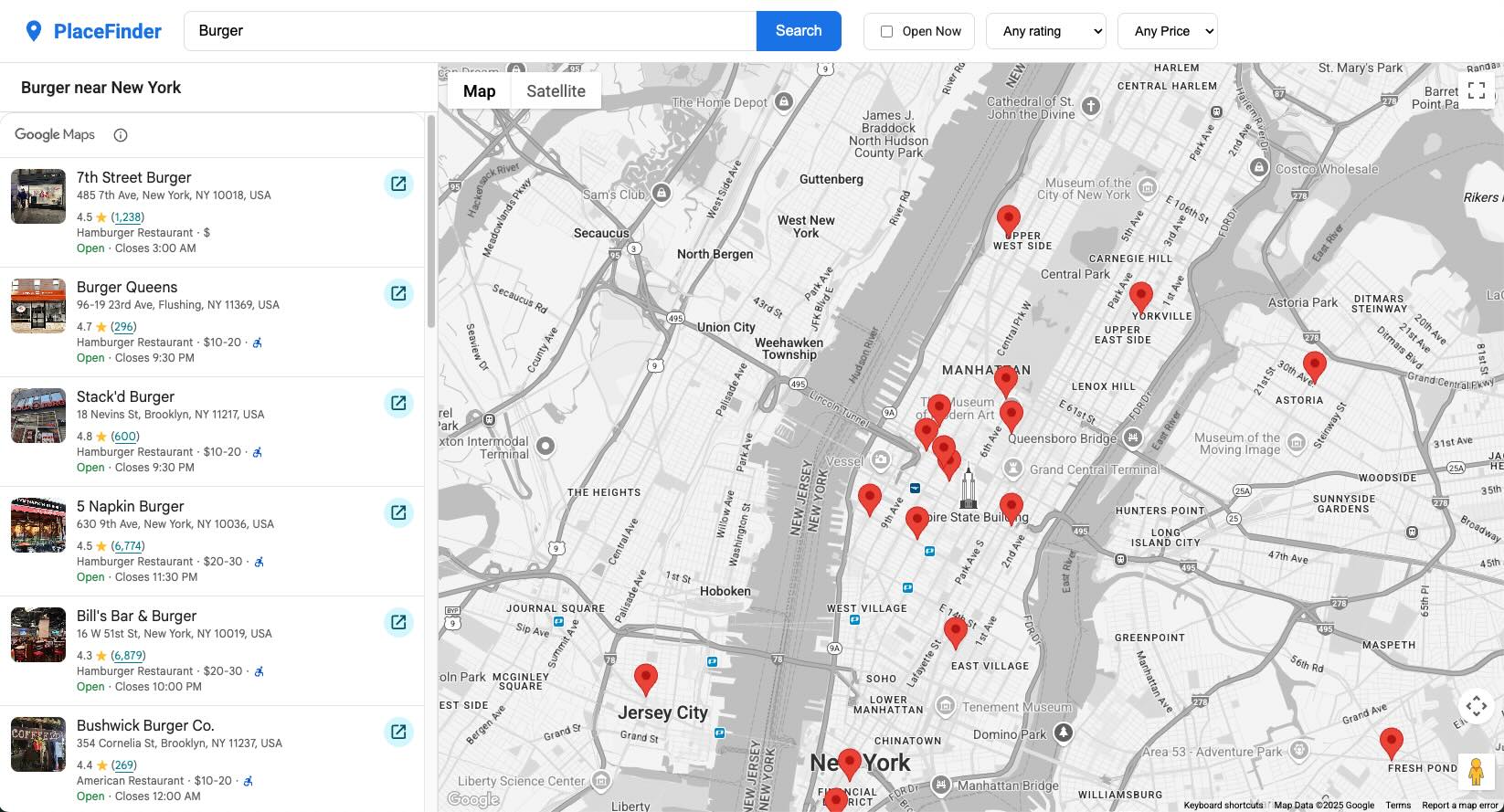
Prerequisites
- A Google Cloud project with the necessary APIs and credentials configured.
- Basic knowledge of HTML and CSS.
- Understanding of modern JavaScript.
- A modern web browser, such as the latest version of Chrome.
- A text editor of your choice.
What you'll do
- Structure a mapping application using a JavaScript class.
- Use Web Components to display a map
- Use Place Search Element to perform and display the results of a Text Search.
- Programmatically create and manage custom
AdvancedMarkerElementmap markers. - Display Place Details Element when a user selects a location.
- Use the Geocoding API to create a dynamic and user-friendly interface.
What you'll need
- A Google Cloud project with billing enabled
- A Google Maps Platform API key
- A Map ID
- The following APIs enabled:
- Maps JavaScript API
- Places UI Kit
- Geocoding API
2. Get set up
For the following enablement step, you'll need to enable the Maps JavaScript API, Places UI Kit, and Geocoding API.
Set up Google Maps Platform
If you do not already have a Google Cloud Platform account and a project with billing enabled, please see the Getting Started with Google Maps Platform guide to create a billing account and a project.
- In the Cloud Console , click the project drop-down menu and select the project that you want to use for this codelab.

- Enable the Google Maps Platform APIs and SDKs required for this codelab in the Google Cloud Marketplace . To do so, follow the steps in this video or this documentation .
- Generate an API key in the Credentials page of Cloud Console. You can follow the steps in this video or this documentation . All requests to Google Maps Platform require an API key.
3. The application shell and a functional map
In this first step, we will create the complete visual layout for our application and establish a clean, class-based structure for our JavaScript. This gives us a solid foundation to build upon. By the end of this section, you will have a styled page displaying an interactive map.
Create the HTML file
First, create a file named index.html
. This file will contain the complete structure of our application, including the header, search filters, sidebar, map container, and the necessary web components.
Copy the following code into index.html
. Be sure to replace YOUR_API_KEY_HERE
with your own Google Maps Platform API key, and DEMO_MAP_ID
with your own Google Maps Platform Map ID.
 < !
 DOCTYPE

 html
>
< html

 lang
 =
 "en"
>
< head
>
< title>Local

 Search

 App
< /
 title
>
< meta

 charset
 =
 "utf-8"

 /
>
< meta

 name
 =
 "viewport"

 content
 =
 "width=device-width, initial-scale=1.0"

 /
>
< !--

 Google

 Fonts
 :

 Roboto

 --
>
< link

 rel
 =
 "preconnect"

 href
 =
 "https://fonts.googleapis.com"
>
< link

 rel
 =
 "preconnect"

 href
 =
 "https://fonts.gstatic.com"

 crossorigin
>
< link

 href
 =
 "https://fonts.googleapis.com/css2?family=Roboto:wght@400;500;700&display=swap"

 rel
 =
 "stylesheet"
>
< !--

 GMP

 Bootstrap

 Loader

 --
>
< script
>
 (
 g
 =
> {
 var

 h
 ,
 a
 ,
 k
 ,
 p
 =
 "The Google Maps JavaScript API"
 ,
 c
 =
 "google"
 ,
 l
 =
 "importLibrary"
 ,
 q
 =
 "__ib__"
 ,
 m
 =
 document
 ,
 b
 =
 window
 ;
 b
 =
 b
 [
 c
 ]
 ||
 (
 b
 [
 c
 ]
 =
 {});
 var

 d
 =
 b
 .
 maps
 ||
 (
 b
 .
 maps
 =
 {}),
 r
 =
 new

 Set
 ,
 e
 =
 new

 URLSearchParams
 ,
 u
 =
 ()
 =
> h
 ||
 (
 h
 =
 new

 Promise
 (
 async
 (
 f
 ,
 n
 )
 =
> {
 await

 (
 a
 =
 m
 .
 createElement
 (
 "script"
 ));
 e
 .
 set
 (
 "libraries"
 ,[...
 r
 ]
 +
 ""
 );
 for
 (
 k

 in

 g
 )
 e
 .
 set
 (
 k
 .
 replace
 (
 /
 [
 A
 -
 Z
 ]
 /
 g
 ,
 t
 =
> "_"
 +
 t
 [
 0
 ].
 toLowerCase
 ()),
 g
 [
 k
 ]);
 e
 .
 set
 (
 "callback"
 ,
 c
 +
 ".maps."
 +
 q
 );
 a
 .
 src
 =
 `
 https
 :
 //maps.${c}apis.com/maps/api/js?`+e;d[q]=f;a.onerror=()=>h=n(Error(p+" could not load."));a.nonce=m.querySelector("script[nonce]")?.nonce||"";m.head.append(a)}));d[l]?console.warn(p+" only loads once. Ignoring:",g):d[l]=(f,...n)=>r.add(f)&&u().then(()=>d[l](f,...n))})({

 key
 :

 "YOUR_API_KEY_HERE"
 ,

 v
 :

 "weekly"
 ,

 libraries
 :

 "places,maps,marker,geocoding"

 });

< /
 script
>
< link

 rel
 =
 "stylesheet"

 type
 =
 "text/css"

 href
 =
 "style.css"

 /
>
< /
 head
>
< body
>
< !--

 Header

 for

 search

 controls

 --
>
< header

 class
 =
 "top-header"
>
< div

 class
 =
 "logo"
>
< svg

 viewBox
 =
 "0 0 24 24"

 width
 =
 "28"

 height
 =
 "28"
>< path

 d
 =
 "M12 2C8.13 2 5 5.13 5 9c0 5.25 7 13 7 13s7-7.75 7-13c0-3.87-3.13-7-7-7zm0 9.5c-1.38 0-2.5-1.12-2.5-2.5s1.12-2.5 2.5-2.5 2.5 1.12 2.5 2.5-1.12 2.5-2.5 2.5z"

 fill
 =
 "currentColor"
>< /
 path
>< /
 svg
>
< span>PlaceFinder
< /
 span
>
< /
 div
>
< div

 class
 =
 "search-container"
>
< input

 type
 =
 "text"

 id
 =
 "query-input"

 placeholder
 =
 "e.g., burger in New York"

 value
 =
 "burger"

 /
>
< button

 id
 =
 "search-button"

 aria
 -
 label
 =
 "Search"
> Search
< /
 button
>
< /
 div
>
< div

 class
 =
 "filter-container"
>
< label

 class
 =
 "open-now-label"
>
< input

 type
 =
 "checkbox"

 id
 =
 "open-now-filter"
>
 Open

 Now

< /
 label
>
< select

 id
 =
 "rating-filter"

 aria
 -
 label
 =
 "Minimum rating"
>
< option

 value
 =
 "0"

 selected>Any

 rating
< /
 option
>
< option

 value
 =
 "1"
> 1
 +

 ★
< /
 option
>
< option

 value
 =
 "2"
> 2
 +

 ★★
< /
 option
>
< option

 value
 =
 "3"
> 3
 +

 ★★★
< /
 option
>
< option

 value
 =
 "4"
> 4
 +

 ★★★★
< /
 option
>
< option

 value
 =
 "5"
> 5

 ★★★★★
< /
 option
>
< /
 select
>
< select

 id
 =
 "price-filter"

 aria
 -
 label
 =
 "Price level"
>
< option

 value
 =
 "0"

 selected>Any

 Price
< /
 option
>
< option

 value
 =
 "1"
> $
< /
 option
>
< option

 value
 =
 "2"
> $$
< /
 option
>
< option

 value
 =
 "3"
> $$$
< /
 option
>
< option

 value
 =
 "4"
> $$$$
< /
 option
>
< /
 select
>
< /
 div
>
< /
 header
>
< !--

 Main

 content

 area

 --
>
< div

 class
 =
 "app-container"
>
< !--

 Left

 Panel
 :

 Results

 --
>
< div

 class
 =
 "sidebar"
>
< div

 class
 =
 "results-header"
>
< h2

 id
 =
 "results-header-text"
> Results
< /
 h2
>
< /
 div
>
< div

 class
 =
 "results-container"
>
< gmp
 -
 place
 -
 search

 id
 =
 "place-search-list"

 class
 =
 "hidden"

 selectable
>
< gmp
 -
 place
 -
 all
 -
 content
>< /
 gmp
 -
 place
 -
 all
 -
 content
>
< gmp
 -
 place
 -
 text
 -
 search
 -
 request
>< /
 gmp
 -
 place
 -
 text
 -
 search
 -
 request
>
< /
 gmp
 -
 place
 -
 search
>
< div

 id
 =
 "placeholder-message"

 class
 =
 "placeholder"
>
< p>Your

 search

 results

 will

 appear

 here
 .
< /
 p
>
< /
 div
>
< div

 id
 =
 "loading-spinner"

 class
 =
 "spinner-overlay"
>
< div

 class
 =
 "spinner"
>< /
 div
>
< /
 div
>
< /
 div
>
< /
 div
>
< !--

 Right

 Panel
 :

 Map

 --
>
< div

 class
 =
 "map-container"
>
< gmp
 -
 map

 center
 =
 "40.758896,-73.985130"

 zoom
 =
 "13"

 map
 -
 id
 =
 "DEMO_MAP_ID"

>
< /
 gmp
 -
 map
>
< div

 id
 =
 "details-container"
>
< gmp
 -
 place
 -
 details
 -
 compact
>
< gmp
 -
 place
 -
 details
 -
 place
 -
 request
>< /
 gmp
 -
 place
 -
 details
 -
 place
 -
 request
>
< gmp
 -
 place
 -
 all
 -
 content
>< /
 gmp
 -
 place
 -
 all
 -
 content
>
< /
 gmp
 -
 place
 -
 details
 -
 compact
>
< /
 div
>
< /
 div
>
< /
 div
>
< script

 src
 =
 "script.js"
>< /
 script
>
< /
 body
>
< /
 html
>
Create the CSS file
Next, create a file named style.css
. We will add all the necessary styling now to establish a clean, modern look from the start. This CSS handles the overall layout, colors, fonts, and the appearance of all our UI elements.
Copy the following code into style.css
:
  /*

 style
 .
 css

 */
 :
 root

 {

 --
 primary
 -
 color
 :

 #1a73e8;

 --
 text
 -
 color
 :

 #202124;

 --
 text
 -
 color
 -
 light
 :

 #5f6368;

 --
 background
 -
 color
 :

 #f8f9fa;

 --
 panel
 -
 background
 :

 #ffffff;

 --
 border
 -
 color
 :

 #dadce0;

 --
 shadow
 -
 color
 :

 rgba
 (
 0
 ,

 0
 ,

 0
 ,

 0.1
 );
 }
 body

 {

 font
 -
 family
 :

 'Roboto'
 ,

 sans
 -
 serif
 ;

 margin
 :

 0
 ;

 height
 :

 100
 vh
 ;

 overflow
 :

 hidden
 ;

 display
 :

 flex
 ;

 flex
 -
 direction
 :

 column
 ;

 background
 -
 color
 :

 var
 (
 --
 background
 -
 color
 );

 color
 :

 var
 (
 --
 text
 -
 color
 );
 }
 .
 hidden

 {

 display
 :

 none

 !
 important
 ;
 }
 .
 top
 -
 header

 {

 display
 :

 flex
 ;

 align
 -
 items
 :

 center
 ;

 padding
 :

 12
 px

 24
 px
 ;

 border
 -
 bottom
 :

 1
 px

 solid

 var
 (
 --
 border
 -
 color
 );

 background
 -
 color
 :

 var
 (
 --
 panel
 -
 background
 );

 gap
 :

 24
 px
 ;

 flex
 -
 shrink
 :

 0
 ;
 }
 .
 logo

 {

 display
 :

 flex
 ;

 align
 -
 items
 :

 center
 ;

 gap
 :

 8
 px
 ;

 font
 -
 size
 :

 22
 px
 ;

 font
 -
 weight
 :

 700
 ;

 color
 :

 var
 (
 --
 primary
 -
 color
 );
 }
 .
 search
 -
 container

 {

 display
 :

 flex
 ;

 flex
 -
 grow
 :

 1
 ;

 max
 -
 width
 :

 720
 px
 ;
 }
 .
 search
 -
 container

 input

 {

 width
 :

 100
 %
 ;

 padding
 :

 12
 px

 16
 px
 ;

 border
 :

 1
 px

 solid

 var
 (
 --
 border
 -
 color
 );

 border
 -
 radius
 :

 8
 px

 0

 0

 8
 px
 ;

 font
 -
 size
 :

 16
 px
 ;

 transition
 :

 box
 -
 shadow

 0.2
 s

 ease
 ;
 }
 .
 search
 -
 container

 input
 :
 focus

 {

 outline
 :

 none
 ;

 border
 -
 color
 :

 var
 (
 --
 primary
 -
 color
 );

 box
 -
 shadow
 :

 0

 0

 0

 2
 px

 rgba
 (
 26
 ,

 115
 ,

 232
 ,

 0.2
 );
 }
 .
 search
 -
 container

 button

 {

 padding
 :

 0

 20
 px
 ;

 border
 :

 1
 px

 solid

 var
 (
 --
 primary
 -
 color
 );

 border
 -
 radius
 :

 0

 8
 px

 8
 px

 0
 ;

 background
 -
 color
 :

 var
 (
 --
 primary
 -
 color
 );

 color
 :

 white
 ;

 cursor
 :

 pointer
 ;

 font
 -
 size
 :

 16
 px
 ;

 font
 -
 weight
 :

 500
 ;

 transition
 :

 background
 -
 color

 0.2
 s

 ease
 ;
 }
 .
 search
 -
 container

 button
 :
 hover

 {

 background
 -
 color
 :

 #185abc;
 }
 .
 filter
 -
 container

 {

 display
 :

 flex
 ;

 gap
 :

 12
 px
 ;

 align
 -
 items
 :

 center
 ;
 }
 .
 filter
 -
 container

 select
 ,

 .
 open
 -
 now
 -
 label

 {

 padding
 :

 10
 px

 14
 px
 ;

 border
 :

 1
 px

 solid

 var
 (
 --
 border
 -
 color
 );

 border
 -
 radius
 :

 8
 px
 ;

 background
 -
 color
 :

 var
 (
 --
 panel
 -
 background
 );

 font
 -
 size
 :

 14
 px
 ;

 cursor
 :

 pointer
 ;

 transition
 :

 border
 -
 color

 0.2
 s

 ease
 ;
 }
 .
 filter
 -
 container

 select
 :
 hover
 ,

 .
 open
 -
 now
 -
 label
 :
 hover

 {

 border
 -
 color
 :

 #c0c2c5;
 }
 .
 open
 -
 now
 -
 label

 {

 display
 :

 flex
 ;

 align
 -
 items
 :

 center
 ;

 gap
 :

 8
 px
 ;

 white
 -
 space
 :

 nowrap
 ;
 }
 .
 app
 -
 container

 {

 display
 :

 flex
 ;

 flex
 -
 grow
 :

 1
 ;

 overflow
 :

 hidden
 ;
 }
 .
 sidebar

 {

 width
 :

 35
 %
 ;

 min
 -
 width
 :

 380
 px
 ;

 max
 -
 width
 :

 480
 px
 ;

 display
 :

 flex
 ;

 flex
 -
 direction
 :

 column
 ;

 border
 -
 right
 :

 1
 px

 solid

 var
 (
 --
 border
 -
 color
 );

 background
 -
 color
 :

 var
 (
 --
 panel
 -
 background
 );

 overflow
 :

 hidden
 ;
 }
 .
 results
 -
 header

 {

 padding
 :

 16
 px

 24
 px
 ;

 border
 -
 bottom
 :

 1
 px

 solid

 var
 (
 --
 border
 -
 color
 );

 flex
 -
 shrink
 :

 0
 ;
 }
 .
 results
 -
 header

 h2

 {

 margin
 :

 0
 ;

 font
 -
 size
 :

 18
 px
 ;

 font
 -
 weight
 :

 500
 ;
 }
 .
 results
 -
 container

 {

 flex
 -
 grow
 :

 1
 ;

 position
 :

 relative
 ;

 overflow
 -
 y
 :

 auto
 ;

 overflow
 -
 x
 :

 hidden
 ;
 }
 .
 placeholder

 {

 height
 :

 100
 %
 ;

 display
 :

 flex
 ;

 justify
 -
 content
 :

 center
 ;

 align
 -
 items
 :

 center
 ;

 text
 -
 align
 :

 center
 ;

 padding
 :

 2
 rem
 ;

 box
 -
 sizing
 :

 border
 -
 box
 ;
 }
 .
 placeholder

 p

 {

 color
 :

 var
 (
 --
 text
 -
 color
 -
 light
 );

 font
 -
 size
 :

 1.1
 rem
 ;
 }
 gmp
 -
 place
 -
 search

 {

 width
 :

 100
 %
 ;
 }
 .
 map
 -
 container

 {

 flex
 -
 grow
 :

 1
 ;

 position
 :

 relative
 ;
 }
 gmp
 -
 map

 {

 width
 :

 100
 %
 ;

 height
 :

 100
 %
 ;
 }
 .
 spinner
 -
 overlay

 {

 position
 :

 absolute
 ;

 top
 :

 0
 ;

 left
 :

 0
 ;

 right
 :

 0
 ;

 bottom
 :

 0
 ;

 background
 -
 color
 :

 rgba
 (
 255
 ,

 255
 ,

 255
 ,

 0.7
 );

 display
 :

 flex
 ;

 justify
 -
 content
 :

 center
 ;

 align
 -
 items
 :

 center
 ;

 z
 -
 index
 :

 100
 ;

 opacity
 :

 0
 ;

 visibility
 :

 hidden
 ;

 transition
 :

 opacity

 0.3
 s
 ,

 visibility

 0.3
 s
 ;
 }
 .
 spinner
 -
 overlay
 .
 visible

 {

 opacity
 :

 1
 ;

 visibility
 :

 visible
 ;
 }
 .
 spinner

 {

 width
 :

 48
 px
 ;

 height
 :

 48
 px
 ;

 border
 :

 4
 px

 solid

 #e0e0e0;

 border
 -
 top
 -
 color
 :

 var
 (
 --
 primary
 -
 color
 );

 border
 -
 radius
 :

 50
 %
 ;

 animation
 :

 spin

 1
 s

 linear

 infinite
 ;
 }
 @
 keyframes

 spin

 {

 to

 {

 transform
 :

 rotate
 (
 360
 deg
 );

 }
 }
 gmp
 -
 place
 -
 details
 -
 compact

 {

 width
 :

 350
 px
 ;

 display
 :

 none
 ;

 border
 :

 none
 ;

 border
 -
 radius
 :

 12
 px
 ;

 box
 -
 shadow
 :

 0

 4
 px

 12
 px

 rgba
 (
 0
 ,
 0
 ,
 0
 ,
 0.15
 );
 }
 gmp
 -
 place
 -
 details
 -
 compact
 ::
 after

 {

 content
 :

 ''
 ;

 position
 :

 absolute
 ;

 bottom
 :

 -
 12
 px
 ;

 left
 :

 50
 %
 ;

 transform
 :

 translateX
 (
 -
 50
 %
 );

 width
 :

 24
 px
 ;

 height
 :

 12
 px
 ;

 background
 -
 color
 :

 var
 (
 --
 panel
 -
 background
 );

 clip
 -
 path
 :

 polygon
 (
 50
 %

 100
 %
 ,

 0

 0
 ,

 100
 %

 0
 );
 }
Create the JavaScript application class
Finally, create a file named script.js
. We will structure our application inside a JavaScript class called PlaceFinderApp
. This keeps our code organized and manages state cleanly.
This initial code will define the class, find all our HTML elements in the constructor
, and create an init()
method to load the Google Maps Platform libraries.
Copy the following code into script.js
:
  //

 script
 .
 js
 class

 PlaceFinderApp

 {

 constructor
 ()

 {

 //

 Get

 all

 DOM

 element

 references

 this
 .
 queryInput

 =

 document
 .
 getElementById
 (
 'query-input'
 );

 this
 .
 priceFilter

 =

 document
 .
 getElementById
 (
 'price-filter'
 );

 this
 .
 ratingFilter

 =

 document
 .
 getElementById
 (
 'rating-filter'
 );

 this
 .
 openNowFilter

 =

 document
 .
 getElementById
 (
 'open-now-filter'
 );

 this
 .
 searchButton

 =

 document
 .
 getElementById
 (
 'search-button'
 );

 this
 .
 placeSearch

 =

 document
 .
 getElementById
 (
 'place-search-list'
 );

 this
 .
 gMap

 =

 document
 .
 querySelector
 (
 'gmp-map'
 );

 this
 .
 loadingSpinner

 =

 document
 .
 getElementById
 (
 'loading-spinner'
 );

 this
 .
 resultsHeaderText

 =

 document
 .
 getElementById
 (
 'results-header-text'
 );

 this
 .
 placeholderMessage

 =

 document
 .
 getElementById
 (
 'placeholder-message'
 );

 this
 .
 placeDetailsWidget

 =

 document
 .
 querySelector
 (
 'gmp-place-details-compact'
 );

 this
 .
 placeDetailsRequest

 =

 this
 .
 placeDetailsWidget
 .
 querySelector
 (
 'gmp-place-details-place-request'
 );

 this
 .
 searchRequest

 =

 this
 .
 placeSearch
 .
 querySelector
 (
 'gmp-place-text-search-request'
 );

 //

 Initialize

 instance

 variables

 this
 .
 map

 =

 null
 ;

 this
 .
 geocoder

 =

 null
 ;

 this
 .
 markers

 =

 {};

 this
 .
 detailsPopup

 =

 null
 ;

 this
 .
 PriceLevel

 =

 null
 ;

 this
 .
 isSearchInProgress

 =

 false
 ;

 //

 Start

 the

 application

 this
 .
 init
 ();

 }

 async

 init
 ()

 {

 //

 Import

 libraries

 await

 google
 .
 maps
 .
 importLibrary
 (
 "maps"
 );

 const

 {

 Place
 ,

 PriceLevel

 }

 =

 await

 google
 .
 maps
 .
 importLibrary
 (
 "places"
 );

 const

 {

 AdvancedMarkerElement

 }

 =

 await

 google
 .
 maps
 .
 importLibrary
 (
 "marker"
 );

 const

 {

 Geocoder

 }

 =

 await

 google
 .
 maps
 .
 importLibrary
 (
 "geocoding"
 );

 //

 Make

 classes

 available

 to

 the

 instance

 this
 .
 PriceLevel

 =

 PriceLevel
 ;

 this
 .
 AdvancedMarkerElement

 =

 AdvancedMarkerElement
 ;

 this
 .
 map

 =

 this
 .
 gMap
 .
 innerMap
 ;

 this
 .
 geocoder

 =

 new

 Geocoder
 ();

 //

 We

 will

 add

 more

 initialization

 logic

 here

 in

 later

 steps
 .

 }
 }
 //

 Wait

 for

 the

 DOM

 to

 be

 ready
 ,

 then

 create

 an

 instance

 of

 our

 app
 .
 window
 .
 addEventListener
 (
 'DOMContentLoaded'
 ,

 ()

 =
>
 {

 new

 PlaceFinderApp
 ();
 });
API Key restrictions
You may need to add a new restriction to your API key for this Codelab to work. See Restrict your API keys for more information and guidance on how to do this.
Check your work
Open the index.html
file in your web browser. You should see a page with a header containing a search bar and filters, a sidebar with the message "Your search results will appear here," and a large map centered on New York City. At this stage, the search controls are not yet functional.
4. Implement a search function
In this section, we'll bring our application to life by implementing the core search functionality. We will write the code that runs when a user clicks the "Search" button. We will build this function with best practices from the start to handle user interactions gracefully and prevent common bugs like race conditions.
By the end of this step, you will be able to click the search button and see a loading spinner appear while the application fetches data in the background.
Create the search method
First, define the performSearch
method inside our PlaceFinderApp
class. This function will be the heart of our search logic. We will also introduce an instance variable, isSearchInProgress
, to act as a "gatekeeper." This prevents the user from starting a new search while one is already in progress, which can lead to errors.
The logic inside performSearch
might seem complex, so we'll break it down:
- It first checks if a search is already in progress. If so, it does nothing.
- It sets the
isSearchInProgressflag totrueto "lock" the function. - It shows the loading spinner and prepares the UI for new results.
- It sets the search request's
textQueryproperty tonull. This is a crucial step that forces the web component to recognize that a new request is coming. - It uses a
setTimeoutwith a0delay. This standard JavaScript technique schedules the rest of our code to run in the next browser task, making sure the component has processed thenullvalue first. Even if the user searches for the exact same thing twice, a new search will always be triggered.
Add event listeners
Next, we need to call our performSearch
method when the user interacts with the app. We'll create a new method, attachEventListeners
, to keep all our event-handling code in one place. For now, we'll just add a listener for the search button's click
event. We'll also add a placeholder for another event, gmp-load
, which we'll use in the next step.
Update the JavaScript file
Update your script.js
file with the following code. The new or changed sections are the attachEventListeners
method and the performSearch
method.
  //

 script
 .
 js
 class

 PlaceFinderApp

 {

 constructor
 ()

 {

 //

 Get

 all

 DOM

 element

 references

 this
 .
 queryInput

 =

 document
 .
 getElementById
 (
 'query-input'
 );

 this
 .
 priceFilter

 =

 document
 .
 getElementById
 (
 'price-filter'
 );

 this
 .
 ratingFilter

 =

 document
 .
 getElementById
 (
 'rating-filter'
 );

 this
 .
 openNowFilter

 =

 document
 .
 getElementById
 (
 'open-now-filter'
 );

 this
 .
 searchButton

 =

 document
 .
 getElementById
 (
 'search-button'
 );

 this
 .
 placeSearch

 =

 document
 .
 getElementById
 (
 'place-search-list'
 );

 this
 .
 gMap

 =

 document
 .
 querySelector
 (
 'gmp-map'
 );

 this
 .
 loadingSpinner

 =

 document
 .
 getElementById
 (
 'loading-spinner'
 );

 this
 .
 resultsHeaderText

 =

 document
 .
 getElementById
 (
 'results-header-text'
 );

 this
 .
 placeholderMessage

 =

 document
 .
 getElementById
 (
 'placeholder-message'
 );

 this
 .
 placeDetailsWidget

 =

 document
 .
 querySelector
 (
 'gmp-place-details-compact'
 );

 this
 .
 placeDetailsRequest

 =

 this
 .
 placeDetailsWidget
 .
 querySelector
 (
 'gmp-place-details-place-request'
 );

 this
 .
 searchRequest

 =

 this
 .
 placeSearch
 .
 querySelector
 (
 'gmp-place-text-search-request'
 );

 //

 Initialize

 instance

 variables

 this
 .
 map

 =

 null
 ;

 this
 .
 geocoder

 =

 null
 ;

 this
 .
 markers

 =

 {};

 this
 .
 detailsPopup

 =

 null
 ;

 this
 .
 PriceLevel

 =

 null
 ;

 this
 .
 isSearchInProgress

 =

 false
 ;

 //

 Start

 the

 application

 this
 .
 init
 ();

 }

 async

 init
 ()

 {

 //

 Import

 libraries

 await

 google
 .
 maps
 .
 importLibrary
 (
 "maps"
 );

 const

 {

 Place
 ,

 PriceLevel

 }

 =

 await

 google
 .
 maps
 .
 importLibrary
 (
 "places"
 );

 const

 {

 AdvancedMarkerElement

 }

 =

 await

 google
 .
 maps
 .
 importLibrary
 (
 "marker"
 );

 const

 {

 Geocoder

 }

 =

 await

 google
 .
 maps
 .
 importLibrary
 (
 "geocoding"
 );

 //

 Make

 classes

 available

 to

 the

 instance

 this
 .
 PriceLevel

 =

 PriceLevel
 ;

 this
 .
 AdvancedMarkerElement

 =

 AdvancedMarkerElement
 ;

 this
 .
 map

 =

 this
 .
 gMap
 .
 innerMap
 ;

 this
 .
 geocoder

 =

 new

 Geocoder
 ();

 //

 Call

 the

 new

 method

 to

 set

 up

 listeners

 this
 .
 attachEventListeners
 ();

 }

 //

 NEW
 :

 Method

 to

 set

 up

 all

 event

 listeners

 attachEventListeners
 ()

 {

 this
 .
 searchButton
 .
 addEventListener
 (
 'click'
 ,

 this
 .
 performSearch
 .
 bind
 (
 this
 ));

 //

 We

 will

 add

 the

 gmp
 -
 load

 listener

 in

 the

 next

 step

 }

 //

 NEW
 :

 Core

 search

 method

 async

 performSearch
 ()

 {

 //

 Exit

 if

 a

 search

 is

 already

 in

 progress

 if

 (
 this
 .
 isSearchInProgress
 )

 {

 return
 ;

 }

 //

 Set

 the

 lock

 this
 .
 isSearchInProgress

 =

 true
 ;

 //

 Show

 the

 placeholder

 and

 spinner

 this
 .
 placeholderMessage
 .
 classList
 .
 add
 (
 'hidden'
 );

 this
 .
 placeSearch
 .
 classList
 .
 remove
 (
 'hidden'
 );

 this
 .
 showLoading
 (
 true
 );

 //

 Force

 a

 state

 change

 by

 clearing

 the

 query

 first
 .

 this
 .
 searchRequest
 .
 textQuery

 =

 null
 ;

 //

 Defer

 setting

 the

 real

 properties

 to

 the

 next

 event

 loop

 cycle
 .

 setTimeout
 (
 async

 ()

 =
>
 {

 const

 rawQuery

 =

 this
 .
 queryInput
 .
 value
 .
 trim
 ();

 //

 If

 the

 query

 is

 empty
 ,

 release

 the

 lock

 and

 hide

 the

 spinner

 if

 (
 !
 rawQuery
 )

 {

 this
 .
 showLoading
 (
 false
 );

 this
 .
 isSearchInProgress

 =

 false
 ;

 return
 ;

 };

 //

 For

 now
 ,

 we

 just

 set

 the

 textQuery
 .

 We
 'll add filters later.

 this
 .
 searchRequest
 .
 textQuery

 =

 rawQuery
 ;

 this
 .
 searchRequest
 .
 locationRestriction

 =

 this
 .
 map
 .
 getBounds
 ();

 },

 0
 );

 }

 //

 NEW
 :

 Helper

 method

 to

 show
 /
 hide

 the

 spinner

 showLoading
 (
 visible
 )

 {

 this
 .
 loadingSpinner
 .
 classList
 .
 toggle
 (
 'visible'
 ,

 visible
 );

 }
 }
 //

 Wait

 for

 the

 DOM

 to

 be

 ready
 ,

 then

 create

 an

 instance

 of

 our

 app
 .
 window
 .
 addEventListener
 (
 'DOMContentLoaded'
 ,

 ()

 =
>
 {

 new

 PlaceFinderApp
 ();
 });
Check your work
Save your script.js
file and refresh index.html
in your browser. The page should look the same as before. Now, click the "Search" button in the header.
You should see two things happen:
- The placeholder message "Your search results will appear here" disappears.
- The loading spinner appears and continues spinning.
The spinner will spin forever because we haven't told it when to stop yet. We'll do that in the next section when we display the results. This confirms that our search function is being triggered correctly.
5. Display results and add markers
Now that the search trigger is functional, the next task is to display the results on the screen. The code in this section will connect the search logic to the UI. Once the Place Search Element finishes loading data, it will release the search "lock," hide the loading spinner, and display a marker on the map for each result.
Listen for search completion
The Place Search Element fires a gmp-load
event when it has successfully fetched data. This is the perfect signal for us to process the results.
First, add an event listener for this event in our attachEventListeners
method.
Create marker-handling methods
Next, we'll create two new helper methods: clearMarkers
and addMarkers
.
-
clearMarkers()will remove any markers from a previous search. -
addMarkers()will be called by ourgmp-loadlistener. It will loop through the list of places returned by the search and create a newAdvancedMarkerElementfor each one. This is also where we'll hide the loading spinner and release theisSearchInProgresslock, completing the search cycle.
Notice that we're storing markers in an object ( this.markers
) using the Place ID as the key. This is a way to manage markers, and will allow us to find a specific marker later.
Finally, we need to call clearMarkers()
at the start of every new search. The best place for this is inside performSearch
.
Update the JavaScript file
Update your script.js
file with the new methods and the changes to attachEventListeners
and performSearch
.
  //

 script
 .
 js
 class

 PlaceFinderApp

 {

 constructor
 ()

 {

 //

 Get

 all

 DOM

 element

 references

 this
 .
 queryInput

 =

 document
 .
 getElementById
 (
 'query-input'
 );

 this
 .
 priceFilter

 =

 document
 .
 getElementById
 (
 'price-filter'
 );

 this
 .
 ratingFilter

 =

 document
 .
 getElementById
 (
 'rating-filter'
 );

 this
 .
 openNowFilter

 =

 document
 .
 getElementById
 (
 'open-now-filter'
 );

 this
 .
 searchButton

 =

 document
 .
 getElementById
 (
 'search-button'
 );

 this
 .
 placeSearch

 =

 document
 .
 getElementById
 (
 'place-search-list'
 );

 this
 .
 gMap

 =

 document
 .
 querySelector
 (
 'gmp-map'
 );

 this
 .
 loadingSpinner

 =

 document
 .
 getElementById
 (
 'loading-spinner'
 );

 this
 .
 resultsHeaderText

 =

 document
 .
 getElementById
 (
 'results-header-text'
 );

 this
 .
 placeholderMessage

 =

 document
 .
 getElementById
 (
 'placeholder-message'
 );

 this
 .
 placeDetailsWidget

 =

 document
 .
 querySelector
 (
 'gmp-place-details-compact'
 );

 this
 .
 placeDetailsRequest

 =

 this
 .
 placeDetailsWidget
 .
 querySelector
 (
 'gmp-place-details-place-request'
 );

 this
 .
 searchRequest

 =

 this
 .
 placeSearch
 .
 querySelector
 (
 'gmp-place-text-search-request'
 );

 //

 Initialize

 instance

 variables

 this
 .
 map

 =

 null
 ;

 this
 .
 geocoder

 =

 null
 ;

 this
 .
 markers

 =

 {};

 this
 .
 detailsPopup

 =

 null
 ;

 this
 .
 PriceLevel

 =

 null
 ;

 this
 .
 isSearchInProgress

 =

 false
 ;

 //

 Start

 the

 application

 this
 .
 init
 ();

 }

 async

 init
 ()

 {

 //

 Import

 libraries

 await

 google
 .
 maps
 .
 importLibrary
 (
 "maps"
 );

 const

 {

 Place
 ,

 PriceLevel

 }

 =

 await

 google
 .
 maps
 .
 importLibrary
 (
 "places"
 );

 const

 {

 AdvancedMarkerElement

 }

 =

 await

 google
 .
 maps
 .
 importLibrary
 (
 "marker"
 );

 const

 {

 Geocoder

 }

 =

 await

 google
 .
 maps
 .
 importLibrary
 (
 "geocoding"
 );

 //

 Make

 classes

 available

 to

 the

 instance

 this
 .
 PriceLevel

 =

 PriceLevel
 ;

 this
 .
 AdvancedMarkerElement

 =

 AdvancedMarkerElement
 ;

 this
 .
 map

 =

 this
 .
 gMap
 .
 innerMap
 ;

 this
 .
 geocoder

 =

 new

 Geocoder
 ();

 this
 .
 attachEventListeners
 ();

 }

 attachEventListeners
 ()

 {

 this
 .
 searchButton
 .
 addEventListener
 (
 'click'
 ,

 this
 .
 performSearch
 .
 bind
 (
 this
 ));

 //

 NEW
 :

 Listen

 for

 when

 the

 search

 component

 has

 loaded

 results

 this
 .
 placeSearch
 .
 addEventListener
 (
 'gmp-load'
 ,

 this
 .
 addMarkers
 .
 bind
 (
 this
 ));

 }

 //

 NEW
 :

 Method

 to

 clear

 markers

 from

 a

 previous

 search

 clearMarkers
 ()

 {

 for

 (
 const

 marker

 of

 Object
 .
 values
 (
 this
 .
 markers
 ))

 {

 marker
 .
 map

 =

 null
 ;

 }

 this
 .
 markers

 =

 {};

 }

 //

 NEW
 :

 Method

 to

 add

 markers

 for

 new

 search

 results

 addMarkers
 ()

 {

 //

 Release

 the

 lock

 and

 hide

 the

 spinner

 this
 .
 isSearchInProgress

 =

 false
 ;

 this
 .
 showLoading
 (
 false
 );

 const

 places

 =

 this
 .
 placeSearch
 .
 places
 ;

 if

 (
 !
 places

 ||

 places
 .
 length

 ===

 0
 )

 return
 ;

 //

 Create

 a

 new

 marker

 for

 each

 place

 result

 for

 (
 const

 place

 of

 places
 )

 {

 if

 (
 !
 place
 .
 location

 ||

 !
 place
 .
 id
 )

 continue
 ;

 const

 marker

 =

 new

 this
 .
 AdvancedMarkerElement
 ({

 map
 :

 this
 .
 map
 ,

 position
 :

 place
 .
 location
 ,

 title
 :

 place
 .
 displayName
 ,

 });

 //

 Store

 marker

 by

 its

 place

 ID

 for

 access

 later

 this
 .
 markers
 [
 place
 .
 id
 ]

 =

 marker
 ;

 }

 }

 async

 performSearch
 ()

 {

 if

 (
 this
 .
 isSearchInProgress
 )

 {

 return
 ;

 }

 this
 .
 isSearchInProgress

 =

 true
 ;

 this
 .
 placeholderMessage
 .
 classList
 .
 add
 (
 'hidden'
 );

 this
 .
 placeSearch
 .
 classList
 .
 remove
 (
 'hidden'
 );

 this
 .
 showLoading
 (
 true
 );

 //

 NEW
 :

 Clear

 old

 markers

 before

 starting

 a

 new

 search

 this
 .
 clearMarkers
 ();

 this
 .
 searchRequest
 .
 textQuery

 =

 null
 ;

 setTimeout
 (
 async

 ()

 =
>
 {

 const

 rawQuery

 =

 this
 .
 queryInput
 .
 value
 .
 trim
 ();

 if

 (
 !
 rawQuery
 )

 {

 this
 .
 showLoading
 (
 false
 );

 this
 .
 isSearchInProgress

 =

 false
 ;

 return
 ;

 };

 this
 .
 searchRequest
 .
 textQuery

 =

 rawQuery
 ;

 this
 .
 searchRequest
 .
 locationRestriction

 =

 this
 .
 map
 .
 getBounds
 ();

 },

 0
 );

 }

 showLoading
 (
 visible
 )

 {

 this
 .
 loadingSpinner
 .
 classList
 .
 toggle
 (
 'visible'
 ,

 visible
 );

 }
 }
 window
 .
 addEventListener
 (
 'DOMContentLoaded'
 ,

 ()

 =
>
 {

 new

 PlaceFinderApp
 ();
 });
Check your work
Save your files and refresh the page in your browser. Click the "Search" button.
The loading spinner should now appear for a moment and then disappear. The sidebar will populate with a list of places relevant to the search term, and you should see corresponding markers appear on the map. The markers don't do anything when clicked yet; we'll add that interactivity in the next section.
6. Activate the search filters and list interactivity
Our application can now display search results, but it's not yet interactive. In this section, we will bring all the user controls to life. We will activate the filters, enable searching with the "Enter" key, and connect the items in the results list to their corresponding locations on the map.
By the end of this step, the application will feel fully responsive to user input.
Activate the search filters
First, the performSearch
method will be updated to read the values from all the filter controls in the header. For each filter (price, rating, and "Open Now"), the corresponding property will be set on the searchRequest
object before the search is executed.
Add event listeners for all controls
Next, we will expand our attachEventListeners
method. We'll add listeners for the change
event on each filter control, as well as a keydown
listener on the search input to detect when the user presses the "Enter" key. All of these new listeners will call the performSearch
method.
Connect the results list to the map
To create a seamless experience, clicking an item in the sidebar results list should focus the map on that location.
A new method, handleResultClick
, will listen for the gmp-select
event, which is fired by the Place Search Element when an item is clicked. This function will find the associated place's location and smoothly pan the map to it.
For this to work, make sure the selectable
attribute is present on your gmp-place-search
component in index.html
.
 <gmp-place-search id="place-search-list" class="hidden" selectable>
    <gmp-place-all-content></gmp-place-all-content>
    <gmp-place-text-search-request></gmp-place-text-search-request>
</gmp-place-search>
Update the JavaScript file
Update your script.js
file with the following complete code. This version includes the new handleResultClick
method and the updated logic in attachEventListeners
and performSearch
.
  //

 script
 .
 js
 class

 PlaceFinderApp

 {

 constructor
 ()

 {

 //

 Get

 all

 DOM

 element

 references

 this
 .
 queryInput

 =

 document
 .
 getElementById
 (
 'query-input'
 );

 this
 .
 priceFilter

 =

 document
 .
 getElementById
 (
 'price-filter'
 );

 this
 .
 ratingFilter

 =

 document
 .
 getElementById
 (
 'rating-filter'
 );

 this
 .
 openNowFilter

 =

 document
 .
 getElementById
 (
 'open-now-filter'
 );

 this
 .
 searchButton

 =

 document
 .
 getElementById
 (
 'search-button'
 );

 this
 .
 placeSearch

 =

 document
 .
 getElementById
 (
 'place-search-list'
 );

 this
 .
 gMap

 =

 document
 .
 querySelector
 (
 'gmp-map'
 );

 this
 .
 loadingSpinner

 =

 document
 .
 getElementById
 (
 'loading-spinner'
 );

 this
 .
 resultsHeaderText

 =

 document
 .
 getElementById
 (
 'results-header-text'
 );

 this
 .
 placeholderMessage

 =

 document
 .
 getElementById
 (
 'placeholder-message'
 );

 this
 .
 placeDetailsWidget

 =

 document
 .
 querySelector
 (
 'gmp-place-details-compact'
 );

 this
 .
 placeDetailsRequest

 =

 this
 .
 placeDetailsWidget
 .
 querySelector
 (
 'gmp-place-details-place-request'
 );

 this
 .
 searchRequest

 =

 this
 .
 placeSearch
 .
 querySelector
 (
 'gmp-place-text-search-request'
 );

 //

 Initialize

 instance

 variables

 this
 .
 map

 =

 null
 ;

 this
 .
 geocoder

 =

 null
 ;

 this
 .
 markers

 =

 {};

 this
 .
 detailsPopup

 =

 null
 ;

 this
 .
 PriceLevel

 =

 null
 ;

 this
 .
 isSearchInProgress

 =

 false
 ;

 //

 Start

 the

 application

 this
 .
 init
 ();

 }

 async

 init
 ()

 {

 //

 Import

 libraries

 await

 google
 .
 maps
 .
 importLibrary
 (
 "maps"
 );

 const

 {

 Place
 ,

 PriceLevel

 }

 =

 await

 google
 .
 maps
 .
 importLibrary
 (
 "places"
 );

 const

 {

 AdvancedMarkerElement

 }

 =

 await

 google
 .
 maps
 .
 importLibrary
 (
 "marker"
 );

 const

 {

 Geocoder

 }

 =

 await

 google
 .
 maps
 .
 importLibrary
 (
 "geocoding"
 );

 //

 Make

 classes

 available

 to

 the

 instance

 this
 .
 PriceLevel

 =

 PriceLevel
 ;

 this
 .
 AdvancedMarkerElement

 =

 AdvancedMarkerElement
 ;

 this
 .
 map

 =

 this
 .
 gMap
 .
 innerMap
 ;

 this
 .
 geocoder

 =

 new

 Geocoder
 ();

 this
 .
 attachEventListeners
 ();

 }

 //

 UPDATED
 :

 All

 event

 listeners

 are

 now

 attached

 attachEventListeners
 ()

 {

 //

 Listen

 for

 the

 'Enter'

 key

 press

 in

 the

 search

 input

 this
 .
 queryInput
 .
 addEventListener
 (
 'keydown'
 ,

 (
 event
 )

 =
>
 {

 if

 (
 event
 .
 key

 ===

 'Enter'
 )

 {

 event
 .
 preventDefault
 ();

 this
 .
 performSearch
 ();

 }

 });

 //

 Listen

 for

 a

 sidebar

 result

 click

 this
 .
 placeSearch
 .
 addEventListener
 (
 'gmp-select'
 ,

 this
 .
 handleResultClick
 .
 bind
 (
 this
 ));

 this
 .
 placeSearch
 .
 addEventListener
 (
 'gmp-load'
 ,

 this
 .
 addMarkers
 .
 bind
 (
 this
 ));

 this
 .
 searchButton
 .
 addEventListener
 (
 'click'
 ,

 this
 .
 performSearch
 .
 bind
 (
 this
 ));

 this
 .
 priceFilter
 .
 addEventListener
 (
 'change'
 ,

 this
 .
 performSearch
 .
 bind
 (
 this
 ));

 this
 .
 ratingFilter
 .
 addEventListener
 (
 'change'
 ,

 this
 .
 performSearch
 .
 bind
 (
 this
 ));

 this
 .
 openNowFilter
 .
 addEventListener
 (
 'change'
 ,

 this
 .
 performSearch
 .
 bind
 (
 this
 ));

 }

 clearMarkers
 ()

 {

 for

 (
 const

 marker

 of

 Object
 .
 values
 (
 this
 .
 markers
 ))

 {

 marker
 .
 map

 =

 null
 ;

 }

 this
 .
 markers

 =

 {};

 }

 addMarkers
 ()

 {

 this
 .
 isSearchInProgress

 =

 false
 ;

 this
 .
 showLoading
 (
 false
 );

 const

 places

 =

 this
 .
 placeSearch
 .
 places
 ;

 if

 (
 !
 places

 ||

 places
 .
 length

 ===

 0
 )

 return
 ;

 for

 (
 const

 place

 of

 places
 )

 {

 if

 (
 !
 place
 .
 location

 ||

 !
 place
 .
 id
 )

 continue
 ;

 const

 marker

 =

 new

 this
 .
 AdvancedMarkerElement
 ({

 map
 :

 this
 .
 map
 ,

 position
 :

 place
 .
 location
 ,

 title
 :

 place
 .
 displayName
 ,

 });

 this
 .
 markers
 [
 place
 .
 id
 ]

 =

 marker
 ;

 }

 }

 //

 NEW
 :

 Function

 to

 handle

 clicks

 on

 the

 results

 list

 handleResultClick
 (
 event
 )

 {

 const

 place

 =

 event
 .
 place
 ;

 if

 (
 !
 place

 ||

 !
 place
 .
 location
 )

 return
 ;

 //

 Pan

 the

 map

 to

 the

 selected

 place

 this
 .
 map
 .
 panTo
 (
 place
 .
 location
 );

 }

 //

 UPDATED
 :

 Search

 function

 now

 includes

 all

 filters

 async

 performSearch
 ()

 {

 if

 (
 this
 .
 isSearchInProgress
 )

 {

 return
 ;

 }

 this
 .
 isSearchInProgress

 =

 true
 ;

 this
 .
 placeholderMessage
 .
 classList
 .
 add
 (
 'hidden'
 );

 this
 .
 placeSearch
 .
 classList
 .
 remove
 (
 'hidden'
 );

 this
 .
 showLoading
 (
 true
 );

 this
 .
 clearMarkers
 ();

 this
 .
 searchRequest
 .
 textQuery

 =

 null
 ;

 setTimeout
 (
 async

 ()

 =
>
 {

 const

 rawQuery

 =

 this
 .
 queryInput
 .
 value
 .
 trim
 ();

 if

 (
 !
 rawQuery
 )

 {

 this
 .
 showLoading
 (
 false
 );

 this
 .
 isSearchInProgress

 =

 false
 ;

 return
 ;

 };

 this
 .
 searchRequest
 .
 textQuery

 =

 rawQuery
 ;

 this
 .
 searchRequest
 .
 locationRestriction

 =

 this
 .
 map
 .
 getBounds
 ();

 //

 Add

 filter

 values

 to

 the

 request

 const

 selectedPrice

 =

 this
 .
 priceFilter
 .
 value
 ;

 let

 priceLevels

 =

 [];

 switch

 (
 selectedPrice
 )

 {

 case

 "1"
 :

 priceLevels

 =

 [
 this
 .
 PriceLevel
 .
 INEXPENSIVE
 ];

 break
 ;

 case

 "2"
 :

 priceLevels

 =

 [
 this
 .
 PriceLevel
 .
 MODERATE
 ];

 break
 ;

 case

 "3"
 :

 priceLevels

 =

 [
 this
 .
 PriceLevel
 .
 EXPENSIVE
 ];

 break
 ;

 case

 "4"
 :

 priceLevels

 =

 [
 this
 .
 PriceLevel
 .
 VERY_EXPENSIVE
 ];

 break
 ;

 default
 :

 priceLevels

 =

 null
 ;

 break
 ;

 }

 this
 .
 searchRequest
 .
 priceLevels

 =

 priceLevels
 ;

 const

 selectedRating

 =

 parseFloat
 (
 this
 .
 ratingFilter
 .
 value
 );

 this
 .
 searchRequest
 .
 minRating

 =

 selectedRating
 >
 0

 ?

 selectedRating

 :

 null
 ;

 this
 .
 searchRequest
 .
 isOpenNow

 =

 this
 .
 openNowFilter
 .
 checked

 ?

 true

 :

 null
 ;

 },

 0
 );

 }

 showLoading
 (
 visible
 )

 {

 this
 .
 loadingSpinner
 .
 classList
 .
 toggle
 (
 'visible'
 ,

 visible
 );

 }
 }
 window
 .
 addEventListener
 (
 'DOMContentLoaded'
 ,

 ()

 =
>
 {

 new

 PlaceFinderApp
 ();
 });
Check your work
Save your script.js
file and refresh the page. The application should now be highly interactive.
Verify the following:
- Searching by pressing "Enter" in the search box works.
- Changing any of the filters (Price, Rating, Open Now) triggers a new search and updates the results.
- Clicking an item in the sidebar results list now smoothly pans the map to that item's location.
In the next section, we will implement the details card that appears when a marker is clicked.
7. Implement Place Details Element
Our application is now fully interactive, but it's missing a key feature: the ability to see more information about a selected place. In this section, we will implement the Place Details Element that will appear when a user clicks a marker on the map, or selects an item in the Place Search Element.
Create a reusable details card container
The most efficient way to display place details on the map is to create a single, reusable container. We will use an AdvancedMarkerElement
as this container. Its content will be the hidden gmp-place-details-compact
widget that we already have in our index.html
.
A new method, initDetailsPopup
, will handle the creation of this reusable marker. It will be created once when the application loads and will start hidden. We will also add a listener to the main map in this method, so that clicking anywhere on the map will hide the details card.
Update the marker click behavior
Next, we need to update what happens when a user clicks a place marker. The 'click'
listener inside the addMarkers
method will now be responsible for showing the details card.
When a marker is clicked, the listener will:
- Pan the map to the marker's location.
- Update the details card with the information for that specific place.
- Position the details card at the marker's location and make it visible.
Connect the list click to the marker click
Finally, we'll update the handleResultClick
method. Instead of just panning the map, it will now programmatically trigger the click
event on the corresponding marker. This is a powerful pattern that allows us to reuse the exact same logic for both interactions, keeping our code clean and maintainable.
Update the JavaScript file
Update your script.js
file with the following code. The new or changed sections are the initDetailsPopup
method and the updated addMarkers
and handleResultClick
methods.
  //

 script
 .
 js
 class

 PlaceFinderApp

 {

 constructor
 ()

 {

 //

 Get

 all

 DOM

 element

 references

 this
 .
 queryInput

 =

 document
 .
 getElementById
 (
 'query-input'
 );

 this
 .
 priceFilter

 =

 document
 .
 getElementById
 (
 'price-filter'
 );

 this
 .
 ratingFilter

 =

 document
 .
 getElementById
 (
 'rating-filter'
 );

 this
 .
 openNowFilter

 =

 document
 .
 getElementById
 (
 'open-now-filter'
 );

 this
 .
 searchButton

 =

 document
 .
 getElementById
 (
 'search-button'
 );

 this
 .
 placeSearch

 =

 document
 .
 getElementById
 (
 'place-search-list'
 );

 this
 .
 gMap

 =

 document
 .
 querySelector
 (
 'gmp-map'
 );

 this
 .
 loadingSpinner

 =

 document
 .
 getElementById
 (
 'loading-spinner'
 );

 this
 .
 resultsHeaderText

 =

 document
 .
 getElementById
 (
 'results-header-text'
 );

 this
 .
 placeholderMessage

 =

 document
 .
 getElementById
 (
 'placeholder-message'
 );

 this
 .
 placeDetailsWidget

 =

 document
 .
 querySelector
 (
 'gmp-place-details-compact'
 );

 this
 .
 placeDetailsRequest

 =

 this
 .
 placeDetailsWidget
 .
 querySelector
 (
 'gmp-place-details-place-request'
 );

 this
 .
 searchRequest

 =

 this
 .
 placeSearch
 .
 querySelector
 (
 'gmp-place-text-search-request'
 );

 //

 Initialize

 instance

 variables

 this
 .
 map

 =

 null
 ;

 this
 .
 geocoder

 =

 null
 ;

 this
 .
 markers

 =

 {};

 this
 .
 detailsPopup

 =

 null
 ;

 this
 .
 PriceLevel

 =

 null
 ;

 this
 .
 isSearchInProgress

 =

 false
 ;

 //

 Start

 the

 application

 this
 .
 init
 ();

 }

 async

 init
 ()

 {

 //

 Import

 libraries

 await

 google
 .
 maps
 .
 importLibrary
 (
 "maps"
 );

 const

 {

 Place
 ,

 PriceLevel

 }

 =

 await

 google
 .
 maps
 .
 importLibrary
 (
 "places"
 );

 const

 {

 AdvancedMarkerElement

 }

 =

 await

 google
 .
 maps
 .
 importLibrary
 (
 "marker"
 );

 const

 {

 Geocoder

 }

 =

 await

 google
 .
 maps
 .
 importLibrary
 (
 "geocoding"
 );

 //

 Make

 classes

 available

 to

 the

 instance

 this
 .
 PriceLevel

 =

 PriceLevel
 ;

 this
 .
 AdvancedMarkerElement

 =

 AdvancedMarkerElement
 ;

 this
 .
 map

 =

 this
 .
 gMap
 .
 innerMap
 ;

 this
 .
 geocoder

 =

 new

 Geocoder
 ();

 //

 NEW
 :

 Call

 the

 method

 to

 initialize

 the

 details

 card

 this
 .
 initDetailsPopup
 ();

 this
 .
 attachEventListeners
 ();

 }

 attachEventListeners
 ()

 {

 this
 .
 queryInput
 .
 addEventListener
 (
 'keydown'
 ,

 (
 event
 )

 =
>
 {

 if

 (
 event
 .
 key

 ===

 'Enter'
 )

 {

 event
 .
 preventDefault
 ();

 this
 .
 performSearch
 ();

 }

 });

 this
 .
 placeSearch
 .
 addEventListener
 (
 'gmp-select'
 ,

 this
 .
 handleResultClick
 .
 bind
 (
 this
 ));

 this
 .
 placeSearch
 .
 addEventListener
 (
 'gmp-load'
 ,

 this
 .
 addMarkers
 .
 bind
 (
 this
 ));

 this
 .
 searchButton
 .
 addEventListener
 (
 'click'
 ,

 this
 .
 performSearch
 .
 bind
 (
 this
 ));

 this
 .
 priceFilter
 .
 addEventListener
 (
 'change'
 ,

 this
 .
 performSearch
 .
 bind
 (
 this
 ));

 this
 .
 ratingFilter
 .
 addEventListener
 (
 'change'
 ,

 this
 .
 performSearch
 .
 bind
 (
 this
 ));

 this
 .
 openNowFilter
 .
 addEventListener
 (
 'change'
 ,

 this
 .
 performSearch
 .
 bind
 (
 this
 ));

 }

 //

 NEW
 :

 Method

 to

 set

 up

 the

 reusable

 details

 card

 initDetailsPopup
 ()

 {

 this
 .
 detailsPopup

 =

 new

 this
 .
 AdvancedMarkerElement
 ({

 content
 :

 this
 .
 placeDetailsWidget
 ,

 map
 :

 null
 ,

 zIndex
 :

 100

 });

 this
 .
 map
 .
 addListener
 (
 'click'
 ,

 ()

 =
>
 {

 this
 .
 detailsPopup
 .
 map

 =

 null
 ;

 });

 }

 clearMarkers
 ()

 {

 for

 (
 const

 marker

 of

 Object
 .
 values
 (
 this
 .
 markers
 ))

 {

 marker
 .
 map

 =

 null
 ;

 }

 this
 .
 markers

 =

 {};

 }

 //

 UPDATED
 :

 The

 marker
 's click listener now shows the details card

 addMarkers
 ()

 {

 this
 .
 isSearchInProgress

 =

 false
 ;

 this
 .
 showLoading
 (
 false
 );

 const

 places

 =

 this
 .
 placeSearch
 .
 places
 ;

 if

 (
 !
 places

 ||

 places
 .
 length

 ===

 0
 )

 return
 ;

 for

 (
 const

 place

 of

 places
 )

 {

 if

 (
 !
 place
 .
 location

 ||

 !
 place
 .
 id
 )

 continue
 ;

 const

 marker

 =

 new

 this
 .
 AdvancedMarkerElement
 ({

 map
 :

 this
 .
 map
 ,

 position
 :

 place
 .
 location
 ,

 title
 :

 place
 .
 displayName
 ,

 });

 //

 Add

 the

 click

 listener

 to

 show

 the

 details

 card

 marker
 .
 addListener
 (
 'click'
 ,

 (
 event
 )

 =
>
 {

 event
 .
 stop
 ();

 this
 .
 map
 .
 panTo
 (
 place
 .
 location
 );

 this
 .
 placeDetailsRequest
 .
 place

 =

 place
 ;

 this
 .
 placeDetailsWidget
 .
 style
 .
 display

 =

 'block'
 ;

 this
 .
 detailsPopup
 .
 position

 =

 place
 .
 location
 ;

 this
 .
 detailsPopup
 .
 map

 =

 this
 .
 map
 ;

 });

 this
 .
 markers
 [
 place
 .
 id
 ]

 =

 marker
 ;

 }

 }

 //

 UPDATED
 :

 This

 now

 triggers

 the

 marker
 's click event

 handleResultClick
 (
 event
 )

 {

 const

 place

 =

 event
 .
 place
 ;

 if

 (
 !
 place

 ||

 !
 place
 .
 id
 )

 return
 ;

 const

 marker

 =

 this
 .
 markers
 [
 place
 .
 id
 ];

 if

 (
 marker
 )

 {

 //

 Programmatically

 trigger

 the

 marker
 's click event

 marker
 .
 click
 ();

 }

 }

 async

 performSearch
 ()

 {

 if

 (
 this
 .
 isSearchInProgress
 )

 return
 ;

 this
 .
 isSearchInProgress

 =

 true
 ;

 this
 .
 placeholderMessage
 .
 classList
 .
 add
 (
 'hidden'
 );

 this
 .
 placeSearch
 .
 classList
 .
 remove
 (
 'hidden'
 );

 this
 .
 showLoading
 (
 true
 );

 this
 .
 clearMarkers
 ();

 //

 Hide

 the

 details

 card

 when

 a

 new

 search

 starts

 if

 (
 this
 .
 detailsPopup
 )

 this
 .
 detailsPopup
 .
 map

 =

 null
 ;

 this
 .
 searchRequest
 .
 textQuery

 =

 null
 ;

 setTimeout
 (
 async

 ()

 =
>
 {

 const

 rawQuery

 =

 this
 .
 queryInput
 .
 value
 .
 trim
 ();

 if

 (
 !
 rawQuery
 )

 {

 this
 .
 showLoading
 (
 false
 );

 this
 .
 isSearchInProgress

 =

 false
 ;

 return
 ;

 };

 this
 .
 searchRequest
 .
 textQuery

 =

 rawQuery
 ;

 this
 .
 searchRequest
 .
 locationRestriction

 =

 this
 .
 map
 .
 getBounds
 ();

 const

 selectedPrice

 =

 this
 .
 priceFilter
 .
 value
 ;

 let

 priceLevels

 =

 [];

 switch

 (
 selectedPrice
 )

 {

 case

 "1"
 :

 priceLevels

 =

 [
 this
 .
 PriceLevel
 .
 INEXPENSIVE
 ];

 break
 ;

 case

 "2"
 :

 priceLevels

 =

 [
 this
 .
 PriceLevel
 .
 MODERATE
 ];

 break
 ;

 case

 "3"
 :

 priceLevels

 =

 [
 this
 .
 PriceLevel
 .
 EXPENSIVE
 ];

 break
 ;

 case

 "4"
 :

 priceLevels

 =

 [
 this
 .
 PriceLevel
 .
 VERY_EXPENSIVE
 ];

 break
 ;

 default
 :

 priceLevels

 =

 null
 ;

 break
 ;

 }

 this
 .
 searchRequest
 .
 priceLevels

 =

 priceLevels
 ;

 const

 selectedRating

 =

 parseFloat
 (
 this
 .
 ratingFilter
 .
 value
 );

 this
 .
 searchRequest
 .
 minRating

 =

 selectedRating
 >
 0

 ?

 selectedRating

 :

 null
 ;

 this
 .
 searchRequest
 .
 isOpenNow

 =

 this
 .
 openNowFilter
 .
 checked

 ?

 true

 :

 null
 ;

 },

 0
 );

 }

 showLoading
 (
 visible
 )

 {

 this
 .
 loadingSpinner
 .
 classList
 .
 toggle
 (
 'visible'
 ,

 visible
 );

 }
 }
 window
 .
 addEventListener
 (
 'DOMContentLoaded'
 ,

 ()

 =
>
 {

 new

 PlaceFinderApp
 ();
 });
Check your work
Save your script.js
file and refresh the page. The application should now show details on demand.
Verify the following:
- Clicking a marker on the map now centers the map and opens a styled details card over the marker.
- Clicking an item in the sidebar results list does the exact same thing.
- Clicking on the map away from the card closes it.
- Starting a new search also closes any open details card.
8. Add the final polish
Our application is now fully functional, but there are a few final touches we can add to make the user experience even better. In this final section, we will implement two key features: a dynamic header that provides better context for the search results, and automatic formatting for the user's search query.
Create a dynamic results header
At the moment, the sidebar header always says "Results." We can make this more informative by updating it to reflect the current search. For example, "Burgers near New York."
To do this, we will use the Geocoding API to convert the center coordinates of the map into a human-readable location, like a city name. A new async
method, updateResultsHeader
, will handle this logic. It will be called every time a search is performed.
Format the user's search query
To make sure the UI looks clean and consistent, we'll automatically format the user's search term into "Title Case" (e.g., "burger restaurant" becomes "Burger Restaurant"). A helper function, toTitleCase
, will handle this transformation. The performSearch
method will be updated to use this function on the user's input before performing the search and updating the header.
Update the JavaScript file
Update your script.js
file with the final version of the code. This includes the new toTitleCase
and updateResultsHeader
methods, and the updated performSearch
method that integrates them.
  //

 script
 .
 js
 class

 PlaceFinderApp

 {

 constructor
 ()

 {

 //

 Get

 all

 DOM

 element

 references

 this
 .
 queryInput

 =

 document
 .
 getElementById
 (
 'query-input'
 );

 this
 .
 priceFilter

 =

 document
 .
 getElementById
 (
 'price-filter'
 );

 this
 .
 ratingFilter

 =

 document
 .
 getElementById
 (
 'rating-filter'
 );

 this
 .
 openNowFilter

 =

 document
 .
 getElementById
 (
 'open-now-filter'
 );

 this
 .
 searchButton

 =

 document
 .
 getElementById
 (
 'search-button'
 );

 this
 .
 placeSearch

 =

 document
 .
 getElementById
 (
 'place-search-list'
 );

 this
 .
 gMap

 =

 document
 .
 querySelector
 (
 'gmp-map'
 );

 this
 .
 loadingSpinner

 =

 document
 .
 getElementById
 (
 'loading-spinner'
 );

 this
 .
 resultsHeaderText

 =

 document
 .
 getElementById
 (
 'results-header-text'
 );

 this
 .
 placeholderMessage

 =

 document
 .
 getElementById
 (
 'placeholder-message'
 );

 this
 .
 placeDetailsWidget

 =

 document
 .
 querySelector
 (
 'gmp-place-details-compact'
 );

 this
 .
 placeDetailsRequest

 =

 this
 .
 placeDetailsWidget
 .
 querySelector
 (
 'gmp-place-details-place-request'
 );

 this
 .
 searchRequest

 =

 this
 .
 placeSearch
 .
 querySelector
 (
 'gmp-place-text-search-request'
 );

 //

 Initialize

 instance

 variables

 this
 .
 map

 =

 null
 ;

 this
 .
 geocoder

 =

 null
 ;

 this
 .
 markers

 =

 {};

 this
 .
 detailsPopup

 =

 null
 ;

 this
 .
 PriceLevel

 =

 null
 ;

 this
 .
 isSearchInProgress

 =

 false
 ;

 //

 Start

 the

 application

 this
 .
 init
 ();

 }

 async

 init
 ()

 {

 //

 Import

 libraries

 await

 google
 .
 maps
 .
 importLibrary
 (
 "maps"
 );

 const

 {

 Place
 ,

 PriceLevel

 }

 =

 await

 google
 .
 maps
 .
 importLibrary
 (
 "places"
 );

 const

 {

 AdvancedMarkerElement

 }

 =

 await

 google
 .
 maps
 .
 importLibrary
 (
 "marker"
 );

 const

 {

 Geocoder

 }

 =

 await

 google
 .
 maps
 .
 importLibrary
 (
 "geocoding"
 );

 //

 Make

 classes

 available

 to

 the

 instance

 this
 .
 PriceLevel

 =

 PriceLevel
 ;

 this
 .
 AdvancedMarkerElement

 =

 AdvancedMarkerElement
 ;

 this
 .
 map

 =

 this
 .
 gMap
 .
 innerMap
 ;

 this
 .
 geocoder

 =

 new

 Geocoder
 ();

 this
 .
 initDetailsPopup
 ();

 this
 .
 attachEventListeners
 ();

 }

 attachEventListeners
 ()

 {

 this
 .
 queryInput
 .
 addEventListener
 (
 'keydown'
 ,

 (
 event
 )

 =
>
 {

 if

 (
 event
 .
 key

 ===

 'Enter'
 )

 {

 event
 .
 preventDefault
 ();

 this
 .
 performSearch
 ();

 }

 });

 this
 .
 placeSearch
 .
 addEventListener
 (
 'gmp-select'
 ,

 this
 .
 handleResultClick
 .
 bind
 (
 this
 ));

 this
 .
 placeSearch
 .
 addEventListener
 (
 'gmp-load'
 ,

 this
 .
 addMarkers
 .
 bind
 (
 this
 ));

 this
 .
 searchButton
 .
 addEventListener
 (
 'click'
 ,

 this
 .
 performSearch
 .
 bind
 (
 this
 ));

 this
 .
 priceFilter
 .
 addEventListener
 (
 'change'
 ,

 this
 .
 performSearch
 .
 bind
 (
 this
 ));

 this
 .
 ratingFilter
 .
 addEventListener
 (
 'change'
 ,

 this
 .
 performSearch
 .
 bind
 (
 this
 ));

 this
 .
 openNowFilter
 .
 addEventListener
 (
 'change'
 ,

 this
 .
 performSearch
 .
 bind
 (
 this
 ));

 }

 initDetailsPopup
 ()

 {

 this
 .
 detailsPopup

 =

 new

 this
 .
 AdvancedMarkerElement
 ({

 content
 :

 this
 .
 placeDetailsWidget
 ,

 map
 :

 null
 ,

 zIndex
 :

 100

 });

 this
 .
 map
 .
 addListener
 (
 'click'
 ,

 ()

 =
>
 {

 this
 .
 detailsPopup
 .
 map

 =

 null
 ;

 });

 }

 //

 NEW
 :

 Helper

 function

 to

 format

 text

 to

 Title

 Case

 toTitleCase
 (
 str
 )

 {

 if

 (
 !
 str
 )

 return

 ''
 ;

 return

 str
 .
 toLowerCase
 ()
 .
 split
 (
 ' '
 )
 .
 map
 (
 word

 =
>
 word
 .
 charAt
 (
 0
 )
 .
 toUpperCase
 ()

 +

 word
 .
 slice
 (
 1
 ))
 .
 join
 (
 ' '
 );

 }

 showLoading
 (
 visible
 )

 {

 this
 .
 loadingSpinner
 .
 classList
 .
 toggle
 (
 'visible'
 ,

 visible
 );

 }

 clearMarkers
 ()

 {

 for

 (
 const

 marker

 of

 Object
 .
 values
 (
 this
 .
 markers
 ))

 {

 marker
 .
 map

 =

 null
 ;

 }

 this
 .
 markers

 =

 {};

 }

 addMarkers
 ()

 {

 this
 .
 isSearchInProgress

 =

 false
 ;

 this
 .
 showLoading
 (
 false
 );

 const

 places

 =

 this
 .
 placeSearch
 .
 places
 ;

 if

 (
 !
 places

 ||

 places
 .
 length

 ===

 0
 )

 return
 ;

 for

 (
 const

 place

 of

 places
 )

 {

 if

 (
 !
 place
 .
 location

 ||

 !
 place
 .
 id
 )

 continue
 ;

 const

 marker

 =

 new

 this
 .
 AdvancedMarkerElement
 ({

 map
 :

 this
 .
 map
 ,

 position
 :

 place
 .
 location
 ,

 title
 :

 place
 .
 displayName
 ,

 });

 marker
 .
 addListener
 (
 'click'
 ,

 (
 event
 )

 =
>
 {

 event
 .
 stop
 ();

 this
 .
 map
 .
 panTo
 (
 place
 .
 location
 );

 this
 .
 placeDetailsRequest
 .
 place

 =

 place
 ;

 this
 .
 placeDetailsWidget
 .
 style
 .
 display

 =

 'block'
 ;

 this
 .
 detailsPopup
 .
 position

 =

 place
 .
 location
 ;

 this
 .
 detailsPopup
 .
 map

 =

 this
 .
 map
 ;

 });

 this
 .
 markers
 [
 place
 .
 id
 ]

 =

 marker
 ;

 }

 }

 handleResultClick
 (
 event
 )

 {

 const

 place

 =

 event
 .
 place
 ;

 if

 (
 !
 place

 ||

 !
 place
 .
 id
 )

 return
 ;

 const

 marker

 =

 this
 .
 markers
 [
 place
 .
 id
 ];

 if

 (
 marker
 )

 {

 marker
 .
 click
 ();

 }

 }

 //

 UPDATED
 :

 Now

 integrates

 formatting

 and

 the

 dynamic

 header

 async

 performSearch
 ()

 {

 if

 (
 this
 .
 isSearchInProgress
 )

 return
 ;

 this
 .
 isSearchInProgress

 =

 true
 ;

 this
 .
 placeholderMessage
 .
 classList
 .
 add
 (
 'hidden'
 );

 this
 .
 placeSearch
 .
 classList
 .
 remove
 (
 'hidden'
 );

 this
 .
 showLoading
 (
 true
 );

 this
 .
 clearMarkers
 ();

 if

 (
 this
 .
 detailsPopup
 )

 this
 .
 detailsPopup
 .
 map

 =

 null
 ;

 this
 .
 searchRequest
 .
 textQuery

 =

 null
 ;

 setTimeout
 (
 async

 ()

 =
>
 {

 const

 rawQuery

 =

 this
 .
 queryInput
 .
 value
 .
 trim
 ();

 if

 (
 !
 rawQuery
 )

 {

 this
 .
 showLoading
 (
 false
 );

 this
 .
 isSearchInProgress

 =

 false
 ;

 return
 ;

 };

 //

 Format

 the

 query

 and

 update

 the

 input

 box

 value

 const

 formattedQuery

 =

 this
 .
 toTitleCase
 (
 rawQuery
 );

 this
 .
 queryInput
 .
 value

 =

 formattedQuery
 ;

 //

 Update

 the

 header

 with

 the

 new

 query

 and

 location

 await

 this
 .
 updateResultsHeader
 (
 formattedQuery
 );

 //

 Pass

 the

 formatted

 query

 to

 the

 search

 request

 this
 .
 searchRequest
 .
 textQuery

 =

 formattedQuery
 ;

 this
 .
 searchRequest
 .
 locationRestriction

 =

 this
 .
 map
 .
 getBounds
 ();

 const

 selectedPrice

 =

 this
 .
 priceFilter
 .
 value
 ;

 let

 priceLevels

 =

 [];

 switch

 (
 selectedPrice
 )

 {

 case

 "1"
 :

 priceLevels

 =

 [
 this
 .
 PriceLevel
 .
 INEXPENSIVE
 ];

 break
 ;

 case

 "2"
 :

 priceLevels

 =

 [
 this
 .
 PriceLevel
 .
 MODERATE
 ];

 break
 ;

 case

 "3"
 :

 priceLevels

 =

 [
 this
 .
 PriceLevel
 .
 EXPENSIVE
 ];

 break
 ;

 case

 "4"
 :

 priceLevels

 =

 [
 this
 .
 PriceLevel
 .
 VERY_EXPENSIVE
 ];

 break
 ;

 default
 :

 priceLevels

 =

 null
 ;

 break
 ;

 }

 this
 .
 searchRequest
 .
 priceLevels

 =

 priceLevels
 ;

 const

 selectedRating

 =

 parseFloat
 (
 this
 .
 ratingFilter
 .
 value
 );

 this
 .
 searchRequest
 .
 minRating

 =

 selectedRating
 >
 0

 ?

 selectedRating

 :

 null
 ;

 this
 .
 searchRequest
 .
 isOpenNow

 =

 this
 .
 openNowFilter
 .
 checked

 ?

 true

 :

 null
 ;

 },

 0
 );

 }

 //

 NEW
 :

 Method

 to

 update

 the

 sidebar

 header

 with

 geocoded

 location

 async

 updateResultsHeader
 (
 query
 )

 {

 try

 {

 const

 response

 =

 await

 this
 .
 geocoder
 .
 geocode
 ({

 location
 :

 this
 .
 map
 .
 getCenter
 ()

 });

 if

 (
 response
 .
 results
 &&
 response
 .
 results
 .
 length
 >
 0
 )

 {

 const

 cityResult

 =

 response
 .
 results
 .
 find
 (
 r

 =
>
 r
 .
 types
 .
 includes
 (
 'locality'
 ))

 ||

 response
 .
 results
 [
 0
 ];

 const

 city

 =

 cityResult
 .
 address_components
 [
 0
 ]
 .
 long_name
 ;

 this
 .
 resultsHeaderText
 .
 textContent

 =

 `
 $
 {
 query
 }

 near

 $
 {
 city
 }
 `
 ;

 }

 else

 {

 this
 .
 resultsHeaderText
 .
 textContent

 =

 `
 $
 {
 query
 }

 near

 current

 map

 area
 `
 ;

 }

 }

 catch

 (
 error
 )

 {

 console
 .
 error
 (
 "Geocoding failed:"
 ,

 error
 );

 this
 .
 resultsHeaderText
 .
 textContent

 =

 `
 Results

 for

 $
 {
 query
 }
 `
 ;

 }

 }
 }
 window
 .
 addEventListener
 (
 'DOMContentLoaded'
 ,

 ()

 =
>
 {

 new

 PlaceFinderApp
 ();
 });
Check your work
Save your script.js
file and refresh the page.
Verify the features:
- Type
pizza(all lowercase) into the search box and click search. The text in the box should change to "Pizza," and the header in the sidebar should update to say "Pizza near New York." - Pan the map to a different city, like Boston, and search again. The header should update to "Pizza near Boston."
9. Congratulations
You've successfully built a complete, interactive local search application that combines the simplicity of Places UI Kit with the power of the core Google Maps Platform JavaScript APIs.
What you learned
- How to structure a mapping application using a JavaScript classto manage state and logic.
- How to use the Places UI Kit with Google Maps JavaScript API for rapid UI development.
- How to programmatically add and manage Advanced Markers to display custom points of interest on the map.
- How to use the Geocoding Service to turn coordinates into human-readable addresses for a better user experience.
- How to identify and fix common race conditions in an interactive application by using state flags and making sure component properties are updated correctly.
What's next?
- Learn more about Customizing Advanced Markers by changing their color, scale, or even using custom HTML.
- Explore Cloud-based Map Styling to customize the look and feel of your map to match your brand.
- Try adding the Drawing Library to allow users to draw shapes on the map to define search areas.
- Help us create the content that you would find most useful by answering the following survey:
What other codelabs would you like to see?
Can't find the codelab you're most interested in? Request it with a new issue here .
