

This guide explains how to create an input variable.
To run, steps require certain information. For example, sending an email requires an email address. To provide steps this necessary information, define input variables. Once defined, input variables are typically set by the user on a step's configuration card while the user sets up the step.
Define the input variable in two places: the add-on's manifest file, and in code with a configuration card where users can enter values for input variables.
Define the input variable in the manifest file
In the manifest file, specify input variables with
the inputs[]
array. Each item in the inputs[]
array has these properties:
-
id: Unique identifier for an input variable. To allow the flow to associate a configuration card input element with this input variable, must match the name of the corresponding card element. -
description: A description of the input variable to display to end users. -
cardinality: How many values are permitted. Possible values are:-
SINGLE: Only one value is permitted.
-
-
dataType: The type of values accepted.dataTypehas the propertybasicTypewhich defines the type of data. Valid values include:-
STRING: An alphanumeric string. -
INTEGER: A number. -
TIMESTAMP: A timestamp in the "milliseconds since Unix epoch" format. For example, November 27, 2025, 16:49:02 UTC is represented as1764262142988. -
BOOLEAN: Either true or false. -
EMAIL_ADDRESS: An email address in the formatdana@example.com.
-
The following example defines three input variables for a calculator step. The first two input variables are integers, and the third is a arithmetic operation.
JSON
  {

 "timeZone"
 :

 "America/Los_Angeles"
 ,

 "exceptionLogging"
 :

 "STACKDRIVER"
 ,

 "runtimeVersion"
 :

 "V8"
 ,

 "addOns"
 :

 {

 "common"
 :

 {

 "name"
 :

 "Calculator"
 ,

 "logoUrl"
 :

 "https://www.gstatic.com/images/branding/productlogos/calculator_search/v1/web-24dp/logo_calculator_search_color_1x_web_24dp.png"
 ,

 "useLocaleFromApp"
 :

 true

 },

 "flows"
 :

 {

 "workflowElements"
 :

 [

 {

 "id"
 :

 "calculatorDemo"
 ,

 "state"
 :

 "ACTIVE"
 ,

 "name"
 :

 "Calculate"
 ,

 "description"
 :

 "Asks the user for two values and a math operation, then performs the math operation on the values and outputs the result."
 ,

 "workflowAction"
 :

 {

  "inputs"
 :

 [

 {

 "id"
 :

 "value1"
 ,

 "description"
 :

 "value1"
 ,

 "cardinality"
 :

 "SINGLE"
 ,

 "dataType"
 :

 {

 "basicType"
 :

 "INTEGER"

 }

 },

 {

 "id"
 :

 "value2"
 ,

 "description"
 :

 "value2"
 ,

 "cardinality"
 :

 "SINGLE"
 ,

 "dataType"
 :

 {

 "basicType"
 :

 "INTEGER"

 }

 },

 {

 "id"
 :

 "operation"
 ,

 "description"
 :

 "operation"
 ,

 "cardinality"
 :

 "SINGLE"
 ,

 "dataType"
 :

 {

 "basicType"
 :

 "STRING"

 }

 }

 ],

 "outputs"
 :

 [

 {

 "id"
 :

 "result"
 ,

 "description"
 :

 "Calculated result"
 ,

 "cardinality"
 :

 "SINGLE"
 ,

 "dataType"
 :

 {

 "basicType"
 :

 "INTEGER"

 }

 }

 ],

 "onConfigFunction"
 :

 "onConfigCalculate"
 ,

 "onExecuteFunction"
 :

 "onExecuteCalculate"

 }

 }

 ]

 }

 }
 }
Define the input variable in code
The step's code includes a function called onConfigFunction()
that returns a
configuration card that defines one input card widget for each input variable
defined in the manifest file's inputs[]
array.
The input widgets defined in the configuration card have the following requirements:
- The
nameof each input widget must match its corresponding input variable'sidin the manifest file. - The input widget's cardinality must match the input variable's
cardinalityin the manifest file. - The input widget's data type must match the input variable's
dataTypein the manifest file. If the input variable has adataTypeof integer, it can't hold a string.
For help building card interfaces, see one of these options:
- The Card Builder : An interactive tool that you can use to build and define cards.
- Card : in the Google Workspace add-on API reference documentation.
- Card Service : An Apps Script service that lets scripts configure and build cards.
- Overview of Card-based interfaces : in the Google Workspace add-on developer documentation.
The following example returns a configuration card for each input widget defined in Define the input variable in the manifest file .
Apps Script
  /**
 * Generates and displays a configuration card for the sample calculation step.
 *
 * This function creates a card with input fields for two values and a drop-down
 * for selecting an arithmetic operation.
 *
 * The input fields are configured to let the user select outputs from previous
 * workflow steps as input values using the `hostAppDataSource` property.
 */
 function

 onConfigCalculate
 ()

 {

 const

 firstInput

 =

 CardService
 .
 newTextInput
 ()

 .
 setFieldName
 (
 "value1"
 )

 // "FieldName" must match an "id" in the manifest file's inputs[] array.

 .
 setTitle
 (
 "First Value"
 )

 .
 setHostAppDataSource
 (

 CardService
 .
 newHostAppDataSource
 ()

 .
 setWorkflowDataSource
 (

 CardService
 .
 newWorkflowDataSource
 ()

 .
 setIncludeVariables
 (
 true
 )

 )

 );

 const

 secondInput

 =

 CardService
 .
 newTextInput
 ()

 .
 setFieldName
 (
 "value2"
 )

 // "FieldName" must match an "id" in the manifest file's inputs[] array.

 .
 setTitle
 (
 "Second Value"
 )

 .
 setHostAppDataSource
 (

 CardService
 .
 newHostAppDataSource
 ()

 .
 setWorkflowDataSource
 (

 CardService
 .
 newWorkflowDataSource
 ()

 .
 setIncludeVariables
 (
 true
 )

 )

 );

 const

 selectionInput

 =

 CardService
 .
 newSelectionInput
 ()

 .
 setTitle
 (
 "operation"
 )

 .
 setFieldName
 (
 "operation"
 )

 // "FieldName" must match an "id" in the manifest file's inputs[] array.

 .
 setType
 (
 CardService
 .
 SelectionInputType
 .
 DROPDOWN
 )

 .
 addItem
 (
 "+"
 ,

 "+"
 ,

 false
 )

 .
 addItem
 (
 "-"
 ,

 "-"
 ,

 true
 )

 .
 addItem
 (
 "x"
 ,

 "x"
 ,

 false
 )

 .
 addItem
 (
 "/"
 ,

 "/"
 ,

 false
 );

 const

 sections

 =

 CardService
 .
 newCardSection
 ()

 .
 setHeader
 (
 "Action_sample: Calculate"
 )

 .
 setId
 (
 "section_1"
 )

 .
 addWidget
 (
 firstInput
 )

 .
 addWidget
 (
 selectionInput
 )

 .
 addWidget
 (
 secondInput
 )

 let

 card

 =

 CardService
 .
 newCardBuilder
 ()

 .
 addSection
 (
 sections
 )

 .
 build
 ();

 return

 card
 ;
 }
Use output variables from previous steps
You can configure input variables to accept output variables from previous steps in the workflow.
Enable variable selection
To let users select variables from prior steps, use the includeVariables
property in TextInput
and SelectionInput
widgets.
The TextInput
and SelectionInput
widgets have these
Workspace Studio-specific features:
-
includeVariables: A boolean property that lets users select variables from prior steps. For variable picker to display in later steps, both the starting event and at least one corresponding output variable must map to the variable. -
type: An enumerated value that autocompletes suggestions. Supported values include:-
USER: Provides autocomplete suggestions for people in the user's contacts. -
SPACE: Provides autocomplete suggestions for Google Chat spaces the user is a member of.
-
When both includeVariables
and type
are set, the input field combines their
experiences. Users can select a variable of the matching type
from a drop-down
menu, and see autocomplete suggestions for it.
-
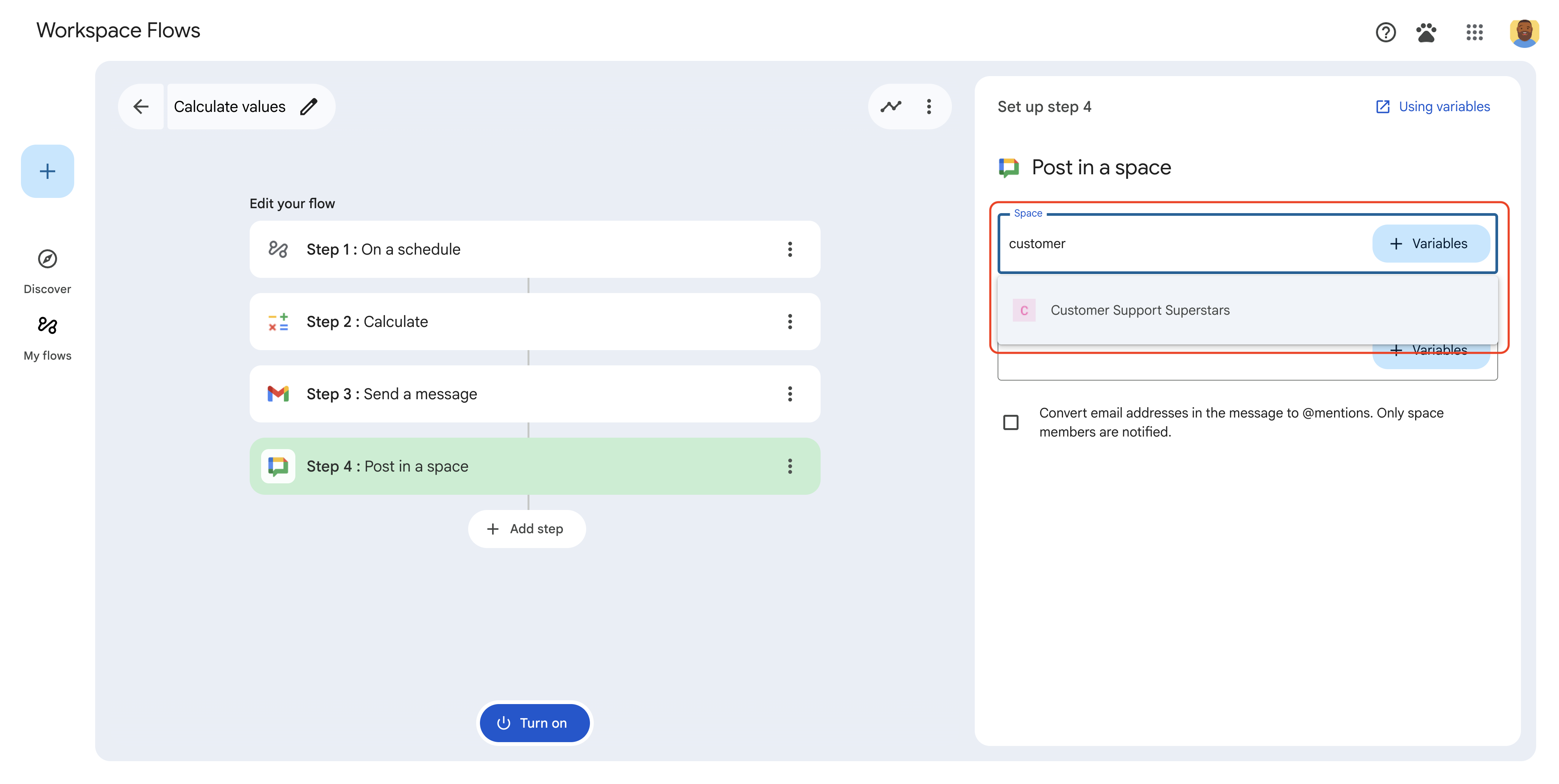
Figure 4: A user reviews autocomplete suggestions when choosing a space. -
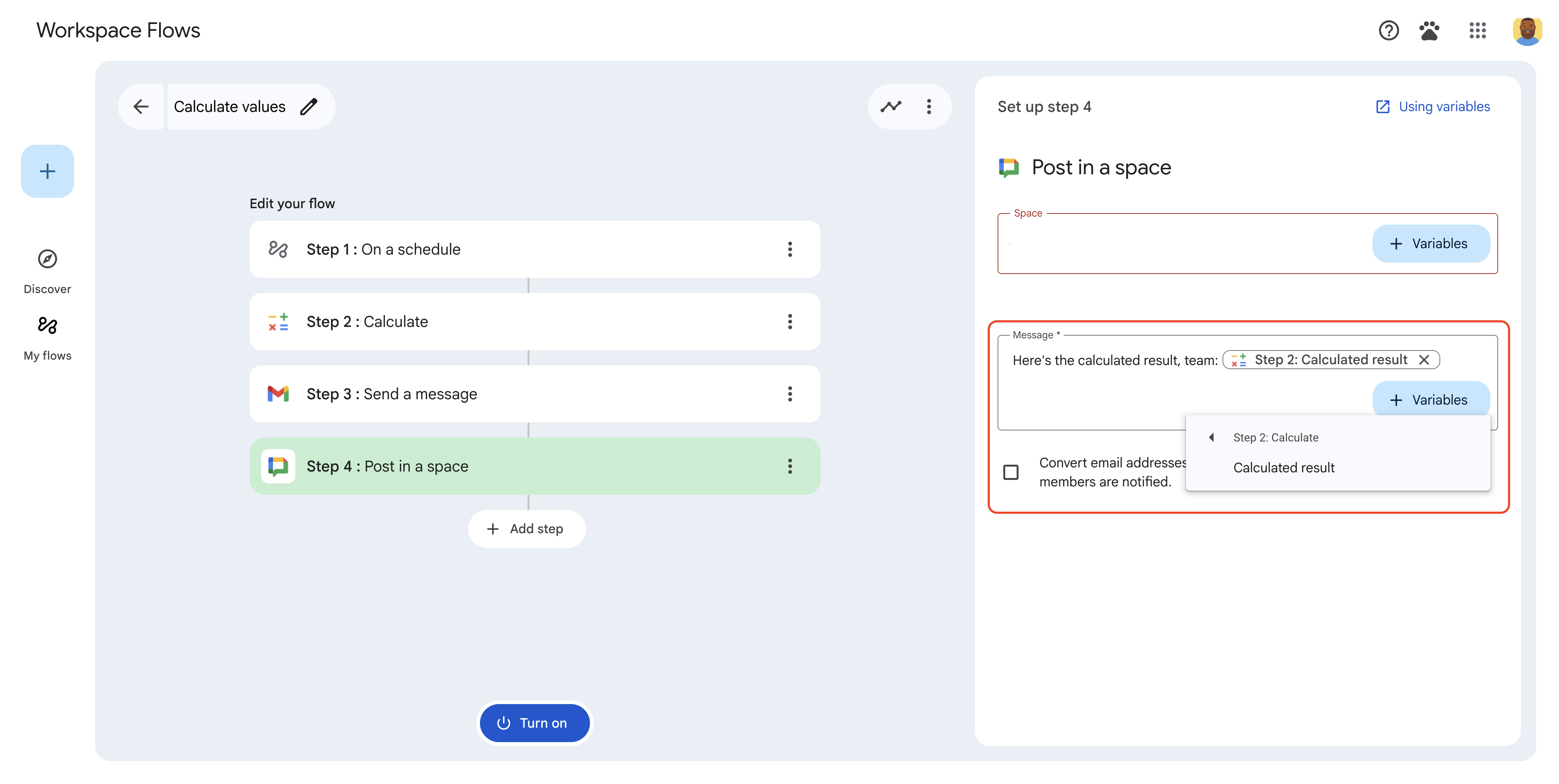
Figure 5: A user selects the output variable of a prior step from the ➕Variables drop-down.
Select only one output variable with an overflow menu
You can configure a SelectionInput
widget to let users select a single output variable
from a previous step using an overflow menu.
When you set the SelectionInputType
to OVERFLOW_MENU
, the widget serves as a
dedicated variable picker. Unlike using includeVariables
with TextInput
,
which converts variable values to strings, the OVERFLOW_MENU
preserves the
original data type of the selected variable.
Apps Script
  const

 selectionInput

 =

 CardService
 .
 newSelectionInput
 ()

 .
 setFieldName
 (
 "variable_picker_1"
 )

 .
 setTitle
 (
 "Variable Picker"
 )

 .
 setType
 (

 CardService
 .
 SelectionInputType
 .
 OVERFLOW_MENU

 );
Let users combine text and output variables
You can configure TextInput
widgets to control how users interact with text and output variables
using setInputMode()
.
-
RICH_TEXT: Allows users to combine text and output variables. The result is a single concatenated string. -
PLAIN_TEXT: Restricts the input. Users can either type text or select a single output variable. Selecting a variable replaces any existing text. Use this mode to enforce specific data types defined in the manifest.
The following image shows two TextInput
widgets. The first is configured as RICH_TEXT
and features text and an output variable. The second is configured
as PLAIN_TEXT
and only permits an output variable.
-

Figure 3: Text input widgets configured as RICH_TEXTandPLAIN_TEXT.
We recommend that you explicitly set the input mode for all TextInput
widgets.
Here's the manifest file for configuring TextInput
widgets with different input modes:
JSON
  {

 "timeZone"
 :

 "America/Toronto"
 ,

 "dependencies"
 :

 {},

 "exceptionLogging"
 :

 "STACKDRIVER"
 ,

 "runtimeVersion"
 :

 "V8"
 ,

 "addOns"
 :

 {

 "common"
 :

 {

 "name"
 :

 "Text and output variable demo"
 ,

 "logoUrl"
 :

 "https://www.gstatic.com/images/icons/material/system/1x/pets_black_48dp.png"
 ,

 "useLocaleFromApp"
 :

 true

 },

 "flows"
 :

 {

 "workflowElements"
 :

 [

 {

 "id"
 :

 "richTextDemo"
 ,

 "state"
 :

 "ACTIVE"
 ,

 "name"
 :

 "Rich Text Demo"
 ,

 "description"
 :

 "Show the difference between rich text and plain text TextInput widgets"
 ,

 "workflowAction"
 :

 {

 "inputs"
 :

 [

 {

 "id"
 :

 "value1"
 ,

 "description"
 :

 "First user input"
 ,

 "cardinality"
 :

 "SINGLE"
 ,

 "dataType"
 :

 {

 "basicType"
 :

 "STRING"

 }

 },

 {

 "id"
 :

 "value2"
 ,

 "description"
 :

 "Second user input"
 ,

 "cardinality"
 :

 "SINGLE"
 ,

 "dataType"
 :

 {

 "basicType"
 :

 "STRING"

 }

 }

 ],

 "onConfigFunction"
 :

 "onConfiguration"
 ,

 "onExecuteFunction"
 :

 "onExecution"

 }

 }

 ]

 }

 }
 }
Here's the code for configuring TextInput
widgets with different input modes:
Apps Script
  function

 onConfiguration
 ()

 {

 const

 input1

 =

 CardService
 .
 newTextInput
 ()

 .
 setFieldName
 (
 "value1"
 )

 .
 setId
 (
 "value1"
 )

 .
 setTitle
 (
 "Rich Text"
 )

 .
 setHostAppDataSource
 (

 CardService
 .
 newHostAppDataSource
 ()

 .
 setWorkflowDataSource
 (

 CardService
 .
 newWorkflowDataSource
 ()

 .
 setIncludeVariables
 (
 true
 )

 )

 )

 // Set input mode to RICH_TEXT to allow mixed text and variables.

  .
 setInputMode
 (
 CardService
 .
 TextInputMode
 .
 RICH_TEXT
 );

 const

 input2

 =

 CardService
 .
 newTextInput
 ()

 .
 setFieldName
 (
 "value2"
 )

 .
 setId
 (
 "value2"
 )

 .
 setTitle
 (
 "Plain text"
 )

 .
 setHostAppDataSource
 (

 CardService
 .
 newHostAppDataSource
 ()

 .
 setWorkflowDataSource
 (

 CardService
 .
 newWorkflowDataSource
 ()

 .
 setIncludeVariables
 (
 true
 )

 )

 )

 // Set input mode to PLAIN_TEXT to enforce single variable selection.

  .
 setInputMode
 (
 CardService
 .
 TextInputMode
 .
 PLAIN_TEXT
 );

 const

 section

 =

 CardService
 .
 newCardSection
 ()

 .
 addWidget
 (
 input1
 )

 .
 addWidget
 (
 input2
 );

 const

 card

 =

 CardService
 .
 newCardBuilder
 ()

 .
 addSection
 (
 section
 )

 .
 build
 ();

 return

 card
 ;
 }
 function

 onExecution
 (
 e
 )

 {
 }
Customize variable picker buttons
You can customize the variable picker button by setting the button size and label.
Button size
To set the button size, use setVariableButtonSize()
with one of the following VariableButtonSize
enums:
-
UNSPECIFIED: The default. The button is compact in the side panel and full size in other contexts. -
COMPACT: The button displays only a plus sign (+). -
FULL_SIZE: The button displays the full text label.
Button label
To set the button text, use setVariableButtonLabel()
.
Example: Variable picker customization
The following example shows how to configure TextInput
widgets with different variable picker button sizes and a custom label.
-
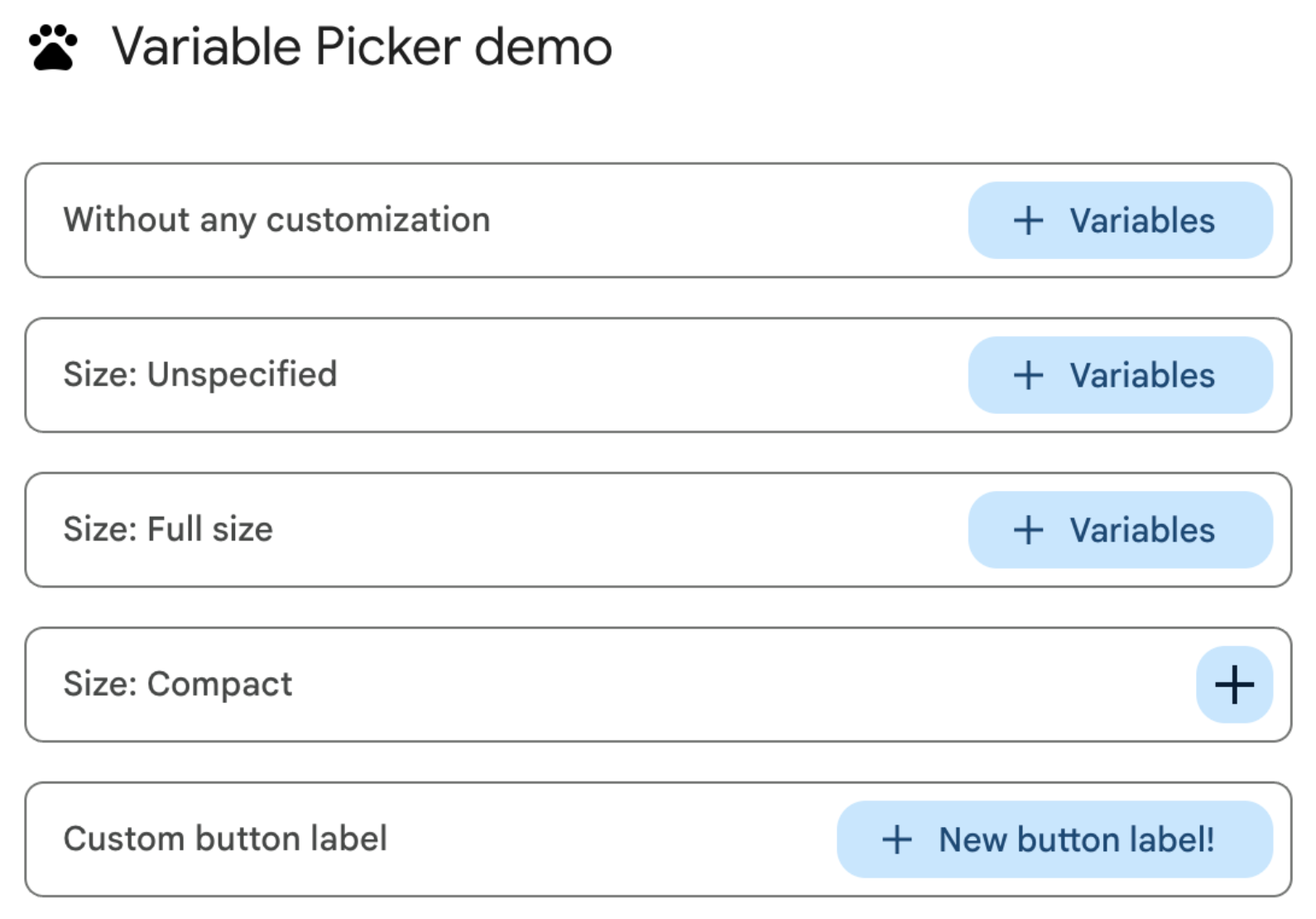
Figure 1: Variable picker button customization on the web. -
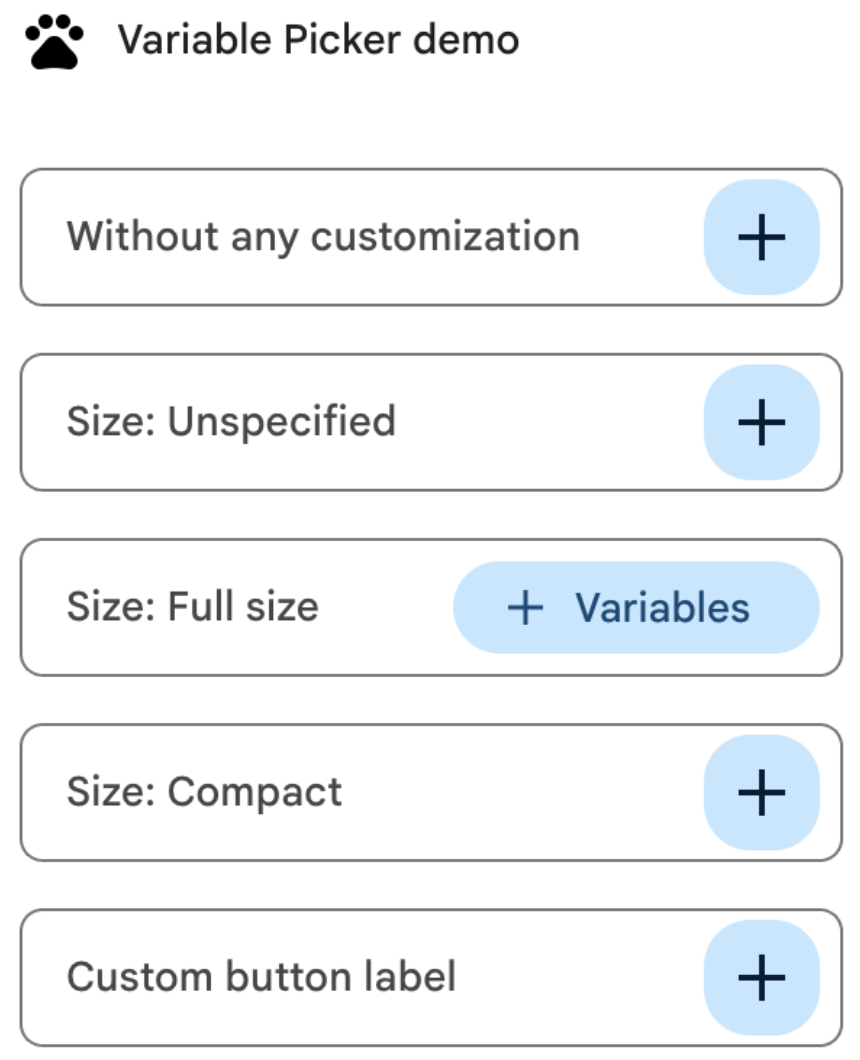
Figure 2: Variable picker button customization in an add-on side panel.
Here's the manifest file for customizing variable picker buttons:
JSON
  {

 "timeZone"
 :

 "America/Los_Angeles"
 ,

 "dependencies"
 :

 {},

 "exceptionLogging"
 :

 "STACKDRIVER"
 ,

 "runtimeVersion"
 :

 "V8"
 ,

 "oauthScopes"
 :

 [

 "https://www.googleapis.com/auth/script.locale"

 ],

 "addOns"
 :

 {

 "common"
 :

 {

 "name"
 :

 "Variable button customization"
 ,

 "logoUrl"
 :

 "https://www.gstatic.com/images/icons/material/system/1x/pets_black_48dp.png"
 ,

 "useLocaleFromApp"
 :

 true

 },

 "flows"
 :

 {

 "workflowElements"
 :

 [

 {

 "id"
 :

 "variable_picker_customization"
 ,

 "state"
 :

 "ACTIVE"
 ,

 "name"
 :

 "Variable Picker demo"
 ,

 "description"
 :

 "List all possible variable picker customization options"
 ,

 "workflowAction"
 :

 {

 "onConfigFunction"
 :

 "onUpdateCardConfigFunction"
 ,

 "onExecuteFunction"
 :

 "onUpdateCardExecuteFunction"

 }

 }

 ]

 }

 }
 }
Here's the code for customizing variable picker buttons:
Apps Script
  function

 onUpdateCardConfigFunction
 (
 event
 )

 {

 const

 textInput1

 =

 CardService
 .
 newTextInput
 ()

 .
 setFieldName
 (
 "value1"
 )

 .
 setTitle
 (
 "Regular variable picker button"
 )

 .
 setHostAppDataSource
 (

 CardService
 .
 newHostAppDataSource
 ().
 setWorkflowDataSource
 (

 CardService
 .
 newWorkflowDataSource
 ()

 .
 setIncludeVariables
 (
 true
 )

 .
 setVariableButtonSize
 (
 CardService
 .
 VariableButtonSize
 .
 UNSPECIFIED
 )

 )

 );

 const

 textInput2

 =

 CardService
 .
 newTextInput
 ()

 .
 setFieldName
 (
 "value2"
 )

 .
 setTitle
 (
 "Size: Unspecified"
 )

 .
 setHostAppDataSource
 (

 CardService
 .
 newHostAppDataSource
 ().
 setWorkflowDataSource
 (

 CardService
 .
 newWorkflowDataSource
 ()

 .
 setIncludeVariables
 (
 true
 )

 .
 setVariableButtonSize
 (
 CardService
 .
 VariableButtonSize
 .
 UNSPECIFIED
 )

 )

 );

 const

 textInput3

 =

 CardService
 .
 newTextInput
 ()

 .
 setFieldName
 (
 "value3"
 )

 .
 setTitle
 (
 "Size: Full size"
 )

 .
 setHostAppDataSource
 (

 CardService
 .
 newHostAppDataSource
 ().
 setWorkflowDataSource
 (

 CardService
 .
 newWorkflowDataSource
 ()

 .
 setIncludeVariables
 (
 true
 )

 .
 setVariableButtonSize
 (
 CardService
 .
 VariableButtonSize
 .
 FULL_SIZE
 )

 )

 );

 const

 textInput4

 =

 CardService
 .
 newTextInput
 ()

 .
 setFieldName
 (
 "value4"
 )

 .
 setTitle
 (
 "Size: Compact"
 )

 .
 setHostAppDataSource
 (

 CardService
 .
 newHostAppDataSource
 ().
 setWorkflowDataSource
 (

 CardService
 .
 newWorkflowDataSource
 ()

 .
 setIncludeVariables
 (
 true
 )

 .
 setVariableButtonSize
 (
 CardService
 .
 VariableButtonSize
 .
 COMPACT
 )

 )

 );

 const

 textInput5

 =

 CardService
 .
 newTextInput
 ()

 .
 setFieldName
 (
 "value5"
 )

 .
 setTitle
 (
 "Custom button label"
 )

 .
 setHostAppDataSource
 (

 CardService
 .
 newHostAppDataSource
 ().
 setWorkflowDataSource
 (

 CardService
 .
 newWorkflowDataSource
 ()

 .
 setIncludeVariables
 (
 true
 )

 .
 setVariableButtonLabel
 (
 "New button label!"
 )

 )

 );

 var

 cardSection

 =

 CardService
 .
 newCardSection
 ()

 .
 addWidget
 (
 textInput1
 )

 .
 addWidget
 (
 textInput2
 )

 .
 addWidget
 (
 textInput3
 )

 .
 addWidget
 (
 textInput4
 )

 .
 addWidget
 (
 textInput5
 )

 .
 setId
 (
 "section_1"
 );

 var

 card

 =

 CardService
 .
 newCardBuilder
 ().
 addSection
 (
 cardSection
 ).
 build
 ();

 return

 card
 ;
 }
 function

 onUpdateCardExecuteFunction
 (
 event
 )

 {
 }
Configure Google Workspace data autocomplete
You can also populate autocomplete suggestions from data within the user's Google Workspace environment:
- Google Workspace users:Populate users within the same Google Workspace organization.
- Google Chat spaces:Populate Google Chat spaces that the user is a member of.
To configure this, set the PlatformDataSource
in the SelectionInput
widget, specifying the WorkflowDataSourceType
as either USER
or SPACE
.
Apps Script
  // User Autocomplete
 var

 multiSelect2

 =

 CardService
 .
 newSelectionInput
 ()

 .
 setFieldName
 (
 "value2"
 )

 .
 setTitle
 (
 "User Autocomplete"
 )

 .
 setType
 (
 CardService
 .
 SelectionInputType
 .
 MULTI_SELECT
 )

 .
 setMultiSelectMaxSelectedItems
 (
 3
 )

 .
 setPlatformDataSource
 (

 CardService
 .
 newPlatformDataSource
 ()

 .
 setHostAppDataSource
 (

 CardService
 .
 newHostAppDataSource
 ()

 .
 setWorkflowDataSource
 (

 CardService
 .
 newWorkflowDataSource
 ()

 .
 setIncludeVariables
 (
 true
 )

 .
 setType
 (
 CardService
 .
 WorkflowDataSourceType
 .
 USER
 )

 ))

 );
 // Chat Space Autocomplete
 var

 multiSelect3

 =

 CardService
 .
 newSelectionInput
 ()

 .
 setFieldName
 (
 "value3"
 )

 .
 setTitle
 (
 "Chat Space Autocomplete"
 )

 .
 setType
 (
 CardService
 .
 SelectionInputType
 .
 MULTI_SELECT
 )

 .
 setMultiSelectMaxSelectedItems
 (
 3
 )

 .
 setPlatformDataSource
 (

 CardService
 .
 newPlatformDataSource
 ()

 .
 setHostAppDataSource
 (

 CardService
 .
 newHostAppDataSource
 ()

 .
 setWorkflowDataSource
 (

 CardService
 .
 newWorkflowDataSource
 ()

 .
 setIncludeVariables
 (
 true
 )

 .
 setType
 (
 CardService
 .
 WorkflowDataSourceType
 .
 SPACE
 )

 ))

 );
Example: Combining autocomplete types
The following example shows an onConfig
function that creates a card with
three SelectionInput
widgets, demonstrating server-side, user, and space autocomplete:
JSON
  {

 "timeZone"
 :

 "America/Los_Angeles"
 ,

 "exceptionLogging"
 :

 "STACKDRIVER"
 ,

 "runtimeVersion"
 :

 "V8"
 ,

 "addOns"
 :

 {

 "common"
 :

 {

 "name"
 :

 "Autocomplete Demo"
 ,

 "logoUrl"
 :

 "https://www.gstatic.com/images/icons/material/system/1x/pets_black_48dp.png"
 ,

 "useLocaleFromApp"
 :

 true

 },

 "flows"
 :

 {

 "workflowElements"
 :

 [

 {

 "id"
 :

 "autocomplete_demo"
 ,

 "state"
 :

 "ACTIVE"
 ,

 "name"
 :

 "Autocomplete Demo"
 ,

 "description"
 :

 "Provide autocompletion in input fields"
 ,

 "workflowAction"
 :

 {

 "inputs"
 :

 [

 {

 "id"
 :

 "value1"
 ,

 "description"
 :

 "A multi-select field with autocompletion"
 ,

 "cardinality"
 :

 "SINGLE"
 ,

 "dataType"
 :

 {

 "basicType"
 :

 "STRING"

 }

 }

 ],

 "onConfigFunction"
 :

 "onConfigAutocomplete"
 ,

 "onExecuteFunction"
 :

 "onExecuteAutocomplete"

 }

 }

 ]

 }

 }
 }
Apps Script
  function

 onConfigAutocompleteTest
 (
 event
 )

 {

 // Handle autocomplete request

 if

 (
 event
 .
 workflow
 &&
 event
 .
 workflow
 .
 elementUiAutocomplete
 )

 {

 return

 handleAutocompleteRequest
 (
 event
 );

 }

 // Server-side autocomplete widget

 var

 multiSelect1

 =

 CardService
 .
 newSelectionInput
 ()

 .
 setFieldName
 (
 "value1"
 )

 .
 setTitle
 (
 "Server Autocomplete"
 )

 .
 setType
 (
 CardService
 .
 SelectionInputType
 .
 MULTI_SELECT
 )

 .
 setMultiSelectMaxSelectedItems
 (
 3
 )

 .
 addDataSourceConfig
 (

 CardService
 .
 newDataSourceConfig
 ()

 .
 setRemoteDataSource
 (

 CardService
 .
 newAction
 ().
 setFunctionName
 (
 'getAutocompleteResults'
 )

 )

 )

 .
 addDataSourceConfig
 (

 CardService
 .
 newDataSourceConfig
 ()

 .
 setPlatformDataSource
 (

 CardService
 .
 newPlatformDataSource
 ()

 .
 setHostAppDataSource
 (

 CardService
 .
 newHostAppDataSource
 ()

 .
 setWorkflowDataSource
 (

 CardService
 .
 newWorkflowDataSource
 ()

 .
 setIncludeVariables
 (
 true
 )

 ))

 )

 );

 // User autocomplete widget

 var

 multiSelect2

 =

 CardService
 .
 newSelectionInput
 ()

 .
 setFieldName
 (
 "value2"
 )

 .
 setTitle
 (
 "User Autocomplete"
 )

 .
 setType
 (
 CardService
 .
 SelectionInputType
 .
 MULTI_SELECT
 )

 .
 setMultiSelectMaxSelectedItems
 (
 3
 )

 .
 setPlatformDataSource
 (

 CardService
 .
 newPlatformDataSource
 ()

 .
 setHostAppDataSource
 (

 CardService
 .
 newHostAppDataSource
 ()

 .
 setWorkflowDataSource
 (

 CardService
 .
 newWorkflowDataSource
 ()

 .
 setIncludeVariables
 (
 true
 )

 .
 setType
 (
 CardService
 .
 WorkflowDataSourceType
 .
 USER
 )

 ))

 );

 // Space autocomplete widget

 var

 multiSelect3

 =

 CardService
 .
 newSelectionInput
 ()

 .
 setFieldName
 (
 "value3"
 )

 .
 setTitle
 (
 "Chat Space Autocomplete"
 )

 .
 setType
 (
 CardService
 .
 SelectionInputType
 .
 MULTI_SELECT
 )

 .
 setMultiSelectMaxSelectedItems
 (
 3
 )

 .
 setPlatformDataSource
 (

 CardService
 .
 newPlatformDataSource
 ()

 .
 setHostAppDataSource
 (

 CardService
 .
 newHostAppDataSource
 ()

 .
 setWorkflowDataSource
 (

 CardService
 .
 newWorkflowDataSource
 ()

 .
 setIncludeVariables
 (
 true
 )

 .
 setType
 (
 CardService
 .
 WorkflowDataSourceType
 .
 SPACE
 )

 ))

 );

 var

 sectionBuilder

 =

 CardService
 .
 newCardSection
 ()

 .
 addWidget
 (
 multiSelect1
 )

 .
 addWidget
 (
 multiSelect2
 )

 .
 addWidget
 (
 multiSelect3
 );

 var

 card

 =

 CardService
 .
 newCardBuilder
 ()

 .
 addSection
 (
 sectionBuilder
 )

 .
 build
 ();

 return

 card
 ;
 }
 function

 handleAutocompleteRequest
 (
 event
 )

 {

 var

 invokedFunction

 =

 event
 .
 workflow
 .
 elementUiAutocomplete
 .
 invokedFunction
 ;

 var

 query

 =

 event
 .
 workflow
 .
 elementUiAutocomplete
 .
 query
 ;

 if

 (
 invokedFunction

 !=

 "getAutocompleteResults"

 ||

 query

 ==

 undefined

 ||

 query

 ==

 ""
 )

 {

 return

 {};

 }

 // Query your data source to get results

 let

 autocompleteResponse

 =

 AddOnsResponseService
 .
 newUpdateWidget
 ()

 .
 addSuggestion
 (

 query

 +

 " option 1"
 ,

 query

 +

 "_option1"
 ,

 false
 ,

 "https://developers.google.com/workspace/add-ons/images/person-icon.png"
 ,

 "option 1 bottom text"

 )

 .
 addSuggestion
 (

 query

 +

 " option 2"
 ,

 query

 +

 "_option2"
 ,

 false
 ,

 "https://developers.google.com/workspace/add-ons/images/person-icon.png"
 ,

 "option 2 bottom text"

 ).
 addSuggestion
 (

 query

 +

 " option 3"
 ,

 query

 +

 "_option3"
 ,

 false
 ,

 "https://developers.google.com/workspace/add-ons/images/person-icon.png"
 ,

 "option 3 bottom text"

 );

 const

 modifyAction

 =

 AddOnsResponseService
 .
 newAction
 ()

 .
 addModifyCard
 (

 AddOnsResponseService
 .
 newModifyCard
 ()

 .
 setUpdateWidget
 (
 autocompleteResponse
 )

 );

 return

 AddOnsResponseService
 .
 newRenderActionBuilder
 ()

 .
 setAction
 (
 modifyAction
 )

 .
 build
 ();
 }
Validate the input variable
As a best practice, validate that the user enters an appropriate value. See Validate an input variable .
