
1. Before you begin
Serverless backend tools like Cloud Firestore and Cloud Functions are very easy to use, but can be hard to test. The Firebase Local Emulator Suite allows you to run local versions of these services on your development machine so you can develop your app quickly and safely.
Prerequisites
- A simple editor such as Visual Studio Code, Atom, or Sublime Text
- Node.js 10.0.0 or higher (to install Node.js, use nvm
, to check your version, run
node --version) - Java 7 or higher (to install Java use these instructions
, to check your version, run
java -version)
What you'll do
In this codelab, you will run and debug a simple online shopping app which is powered by multiple Firebase services:
- Cloud Firestore:a globally scalable, serverless, NoSQL database with real-time capabilities.
- Cloud Functions: a serverless backend code that runs in response to events or HTTP requests.
- Firebase Authentication: a managed authentication service that integrates with other Firebase products.
- Firebase Hosting: fast and secure hosting for web apps.
You will connect the app to the Emulator Suite to enable local development.

You'll also learn how to:
- How to connect your app to the Emulator Suite and how the various emulators are connected.
- How Firebase Security Rules work and how to test Firestore Security Rules against a local emulator.
- How to write a Firebase Function that is triggered by Firestore events and how to write integration tests that runs against the Emulator Suite.
2. Set up
Get the source code
In this codelab, you start off with a version of The Fire Store sample that is nearly complete, so the first thing you need to do is clone the source code:
$ git clone https://github.com/firebase/emulators-codelab.git
Then move into the codelab directory, where you will work for the remainder of this codelab:
$ cd emulators-codelab/codelab-initial-state
Now, install the dependencies so you can run the code. If you're on a slower internet connection this may take a minute or two:
 # Move into the functions directory
$ cd functions

# Install dependencies
$ npm install

# Move back into the previous directory
$ cd ../
Get the Firebase CLI
The Emulator Suite is part of the Firebase CLI (command-line interface) which can be installed on your machine with the following command:
$ npm install -g firebase-tools
Next, confirm that you have the latest version of the CLI. This codelab should work with version 9.0.0 or higher but later versions include more bug fixes.
$ firebase --version
9.6.0
Connect to your Firebase project
Create a Firebase project
- Sign into the Firebase console using your Google Account.
- Click the button to create a new project, and then enter a project name (for example,
Emulators Codelab).
- Click Continue.
- If prompted, review and accept the Firebase terms , and then click Continue.
- (Optional) Enable AI assistance in the Firebase console (called "Gemini in Firebase").
- For this codelab, you do not need Google Analytics, so toggle off the Google Analytics option.
- Click Create project, wait for your project to provision, and then click Continue.
Connect you code to your Firebase project
Now we need to connect this code to your Firebase project. First run the following command to log in to the Firebase CLI:
$ firebase login
Next run the following command to create a project alias. Replace $YOUR_PROJECT_ID
with the ID of your Firebase project.
$ firebase use $YOUR_PROJECT_ID
Now you're ready to run the app!
3. Run the emulators
In this section, you'll run the app locally. This means it is time to boot up the Emulator Suite.
Start the Emulators
From inside the codelab source directory, run the following command to start the emulators:
$ firebase emulators:start --import=./seed
You should see some output like this:
$ firebase emulators:start --import=./seed
i  emulators: Starting emulators: auth, functions, firestore, hosting
⚠  functions: The following emulators are not running, calls to these services from the Functions emulator will affect production: database, pubsub
i  firestore: Importing data from /Users/samstern/Projects/emulators-codelab/codelab-initial-state/seed/firestore_export/firestore_export.overall_export_metadata
i  firestore: Firestore Emulator logging to firestore-debug.log
i  hosting: Serving hosting files from: public
✔  hosting: Local server: http://127.0.0.1:5000
i  ui: Emulator UI logging to ui-debug.log
i  functions: Watching "/Users/samstern/Projects/emulators-codelab/codelab-initial-state/functions" for Cloud Functions...
✔  functions[calculateCart]: firestore function initialized.

┌─────────────────────────────────────────────────────────────┐
│ ✔  All emulators ready! It is now safe to connect your app. │
│ i  View Emulator UI at http://127.0.0.1:4000                │
└─────────────────────────────────────────────────────────────┘

┌────────────────┬────────────────┬─────────────────────────────────┐
│ Emulator       │ Host:Port      │ View in Emulator UI             │
├────────────────┼────────────────┼─────────────────────────────────┤
│ Authentication │ 127.0.0.1:9099 │ http://127.0.0.1:4000/auth      │
├────────────────┼────────────────┼─────────────────────────────────┤
│ Functions      │ 127.0.0.1:5001 │ http://127.0.0.1:4000/functions │
├────────────────┼────────────────┼─────────────────────────────────┤
│ Firestore      │ 127.0.0.1:8080 │ http://127.0.0.1:4000/firestore │
├────────────────┼────────────────┼─────────────────────────────────┤
│ Hosting        │ 127.0.0.1:5000 │ n/a                             │
└────────────────┴────────────────┴─────────────────────────────────┘
  Emulator Hub running at 127.0.0.1:4400
  Other reserved ports: 4500

Issues? Report them at https://github.com/firebase/firebase-tools/issues and attach the *-debug.log files.
Once you see the All emulators startedmessage, the app is ready to use.
Connect the web app to the emulators
Based on the table in the logs we can see that the Cloud Firestore emulator is listening on port 8080
and the Authentication emulator is listening on port 9099
.
┌────────────────┬────────────────┬─────────────────────────────────┐
│ Emulator       │ Host:Port      │ View in Emulator UI             │
├────────────────┼────────────────┼─────────────────────────────────┤
│ Authentication │ 127.0.0.1:9099 │ http://127.0.0.1:4000/auth      │
├────────────────┼────────────────┼─────────────────────────────────┤
│ Functions      │ 127.0.0.1:5001 │ http://127.0.0.1:4000/functions │
├────────────────┼────────────────┼─────────────────────────────────┤
│ Firestore      │ 127.0.0.1:8080 │ http://127.0.0.1:4000/firestore │
├────────────────┼────────────────┼─────────────────────────────────┤
│ Hosting        │ 127.0.0.1:5000 │ n/a                             │
└────────────────┴────────────────┴─────────────────────────────────┘
Let's connect your frontend code to the emulator, rather than to production. Open the public/js/homepage.js
file and find the onDocumentReady
function. We can see that the code accesses the standard Firestore and Auth instances:
public/js/homepage.js
 const

 auth

 =

 firebaseApp
 .
 auth
 ();

 const

 db

 =

 firebaseApp
 .
 firestore
 ();
Let's update the db
and auth
objects to point to the local emulators:
public/js/homepage.js
 const

 auth

 =

 firebaseApp
 .
 auth
 ();

 const

 db

 =

 firebaseApp
 .
 firestore
 ();

 //

 ADD

 THESE

 LINES

 if

 (
 location
 .
 hostname

 ===

 "127.0.0.1"
 )

 {

 console
 .
 log
 (
 "127.0.0.1 detected!"
 );

 auth
 .
 useEmulator
 (
 "http://127.0.0.1:9099"
 );

 db
 .
 useEmulator
 (
 "127.0.0.1"
 ,

 8080
 );

 }
Now when the app is running on your local machine (served by the Hosting emulator) the Firestore client also points at the local emulator rather than at a production database.
Open the EmulatorUI
In your web browser, navigate to http://127.0.0.1:4000/ . You should see the Emulator Suite UI.

Click to see the UI for the Firestore Emulator. The items
collection already contains data because of the data imported with the --import
flag.

4. Run the app
Open the app
In your web browser, navigate to http://127.0.0.1:5000 and you should see The Fire Store running locally on your machine!

Use the app
Pick an item on the homepage and click Add to Cart. Unfortunately, you will run into the following error:

Let's fix that bug! Because everything is running in the emulators, we can experiment and not worry about affecting real data.
5. Debug the app
Find the bug
Ok let's look in the Chrome developer console. Press Control+Shift+J
(Windows, Linux, Chrome OS) or Command+Option+J
(Mac) to see the error on the console:

It seems like there was some error in the addToCart
method, let's take a look at that. Where do we try to access something called uid
in that method and why would it be null
? Right now the method looks like this in public/js/homepage.js
:
public/js/homepage.js
 addToCart(id,

 itemData)

 {

 console.log("addToCart",

 id,

 JSON.stringify(itemData));

 return

 this.db

 .collection("carts")

 .doc(this.auth.currentUser.uid)

 .collection("items")

 .doc(id)

 .set(itemData);

 }
Aha! We're not signed into the app. According to the Firebase Authentication docs
, when we are not signed in, auth.currentUser
is null
. Let's add a check for that:
public/js/homepage.js
 addToCart(id, itemData) {
    // ADD THESE LINES
    if (this.auth.currentUser === null) {
      this.showError("You must be signed in!");
      return;
    }

    // ...
  }
Test the app
Now, refreshthe page and then click Add to Cart. You should get a nicer error this time:

But if you click Sign Inin the upper toolbar and then click Add to Cartagain, you will see that the cart is updated.
However, it doesn't look like the numbers are correct at all:

Don't worry, we'll fix that bug soon. First, let's dive deep into what actually happened when you added an item to your cart.
6. Local functions triggers
Clicking Add to Cartkicks off a chain of events that involve multiple emulators. In the Firebase CLI logs, you should see something like the following messages after you add an item to your cart:
i  functions: Beginning execution of "calculateCart"
i  functions: Finished "calculateCart" in ~1s
There were four key events that occurred to produce those logs and the UI update you observed:

1) Firestore Write - Client
A new document is added to the Firestore collection /carts/{cartId}/items/{itemId}/
. You can see this code in the addToCart
function inside public/js/homepage.js
:
public/js/homepage.js
 addToCart(id,

 itemData)

 {

 //

 ...

 console.log("addToCart",

 id,

 JSON.stringify(itemData));

 return

 this.db

 .collection("carts")

 .doc(this.auth.currentUser.uid)

 .collection("items")

 .doc(id)

 .set(itemData);

 }
2) Cloud Function Triggered
The Cloud Function calculateCart
listens for any write events (create, update, or delete) that happen to cart items by using the onWrite
trigger, which you can see in functions/index.js
:
functions/index.js
  exports
 .
 calculateCart

 =

 functions
 .
 firestore

 .
 document
 (
 "carts/{cartId}/items/{itemId}"
 )

 .
 onWrite
 (
 async

 (
 change
 ,

 context
 )

 =
>
 {

 try

 {

 let

 totalPrice

 =

 125.98
 ;

 let

 itemCount

 =

 8
 ;

 const

 cartRef

 =

 db
 .
 collection
 (
 "carts"
 )
 .
 doc
 (
 context
 .
 params
 .
 cartId
 );

 await

 cartRef
 .
 update
 ({

 totalPrice
 ,

 itemCount

 });

 }

 catch
 (
 err
 )

 {

 }

 }
 );
3) Firestore Write - Admin
The calculateCart
function reads all of the items in the cart and adds up the total quantity and price, then it updates the "cart" document with the new totals (see cartRef.update(...)
above).
4) Firestore Read - Client
The web frontend is subscribed to receive updates about changes to the cart. It gets a real-time update after the Cloud Function writes the new totals and updates the UI, as you can see in public/js/homepage.js
:
public/js/homepage.js
 this.cartUnsub = cartRef.onSnapshot(cart => {
   // The cart document was changed, update the UI
   // ...
});
Recap
Nice work! You just set up a fully local app that uses three different Firebase emulators for fully local testing.

But wait, there's more! In the next section you'll learn:
- How to write unit tests that use the Firebase Emulators.
- How to use the Firebase Emulators to debug your Security Rules.
7. Create security rules tailored for your app
Our web app reads and writes data but so far we haven't really worried about security at all. Cloud Firestore uses a system called "Security Rules" to declare who has access to read and write data. The Emulator Suite is a great way to prototype these rules.
In the editor, open the file emulators-codelab/codelab-initial-state/firestore.rules
. You'll see that we have three main sections in our rules:
  rules_version

 =

 '2'
 ;
 service

 cloud
 .
 firestore

 {

 match

 /databases/{database
 }
 /
 documents

 {

 //

 User's

 cart

 metadata

 match

 /carts/{cartID
 }

 {

 //

 TODO
 :

 Change

 these
 !

 Anyone

 can

 read

 or

 write
 .

 allow

 read
 ,

 write
 :

 if

 true
 ;

 }

 //

 Items

 inside

 the

 user
 '
 s

 cart

 match

 /
 carts
 /
 {
 cartID
 }
 /
 items
 /
 {
 itemID
 }

 {

 //

 TODO
 :

 Change

 these
 !

 Anyone

 can

 read

 or

 write
 .

 allow

 read
 ,

 write
 :

 if

 true
 ;

 }

 //

 All

 items

 available

 in

 the

 store
 .

 Users

 can

 read

 //

 items

 but

 never

 write

 them
 .

 match

 /
 items
 /
 {
 itemID
 }

 {

 allow

 read
 :

 if

 true
 ;

 }

 }
 }
Right now anyone can read and write data to our database! We want to make sure that only valid operations get through and that we don't leak any sensitive information.
During this codelab, following the Principle of Least Privilege, we'll lock down all the documents and gradually add access until all the users have all the access they need, but not more. Let's update the first two rules to deny access by setting the condition to false
:
  rules_version

 =

 '2'
 ;
 service

 cloud
 .
 firestore

 {

 match

 /databases/{database
 }
 /
 documents

 {

 //

 User's

 cart

 metadata

 match

 /carts/{cartID
 }

 {

 //

 UPDATE

 THIS

 LINE

 allow

 read,

 write
 :

 if

 false
 ;

 }

 //

 Items

 inside

 the

 user
 '
 s

 cart

 match

 /
 carts
 /
 {
 cartID
 }
 /
 items
 /
 {
 itemID
 }

 {

 //

 UPDATE

 THIS

 LINE

 allow

 read,

 write
 :

 if

 false
 ;

 }

 //

 All

 items

 available

 in

 the

 store
 .

 Users

 can

 read

 //

 items

 but

 never

 write

 them
 .

 match

 /
 items
 /
 {
 itemID
 }

 {

 allow

 read
 :

 if

 true
 ;

 }

 }
 }
8. Run the emulators and tests
Start the emulators
On the command line, make sure you're in emulators-codelab/codelab-initial-state/
. You may still have the emulators running from the previous steps. If not, start the emulators again:
$ firebase emulators:start --import=./seed
Once the emulators are running, you can run tests locally against them.
Run the tests
On the command line in a new terminal tabfrom the directory emulators-codelab/codelab-initial-state/
First move into the functions directory (we'll stay here for the remainder of the codelab):
$ cd functions
Now run the mocha tests in the functions directory, and scroll to the top of the output:
# Run the tests
$ npm test

> functions@ test .../emulators-codelab/codelab-initial-state/functions
> mocha

  shopping carts
    1) can be created and updated by the cart owner
    2) can be read only by the cart owner

  shopping cart items
    3) can be read only by the cart owner
    4) can be added only by the cart owner

  adding an item to the cart recalculates the cart total.
    - should sum the cost of their items


  0 passing (364ms)
  1 pending
  4 failing
Right now we have four failures. As you build the rules file, you can measure progress by watching more tests pass.
9. Secure cart access
The first two failures are the "shopping cart" tests which test that:
- Users can only create and update their own carts
- Users can only read their own carts
functions/test.js
 it
 (
 'can be created and updated by the cart owner'
 ,

 async

 ()

 =
>
 {

 //

 Alice

 can

 create

 her

 own

 cart

 await

 firebase.assertSucceeds(aliceDb.doc("carts/alicesCart").set({

 ownerUID
 :

 "alice"
 ,

 total
 :

 0

 }
 ));

 //

 Bob

 can
 't create Alice'
 s

 cart

 await

 firebase
 .
 assertFails
 (
 bobDb
 .
 doc
 (
 "carts/alicesCart"
 )
 .
 set
 (
 {

 ownerUID
 :

 "alice"
 ,

 total
 :

 0

 }
 ));

 //

 Alice

 can

 update

 her

 own

 cart

 with

 a

 new

 total

 await

 firebase
 .
 assertSucceeds
 (
 aliceDb
 .
 doc
 (
 "carts/alicesCart"
 )
 .
 update
 (
 {

 total
 :

 1

 }
 ));

 //

 Bob

 can
 't update Alice'
 s

 cart

 with

 a

 new

 total

 await

 firebase
 .
 assertFails
 (
 bobDb
 .
 doc
 (
 "carts/alicesCart"
 )
 .
 update
 (
 {

 total
 :

 1

 }
 ));

 }
 );

 it
 (
 "can be read only by the cart owner"
 ,

 async

 ()

 =
>
 {

 //

 Setup
 :

 Create

 Alice
 's cart as admin
 await admin.doc("carts/alicesCart").set({
 ownerUID: "alice",
 total: 0
 });
 // Alice can read her own cart
 await firebase.assertSucceeds(aliceDb.doc("carts/alicesCart").get());
 // Bob can'
 t

 read

 Alice
 '
 s

 cart

 await

 firebase
 .
 assertFails
 (
 bobDb
 .
 doc
 (
 "carts/alicesCart"
 )
 .
 get
 ());

 }
 );
Let's make these tests pass. In the editor, open the security rules file, firestore.rules
, and update the statements within match /carts/{cartID}
:
firestore.rules
  rules_version

 =

 '2'
 ;
 service

 cloud
 .
 firestore

 {

 //

 UPDATE

 THESE

 LINES

 match

 /carts/{cartID
 }

 {

 allow

 create
 :

 if

 request
 .
 auth
 .
 uid

 ==

 request
 .
 resource
 .
 data
 .
 ownerUID
 ;

 allow

 read,

 update,

 delete
 :

 if

 request
 .
 auth
 .
 uid

 ==

 resource
 .
 data
 .
 ownerUID
 ;

 }

 //

 ...

 }
 }
These rules now only allow read and write access by the cart owner.
To verify incoming data and user's authentication, we use two objects that are available in the context of every rule:
- The
requestobject contains data and metadata about the operation that is being attempted. - If a Firebase project is using Firebase Authentication
, the
request.authobject describes the user who is making the request.
10. Test cart access
The Emulator Suite automatically updates the rules whenever firestore.rules
is saved. You can confirm that the emulator has the updated the rules by looking in the tab running the emulator for the message Rules updated
:

Rerun the tests, and check that the first two tests now pass:
$ npm test

> functions@ test .../emulators-codelab/codelab-initial-state/functions
> mocha

  shopping carts
    ✓ can be created and updated by the cart owner (195ms)
    ✓ can be read only by the cart owner (136ms)

  shopping cart items
    1) can be read only by the cart owner
    2) can be added only by the cart owner

  adding an item to the cart recalculates the cart total.
    - should sum the cost of their items

  2 passing (482ms)
  1 pending
  2 failing
Good job! You have now secured access to shopping carts. Let's move on to the next failing test.
11. Check the "Add to Cart" flow in the UI
Right now, although cart owners read and write to their cart, they can't read or write individual items in their cart. That's because while owners have access to the cart document, they don't have access to the cart's items subcollection .
This is a broken state for users.
Return to the web UI, which is running on http://127.0.0.1:5000,
and try to add something to your cart. You get a Permission Denied
error, visible from the debug console, because we haven't yet granted users access to created documents in the items
subcollection.
12. Allow cart items access
These two tests confirm that users can only add items to or read items from their own cart:
 it
 (
 "can be read only by the cart owner"
 ,

 async

 ()

 =
>
 {

 //

 Alice

 can

 read

 items

 in

 her

 own

 cart

 await

 firebase.assertSucceeds(aliceDb.doc("carts/alicesCart/items/milk").get())
 ;

 //

 Bob

 can't

 read

 items

 in

 alice's

 cart

 await

 firebase.assertFails(bobDb.doc("carts/alicesCart/items/milk").get())

 }
 );

 it
 (
 "can be added only by the cart owner"
 ,

 async

 ()

 =
>
 {

 //

 Alice

 can

 add

 an

 item

 to

 her

 own

 cart

 await

 firebase.assertSucceeds(aliceDb.doc("carts/alicesCart/items/lemon").set({

 name
 :

 "lemon"
 ,

 price
 :

 0.99

 }
 ));

 //

 Bob

 can
 't add an item to alice'
 s

 cart

 await

 firebase
 .
 assertFails
 (
 bobDb
 .
 doc
 (
 "carts/alicesCart/items/lemon"
 )
 .
 set
 (
 {

 name
 :

 "lemon"
 ,

 price
 :

 0.99

 }
 ));

 }
 );
So we can write a rule that allows access if the current user has the same UID as the ownerUID on the cart document. Since there's no need to specify different rules for create, update, delete
, you can use a write
rule, which applies to all requests that modify data.
Update the rule for the documents in the items subcollection. The get
in the conditional is reading a value from Firestore–in this case, the ownerUID
on the cart document.
  rules_version

 =

 '2'
 ;
 service

 cloud
 .
 firestore

 {

 match

 /databases/{database
 }
 /
 documents

 {

 //

 ...

 //

 UPDATE

 THESE

 LINES

 match

 /carts/{cartID
 }
 /
 items
 /
 {
 itemID
 }

 {

 allow

 read,

 write
 :

 if

 get
 (
 /
 databases
 /
 $(
 database
 )
 /
 documents
 /
 carts
 /
 $
 (
 cartID
 ))
 .
 data
 .
 ownerUID

 ==

 request
 .
 auth
 .
 uid
 ;

 }

 //

 ...

 }
 }
13. Test cart items access
Now we can rerun the test. Scroll to the top of the output and check that more tests pass:
$ npm test

> functions@ test .../emulators-codelab/codelab-initial-state/functions
> mocha

  shopping carts
    ✓ can be created and updated by the cart owner (195ms)
    ✓ can be read only by the cart owner (136ms)

  shopping cart items
    ✓ can be read only by the cart owner (111ms)
    ✓ can be added only by the cart owner


  adding an item to the cart recalculates the cart total.
    - should sum the cost of their items


  4 passing (401ms)
  1 pending
Nice! Now all of our tests pass. We have one pending test, but we'll get to that in a few steps.
14. Check the "add to cart" flow again
Return to the web front end ( http://127.0.0.1:5000 ) and add an item to the cart. This is an important step to confirm that our tests and rules match the functionality required by the client. (Remember that the last time we tried out the UI users were unable to add items to their cart!)

The client automatically reloads the rules when the firestore.rules
is saved. So, try adding something to the cart.
Recap
Nice work! You just improved the security of your app, an essential step for getting it ready for production! If this were a production app, we could add these tests to our continuous integration pipeline. This would give us confidence going forward that our shopping cart data will have these access controls, even if others are modifying the rules.

But wait, there's more!
if you continue on you'll learn:
- How to write a function triggered by a Firestore event
- How to create tests that work across multiple emulators
15. Set up Cloud Functions tests
So far we've focused on the frontend of our web app and the Firestore Security Rules. But this app also uses Cloud Functions to keep the user's cart up to date, so we want to test that code as well.
The Emulator Suite makes it so easy to test Cloud Functions, even functions that use Cloud Firestore and other services.
In the editor, open the emulators-codelab/codelab-initial-state/functions/test.js
file and scroll to the last test in the file. Right now, it's marked as pending:
  //  REMOVE .skip FROM THIS LINE
 describe
 .
 skip
 (
 "adding an item to the cart recalculates the cart total. "
 ,

 ()

 =
>
 {

 // ...

 it
 (
 "should sum the cost of their items"
 ,

 async

 ()

 =
>
 {

 ...

 });
 });
To enable the test, remove .skip
, so it looks like this:
 describe("adding an item to the cart recalculates the cart total. ", () => {
  // ...

  it("should sum the cost of their items", async () => {
    ...
  });
});
Next, find the REAL_FIREBASE_PROJECT_ID
variable at the top of the file and change it to your real Firebase Project ID.:
  //

 CHANGE

 THIS

 LINE
 const

 REAL_FIREBASE_PROJECT_ID

 =

 "changeme"
 ;
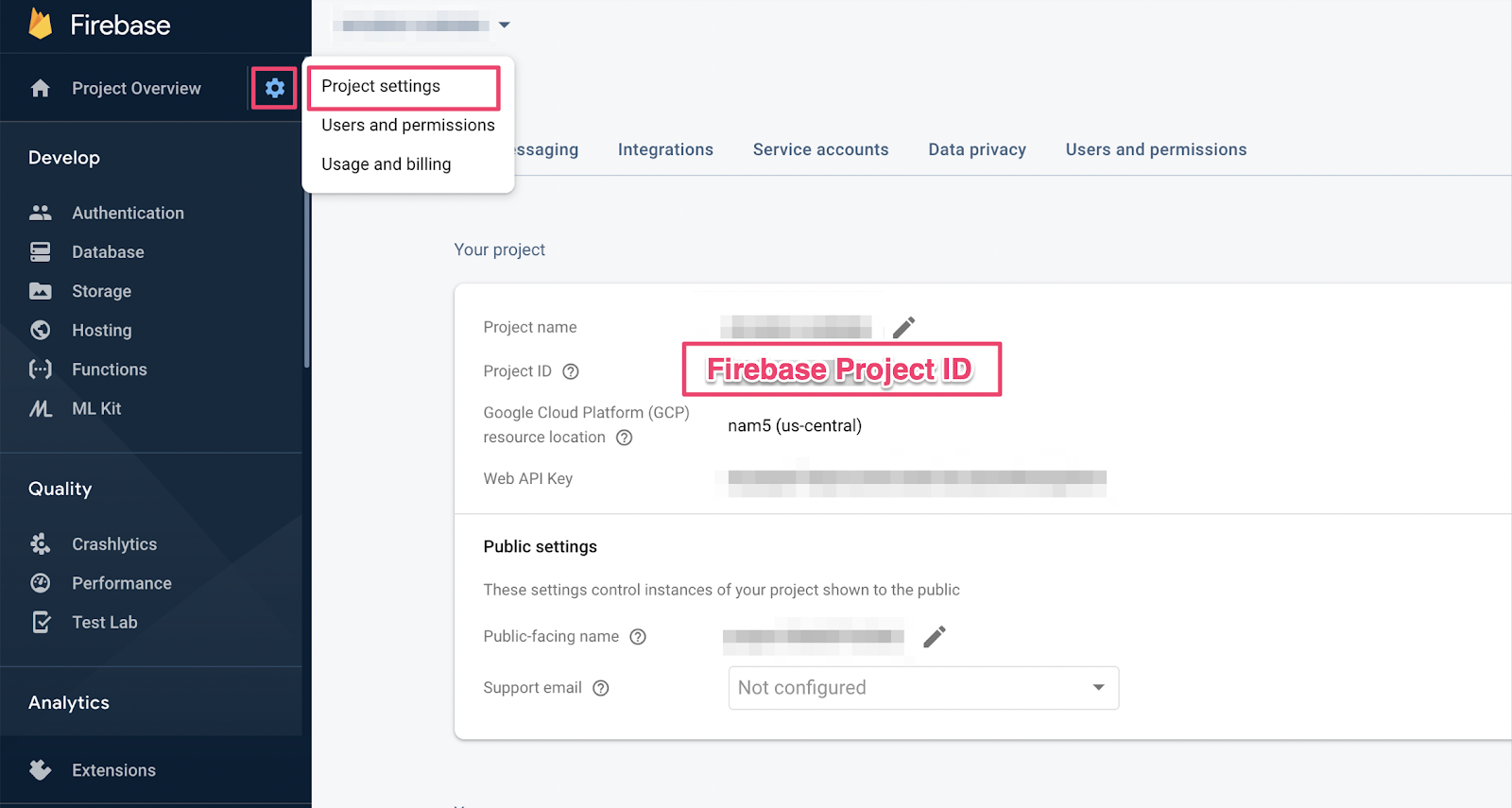
If you forgot your project ID you can find your Firebase Project ID in the Project Settings in the Firebase Console:
16. Walk through Functions tests
Because this test validates the interaction between Cloud Firestore and Cloud Functions, it involves more setup than the tests in the previous codelabs. Let's walk through this test and get an idea of what it expects.
Create a cart
Cloud Functions run in a trusted server environment and can use the service account authentication used by the Admin SDK . First, you initialize an app using initializeAdminApp
instead of initializeApp
. Then, you create a DocumentReference
for the cart we'll be adding items to and initialize the cart:
  it
 (
 "should sum the cost of their items"
 ,

 async

 ()

 =
>
 {

 const

 db

 =

 firebase

 .
 initializeAdminApp
 ({

 projectId
 :

 REAL_FIREBASE_PROJECT_ID

 })

 .
 firestore
 ();

 //

 Setup
 :

 Initialize

 cart

 const

 aliceCartRef

 =

 db
 .
 doc
 (
 "carts/alice"
 )

 await

 aliceCartRef
 .
 set
 ({

 ownerUID
 :

 "alice"
 ,

 totalPrice
 :

 0

 });

 ...

 });
Trigger the function
Then, add documents to the items
subcollection of our cart document in order to trigger the function. Add two items to make sure you're testing the addition that happens in the function.
  it
 (
 "should sum the cost of their items"
 ,

 async

 ()

 =
>
 {

 const

 db

 =

 firebase

 .
 initializeAdminApp
 ({

 projectId
 :

 REAL_FIREBASE_PROJECT_ID

 })

 .
 firestore
 ();

 //

 Setup
 :

 Initialize

 cart

 const

 aliceCartRef

 =

 db
 .
 doc
 (
 "carts/alice"
 )

 await

 aliceCartRef
 .
 set
 ({

 ownerUID
 :

 "alice"
 ,

 totalPrice
 :

 0

 });

 //

 Trigger

 calculateCart

 by

 adding

 items

 to

 the

 cart

 const

 aliceItemsRef

 =

 aliceCartRef
 .
 collection
 (
 "items"
 );

 await

 aliceItemsRef
 .
 doc
 (
 "doc1"
 )
 .
 set
 ({
 name
 :

 "nectarine"
 ,

 price
 :

 2.99
 });

 await

 aliceItemsRef
 .
 doc
 (
 "doc2"
 )
 .
 set
 ({

 name
 :

 "grapefruit"
 ,

 price
 :

 6.99

 });

 ...

 });

 });
Set test expectations
Use onSnapshot()
to register a listener for any changes on the cart document. onSnapshot()
returns a function that you can call to unregister the listener.
For this test, add two items that together cost $9.98. Then, check if the cart has the expected itemCount
and totalPrice
. If so, then the function did its job.
  it
 (
 "should sum the cost of their items"
 ,

 (
 done
 )

 =
>
 {

 const

 db

 =

 firebase

 .
 initializeAdminApp
 (
 {

 projectId
 :

 REAL_FIREBASE_PROJECT_ID

 }
 )

 .
 firestore
 ();

 //

 Set
 up
 :

 Initialize

 cart

 const

 aliceCartRef

 =

 db
 .
 doc
 (
 "carts/alice"
 )

 aliceCartRef
 .
 set
 (
 {

 ownerUID
 :

 "alice"
 ,

 totalPrice
 :

 0

 }
 );

 //

 Trigger

 calculateCart

 by

 adding

 items

 to

 the

 cart

 const

 aliceItemsRef

 =

 aliceCartRef
 .
 collection
 (
 "items"
 );

 aliceItemsRef
 .
 doc
 (
 "doc1"
 ).
 set
 (
 {
 name
 :

 "nectarine"
 ,

 price
 :

 2.99
 }
 );

 aliceItemsRef
 .
 doc
 (
 "doc2"
 ).
 set
 (
 {

 name
 :

 "grapefruit"
 ,

 price
 :

 6.99

 }
 );


 //

 Listen

 for

 every

 update

 to

 the

 cart
 .

 Every

 time

 an

 item

 is

 added

 to

 //

 the

 cart
 's subcollection of items, the function updates `totalPrice`
 // and `itemCount` attributes on the cart.
 // Returns a function that can be called to unsubscribe the listener.
 await new Promise((resolve) => {
 const unsubscribe = aliceCartRef.onSnapshot(snap => {
 // If the function worked, these will be cart'
 s

 final

 attributes
 .

 const

 expectedCount

 =

 2
 ;

 const

 expectedTotal

 =

 9.98
 ;


 //

 When

 the

 `itemCount`
 and

 `totalPrice`

 match

 the

 expectations

 for

 the

 //

 two

 items

 added
 ,

 the

 promise

 resolves
 ,

 and

 the

 test

 passes
 .

 if

 (
 snap
 .
 data
 ().
 itemCount

 ===

 expectedCount
 &&
 snap
 .
 data
 ().
 totalPrice

 ==

 expectedTotal
 )

 {

 //

 Call

 the

 function

 returned

 by

 `onSnapshot`

 to

 unsubscribe

 from

 updates

 unsubscribe
 ();

 resolve
 ();

 }
 ;

 }
 );

 }
 );

 }
 );

 }
 );
17. Run the tests
You might still have the emulators running from the previous tests. If not, start the emulators. From the command line, run
$ firebase emulators:start --import=./seed
Open a new terminal tab(leave the emulators running) and move into the functions directory. You might still have this open from the security rules tests.
$ cd functions
Now run the unit tests, you should see 5 total tests:
$ npm test

> functions@ test .../emulators-codelab/codelab-initial-state/functions
> mocha

  shopping cart creation
    ✓ can be created by the cart owner (82ms)

  shopping cart reads, updates, and deletes
    ✓ cart can be read by the cart owner (42ms)

  shopping cart items
    ✓ items can be read by the cart owner (40ms)
    ✓ items can be added by the cart owner

  adding an item to the cart recalculates the cart total.
    1) should sum the cost of their items

  4 passing (2s)
  1 failing
If you look at the specific failure, it appears to be a timeout error. This is because the test is waiting for the function to correctly update, but it never does. Now, we're ready to write the function to satisfy the test.
18. Write a function
To fix this test, you need to update the function in functions/index.js
. Although some of this function is written, it's not complete. This is how the function currently looks:
  //

 Recalculates

 the

 total

 cost

 of

 a

 cart
 ;

 triggered

 when

 there
 's a change
 //

 to

 any

 items

 in

 a

 cart
 .
 exports
 .
 calculateCart

 =

 functions

 .
 firestore
 .
 document
 (
 "carts/{cartId}/items/{itemId}"
 )

 .
 onWrite
 (
 async

 (
 change
 ,

 context
 )

 =
>
 {

 console
 .
 log
 (
 `
 onWrite
 :

 $
 {
 change
 .
 after
 .
 ref
 .
 path
 }
 `
 );

 if

 (
 !
 change
 .
 after
 .
 exists
 )

 {

 //

 Ignore

 deletes

 return
 ;

 }

 let

 totalPrice

 =

 125.98
 ;

 let

 itemCount

 =

 8
 ;

 try

 {


 const

 cartRef

 =

 db
 .
 collection
 (
 "carts"
 )
 .
 doc
 (
 context
 .
 params
 .
 cartId
 );

 await

 cartRef
 .
 update
 ({

 totalPrice
 ,

 itemCount

 });

 }

 catch
 (
 err
 )

 {

 }

 });
The function is correctly setting the cart reference, but then instead of calculating the values of totalPrice
and itemCount
, it updates them to hardcoded ones.
Fetch and iterate through the
items
subcollection
Initialize a new constant, itemsSnap
, to be the items
subcollection. Then, iterate through all the documents in the collection.
  //

 Recalculates

 the

 total

 cost

 of

 a

 cart
 ;

 triggered

 when

 there
 's a change
 //

 to

 any

 items

 in

 a

 cart
 .
 exports
 .
 calculateCart

 =

 functions

 .
 firestore
 .
 document
 (
 "carts/{cartId}/items/{itemId}"
 )

 .
 onWrite
 (
 async

 (
 change
 ,

 context
 )

 =
>
 {

 console
 .
 log
 (
 `
 onWrite
 :

 $
 {
 change
 .
 after
 .
 ref
 .
 path
 }
 `
 );

 if

 (
 !
 change
 .
 after
 .
 exists
 )

 {

 //

 Ignore

 deletes

 return
 ;

 }

 try

 {

 let

 totalPrice

 =

 125.98
 ;

 let

 itemCount

 =

 8
 ;

 const

 cartRef

 =

 db
 .
 collection
 (
 "carts"
 )
 .
 doc
 (
 context
 .
 params
 .
 cartId
 );

 //

 ADD

 LINES

 FROM

 HERE

 const

 itemsSnap

 =

 await

 cartRef
 .
 collection
 (
 "items"
 )
 .
 get
 ();

 itemsSnap
 .
 docs
 .
 forEach
 (
 item

 =
>
 {

 const

 itemData

 =

 item
 .
 data
 ();

 })

 //

 TO

 HERE


 return

 cartRef
 .
 update
 ({

 totalPrice
 ,

 itemCount

 });

 }

 catch
 (
 err
 )

 {

 }

 });
Calculate totalPrice and itemCount
First, let's initialize the values of totalPrice
and itemCount
to zero.
Then, add the logic to our iteration block. First, check that the item has a price. If the item doesn't have a quantity specified, let it default to 1
. Then, add the quantity to the running total of itemCount
. Finally, add the item's price multiplied by the quantity to the running total of totalPrice
:
  //

 Recalculates

 the

 total

 cost

 of

 a

 cart
 ;

 triggered

 when

 there
 's a change
 //

 to

 any

 items

 in

 a

 cart
 .
 exports
 .
 calculateCart

 =

 functions

 .
 firestore
 .
 document
 (
 "carts/{cartId}/items/{itemId}"
 )

 .
 onWrite
 (
 async

 (
 change
 ,

 context
 )

 =
>
 {

 console
 .
 log
 (
 `
 onWrite
 :

 $
 {
 change
 .
 after
 .
 ref
 .
 path
 }
 `
 );

 if

 (
 !
 change
 .
 after
 .
 exists
 )

 {

 //

 Ignore

 deletes

 return
 ;

 }

 try

 {

 //

 CHANGE

 THESE

 LINES

 let

 totalPrice

 =

 0
 ;

 let

 itemCount

 =

 0
 ;

 const

 cartRef

 =

 db
 .
 collection
 (
 "carts"
 )
 .
 doc
 (
 context
 .
 params
 .
 cartId
 );

 const

 itemsSnap

 =

 await

 cartRef
 .
 collection
 (
 "items"
 )
 .
 get
 ();

 itemsSnap
 .
 docs
 .
 forEach
 (
 item

 =
>
 {

 const

 itemData

 =

 item
 .
 data
 ();

 //

 ADD

 LINES

 FROM

 HERE

 if

 (
 itemData
 .
 price
 )

 {

 //

 If

 not

 specified
 ,

 the

 quantity

 is

 1

 const

 quantity

 =

 itemData
 .
 quantity

 ?

 itemData
 .
 quantity

 :

 1
 ;

 itemCount

 +=

 quantity
 ;

 totalPrice

 +=

 (
 itemData
 .
 price

 *

 quantity
 );

 }

 //

 TO

 HERE

 })

 await

 cartRef
 .
 update
 ({

 totalPrice
 ,

 itemCount

 });

 }

 catch
 (
 err
 )

 {

 }

 });
You can also add logging to help debug success and error states:
  //

 Recalculates

 the

 total

 cost

 of

 a

 cart
 ;

 triggered

 when

 there
 's a change
 //

 to

 any

 items

 in

 a

 cart
 .
 exports
 .
 calculateCart

 =

 functions

 .
 firestore
 .
 document
 (
 "carts/{cartId}/items/{itemId}"
 )

 .
 onWrite
 (
 async

 (
 change
 ,

 context
 )

 =
>
 {

 console
 .
 log
 (
 `
 onWrite
 :

 $
 {
 change
 .
 after
 .
 ref
 .
 path
 }
 `
 );

 if

 (
 !
 change
 .
 after
 .
 exists
 )

 {

 //

 Ignore

 deletes

 return
 ;

 }

 let

 totalPrice

 =

 0
 ;

 let

 itemCount

 =

 0
 ;

 try

 {

 const

 cartRef

 =

 db
 .
 collection
 (
 "carts"
 )
 .
 doc
 (
 context
 .
 params
 .
 cartId
 );

 const

 itemsSnap

 =

 await

 cartRef
 .
 collection
 (
 "items"
 )
 .
 get
 ();

 itemsSnap
 .
 docs
 .
 forEach
 (
 item

 =
>
 {

 const

 itemData

 =

 item
 .
 data
 ();

 if

 (
 itemData
 .
 price
 )

 {

 //

 If

 not

 specified
 ,

 the

 quantity

 is

 1

 const

 quantity

 =

 (
 itemData
 .
 quantity
 )

 ?

 itemData
 .
 quantity

 :

 1
 ;

 itemCount

 +=

 quantity
 ;

 totalPrice

 +=

 (
 itemData
 .
 price

 *

 quantity
 );

 }

 });

 await

 cartRef
 .
 update
 ({

 totalPrice
 ,

 itemCount

 });

 //

 OPTIONAL

 LOGGING

 HERE

 console
 .
 log
 (
 "Cart total successfully recalculated: "
 ,

 totalPrice
 );

 }

 catch
 (
 err
 )

 {

 //

 OPTIONAL

 LOGGING

 HERE

 console
 .
 warn
 (
 "update error"
 ,

 err
 );

 }

 });
19. Rerun tests
On the command line, make sure the emulators are still running and re-run the tests. You don't need to restart the emulators because they pick up changes to the functions automatically. You should see all the tests pass:
$ npm test
> functions@ test .../emulators-codelab/codelab-initial-state/functions
> mocha

  shopping cart creation
    ✓ can be created by the cart owner (306ms)

  shopping cart reads, updates, and deletes
    ✓ cart can be read by the cart owner (59ms)

  shopping cart items
    ✓ items can be read by the cart owner
    ✓ items can be added by the cart owner

  adding an item to the cart recalculates the cart total.
    ✓ should sum the cost of their items (800ms)


  5 passing (1s)
Good job!
20. Try it out using the Storefront UI
For the final test, return to the web app ( http://127.0.0.1:5000/ ) and add an item to the cart.
Confirm that the cart updates with the correct total. Fantastic!
Recap
You've walked through a complex test case between Cloud Functions for Firebase and Cloud Firestore. You wrote a Cloud Function to make the test pass. You also confirmed the new functionality is working in the UI! You did all this locally, running the emulators on your own machine.
You've also created a web client that's running against the local emulators, tailored security rules to protect the data, and tested the security rules using the local emulators.

