
On this page
- Share spreadsheets
- Add comments and assign tasks
- Email collaborators
- Switch to an earlier version or name a version
- Create filters and filter views
- Protect content
- Limit sharing, downloading, printing, or copying
- Set an expiration date for sharing
- See who’s viewed a spreadsheet
Share spreadsheets
Excel:
Share workbook
Sheets:
Share with specific people or using a link

Excel 2013
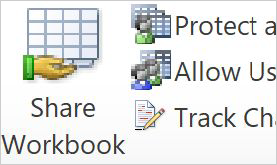
Excel 2010
Share with specific people:
- Open the file you want to share (that you own or have edit access to).
- Click Share.
- Enter the email addresses or groups that you want to share with.
- Choose what kind of access you want to give people: Editor, Commenter, or Viewer.
- Click Send.
Share using a link:
- Open the file and click Share.
- Under Get link, click Copy link.
- (Optional) To change permissions, click Change, then choose Viewer, Commenter, or Editor.
- Copy and paste the link in an email or any place you want to share it.
For more details, see Share files from Google Drive .
Add comments and assign tasks
Excel:
Comment
Sheets:
Add comments and assign tasks
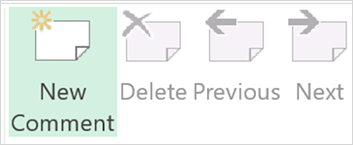
Excel 2013
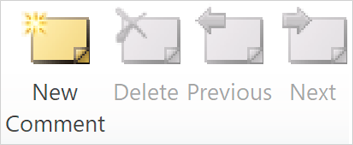
Excel 2010
- In Docs , Sheets , or Slides , select the text you'd like to comment on.
- Click Add comment.
- Enter your comment in the box.
- (Optional) To direct your task or comment to a specific person, enter a plus sign (+) followed by their email address. You can add as many people as you want. Each person will get an email with your comment and a link to the file.
- (Optional) To assign the comment to a specific person, check the Assign tobox.
- Click Commentor Assign.
Note: If a file reaches the maximum number of comments, you can make a copy of the file without copying over any comments.
Email collaborators
Excel:
Send as Attachment
Sheets:
Email collaborators

Excel 2013
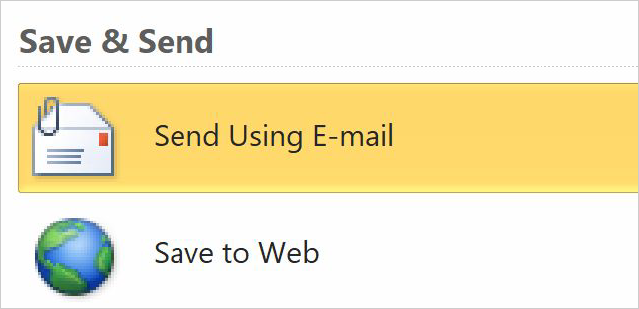
Excel 2010
To follow up on a conversation that’s too long for comments, email collaborators right from Sheets.
- Click File Email collaborators.
- (Optional) To remove a collaborator from the email, uncheck the box next to their name.
- Add a subject and message.
- (Optional) To send a copy of the email to yourself, check the Send a copybox.
- Click Send.
Switch to an earlier version or name a version
If you own the spreadsheet or have edit access to it, you can see past versions and restore them.
Sheets: See versions or restore a version:
- Select File Version history See version history.
- (Optional) To see only named versions in the list, click Only show named versions.
- Click a timestamp to see a previous version of the file.
Below the timestamp, you’ll see:- The names of anyone who edited the document.
- A color next to each person’s name. The edits they made appear in that color.
- (Optional) To make the version the active version, click Restore this version.
Name a version:
- Select File Version history Name current version.
- Enter a name and click Save.
Create filters and filter views
Excel:
Filters data
Sheets:
Filters and filter views
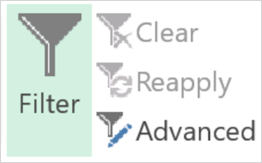
Excel 2013
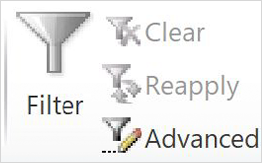
Excel 2010
To filter out data in a spreadsheet, create a filter. If you want filters that don’t affect anyone else’s view, create filter views.
Create a filter:
- Select a range of cells.
- Click Data Create a filter.
- Go to the top of the range and click Filter
to see the filter options.
Create a filter view:
- Click a cell that has data.
- Click Data Filter views Create new filter view.
- In a column header, click a list and select the data you want to filter. Or, in the search box, enter text to search for the data you want to filter.
- Click OK.
- In the Namebox, enter a name for your filter view.
- Click Data Filter viewsto open your filter view anytime.
For more details, see Sort & filter your data .
With Sheets, you can also turn your data into a table. For more details on converting data to a table, see Use tables in Google Sheets .
Protect content
Excel:
Protect Sheet or Workbook
Sheets:
Protected sheets and ranges
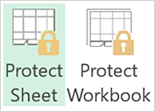
Excel 2013

Excel 2010
If you have sensitive content in a spreadsheet, you can restrict people from updating it.
- Open the sheet and click Data> Protected sheets and ranges.
- Click +Add a sheet or range.
- Click Rangeto protect a range of content or Sheetto protect a whole sheet.
- Click Set permissionsand choose whether to show a warning or restrict who can edit the content.
- Click Done.
For details, see Protect content in a spreadsheet.
Limit sharing, downloading, printing, or copying
Excel:
Encrypt with Password
Sheets:
Limit sharing options
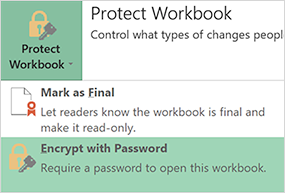
Excel 2013
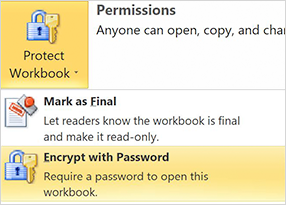
Excel 2010
If you have sensitive content in a spreadsheet, you can prevent people from downloading, printing, or copying it.
- At the top of the spreadsheet, click Share.
- At the bottom, click Advanced.
- Check the Disable options to download, print, & copy for commenters and viewersbox.
- Click Done.
Set an expiration date for sharing
Sheets: Set sharing expirations
When you’re working with people outside of your organization, such as clients or agencies, you might want to restrict their access to certain files when your projects are complete.
Set an expiration date:
- At the top of the spreadsheet, click Share.
- If the file isn’t already shared, share it.
- Click Advanced.
- Hover over a person’s name and click Set expiration.
- Change the access expiration date.
Note: You can’t set the expiration for the current day. If you need to restrict access immediately, just unshare the file.
- Click Save changes Done.
See who's viewed a spreadsheet
Sheets: See who's viewed a spreadsheet
In Sheets, if you have edit access to a spreadsheet, you can see:
- Who it’s shared with
- Who viewed it
- A chart of viewers over time
To see the Activity dashboard, at the top right, click Activity dashboard.
If you don’t want your view history to appear in the Activity dashboard, you can change the privacy settings.
Google, Google Workspace, and related marks and logos are trademarks of Google LLC. All other company and product names are trademarks of the companies with which they are associated.
