
Skip to content
new ogbongeblog logo
  • Advertise
  • Blog
  • Contact

BackUp Blogger Template and Restore It In Easy Steps

November 1, 2014

·

Uncategorized
jidetheblogger Avatar
jidetheblogger

Saving a backup of your Blogger template to your PC before making changes to it, is highly recommended. This is simply because if you are not satisfied with changes you apply to your template and feel like reverting it back to its previous condition, all you need to do is to restore the back up.

Your Blogger template back up will also be handy in situations whereby you want to revert your blog back to an old design after uploading a new template.

Blogger makes it very easy to back up templates of Blogspot blogs. Just follow me through the steps below:

==> Sign in to www.blogger.com and click on your blog in the dashboard.==> Click on “ Template “
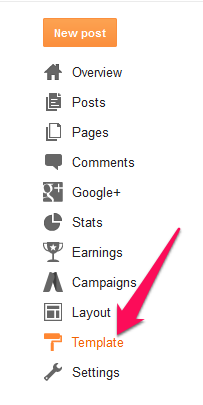
Blogger template link 1

==> Click the Backup/Restore button located at the upper right corner of the screen

blogger backup restore button

==> A popUp similar to the screenshot below will appear.

back up blogspot template

==> Click on “ Download Template “==> Choose where you want to save the file on your computer and then click the “ Save ” button.

You can rename it to include the date you created the backup and you can upload it to the cloud eg to dropbox , Google drive etc so you can always access it from anywhere whenever you need it.

How To Restore Your Old Blogger Template

If after making changes to your Blogger template, you decide to revert back to its previous condition, all you have to do is to restore the most recent back up you saved to your PC.

To restore, follow the same steps above but when the pop up appears, click on the “ browse ” button to select the Blogger back up file on your PC, then click “ Upload “.

That’s all.

NOTE : This will only back up the look of your blog and not the posts and comments. You can read how to back up blogger posts .

Happy Blogging!

Please Share :
blogger tips blogspot tutorials

Like What You Read?

Sign Up to get similar articles delivered to your email inbox.

Leave a Reply Cancel reply

Your email address will not be published. Required fields are marked *

2 responses to “BackUp Blogger Template and Restore It In Easy Steps”

  1. nabila khatri Avatar
    nabila khatri
    December 15, 2014

    Most Lovely Post How to Restore Your Blogger Backup Template

    Loading…
    Reply
  2. Mr. John, Chukwuemeka Kingsley Avatar
    Mr. John, Chukwuemeka Kingsley
    April 1, 2015

    You are a good man…

    Loading…
    Reply

WANT TO ADVERTISE?

Chat on WhatsApp

RELATED POSTS

  • How to Back up your Blogger Template.
  • How To Change Template of Blogger/Blogspot Blog via the New Blogger Dashboard
  • MUST DO Before Changing Your Blogger Template

FEATURED


  • CREDICORP launches C.L.I.C.K.D. Scheme with FG’s 3MTT Programme, expanding affordable consumer credit for locally-assembled laptops and devices for digital workers

    CREDICORP launches C.L.I.C.K.D. Scheme with FG’s 3MTT Programme, expanding affordable consumer credit for locally-assembled laptops and devices for digital workers

  • What Happens to Your Online Accounts When You Die?

    What Happens to Your Online Accounts When You Die?

JOIN AI WEB DESIGN GROUP


  • AI Website Design Training Whatsapp Group by Jidetheblogger

    AI Website Design Training Whatsapp Group by Jidetheblogger

← Stop Joomla User Registration Spam Bots By Email, Username and Name
How To Upload A New Template To Blogger →

Join 25,000+ subscribers

Receive our latest blog posts in your inbox.

Search

Social

Facebook

Instagram

Twitter

new ogbongeblog logo

Copyright © 2026 | About | Advertise | Featured | Sitemap | Privacy Policy | Powered by WordPress

Your cart (items: 0)

Products in cart

Product
Details
Total
Subtotal ₦0.00
Shipping and discounts calculated at checkout.
View my cart
Go to checkout

Your cart is currently empty!

Start shopping

Notifications

%d

    LIKE My Fan Page

    Privacy Policy | Copyright © 2012,OgbongeBlog.All Rights Reserved. Powered by Blogger .
    Create a Mobile Site
    View Site in Mobile | Classic
    Share by:


