
Skip to content
new ogbongeblog logo
  • Advertise
  • Blog
  • Contact

Fatal error : Allowed Memory Size of 134217728 bytes Exhausted On WordPress – How I Fixed it

January 25, 2017

·

Uncategorized
jidetheblogger Avatar
jidetheblogger

A web page on one of my websites powered by WordPress has not been accessible for some weeks now. So yesterday, I decided to check what might be the cause. I signed in to cPanel, checked the error log and discovered that it has been throwing the php “Allowed memory size error” that reads :

“PHP Fatal error :Allowed memory size of 134217728 bytes exhausted (tried to allocate xx bytes) in /home/xxxxx/public_html/wp-includes/meta.php on line 838”

After googling the error, I discovered that it is one of the common WordPress errors, which can simply be fixed by increasing the memory limit set in the php.ini or  the wp-config.php file.

I changed the limit in wp-config.php from 128M to 512M but failed to resolve the problem.

I set  the cPanel “File Manager” to display hidden files, yet couldn’t find the php.ini file. So, I contacted my host to help me increase the memory limit in the php.ini file.

Guess what?

The error was fixed after the support staff created the php.ini file for me and increased the memory limit to 512M as seen in the screenshot below :

increase memory limit in php.ini file

So, if you can’t fix the error by editing the wp-config.php file, try editing the php.ini file.

NB:

1. You can check for errors via file manager, public html > error log.

2. php.ini file is located in cPanel -> File Manager -> public_html folder. If not there, ask your host to add it for you. The support staff told me that he added it to mine by adding the code below to the .htaccess file :

<IfModule mod_suphp.c> suPHP_ConfigPath /home/MycPanelUsername/public_html </IfModule>
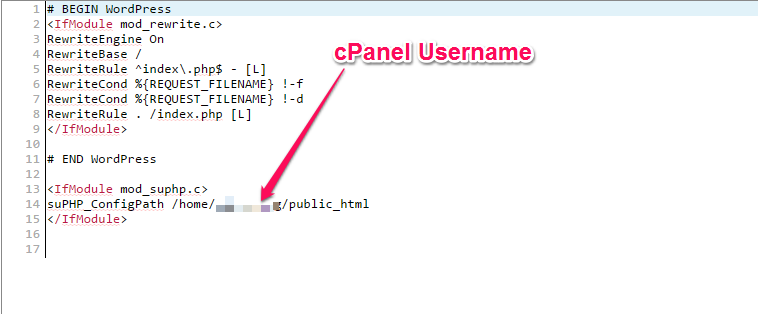
enable php ini in web host cpanel folder

I hope this helps.

Please Share :
wordpress

Like What You Read?

Sign Up to get similar articles delivered to your email inbox.

Leave a Reply Cancel reply

Your email address will not be published. Required fields are marked *

WANT TO ADVERTISE?

Chat on WhatsApp

RELATED POSTS

  • 500 Internal Server Error in WordPress : Fixed
  • Parse error: syntax error, unexpected (T_STRING) In WordPress : How I Solved Itweb design wordpress parse syntax error
  • 13 ways to secure WordPress Blog from Hackers

FEATURED


  • CREDICORP launches C.L.I.C.K.D. Scheme with FG’s 3MTT Programme, expanding affordable consumer credit for locally-assembled laptops and devices for digital workers

    CREDICORP launches C.L.I.C.K.D. Scheme with FG’s 3MTT Programme, expanding affordable consumer credit for locally-assembled laptops and devices for digital workers

  • What Happens to Your Online Accounts When You Die?

    What Happens to Your Online Accounts When You Die?

JOIN AI WEB DESIGN GROUP


  • AI Website Design Training Whatsapp Group by Jidetheblogger

    AI Website Design Training Whatsapp Group by Jidetheblogger

← Zamzar Lets You Convert Files Online For Free
Infinix Note 3 Is The Most Searched for Android Smartphone of 2016 in Nigeria →

Join 25,000+ subscribers

Receive our latest blog posts in your inbox.

Search

Social

Facebook

Instagram

Twitter

new ogbongeblog logo

Copyright © 2026 | About | Advertise | Featured | Sitemap | Privacy Policy | Powered by WordPress

Your cart (items: 0)

Products in cart

Product
Details
Total
Subtotal ₦0.00
Shipping and discounts calculated at checkout.
View my cart
Go to checkout

Your cart is currently empty!

Start shopping

Notifications

LIKE My Fan Page

Privacy Policy | Copyright © 2012,OgbongeBlog.All Rights Reserved. Powered by Blogger .
Create a Mobile Site
View Site in Mobile | Classic
Share by:


