


After you might have created your blog and have written some posts on the blog , you might consider putting a contact form on the blog. If you have a contact form on your blog, you will be able to receive feedback from your blog visitors without having to expose your email address to spammers.
Most bloggers using the Blogger platform have been using Kontactr.com
to create contact forms for their blog for years now but I have discovered an alternative which involves the use of forms that can be created via Google Drive
.
You can see the contact form I created with Google drive forms in action here and can also see it embedded in a Blogger blog here . You can add different kinds of fields to the form. You can embed the form on your blog and also get a unique URL for the form which you’ll need to link to if you want people to click on a link and fill in your form.
You can also set up a confirmation message which people see after submitting your form. All enteries appear in a spreadsheet right in your Google drive account.There are also loads of themes you can also use to beautify your form.
So, How Do I Create the Contact Form For My Blog?
==> Login to drive.google.com
==> click on “ Create ” –> “ Form “

==> Give it a title and enter any text or info that will help people to fill the form, right under the title eg “ For general enquiries, you can send me an email using the form below “
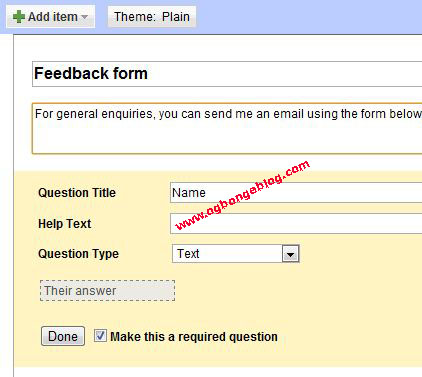
==> Enter the title of the field e.g “ Name ” in the “ Question title ” box. “ Help text ” is not compulsory, you can leave it blank.
==> Set the “ Question Type “. I used “ Text ” for “ Name “, “ Subject ” and “ Your Email ” fields on the form I created above and used “ Paragraph text ” for the “ Your Message ” field.
==> Tick “ Make this a required question ” if you want to set the field as required.
==> Click “ done” .
==> If you want to add another field, click the “ Add item ” button at the top of the page and follow the steps above till you finish creating all the fields you want to appear on your contact form.
==> Once you are through, click on the “ Save ” button right at the top right hand side of the page.
==> To set the confirmation message which people see after submitting your form, click on the “ more actions ” button (at the top right hand side of the page), then “ edit conformation “.
==> Enter the confirmation message e.g “ Your message has been received. I will get back to you shortly. Thanks ” and click “ Save “. Do NOT tick the “ publish response summary “
==> To embed the contact form into your blog, click on the “ more actions ” button, then “ embed code “. Copy the code into a notepad.
==> Login to your Blogger dashboard, click on Pages ==> New Page ==> Blank Page
==> Give the page a title eg “ Contact Form “. Click on the “ HTML ” button, then paste the embed code into the post editor
==> Check the code for the width of the form and adjust accordingly. You can adjust the width to “ 300 ” so it can fit in properly into your blog.
==> Click the “ preview ” button and if OK, click on “ Publish ” to make the contact form go live on your blog.
How Do I Check Entries Submitted Via the Form?
Whenever you want to check the enteries of your contact form, just login to drive.google.com , click on the form. A spreadsheet will open, displaying all the submitted entries.
Will I Receive Email Notifications When Anyone Fills the Form?
Yes, if you enable it. To enable email notifications,
==> Login to drive.google.com, click on the form
==> Once the spreadsheet opens, click on “ Tools ” –> “ Notification rules “. Tick the “ user submit forms ” box and Save .
How Can I Edit the Form?
Right from the spreadsheet page, if you click on “ Forms “, you can edit your form by clicking on “ edit form “. You can stop people from filling the form by unticking “ accepting responses “. If you untick it, no one will be able to fill your form. They will see an error message, telling them that you no longer accept enteries .
That’s all.
Is this not fantastic?
Relay your comments via the comment form below.
Cheers!








Leave a Reply