


GMail Canned Responses
in combination with GMail filters
allow me to automatically send SAME reply every time someone emails me with a common question or request. Without this GMail lab feature, sending same reply over and over again to bloggers that request for my free blogger template, those asking for my bank account details etc might be frustrating.
Without using filters, you can still create short messages as “canned responses”, insert and send them repeatedly as replies to common questions or requests with a quick mouse click. Rather than type out the same response over and over again, canned Responses lets you type it once, save it, and then apply it to any given e-mail at any time.
In order to create and use canned responses in your mails, you have to first enable them in your GMail settings.
How To Enable Canned Responses In GMail Labs
To enable GMail canned responses, log into your GMail account on the Web, click on the gear icon in the upper right corner of the window and select “Settings” from the drop-down menu. Click on the “Labs” tab, scroll down the list and click the “Enable” button next to the “Canned responses” by Chad P. Then, click the “Save Changes” button.

Once enabled, you can make, insert, and delete your canned responses.
How To Create Canned Response With new GMail Editor
==> Click on the “Compose” button to create a new mail. Leave the “To” and “Subject” fields blank.
==> In the body, enter the the snippet you would like to save as canned response. ( e.g Find below….)
==> If you have a signature enabled automatically, delete it unless you want it in the canned response
==> In the bottom right hand corner of the new GMail composer, you will see a very small triangle (beside the trash can). Click on it
==> Select “Canned responses” > “New Canned Response”. You’ll be prompted to enter a name. Give the reply a name and click OK.
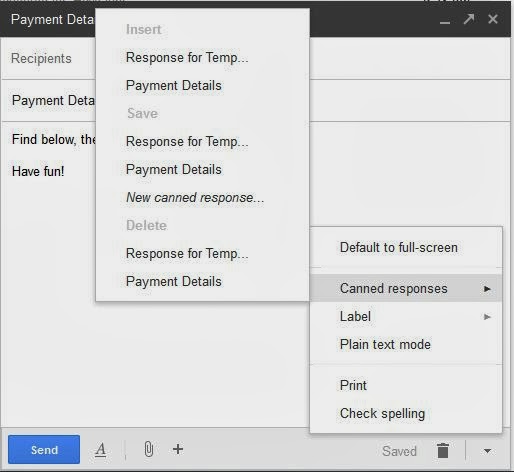
The response will be saved automatically and you can start inserting it in your replies or new mails.
How To Insert GMail Canned Response
Whenever you want to insert a canned response in a reply or a new mail, click the small triangle next to the trash icon in the new compose bar, select “Canned responses” and under “Insert”, select the name of the canned response you want to use. The content of the canned response will be inserted into your email exactly where your cursor was.
How To Edit GMail Canned Response
If you need to edit a canned response for any reason, insert it into the compose box, change whatever needs to be changed, and then select the name of the canned response under “Save” in the “Canned responses” menu. GMail will ask if you want to proceed with the modification. Press “OK.” to overwrite your saved canned response.
How To Delete GMail Canned Response
Go to the “Canned responses” menu as explained earlier and under “Delete”, select the name of the canned response you want to delete.
Where Are Canned Messages Saved In GMail?
In drafts.
So make sure you don’t delete your drafts even from your GMail apps on your mobile devices. If your GMail canned responses disappeared or are missing, you might have deleted your drafts. I always send a copy of my canned responses to myself as backup should in case I mistakenly delete them from drafts.
GMail Canned Responses Android App
You can download GMail Canned Responses app for your Android device for you to easily insert canned responses in your mail on the go. You will need to be using Canned Responses in the Web version of GMail to take advantage of the Android app’s.
This canned responses certainly has wider application and I hope to explain in another article, how to use it with GMail filters. Anyway, I hope you find it useful.
If you have contributions or questions, kindly relay them via comments.







Leave a Reply