


UPDATE: Please, read: https://www.ogbongeblog.com/2011/04/new-facebook-comment-form-for.html for the tutorial on the latest trick to add the improved Facebook comment form to your blogger blog.
The Facebook comment box is one of the most useful tool at my blog, www.ogbongeblog.com because it has been increasing my conversations with visitors to my blog. More so, it has been contributing massively to my daily traffic according to my blog traffic analysis. So here in this post I will teach you how to add/integrate the Facebook comment box to blogger in simple steps.
This is the first and the only tutorial around the web that tells you in very easy steps the integration of facebook comments box and blogger (blogspot) blogs even with the latest Blogger Template Designer Layouts . I know that you might have tried to add it to your blogger blog, with no result, but today you’ll see how to add it in easy steps and it’s 100% working but please be careful and pay attention to all the details.
Click here to see the Facebook comment form working on a Blogger Template Designer Layout blog
In this tutorial, it is not compulsory you disable your blogger comment form but I will advise you to back up your blogger template before carrying out this installation.
UPDATE: Please, read: https://www.ogbongeblog.com/2011/04/new-facebook-comment-form-for.htm l for the tutorial on the latest trick to add the improved Facebook comment form to your blogger blog.
STEP 1: Visit Facebook developer page .
You might be asked to verify your account, choose any of the verification options to complete the verification.
Thereafter you will see a small form, enter your blog name
( you can type any name )
.
Then, enter your blog url
with an ending slash
in Site URL
(for example: ogbongeblog.blogspot.com/
) and click on “Create application”.
Don’t forget to put the “/” sign at the end of your blog url as indicated in the picture below.

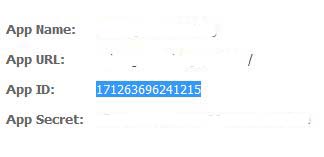
If successful, you should then see a page displaying your application info. Now copy the App ID as indicated in the picture below and save it in a notepad.
STEP 2: Login to you Blogger dashboard and navigate to Layout > Edit HTML and tick the small “Expand Widget Templates” box. Using “ CTRL+F “, search for the code <data:post.body/> and paste the “comment form code” highlighted below directly under <data:post.body/> and save the template.
<b:if cond=’data:blog.pageType == "item"’>
<p align=’left’><a href=’https://www.ogbongeblog.com’><img alt=” class=’icon-action’
src=’https://www.ogbongeblog.com/wp-content/uploads/2010/12/commentpix.png’/></a></p>
<div id=’fb-root’/><script src=’http://connect.facebook.net/en_US/all.js#appId=171263696241215&xfbml=1’/><fb:comments numposts=’10’ publish_feed=’true’ width=’420′
xid=’171263696241215’/>
</b:if>
Replace the APPID and XID
in the code above with your APP ID provided from Facebook which you copied in Step 1 and save the template.
You can also adjust the WIDTH too to any size you want (below 450 is recommended).
After adding the code, your code should now look like:

SAVE your template and view one of the POSTS on your blog . You should see the comment form.
NOTE:
In this tutorial, I have used the <b:if cond=’data:blog.pageType == "item"’> conditional tag to restrict the comment form to the post pages. Hence, you might not see it on the Homepage and also on PAGES but you will definitely see it under your blog posts .
If u remove the <b:if cond=’data:blog.pageType == "item"’> conditional tag together with it’s </b:if> closing tag from the comment form code above, then, the form will appear on all pages of your blog and also on the homepage.
In short, if you want it to appear on ALL pages of your blog , copy and paste the code below instead of the one above.
Remember to replace the APPID and XID in the code above with your APP ID provided from Facebook which you copied in Step 1 and save the template.
That’s all. SAVE your template and view your blog. You should see the comment form.
If you want to Hide the Blogger’s comment form ; go to: Settings > Comments > Comments, and mark the Hide radio-button and click on “Save Settings”.

I hope this info helps…
UPDATE: Please, read: https://www.ogbongeblog.com/2011/04/new-facebook-comment-form-for.htm l for the tutorial on the latest trick to add the improved Facebook comment form to your blogger blog.
If it works for you, kindly use the comment form to share the link to your blog, so we can check it out.








Leave a Reply