
Skip to content
new ogbongeblog logo
  • Advertise
  • Blog
  • Contact

How To Open Google Adsense Account From Blogger Dashboard

November 14, 2012

·

Uncategorized
jidetheblogger Avatar
jidetheblogger

If you want to make money online from Google Adsense Pay-Per-Click program , you must have an approved Google Adsense account. You don’t have to buy Google Adsense account because you can get it free of charge if your application meets up with the requirements .

Though, you can get Google Adsense account by filling the application form at www.google.com/adsense but signing up for it via the Blogger dashboard guarantees easy approval as explained in an update to the application process for host partner sites published by Google recently.

Before you apply for a new Google Adsense account, I recommend you have at least 10 unique posts on your blog (not posts you copied elsewhere) and make sure your blog is already getting some tangible traffic from the right sources ( e.g social networks, search engines) and not through blackhat methods .  Do not create a blog today and apply for Adsense the next day.

More so, make sure your blog posts do not include any prohibited site content , including adult content, violence or excessive profanity, or copyrighted material. Also make sure your blog does not participate in programs that compensate people to perform activities that drive traffic to you . You must not encourage others to join such programs in the content, links or third-party ads on your site. If you can abide by these policies, your Adsense application will be approved.

So, How Do I Create Adsense Account from Blogger Dashboard?

==> Log in to www.blogger.com or www.blogspot.com

==> From the dashboard of the blog you want to use in applying for new Google adsense account, click on the “ Earnings ” tab as seen in the screenshot below:
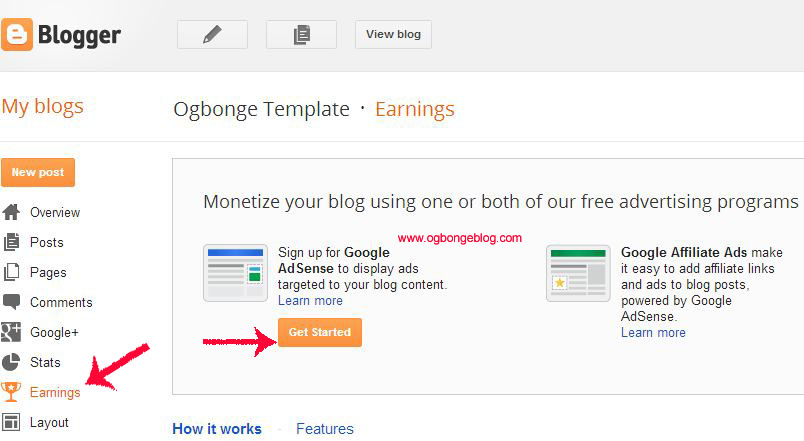
Adsense blogger

==> Click on the “Get Started” button –> “Create Account”. You should see:

apply adsense1
adsense apply2

==> Fill in the form as indicated above.

==> Choose “ Individual ” as the account type.

==> Ensure you are at least 18 years of age and the “ Payee Name ” matches the name on your bank account. The “Payee Name” is what will appear on your cheque which you will take to your bank. If it doesn’t match the name on your bank account, your bank will not process the cheque for you.

==> There is a space for “ Street Address ” which you can’t see in the screenshot above. Fill it accordingly.

==> Take Note of the “ Policies ”, tick all the boxes and note that failure to adhere to the rules will lead to you been banned .  Once you are banned, you will never be able to re-register for Adsense again. Be Warned!

==> Take note of the tutorials on the right hand side. You will learn a lot about Google Adsense if you read them.

==> When you are done, click on “ Submit Information ”.

What Next?

You will have to wait for feedback from Google Adsense about your application. In the mail that will be sent to you, you will be informed if your application has been approved or not.

If approved, you will see the instruction on how to add the ad codes to your blog.  If not approved, you will see the reasons in the mail and the steps to take in fixing the problem(s).

If approved, you can always log in to www.google.com/adsense to generate your ad codes, track your earnings, monitor your payments etc.

Once you earn up to $10, Google Adsense will mail an envelope containing your Adsense pin to the address in your Adsense account. You will have to enter this pin somewhere in your Adsense account at www.google.com/adsense for your Adsense account to be verified. Failure to verify your Adsense account after a specific period of time might stop Google Ads from been displayed on your blog.

If Google does not approve your Adsense application, read: “ What To Do If Google Disapproves Your Adsense Application “.

That’s all.

If you have contributions or questions to ask, please relay them via the comments.

Please, check out other Google Adsense Tutorials here . You can download my free Blogger guide here to learn how to create a blog and monetize it.

Cheers!

Please Share :
adsense

Like What You Read?

Sign Up to get similar articles delivered to your email inbox.

Leave a Reply Cancel reply

Your email address will not be published. Required fields are marked *

11 responses to “How To Open Google Adsense Account From Blogger Dashboard”

  1. Mayowa Avatar
    Mayowa
    November 14, 2012

    I also saw the update to the application process for host partner sites on the Google Adsense blog. Nice move from Google but pls, can I use a PO box instead of my home address?

    Loading…
    Reply
    1. Jide Oguns Avatar
      Jide Oguns
      November 14, 2012

      yes, you can. Just enter your PO BOX address in the "street address" box.

      Loading…
      Reply
  2. owuda Avatar
    owuda
    November 14, 2012

    nice postI tried to open an adsense account and i was told that do not comply with adsense policy…i checked and read through the policy and i cant really find the particular policy that i have not complied with. what should i do?

    Loading…
    Reply
    1. Jide Oguns Avatar
      Jide Oguns
      November 15, 2012

      You can forward the message to my email and I will help you figure out the the problem

      Loading…
      Reply
  3. Olumide Owaduge Avatar
    Olumide Owaduge
    November 15, 2012

    My concern with adsense is how to cash my money when the check arives. Though I never reach the minimum payout, bt I've been thinking about this for long.

    Ogbonge what d'u say?

    Loading…
    Reply
  4. Johnson Isaac Avatar
    Johnson Isaac
    November 17, 2012

    pls my blog is 2weeks old and i have about 19post. If i apply today will google approve my account? Though some of my post, i rephrase them from ezinearticles and changed many paragraph. Will google see that as copy and paste? Pls look at my blog if am eligible for adsense account approval: http://www.healthandnatureblogger.blogspot.com

    Loading…
    Reply
  5. olufunlayo Ojo Avatar
    olufunlayo Ojo
    December 5, 2012

    Hi Jide, i applied for adsense a few days after i started my blog. it was disapproved with no specific reason. is there any chance at being accepted when i reapply? pls reply me. thank you.

    Loading…
    Reply
  6. frankcodes Avatar
    frankcodes
    December 13, 2012

    mr jide pls can u help me to open an adsense account

    Loading…
    Reply
  7. Emmanuel Obed Avatar
    Emmanuel Obed
    August 23, 2013

    Well, Thanks for the update.I applied for the adsense and i get is blank ads. And its been three(3) days how long will it take to be fully review please and for my ads to start displaying.

    Loading…
    Reply
  8. Successguideforever Avatar
    Successguideforever
    August 26, 2013

    Hello l have a very lucrative niche to post to my blog, so l was wondering if google adense will approved my blog if is still like this http://www.expertguide008.blogspot.com , l mean without changing the domain name to blog.com, are they going to approved it?

    Loading…
    Reply
  9. Yusuf Dalhatu Avatar
    Yusuf Dalhatu
    December 9, 2015

    Hello sir, hope you have heard from the new approval method for adsense. my blog url is http://www.yusitechs.com and i applied for adsense 3 wks ago, i havent still gotten a reply. all i see is blank ads. Need your help.

    Mail me via yusiiii7@gmail.com

    Loading…
    Reply

WANT TO ADVERTISE?

Chat on WhatsApp

RELATED POSTS

  • How To Register For Google Adsense For Free
  • How to get Free Google Adsense Account Approved within 24 hours
  • How I Make €10 (N2,000+) From 1 Click via Google Adsense For Feeds

FEATURED


  • CREDICORP launches C.L.I.C.K.D. Scheme with FG’s 3MTT Programme, expanding affordable consumer credit for locally-assembled laptops and devices for digital workers

    CREDICORP launches C.L.I.C.K.D. Scheme with FG’s 3MTT Programme, expanding affordable consumer credit for locally-assembled laptops and devices for digital workers

  • What Happens to Your Online Accounts When You Die?

    What Happens to Your Online Accounts When You Die?

JOIN AI WEB DESIGN GROUP


  • AI Website Design Training Whatsapp Group by Jidetheblogger

    AI Website Design Training Whatsapp Group by Jidetheblogger

← How To Change AdDynamo Ads Display from Image to Text Only
Codes For Glo Mobile BIS (Blackberry Internet Subscription) →

Join 25,000+ subscribers

Receive our latest blog posts in your inbox.

Search

Social

Facebook

Instagram

Twitter

new ogbongeblog logo

Copyright © 2026 | About | Advertise | Featured | Sitemap | Privacy Policy | Powered by WordPress

Your cart (items: 0)

Products in cart

Product
Details
Total
Subtotal ₦0.00
Shipping and discounts calculated at checkout.
View my cart
Go to checkout

Your cart is currently empty!

Start shopping

Notifications

%d

    LIKE My Fan Page

    Privacy Policy | Copyright © 2012,OgbongeBlog.All Rights Reserved. Powered by Blogger .
    Create a Mobile Site
    View Site in Mobile | Classic
    Share by:


