


Globacom Nigeria now has a provision for Glo HSI subscribers to share their Glo data plans at the beginning of subscription or while it is in use. Right now, I use the same glo subscription on my laptop, iPad and smartphones without having to subscribe separately on each device. In this post, I am explaining how I shared my Always Max bundle across my devices.
There are no separate HSI plans for sharing but only five plans are share-able at the moment: Always Max , Always Min , Silver , Gold and Platinum .
How To Get Started
==> Connect to the internet and go to the Glo HSI page at http://hsi.glo.com
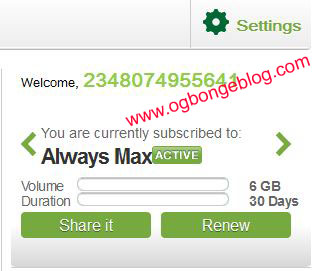
==> Click on the “ share it ” button as seen in the picture above
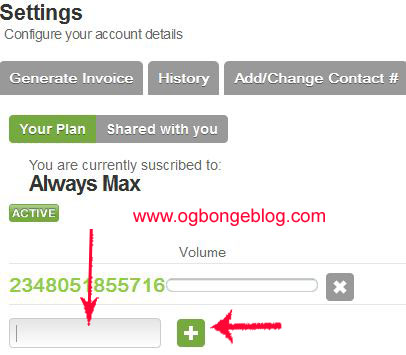
==> Enter the Glo mobile number you wish to share the plan with, in the “ Add Mobile Number ” box (use the format 080xxxxxxx) and click the + sign as illustrated in the picture above
==> You will see a pop-up window, asking you confirm the sharing
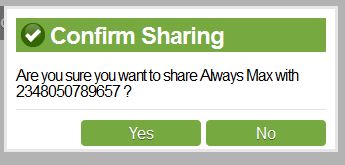
==> Click “ Yes ” to confirm. Both the owner and the sharer will be notified about the sharing via text messages.

==> A list of MSISDNs sharing the plans updated and displayed as seen in the picture below.
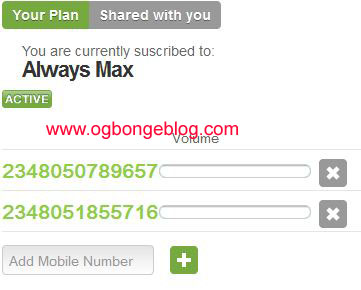
If you want to stop sharing with a sharer, just click on the X icon next to the MSISDN of the sharer.
That’s all.
The sharers can now start browsing the internet without personally subscribing to a Glo data plan.
How To Check Status of Sharing
==> Click on “ settings ” on the right-hand corner of the HSI page
==> Scroll down to the bottom left hand side.
==> Click on the “ shared plans ” tab. Right there, you can view your plan and sharing status.
How Do I check My Remaining data bundle?
View on HSI portal; text “info” to 127 or dial 127 0#
I hope this helps.
What’s your take on this? Please, let me hear from you.
NOTE : The Glo HSI sharing is only possible at the moment using the HIS portal, and only Always Min and above can be shared.








Leave a Reply