
Skip to content
new ogbongeblog logo
  • Advertise
  • Blog
  • Contact

Add Push Notifications To Blogger Blogs FREE With OneSignal

August 13, 2017

·

Uncategorized
jidetheblogger Avatar
jidetheblogger

If you are looking for a means of notifying your blog readers instantly after publishing a blog post, you can try adding web push notifications to your Blogger blog by making use of OneSignal.com. You don’t even have to create a mobile app for your Blogger blog just to get the benefit of the push notifications.

Integrating push notifications on your blog will enable you send latest blog updates to your blog visitors desktop or mobile devices even when your blog is not open in their web browsers. In addition, you will be able to build a list of blog visitors which you can re engage without knowing their email or other contact details – a perfect alternative to building a list of email subscribers.

With Safari, Chrome and Firefox browsers providing support for web push, the reach of web push notifications is immense. Since users don’t need to give their email id or other contact details and they also have the ability to unsubscribe from receiving notification easily whenever they want, the opt-ins for web push notifications are higher than emails.

Why You Should Use Onesignal Push Notifications Service

  1. It is a free service.
  2. HTTPS/SSL not required but recommended.
  3. It offers detailed reporting tools.
  4. It supports unlimited subscribers and notifications.
  5. It provides marketing tools including A/B testing, segment targeting, variable-substitution, localization, drip marketing, and conversion tracking.
  6. It provides a single UI and API to deliver messages across iOS, Android, Amazon Fire, Windows Phone, Chrome Apps, Amazon Alexa, Safari, Chrome Web and Firefox.

free web push notifications service for blogs

How To Add Onesignal Web Push Notifications To Blogger

  • Sign up for an account at OneSignal.com.
  • Click “Add a New App”, enter your blog name and click “Create”.
  • Select “Website Push” from the platforms options and click “Next”.
  • Select “Chrome & Mozilla Firefox” from the browsers options and click “Next”.
  • Enter your blog url, icon url and click “Save”.
  • Select ‘Website Push” as your target SDK and take note of the displayed appid.
  • Open the installation doc link in another tab. The doc is where you will see the code to place on your blog.
  • Enter your Onesignal appid in the code.
  • Copy and paste the code in the head section of your Blogger blog html.
  • View your blog on Chrome browser (another tab/window if currently using Chrome browser) and subscribe to the push notifications.
  • Go back to your Onesignal dashboard and click “done” to complete the set up.
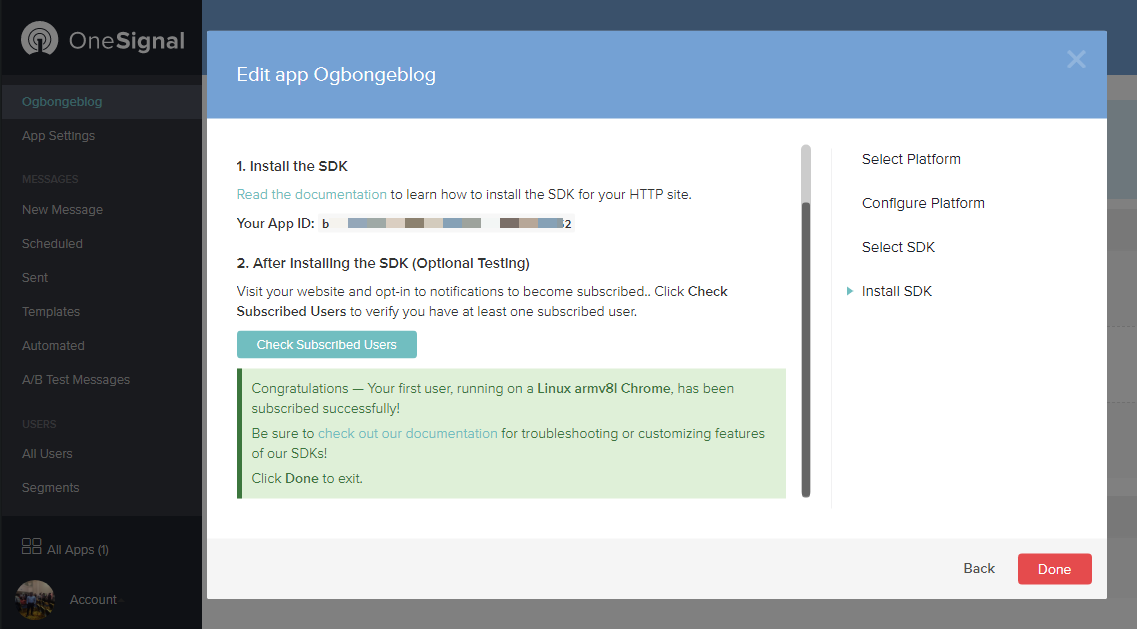
add onesignal push notifications to blogger blog

That’s all.

You can click here to check out the sample code I use to display the Onesignal push notification on my Blogger blog.

Please Share :
blogger tips

Like What You Read?

Sign Up to get similar articles delivered to your email inbox.

Leave a Reply Cancel reply

Your email address will not be published. Required fields are marked *

16 responses to “Add Push Notifications To Blogger Blogs FREE With OneSignal”

  1. Victor Dabak Avatar
    Victor Dabak
    August 14, 2017

    Nice post here Oga Jide…..I will definitely implement this on my blog.

    Commenting from Kayvics.Com

    Loading…
    Reply
  2. MEDIA BREAKOUT Avatar
    MEDIA BREAKOUT
    August 15, 2017

    i am having issues with errorsYour subdomain must only contain lowercase letters, numbers, and dashes (not as a starting or ending character) and must be between 4 and 14 characters long.

    Loading…
    Reply
  3. Alexyz John Avatar
    Alexyz John
    August 15, 2017

    Nice post, don't think that be useful because this tends to drive users away.

    Loading…
    Reply
  4. Anonymous Avatar
    Anonymous
    August 17, 2017

    Great post mr jide…from http://www.naijaschoolboy.com.ng

    Loading…
    Reply
  5. Peter James Avatar
    Peter James
    August 20, 2017

    Thanks Jide for this info, just implemented it and it's fine.

    Loading…
    Reply
  6. Naija Techviral Avatar
    Naija Techviral
    August 20, 2017

    Nice post sir.

    Loading…
    Reply
  7. chibuike udochi Avatar
    chibuike udochi
    August 20, 2017

    thanks oga this is really nice i will go and work on it.
    commenting from Allinfobuzz

    Loading…
    Reply
  8. Anyaogu Ikechukwu Joshua Avatar
    Anyaogu Ikechukwu Joshua
    September 20, 2017

    How do I add push notification to my wordpress site ?

    Passion Entrepreneurs

    Loading…
    Reply
  9. tag9ja Avatar
    tag9ja
    December 2, 2017

    Oga Jide how do i move the subscribe button for bottom right to bottom left

    Loading…
    Reply
    1. jidetheblogger Avatar
      jidetheblogger
      December 10, 2017

      Check the settings page in your OneSignal dashboard

      Loading…
      Reply
  10. Rukky Abdullahi Avatar
    Rukky Abdullahi
    January 21, 2018

    Helo Bross , I have try using one signal following your instructions but not working out for me..if you can assist me further I will be grateful..Thanks

    Loading…
    Reply
  11. webswiftseo Avatar
    webswiftseo
    April 6, 2018

    Set up onesignal push on https://viralchop.com and it works well. It would be good if there was a setting to allow users to only receive notifications from the category that they clicked the bell button from within.

    Loading…
    Reply
  12. chippluxcee Avatar
    chippluxcee
    November 3, 2018

    i hv been searching for this to add to my blog 9japotal.com

    Loading…
    Reply
  13. Rudebees NG Avatar
    Rudebees NG
    October 3, 2019

    Nice one I always expect big from you

    Loading…
    Reply
  14. Truepush Avatar
    Truepush
    December 27, 2019

    Hi, so glad to come across your blog. Thanks for sharing such a great info with us.

    Loading…
    Reply
  15. techng Avatar
    techng
    January 19, 2020

    Thanks for the info i got the soln from your blog

    Loading…
    Reply

WANT TO ADVERTISE?

Chat on WhatsApp

RELATED POSTS

  • Dudamobile mobile version of Ogbongeblog Vs Mobstac Mobile Version
  • Adsense Now Allows Placement of 320×250 Ad Banner Above The Fold On Mobile Pages
  • Statcounter Tutorial : Add Blog Traffic Stats Tracking Code To Blogger Without Errorstatcounter blog traffic tracker add project

FEATURED


  • CREDICORP launches C.L.I.C.K.D. Scheme with FG’s 3MTT Programme, expanding affordable consumer credit for locally-assembled laptops and devices for digital workers

    CREDICORP launches C.L.I.C.K.D. Scheme with FG’s 3MTT Programme, expanding affordable consumer credit for locally-assembled laptops and devices for digital workers

  • What Happens to Your Online Accounts When You Die?

    What Happens to Your Online Accounts When You Die?

JOIN AI WEB DESIGN GROUP


  • AI Website Design Training Whatsapp Group by Jidetheblogger

    AI Website Design Training Whatsapp Group by Jidetheblogger

← How To Join Oriflame Business in Nigeria
Get Free Web Hosting In Nigeria at Hub8 →

Join 25,000+ subscribers

Receive our latest blog posts in your inbox.

Search

Social

Facebook

Instagram

Twitter

new ogbongeblog logo

Copyright © 2026 | About | Advertise | Featured | Sitemap | Privacy Policy | Powered by WordPress

Your cart (items: 0)

Products in cart

Product
Details
Total
Subtotal ₦0.00
Shipping and discounts calculated at checkout.
View my cart
Go to checkout

Your cart is currently empty!

Start shopping

Notifications

%d

    LIKE My Fan Page

    Privacy Policy | Copyright © 2012,OgbongeBlog.All Rights Reserved. Powered by Blogger .
    Create a Mobile Site
    View Site in Mobile | Classic
    Share by:


