
Skip to content
new ogbongeblog logo
  • Advertise
  • Blog
  • Contact

How I Restore WordPress Site To New Domain and Host Using Softaculous

March 5, 2017

·

Uncategorized
jidetheblogger Avatar
jidetheblogger

Yesterday, I successfully restored a softaculous backup of a client’s WordPress site to a new domain and host.

So, if you are moving WordPress site to new domain ( from www.oldsite.com to www.newsite.com) and to another host (eg from domainking.ng to garanntor.ng ), this tutorial will help you provided you’ve used softaculous to back up the site files and database.

First thing you have to do is to ensure that you create a new cPanel account on the new host with the same username used for the cPanel account on the old host. You can do this easily via WHM if you are subscribed to reseller web hosting . Else, you can send the username to your host and insist they use it when setting up your account.

Thereafter, sign in to your cPanel, navigate to “File Manager” and create a softaculous backup directory .

Next step is to upload the softaculous backup file you downloaded from your old host to the newly created softaculous folder/directory.

Once the upload completes, navigate to “Softaculous apps installer” section in cPanel and click on “WordPress”.

Click on the “backups and restore” icon.  You should see the softaculous back up file you uploaded right there.

restoresoftaculousbackupfle

Click on the restore icon as seen in the screenshot above.
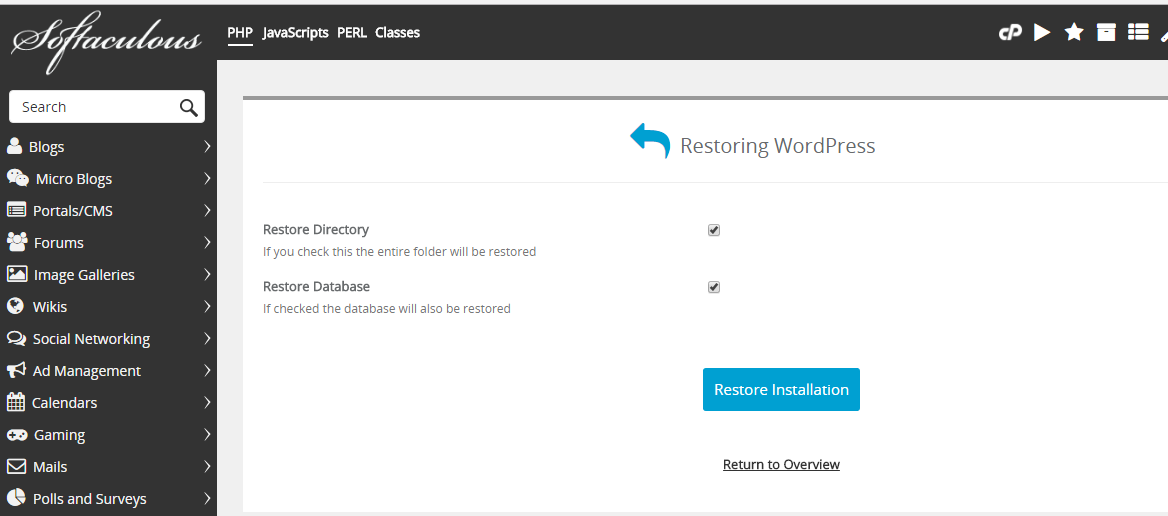
restore wordpress installation with softaculous in cpanel

Select both options as seen above.

Click “restore installation” and chill till the process completes.

Once completed, go back to your cPanel, navigate to “databases” section and click on “PhpMyAdmin” icon.
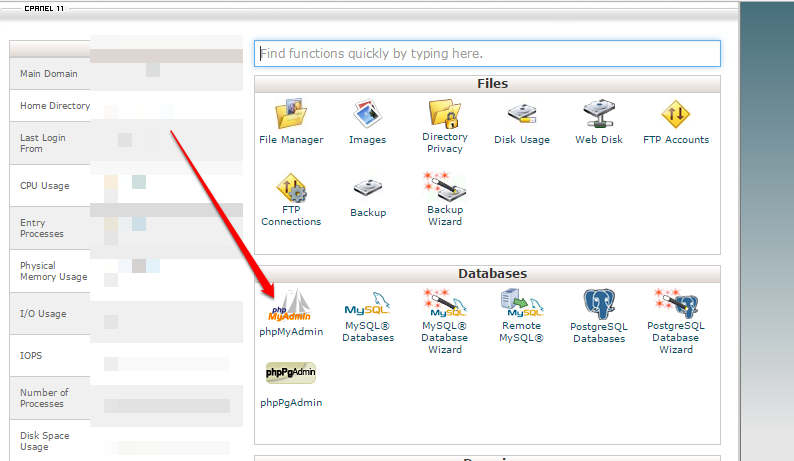
cpanel phpmyadmin

Once in phpMyAdmin, click on the site WordPress database and click on the table “wp_options”. Find the options siteurl and home and change their values to the new domain name.

edit wordpress database

That’s all.

Sign in to the WordPress admin area to ensure everything is OK.  Also check your theme settings and update settings (eg logo URL) that contain the old URL.

If you come across any issues with the migration, you can check out WpBeginner’s guide on the most common WordPress errors and how to fix them.

If you would like to redirect your old pages for SEO reasons, you should use 301 redirects, which are permanent redirects as explained in step 6 of the article here .

NB : If you want to move WordPress site to a new host or server but same domain, read this guide ,

Recommended :

>> How To Create Softaculous Backup Directory .

Please Share :
web development wordpress

Like What You Read?

Sign Up to get similar articles delivered to your email inbox.

Leave a Reply Cancel reply

Your email address will not be published. Required fields are marked *

4 responses to “How I Restore WordPress Site To New Domain and Host Using Softaculous”

  1. Chisom Avatar
    Chisom
    March 5, 2017

    Thanks for sharing this tutorial. do grantor have a good customer suport and what are their hosting prices

    Loading…
    Reply
  2. David Ozokoye Avatar
    David Ozokoye
    March 6, 2017

    thanks bro. Though I use blogger. Can I also port from domain king?

    Gyrationtechs.com.ng

    Loading…
    Reply
  3. Isah Adamu baush Avatar
    Isah Adamu baush
    March 6, 2017

    Thanks for this helpful post.
    Commenting From Naijatechviral

    Loading…
    Reply
  4. Oluwaseun Adeleke Avatar
    Oluwaseun Adeleke
    March 20, 2017

    Sir i want to move from wordpress to blogger

    Loading…
    Reply

WANT TO ADVERTISE?

Chat on WhatsApp

RELATED POSTS

  • Transfer WordPress From One Host to Another Using Softaculous
  • A2Hosting Letsencrypt Free SSL Works!a2hosting web hosting
  • How To Use DomainKing Nameservers for WhoGoHost Domain Namedomainking nameservers for whogohost domain name

FEATURED


  • CREDICORP launches C.L.I.C.K.D. Scheme with FG’s 3MTT Programme, expanding affordable consumer credit for locally-assembled laptops and devices for digital workers

    CREDICORP launches C.L.I.C.K.D. Scheme with FG’s 3MTT Programme, expanding affordable consumer credit for locally-assembled laptops and devices for digital workers

  • What Happens to Your Online Accounts When You Die?

    What Happens to Your Online Accounts When You Die?

JOIN AI WEB DESIGN GROUP


  • AI Website Design Training Whatsapp Group by Jidetheblogger

    AI Website Design Training Whatsapp Group by Jidetheblogger

← How I Move My .Ng Domain From DomainKing Nigeria To Garanntor Without EPP Code
Adblabla Sponsored Post Helps You Publish A Write Up On Thousands of Blogs In Nigeria →

Join 25,000+ subscribers

Receive our latest blog posts in your inbox.

Search

Social

Facebook

Instagram

Twitter

new ogbongeblog logo

Copyright © 2026 | About | Advertise | Featured | Sitemap | Privacy Policy | Powered by WordPress

Your cart (items: 0)

Products in cart

Product
Details
Total
Subtotal ₦0.00
Shipping and discounts calculated at checkout.
View my cart
Go to checkout

Your cart is currently empty!

Start shopping

Notifications

%d

    LIKE My Fan Page

    Privacy Policy | Copyright © 2012,OgbongeBlog.All Rights Reserved. Powered by Blogger .
    Create a Mobile Site
    View Site in Mobile | Classic
    Share by:


