Student Links
Digital Resources for Students
Please Note: These links will take you to websites that are not maintained by FCPS or Cameron Elementary.
Reference Guide for Student Links
 The DRC indicates students must have a Digital Resource Consent (DRC) permission slip on file to access the application (see ParentVUE --> Additional Forms). The DRC indicates students must have a Digital Resource Consent (DRC) permission slip on file to access the application (see ParentVUE --> Additional Forms). |
 The Google logo indicates students must log in with their Fairfax County Google accounts, which is their student ID @fcpsschools.net. The Google logo indicates students must log in with their Fairfax County Google accounts, which is their student ID @fcpsschools.net. |
 The Clever logo indicates students must log in through Clever. These apps can also be accessed by going directly through Clever. Clever itself uses the FCPS Google login. The Clever logo indicates students must log in through Clever. These apps can also be accessed by going directly through Clever. Clever itself uses the FCPS Google login. |
The "No Login Allowed" banner indicates students should not log in to the application to avoid sharing sensitive data.
Using a Personal Device to Access Resources
Follow the login instructions or expand the menus below.
FCPS Google Accounts
- Open Google Chromeor the browser of your choice.
- Click on Google Workspacein the top blue menu bar on this website.
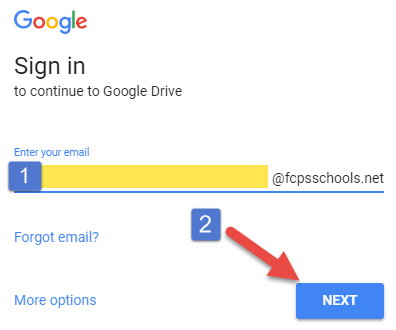
- Enter your username (student ID)into the box and click Next. Make sure that the @fcpsschools.net is present. If it is not there, you must type it out!
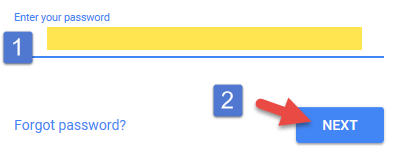
- Enter your password.
- You can now log in with Google for any student resource that requires it, which includes but is not limited to myON and BrainPop.
Note:If you forget your password, you must change it here or contact your teacher to reset it.

Clever
- After logging in to Googleby following the above instructions, access Cleveror other Clever apps by clicking their icons on this Student Links page.

Clever applications include ST Math, Lexia, Science A-Z, and MyON.


- Select the Log in with Googlebutton.

- If asked, select your name.
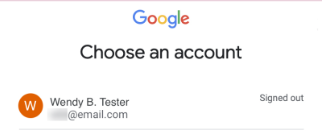
- If asked, choose the correct option if you share your computer.
- If asked, select your name.
- Now you have access to all of the apps associated with Clever!
Schoology
- Click on Schoology. on Cameron Student Links.

Schoology must be accessed through the special FCPS url and will not work if you go through their main website! - Type in your usernameand passwordand click Sign In.
Parents must use their ParentVUE username and password to access the parent Schoology account. - Your username might get "azauth.net\" added before it, which is expected and normal.
Reset Password
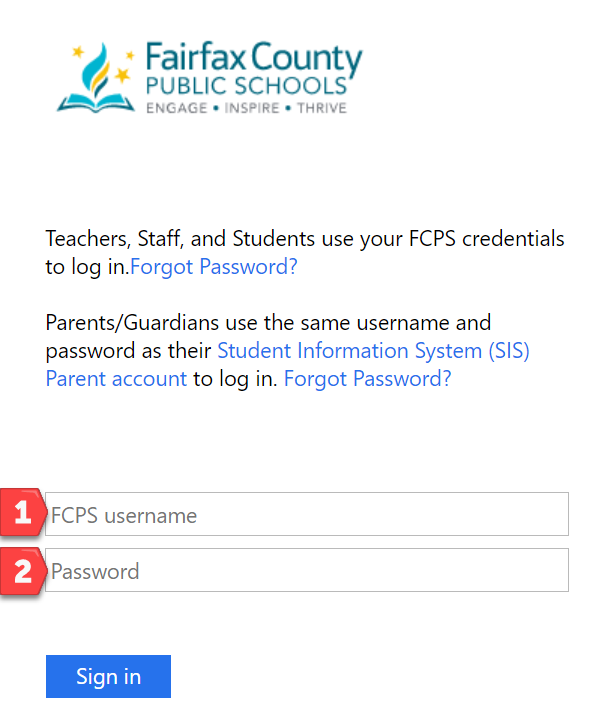
If a student's password is not working, forgotten, or otherwise needs to be reset, families can do so using the Student Password Self Service site . Choose forgot password when signing in. If issues persist, email Ms. Weber @email to request a password reset.
Frequently Used


Reading and Language Arts





Math




Social Studies & Science






Library and Research Tools





SOL / Test Prep and Assessment Tools





Enrichment and Computer Skills