Tech Tools
Tools to Support Research & Learning
Accessing Resources From Home
FCPS Google Account
-
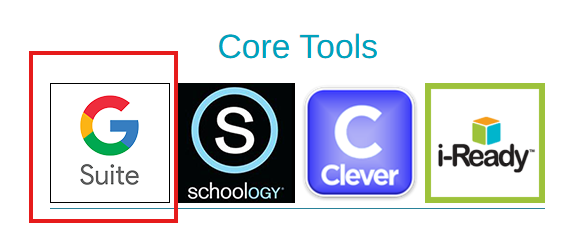
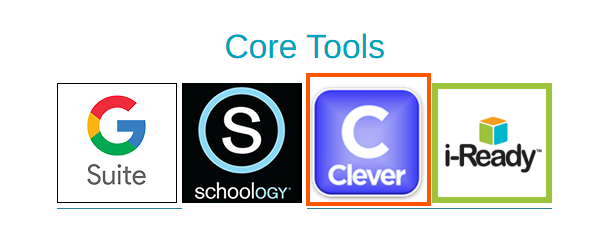
From the Colvin Run Tech Tools page, click on the Google Suite Icon.
-
Type in the student’s ID (username) followed up @fcpsschools.net. If it's prepopulated, no need to add it in.
-
On this screen, enter Student ID for Username(No @fcpsschools.net here) followed by their password. You will be logged into the student's Google account upon completion.

Schoology
-
From the Colvin Run Tech Tools page, click on the Schoology Icon.
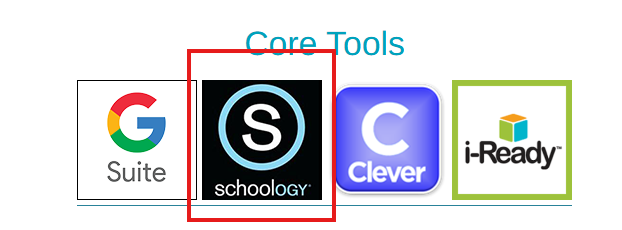
- On this screen, enter Student ID for Username(No @fcpsschools.net here) followed by their password. You will be logged into the student's Schoology account upon completion.
Clever
-
From the Colvin Run Tech Tools page, click on the Clever Icon.
-
Click on the "Log In With Google" button.
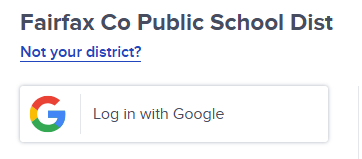
- If you've signed in before, you'll be asked to select your name. Otherwise, refer to the "FCPS Google Account" tab for directions to continue.
Reflex Math
-
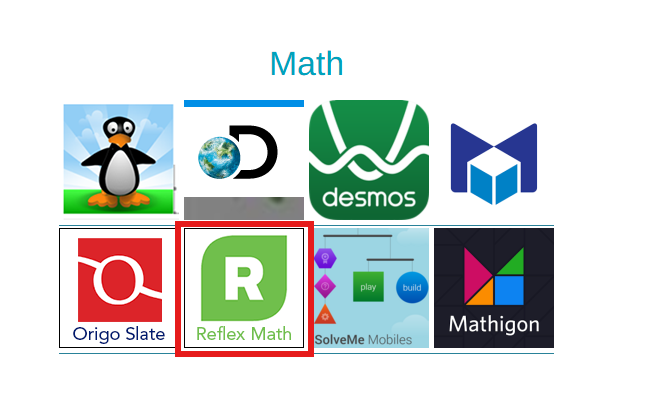
From the Colvin Run Tech Tools page, click on the Reflex Math Icon.
-
Type in the student’s ID (username) followed up @fcpsschools.net. **If it's prepopulated, no need to add it in.
- On this screen, enter Student ID for Username(No @fcpsschools.net here) followed by their password. You will be logged into the student's Reflex Math account upon completion.
MyOn
To access MyOn, follow the steps for Clever. Once logged you, MyOn will be accessed by clicking on the Renaissance icon.

AI Created Resources For Students


PE | Music | Art





Tech | Frequently Used












Core Tools




Beginner Computer Resources










Brain Breaks | AI





Reading | Research Tools | Library














Math






Science | Social Studies





Coding | Typing