Student Links
Digital Resources for Students
Using a Personal Device to Access Resources
Expand the menus below to learn how to access resources at home!
FCPS Google Accounts
- Open Google Chromeor the browser of your choice.
- Click on Google Workspacein the top blue menu bar on this website.
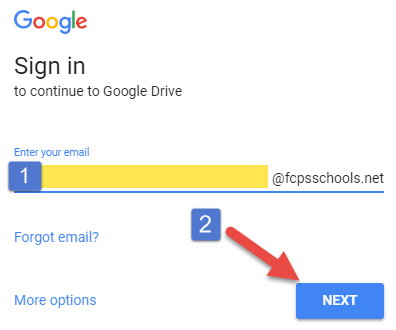
- Enter your username (student ID)into the box and click Next. Make sure that the @fcpsschools.net is present. If it is not there, you must type it out!
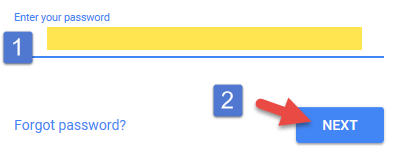
- Enter your password.
- You can now log in with Google for any student resource that requires it,
Note:If you forget your password, you must change it here or contact your teacher to reset it.

Clever Applications
- After logging in to Googleby following the above instructions, access Cleveror other Clever apps by clicking their icons on this Student Links page.

Clever applications include ST Math, Lexia, Science A-Z, Wixie, and MyON.



- Select the Log in with Googlebutton.

- If asked, select your name.
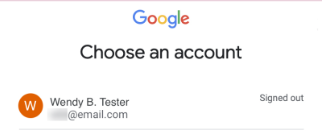
- If asked, choose the correct option if you share your computer.
- If asked, select your name.
- Now you have access to all of the apps associated with Clever!
Schoology
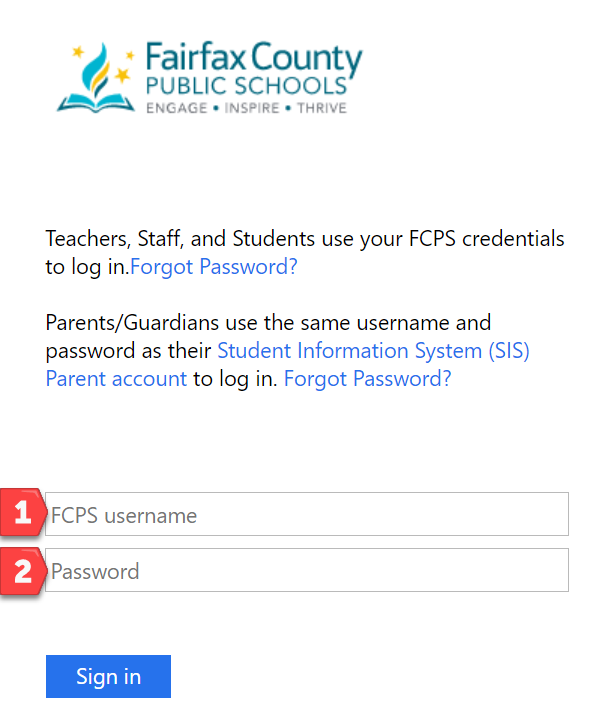
- Click on Schoologyon this page.

Schoology must be accessed through the special FCPS url and will not work if you go through their main website! - Type in your usernameand passwordand click Sign In.
Parents must use their ParentVUE username and password to access the parent Schoology account. - Your username might get "azauth.net\" added before it, which is expected and normal.
Frequently Used


Math






Reading





Coding