
UPDATE (5/20/26 @ 7:30am AZ time):
The GCU Library's updated version of LopeCat, the library’s online catalog, is live! For more details on what has changed, visit the What's New Guide .
- Grand Canyon University Library
- Research Guides
- Secondary
- Doctor of Nursing Practice
- Preparing for Literature Reviews
Doctor of Nursing Practice
InterLibrary Loan (ILL)
If you have the citation information for an article or book but can't find the full text, you can submit an InterLibrary Loan (ILL) request.
Interlibrary loan service is for current students, faculty, and staff. For alumni resources, visit: Alumni Resources

Guide Books for Literature Reviews
-
 Practice-Based Scholarly Inquiry and the DNP Project
by
ISBN: 9780826134936Publication Date: 2019-03-01
Practice-Based Scholarly Inquiry and the DNP Project
by
ISBN: 9780826134936Publication Date: 2019-03-01 -
-
-
-


How to Get Started With a Literature Review
The literature review section of the dissertation or DNP project is expected to be thorough, broad, and in depth. The guide books above and the selection of articles below can help you make sure you are taking a thoughtful and complete approach to your search. Also on this page is advice for digging deeper in library databases and Google Scholar.
- Research Ready: Literature Reviews This link opens in a new windowFrom the GCU CIRT, these learning modules are an introduction to literature reviews and how to write them.
- Reviewing Literature This link opens in a new windowA tutorial from Sage Skills.
- Reviewing the Literature This link opens in a new windowA step by step guide from Sage Research Methods.
- The Systematic Literature Review Method: Trials and Tribulations of Electronic Database Searching at Doctoral Level This link opens in a new windowA step by step guide to conducting a systematic literature review method.
- Using Google Scholar to Conduct a Literature Search This link opens in a new windowFrom Nursing Standard, best practices for literature reviews in Google Scholar.
Literature Search Logs
- GCU Literature Search Log TemplateThis is an Excel template for a literature search log.
- GCU Literature Search Log Template ExampleAn example of a filled out search log.
Advanced Searching for Literature Reviews
There are many ways to expand your searches to locate additional articles. Below are tips for the following methods to locate new articles:
- Exploring all the databases for a subject.
- Removing the Full Text limit.
- Seeking out review articles.
- Adjusting keyword fields.
- Using Google Scholar.
- Exploring the full issues of key journals using Find Journals by Title.
- Reviewing the reference lists of published dissertations.
- Use citation analysis tools. See the citation analysis page for more .
- Find Journal Articles--All GCU Library Databases This link opens in a new windowA complete listing of GCU Library's subscription databases.
How To Locate Additional Databases
To display different subsets of databases, use the menu bar in the middle of the page.
Browse by Subject will allow you to choose a subject by which to filter the databases that display.

When you choose a subject, only relevant databases will be listed.
To return to the full list, click on Clear Filters/Browse All Databases:

You can also browse through the databases by title by clicking the letter on the alphabet list that the title begins with.
Uncheck Full Text to Expand a Search
- Turning off "Full Text" limits.
- Most databases default to showing only those articles for which they have the full article available immediately in the database. For in depth research, you will need to turn off this setting to see articles for which the database has only the abstract.
- Request articles found this way through Interlibrary Loan (Tipasa).
- Full Text in EBSCO is part of the filters menu at the top and on the expanded filters menu that will open on the right.

- Full Text in ProQuest also appears in the search options to the left.

- Full Text in Sage. For Sage's advanced search, 'All Content' under 'Access' Type includes articles for which the GCU Library does not have full text access.

- Full Text in Gale is under "More Options" and is off by default in some databases.

How to Locate Review Articles: Systematic Reviews, Literature Reviews, and Meta-Analyses
- Start with your general topic area. For example:
- handwashing or hand washing or hand hygiene or hand sanitation
- AND nurs*
-
- Add a search field for review type articles:
- systematic review or meta-analysis or literature review or scoping review
-
- Adjust dates to be within 2 years.
Why review articles?
- Review articles will have surveyed the literature extensively, providing a reference list you can draw from.
- Most reviews will also include their search strings. This can add to your own keywords to expand your searches.
- For instance the above search was used to locate this article:
Seo, H.-J., Sohng, K.-Y., Chang, S. O., Chaung, S. K., Won, J. S., & Choi, M.-J. (2019). Interventions to improve hand hygiene compliance in emergency departments: a systematic review. The Journal of Hospital Infection, 102 (4), 394–406. https://doi.org/10.1016/j.jhin.2019.03.013
- Within this article, their search includes the following string:
- (hand antisepsis or handwash* or hand wash* or hand disinfection or hand hygiene or surgical scrub*)
- With additional terms that should be included when searching on this topic listed in the article narrative.
-
- Review articles can also point towards a gap or the need for further studies. For instance, this article states:
- "Further well-designed controlled studies are necessary to examine the true effects and identify which intervention modalities are more effective than others for HHC improvement in EDs."
- Reviewing the articles this article studied would then provide support for this gap.
Pursuing a health care topic? Search Cochrane Reviews or Joanna Briggs EBP as well as the more general databases.
How to Use the Field Options in LopeSearch
- The "All fields" options allow you to change where in the record or document the database searches for your keywords.
- Using these options allows a targeted search, giving different levels of importance to different sets of keywords.
- The field options in EBSCO (the LopeSearch and other databases) include:
- All fields —The default setting searches title, author, abstract, keywords, and subjects.
- All Text—Searches include the full text of the article and all other fields.
- Author—Searches only the authors.
- Title—Searches only the title.
- Subject Terms—Searches only the subject terms.
- Journal Title/Source—Searches only the journal name.
- Abstract—Searches only in the abstract.
- When using the field options, consider which parts of your search should be the focus--terms which would need to be key to the study, and thus would appear in the title or abstract, and which terms might be talked about but not appear in the abstract, title, or subject terms.
- We highly recommend speaking to a librarian when developing an advanced search.
- You can click the + (in some databases: "add a row") to add more than the 3 search boxes provided by default.
Example 1:
Research question: “Why less African-American women are promoted to leadership positions in career opportunities within the mental health professions?”
Why? The gender of the study population is more likely to be a principle aspect of the study when mentioned in the abstract. Looking in the full text however would get too many false positives for incidental mention of these words.
Why? Race may or may not be mentioned in the abstract. Looking in the full text allows this search to also turn up studies that looked at women in general, but reported out on race or ethnicity as a variable.
Why? Restricting this aspect to subject ensures that career considerations were the purpose of the study.
Why? These words can occur a lot incidentally. Ensuring they appear in the title reduces irrelevant results when they should be the focus of the study.
Why? This keyword set helps narrow down the search to empirical or original research studies in databases that do not have filters for it.
Example 2:
Research question: "What is the role of self efficacy in the success of Black students in college?"
Why? This search is looking for race or ethnicity to be a central part of any study returned, so it should be mentioned in the title, subject terms, or abstract.
Why? This search is looking for the academic level to be mentioned as a key part of the study, and thus appearing in the abstract.
Why? This is the theoretical concept that needs to be prominent to match with the researcher's research question.
Why? This keyword set helps narrow down the search to empirical or original research studies in databases that do not have filters for it.
Why? In previous searches, a number of articles related to these keywords appeared. They are not what the researcher is looking for, so using NOT eliminates them from the search. Use NOT carefully to ensure you are not being overbroad.
- Google Scholar This link opens in a new windowUsing this link to Google Scholar will include the ability to link to full text articles available in GCU library databases. Click “Full Text @ GCU” to access over 46,000 full-text journal titles or click “Find it @ GCU” to view additional options, including requesting via InterLibrary Loan.

Finding recent papers
Your search results are normally sorted by relevance, not by date. To find newer articles, try the following options in the left sidebar:
- click "Since Year" to show only recently published papers, sorted by relevance;
- click "Sort by date" to show just the new additions, sorted by date;
- click the envelope icon to have new results periodically delivered by email.
Locating the full text of an article
Abstracts are freely available for most of the articles. Alas, reading the entire article may require a subscription. Here're a few things to try:
- click a library link, e.g., "Full-Text@GCU", to the right of the search result;
- click a link labeled [PDF] to the right of the search result;
- click "All versions" under the search result and check out the alternative sources;
- click "Related articles" or "Cited by" under the search result to explore similar articles.
If you're affiliated with a university, but don't see links such as "FindIt@Harvard", please check with your local library about the best way to access their online subscriptions. You may need to do your search from a computer on campus, or configure your browser to use a library proxy.
Getting better answers
-
If you're new to the subject, it may be helpful to pick up the terminology from secondary sources. E.g., a Wikipedia article for "overweight" might suggest a Scholar search for "pediatric hyperalimentation".
-
If the search results are too specific for your needs, check out what they're citing in their "References" sections. Referenced works are often more general in nature.
-
Similarly, if the search results are too basic for you, click "Cited by" to see newer papers that referenced them. These newer papers will often be more specific.
-
Explore! There's rarely a single answer to a research question. Click "Related articles" or "Cited by" to see closely related work, or search for an author's name and see what else they have written.
To find the Advanced Scholar Search, click the Menu option located in the upper left corner.

Click on Advanced Search.

A new box will pop up.

Example Searches:

This Advanced Search is searching for articles on the benefit of teaching information literacy in schools.
The words benefit and teach will both be found somewhere in the article.
The phrase information literacy will also be in the article.
One of these words or a combination of these words-- school or education or college or university --will also be in the article.
Articles will have been published from 2010to present. (Leaving the second box empty will automatically search until present day).

This Advanced Search is searching for articles on the connection between academic success and libraries.
The phrase academic successwill be found in the article.
Either libraryor libraries(or both!) will also be found in the article.
Academic successand libraryor librarieswill be found in the titleof the article.

This Advanced Search is searching for articles written on social learning that were authored by Albert Bandura.
The phrase social learningwill be found in the article.
All articles will be authored by Albert Bandura.
Linking to GCU
Google Scholar can be linked to the GCU Library databases, making it a "one-stop shop" for finding articles. Here’s how to do so:
1. Start at the Google Scholar homepage: http://scholar.google.com
2. Click on the Menu icon in the upper left corner.
3. Click on the Gear cog in the right corner of the menu. On some browsers this may appear as Settings below Advanced Search instead.

4. Click on Library links to the left.

5. Type Grand Canyon University into the search bar and click the search button.
6. Click the box next to Grand Canyon University - Full-Text @ GCU to add a check mark.

7. Once you see Grand Canyon University - Full-Text @ GCU listed with a check mark next to it, click the Save button.
Now you will be able to see which results in Google Scholar are freely available through the GCU library. Review the Accessing Articles and Accessing Books tabs for examples.
Exporting Citations
Like many databases in the GCU Library, Google Scholar has a built-in citation tool. Here's how to use it:
- Click the " (Quotation Marks), outlined below.

2. A new box will pop up. Copy and paste the required format into your document.
3. Always double check the citation for accuracy and proper formatting.

To export a reference from Google Scholar into citation management software:
- Click the " (Quotation Marks) outlined below.
2. A new box will pop up. The citation managers will be listed at the bottom of the box. Click your preferred citation manager.
3. Follow the prompts to complete the export.

Create a Google Scholar Alert
It is best to use a Google account, such as a gmail, for alerts so you can easily modify them.
- Enter your search terms, set limiters, and modify your search until you are happy with the results.
- Click on Create alertin the left side of the search results.

- You will see your search terms in the Alert queryfield.
- Your email address will be shown in the Emailfield. You can change the email address if you want to receive alerts in a different email box. If you are not signed in, you need to type the email address that alerts should be sent to.
- Click on CREATE ALERT.

- If you are not logged in to your Google account, you will be challenged to prove you are not a robot.
- If you are not signed in or used the different email address to receive alerts from your Google account:
- You will receive a confirmation email from Google Scholar Alerts. Once you receive this email, click on the link to confirm the request. If you cannot find the confirmation email, check your spam folder.
- You will receive a confirmation email from Google Scholar Alerts. Once you receive this email, click on the link to confirm the request. If you cannot find the confirmation email, check your spam folder.
- If you are signed in and used the same email address to receive alerts as your Google account:
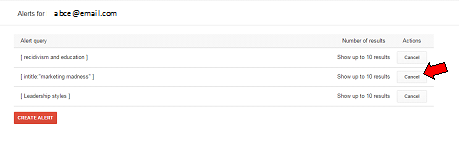
- You will see the list of alerts you created. To cancel an alert, click on the Cancelbutton below Actions.
- If you would like to create another alert, click on CREATE ALERT.
Manage Your Google Scholar Alerts
After a time, you may find that you no longer want to continue receiving alerts for some searches you created in Google Scholar.
To delete an alert:
- Log in to your Google Scholar account.
- Click on the Menu in the upper left of the Google Scholar page and then click on Alerts.

- In the list of Alerts that displays, click on the Cancel button next to the search you wish to delete.
- Find Journals by Title This link opens in a new windowSearch for a journal by the journal's title and see which databases have it.
Browse a Journal's Articles
- Keep an eye out while researching for the names of journals that come up often.
- Read through that journal's recent issues, you may find articles with related content that is worded in ways you have not thought of.
- To locate a journal to browse by issue:
- Search for the journal title in the Find Journals by Title search.
- Choose the database that lists 'to Present' for the journal. For example this journal, Electronic Library is in Emerald Management:

- Different databases display issues in different ways. Below are examples from Science Direct, ProQuest, and Emerald. Click on an issue to view all the articles from the issue.


- Journal you need not one the library subscribes to? Most journals will list the titles and abstracts of their latest articles on their website. You can then request any article of interest through Interlibrary Loan .
- Dissertations & Theses Global This link opens in a new windowLocate recent (no more than 3 years old) dissertations on your subject, then review their reference lists.
Citation Alerts in Web of Science
Have a key paper? Get alerted when a new paper that includes it in their reference list is published!
In addition to the tips below for setting alerts in Web of Science, Google scholar and many individual databases also have search alert features that will notify you when new articles match the criteria you set up. Check out the search alerts page for how to use this feature in the databases that offer it.
