
UPDATE (5/20/26 @ 7:30am AZ time):
The GCU Library's updated version of LopeCat, the library’s online catalog, is live! For more details on what has changed, visit the What's New Guide .
INT-244 World Religions: Traditional Religions
Recommended Books
-
-
-
-
-
-
-
-
-
-
-
 Native American Religion : A History of Native American Religion
by
ISBN: 9780195145861Publication Date: 2001-02-22
Native American Religion : A History of Native American Religion
by
ISBN: 9780195145861Publication Date: 2001-02-22 -
-
 Native Americans, Christianity, and the Reshaping of the American Religious Landscape
by
ISBN: 9780807834060Publication Date: 2010-10-11
Native Americans, Christianity, and the Reshaping of the American Religious Landscape
by
ISBN: 9780807834060Publication Date: 2010-10-11 -
-
 Yoruba Traditions and African American Religious Nationalism
by
ISBN: 9780826350756Publication Date: 2012-05-30
Yoruba Traditions and African American Religious Nationalism
by
ISBN: 9780826350756Publication Date: 2012-05-30 -


Researching in Library Databases
Library databases do not work like general web search engines, such as Google.
Instead, they work based on Keyword Searchingand Boolean Logic.
- Keywordsmeans just the main terms you are looking for.
- Do:
- Stick to nouns or terms.
- Check your spelling.
- Start with one term and then add more if you get too many results.
- Don't:
- Enter questions or whole sentences.
- Do:
- Boolean Logicis a way of combining terms and telling the database how you want them to be related to each other.
What Keywords Should You Use to Search for Sources on African or Native American religious traditions?
- There are a number of separate religions and traditions included in this topic. Search for only one at a time. You may need to include alternate terms for religion, as traditional beliefs are not always referred to as a religion in articles.
- Hopi AND religion OR spirituality OR beliefs OR ritual knowledge
-
Boolean Operators in Action
Boolean operators (AND, OR, NOT) can be typed into the search line with your search terms, like this: cat AND
dog, cat OR
dog, cat NOT
dog.
This image shows what it looks like in the database search box:

You can also use the dropdown box the database has provided, and type a term (cat) in the first line, change the dropdown box to the Boolean term you want to use ( AND, OR, NOT ), and put your second term (dog) in the box beside the dropdown menu. This image shows what this technique looks like in the database search box:

You can also combine the truncation technique with the Boolean operator. This image shows cat* AND dog* (truncated with the asterisk at the end of the root of your search term to include all possible endings for cat and dog).

To broaden our search even more we can include synonyms, truncation, and Boolean operators. In this search we have searched for: [cat* or feline or kitten*] AND [dog or canine or pup*].

Truncation In Action
When you break your topic down to keywords, it's likely that there are many versions of that word. Including all of the possible versions will help make sure you find articles on that topic. This example shows multiple forms of the word leader (leader, leaders, leadership):

Truncation means you shorten the word to the root, and replace the endings with an asterisk. In this example we have only the word leader*, and we will get the same results as before when we included all forms of that term.

In this example, we are starting with multiple forms of the word nurse (nurse, nurses, nursing):

And we can truncate the word to nurs* and get the same results:

Recommended Resources
- World History in Context This link opens in a new window Full Text World History in Context contains more than 2,200 primary source documents, over 2,000 maps and atlases, thousands of images, videos, and audio selections, plus reference materials and magazine and journal articles. Users can search for specific items, or browse topics to get an overview with additional resources.
- Gale's Religion and Philosophy Collection This link opens in a new window Full Text Gale's Religion & Philosophy Collection features a selection of more than 200 magazines and academic journals--everything from Anglican Journal to Zygon--covering religion and the related areas of philosophy and anthropology. Researchers can use this database not only to study theological approaches to social issues, but also to learn about the impact that religion has had on culture throughout history, including literature, arts, and language. Coverage, which includes more than 1.1 million articles updated daily, begins as early as 1980 for indexing and 1983 for periodical full text.
- U.S. History In Context This link opens in a new window Full Text Offering outstanding primary and secondary history sources combined with the media-rich selections that today's users demand, U.S. History In Context delivers the best titles from Macmillan, Scribner, and other world-class sources. Students will find comprehensive coverage of the most-studied topics, from the arrival of Vikings in North America 1,000 years ago to Vietnam, Watergate, and the wars in Afghanistan and Iraq.
- Colonialism and Postcolonialism This link opens in a new windowFrom the Encyclopedia of Religion in World History in Context.
Types of Sources in Gale Databases
Several types of sources are available:
- Primary sources, generally first hand accounts.
- Reference book entries.
- Academic journal articles.
- Articles from magazines and newspapers.
- Statistics.
Reference book entries will generally be the best place to start. Three articles in each category will show on the main page. Click on the category to view all the articles.

Article Information
Each article lists important information:
- The title, author, and what source the article originally came from.
- If the article is peer-reviewed.
- The date.
- The word length and the reading level. Gale uses a star system in a colored box to indicate reading level, the fewer stars the easier an article is to read. Most academic articles will be at level four or five, while newspapers are usually written at level three.

Advanced Search in Gale Databases
- To reach the advanced search, click the option under the search box at the top of the page.
- Advanced search will allow you to use keywords to search.

- If you need more instructions on how search works, or how to use special features like wildcards, instructions are provided on the page.

- You can search just within a topic as well by using "Search Within Results".

- You can set a date limit to ensure your search results are recent.

Citing From Gale Databases
Gale databases include a citation tool to help you cite the articles in it. As with other automatic citation tools, you will need to examine the computer generated citation against the format and rules on the Citing Sources Guide . Check for accuracy, especially in punctuation and capitalization.
- Click "Cite" on the tools menu across the top of the article.

- Change the citation format to APA 7th Edition.
- Copy the citation and paste it into your document. Correct the formatting, checking for capitalization, italics, and correct links.
- Gale's automatic citation tool will include a link at the end that will usually not be the correct link.
- Click "Get Link" on the tool menu to get a correctly formatted permalink. Permalinks allow you to return directly to an article.
- Look at the top of the article to find the DOI if there is one, the citation tool may leave it out. You may need to correct the formatting.

- Credo Reference This link opens in a new window Full Text With regular updates, this collection includes 3 million entries from notable subject encyclopedias, handbooks, guides, companions, and readers covering 80 major subject disciplines and more than 6 million research concepts. In addition to full text content, Credo Reference provides access to more than 1,000 videos and animations, as well as 500,000 contextual visual aids, images, photographs, and maps.

Using Credo Reference
- Type a keyword into the search box.
- At the top of your results will be an overview or summary article, and below that, entries from various works.

Mind Maps
- You will find the Mind Map on the right.
- Use the Mind Map feature to brainstorm for ideas and new search terms. Click any term to change the map to center and focus on that term.
 ⇒
⇒
How to Cite Entries
- Click on the citation option in the menu across the top.
- Select APAfrom the pop-up menu.

For a Persistent Link
- Click on 'Copy Link' at the very top right of the page.
- Copy and paste the provided link into your References page.

- ATLA Religion Database with ATLA Serials This link opens in a new window Full Text Provides coverage from 1949 and retrospective indexing for several journal issues as far back as the nineteenth century representing scholarship on major religions, faiths, denominations, and languages. Content includes full text content from more than 340 journals, more than 2.7 million records, indexing of more than 2,300 journals, 276,000 essay records, 826,000 review records, and 397,000 book records.
Search Limits and Tools
Scholarlyarticles: Scholarly resources are written with a focus on a specific subject discipline and usually written by an expert in the same subject field. Scholarly resources are written for an academic audience.
Peer Reviewedarticles: Peer Reviewed journals are evaluated prior to publication by experts in the journal’s subject discipline. This process ensures that the articles published within the journal are academically rigorous and meet the required expectations of an article in that subject discipline.
All peer reviewedarticles are scholarly, but not all scholarly articlesare peer reviewed.
In EBSCO databases like Academic Search Complete or ATLA, you can help narrow down to scholarly articles by selecting 'Academic Journals'under source types.

Date:Databases can go back a long time, but only the most recent articles are relevant for many topics. Limit the date for current issues. You many not need a date limit for theology topics however, as these change less over time.

ATLA includes a citation tool like other EBSCO databases and LopeSearch. Database citation tools are automatically generated-- which means that a person doesn't double check them for accuracy. They can have mistakes, and don't always keep up with the latest rules. It is your responsibility to review your citations.
Always double check a computer created reference against a style guide.
Especially look for mistakes in capitalization, punctuation, information that shouldn't be included, and missing information.
Click on the title of the article to access the detailed record, with the tools menu at the top.

Click the Cite button on the tools menu, which looks like a quotation mark.
Select the citation style you need from the drop down menu.

Highlight the reference, then copy and paste it into your paper.
Don't forget to double check the formatting!
Personal Accounts
Many databases allow you to create a free personal account. When logged into your personal account, you can:
- Save and retrieve your search history
- Create bookshelves
- Save preferences
- Organize your research with folders
- Email and export saved citations
Creating a personal EBSCO account
- Locate the MyEBSCO link in the purple bar at the top of the EBSCO search screen.

- Click on Create and account.
- Fill out the form.
- You can use any email address that you would like.
- You do not need to use your GCU username and password.
- Click on Create account.
GCU PowerPoint Resources
Reference Lists & Formatting in PowerPoint:
There is no set of rules for creating a PowerPoint Presentation in APA or MLA style. If you are creating a reference list in PowerPoint, you will follow all the same rules for your citation style, and most of the options to add special formatting to your citations are still available in PowerPoint.
But, here are a few pointers if you are creating a PowerPoint presentation that requires the use of sources that you have to cite:
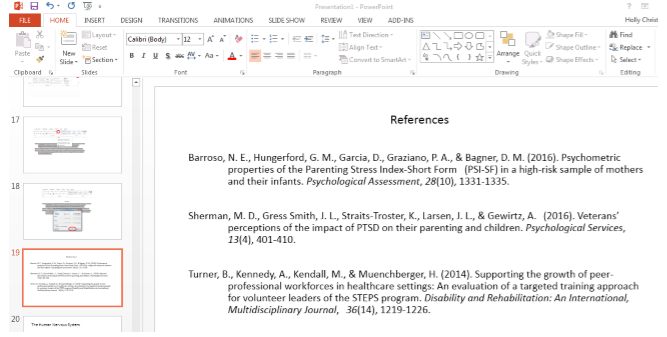
Creating a Reference Slide
For your reference list, insert a new slide at the end of your presentation and then add your references according to the rules of the style you are following:
Adding References to Speaker's Notes:
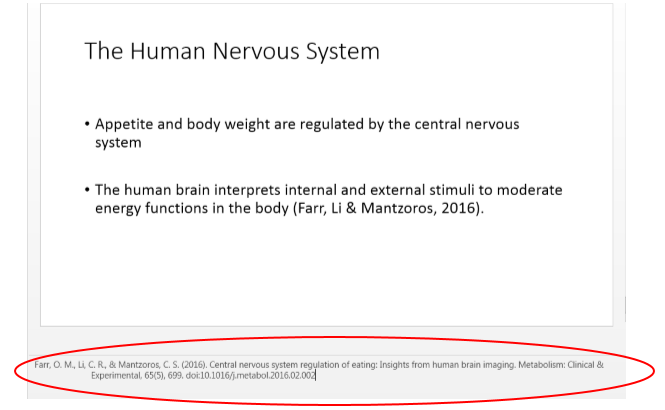
Depending on the requirements of the assignment, citation style or the instructor, you may be required to include the full reference citation or a footnote at the bottom of the slide in the Speaker’s Notes section.
To do this, click on View then click on the Notes Icon in the Show section.

This will make the Speaker’s Notes section visible so you can place your references there as shown below.
In-Text Citations
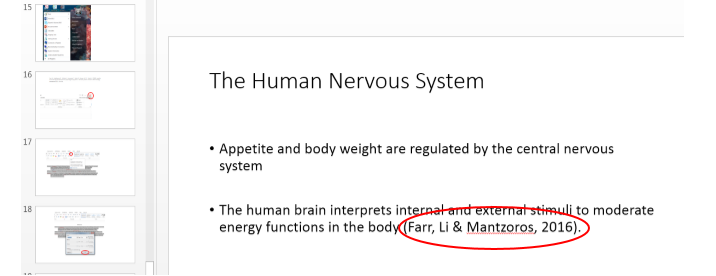
In-text citations in a PowerPoint presentation can be included at the end of bullet points that include direct quotes or paraphrased information.
- Turabian style does have specific rules for presentations. See Creating Effective PowerPoints in Turabian below.
- GCU Technical Support Microsoft Office FAQ This link opens in a new windowHow to install Office 365 and basics for getting started.
- Creating Effective PowerPoints for APA & MLAThe GCU template for PowerPoints in APA or MLA.
- Creating Effective PowerPoints in TurabianView this PowerPoint for guidelines on formatting a presentation with Turabian endnotes. This PowerPoint can be used as a template.

