
UPDATE (5/20/26 @ 7:30am AZ time):
The GCU Library's updated version of LopeCat, the library’s online catalog, is live! For more details on what has changed, visit the What's New Guide .
Public Speaking & Presentations: PowerPoint
PrepSTEP Microsoft Office Skills Tutorials

PrepSTEP is an online suite of resources to help you build basic skills with computers.
- Read prep books.
- Take tutorials for skills in using Microsoft Office, including PowerPoint.
- Start and stop practice tests and tutorials and pick up where you left off.
You must create a personal account to use PrepSTEP.
- Access PrepSTEP using the link on this page. You will need to log in with your GCU username and password.
- Click "Sign In/Register" at the top.

- Click "Register".

- Fill out the form and register for a free account using an email and password of your choice. Please note that you do not need to include your Student ID# or Course Section #.

- Click Home or choose a center from the Centers menu on the navigation bar to begin using the resources.

To begin a practice test or tutorial:
- Click on the category you need.

- Choose the test or skill you need to work on.

- Choose the resource you need. You can begin a practice test or read a test book.

To continue a test or exam:
- Log in by clicking "Sign In/Register".
- If you are already logged in, click on your name and choose "My Center".
- Find the test or tutorial you wish to continue and click on the title.

- You can also delete your progress by clicking the trash can icon next to the title.
GCU PowerPoint Resources
Reference Lists & Formatting in PowerPoint:
There is no set of rules for creating a PowerPoint Presentation in APA or MLA style. If you are creating a reference list in PowerPoint, you will follow all the same rules for your citation style, and most of the options to add special formatting to your citations are still available in PowerPoint.
But, here are a few pointers if you are creating a PowerPoint presentation that requires the use of sources that you have to cite:
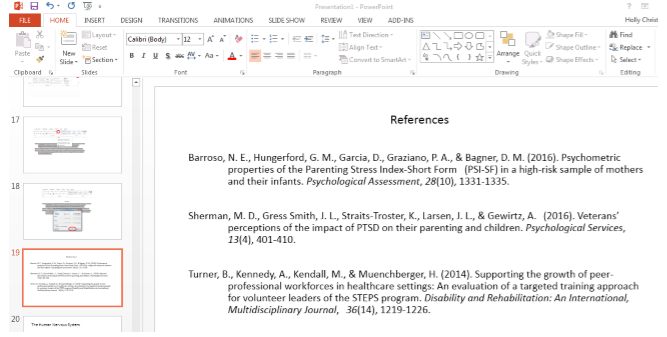
Creating a Reference Slide
For your reference list, insert a new slide at the end of your presentation and then add your references according to the rules of the style you are following:
Adding References to Speaker's Notes:
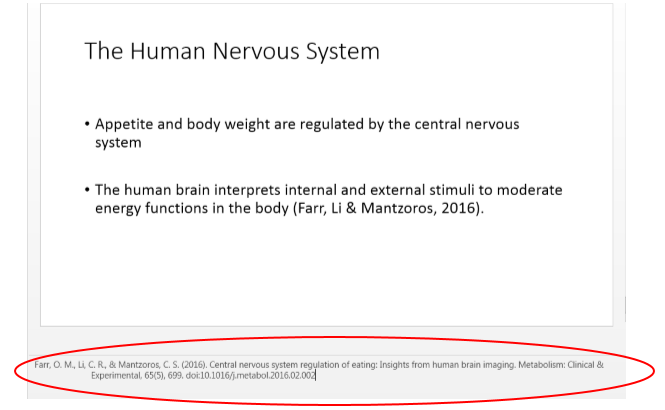
Depending on the requirements of the assignment, citation style or the instructor, you may be required to include the full reference citation or a footnote at the bottom of the slide in the Speaker’s Notes section.
To do this, click on View then click on the Notes Icon in the Show section.

This will make the Speaker’s Notes section visible so you can place your references there as shown below.
In-Text Citations
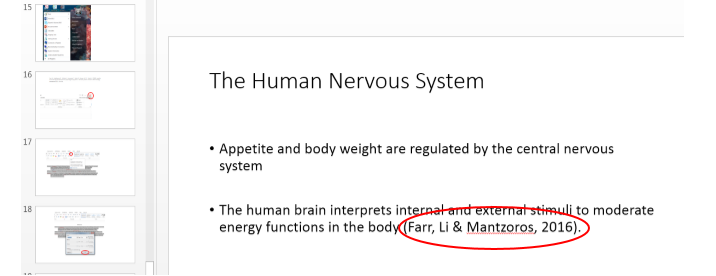
In-text citations in a PowerPoint presentation can be included at the end of bullet points that include direct quotes or paraphrased information.
- Turabian style does have specific rules for presentations. See Creating Effective PowerPoints in Turabian below.
- GCU Technical Support Microsoft Office FAQ This link opens in a new windowHow to install Office 365 and basics for getting started.
- Creating Effective PowerPoints for APA & MLAThe GCU template for PowerPoints in APA or MLA.
- Creating Effective PowerPoints in TurabianView this PowerPoint for guidelines on formatting a presentation with Turabian endnotes. This PowerPoint can be used as a template.

Microsoft PowerPoint Guides
- PowerPoint for Windows Training This link opens in a new windowThe official training site from Microsoft.
- PowerPoint Quick Start Guide This link opens in a new windowFrom Microsoft, everything you need in one place to get started making your first presentation.
- Using Icons in Microsoft Office 365 This link opens in a new windowIcons are the current clip art for Microsoft Office 365 apps.
- Using Stock Photos in Microsoft Office 365 This link opens in a new windowOffice 365 includes a selection of free to use, no attribution stock photos.
