
UPDATE (5/20/26 @ 7:30am AZ time):
The GCU Library's updated version of LopeCat, the library’s online catalog, is live! For more details on what has changed, visit the What's New Guide .
- Grand Canyon University Library
- Research Guides
- Secondary
- Quantitative Doctoral Research
- Citation Analysis & Seminal Research
Quantitative Doctoral Research
InterLibrary Loan (ILL)
If you have the citation information for an article or book but can't find the full text, you can submit an InterLibrary Loan (ILL) request.
Interlibrary loan service is for current students, faculty, and staff. For alumni resources, visit: Alumni Resources

What is a Seminal Source?
"In terms of research, a seminal source refers to a potent researcher, research study, model, or theory. Here potent means original and deeply influential. An example of a seminal researcher is Edward Deci. Few people know his name, but the term intrinsic motivation might be familiar. Deci was one of the first and most influential researchers to experimentally explore the construct of intrinsic motivation (Deci & Ryan, 2000). Clearly reading his work may help a researcher better understand the notion of intrinsic motivation."
From Greenberg, S. (2015). Foundations of empirical research. In Grand Canyon University (Ed.), GCU doctoral research: foundations & theories . https://lc.gcumedia.com/res850/gcu-doctoral-research-foundations-and-theories/v1.1/#/chapter/2
Seminal Sources
- Establish the background of the problem.
- Connect the current research to past research.
- May be the origin of theories, terms, and frameworks.
- Are usually older than 5 years.
What is Citation Analysis?
Citation analysis helps develop a picture of how research around a topic is connected, who are the foundational researchers and theorists in a field, and who is currently influential. Performing citation analysis helps the doctoral learner form a better understanding of how research in an area has progressed.
Citation analysis can help you follow the development of research backward and forward in time.
- Move backwards, locating the articles an article cites, to discover the origins of ideas, theories, and seminal research.
- Use "Cited By" in Google Scholar or Web of Science to find newer articles that cite an article that is too old.
Getting Started:
- Dissertations & Theses Global This link opens in a new window Full Text ProQuest Dissertation & Theses Global (PQDT Global) simplifies searching for dissertations and theses via a single access point to explore an extensive, trusted collection of 4 million graduate works, with 2 million in full text. Designated as an official offsite repository for the U.S. Library of Congress, PQDT Global offers comprehensive historic and ongoing coverage for North American works and significant and growing international coverage from a multiyear program of expanding partnerships with international universities and national associations.
- Locate published dissertations closely related to your topic. Take note of authors and articles listed in:
- Background or history of the problem.
- Literature review.
- Locate books on the history of a topic area. These will usually identify primary theorists and foundational authors.
- Not locating a relevant book in LopeCat, GCU Library's book catalog? Google Scholar includes book references. Books located in Google Scholar that the GCU Library doesn't own can be requested through Interlibrary Loan.
- Read the reference lists of articles closely related to your topic. Take note of articles and authors who appear often.
How to Do Citation Analysis in Web of Science
Citation analysis also looks at the connections between published articles, considering what articles are most cited, and what new research has been spawned by influential articles.
View the Quick Reference Guide and the instructions below for more on how to use Web of Science. These two videos cover how to use two important features of Web of Science, Citation Reports, and All Fields Searches.
- Create alerts for both searches, and for key journals. Analyzing results can help you locate key journals.
- Take note of key authors who publish often or have highly cited papers in your field, as they can be important connections to make for networking and as content experts.
- Web of Science This link opens in a new windowSearch the world’s leading journals, conference proceedings, and books in the social sciences to find high-quality research most relevant to your area of interest. The Social Sciences Citation Index, contained within the Web of Science platform, is a multidisciplinary index of journal literature, covering 58 disciplines within the field of social science. The index dates back to 1980, and includes all cited references captured from all the indexed articles. Easily access Clarivate's other premier research products from the Web of Science platform, including Essential Science Indicators, Journal Citation Reports, Master Journal List, and EndNote.
- Web of Science Core Collection Quick Reference Guide
 A quick guide to help you get started using the Web of Science Core Collection.
What is Web of Science?
The Web of Science Core Collection is a citation index. A citation index is a way of organizing and representing the literature using cited references. When authors cite one another, they show us connections between published papers, and therefore connections between the ideas those papers represent. An author implies a subject relationship to a paper when they cite it.
The Citation Network is represented for each paper through:
Cites References– the backward references – the research that this paper cites, and its discoveries were based upon.
Times Cited– the forward citations – more recently published papers that cite this one.
Related Records– papers which share at least one cited reference in common with this paper. If they share citations, they’re likely discussing similar topics.

Analyzing Results
- What country published the most papers on Climate Change last year?
- What universities and companies are publishing research in Genetics & Heredity?
- Which authors in Canada wrote about my research field in the last 10 years?
Use Analyze Resultsin Web of Science to find out! Group and rank records in a results set by extracting data values from a variety of fields. Use this function to find the most prevalent authors in a particular field of study or generate a list of institutions ranked by record count based on your search query.
The result is a breakdown by record count and percentage of your total results and can be sorted according to your information need, category or field.
Analyze Resultscan be performed on any set of results, which can then be rankedby the field of your choice (Author, Country, Founding Agency, etc.) You may select the number of results you wish to be displayed (from 10 to 500).
The two sorting options to create your report are by Record count or Alphabetical/Numeric Order.
The results of the analysis can be exportedand saved.
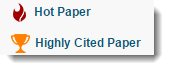 ESI Hot and Highly Cited Papers make it easy to pinpoint the most influential research in a field. ESI is integrated with Web of Science Core Collection, which means that you can easily identify the top-performing papers in your results via ESI icons.
Highly Cited Papers are papers that perform in the top 1% based on the number of citations received when compared to other papers published in the same field in the same year. Click on the Highly Cited Paper icon for more details about an item.

Hot Papers are papers published in the last two years that are receiving citations quickly after publication. These papers have been cited enough times in the most recent bimonthly period to place them in the top 0.1% when compared to papers in the same field and added to the database in the same period.
You can use the ESI Top Papers refine option in WoS Core Collection to limit your results to the Hot and/or Highly Cited Papers in a set of results.
Researchers/Faculty: Use the refine option to quickly limit a topic-based set of results to recently published, high-impact papers in that research area.

While optional, creating a sign-in allows you to:
- Save your searches.
- Set up search alerts and citation alerts.
- Save lists of records for later use.
- Sign in with the same credentials for EndNote online.
There are three kinds of alerts:
- Search Alerts- save a search and establish a daily, weekly or monthly email notification when new publications are added that match.
- Citation Alerts- have a favorite or important article you want to track? Alerts will notify you when it receives new citations.
- Table of Contents Alerts- subscribers to our Current Contents Connect database can set up TOC alerts for their favorite journals all in one place.
The Marked Listpage stores records selected from your search results. After marking records, you can save your Marked List and return to it later. Save up to 50 Marked Lists with up to 50,000 records per list. In order to save, you must be logged into your Web of Science personal profile.
Use the Marked List to:
- Store your search results - it's not always possible to finish your search in one session, and marking records for your next visit to Web of Science helps you pick up where you left off.
- Group articles together you want to analyze - gather the perfect set of publications, then use Analyze to understand trends across them, or use Citation Report to reveal the articles that cite your selections.
- Create a custom set of items to export.
Topic Searches
The fields mined to return results in a common 'Topic Search' are:
1) The Title of the article, review, proceeding, book, etc.
2) The Abstract, which is the work's summary containing the key points discussed such as research question, methodology, discussion and conclusion. This field is supplied by the author(s) of the article or paper.
3) The Keywords and Keywords Plus fields: The keywords field is the one supplied by the author(s) and "tags" the main and sub topics of the paper's content. The keywords plus field is an algorithm that provides expanded terms stemming from the record's cited references or bibliography.
Search Tips
- The Add Another Field link allows you to add more search fields to the Basic Search page.
- The Select from Index link allows you to select an item (such as a publication name or an author name) when you perform a Publication Name or Author search.
- The Reset Form link lets you clear any search that you have entered. This action resets the search page to the original search fields.
- The Default Number of Search Fields to Display option allows you to select only the Topic field or you can select the Topic, Author, and Publication Name fields.
- If you have created an account, Save Settings allows you to save your settings for future search sessions.
- Capitalizationdoes not affect the search results and does not distinguish between upper, lower, or mixed case.
- Boolean search operators(AND, OR, NOT, NEAR, SAME) can be used in some fields. For example:
- You can use AND in the Topic field, but not in the Publication Name or Source field.
- You can use NEAR in most fields, but not in the Year Published field.
- You can use SAME in the Address field, but not in other fields.
- To search for an exact phrase in the topic search, enclose the phrase in quotation marks.
- Two words separated by a hyphen are treated as an exact phrase.
- Parenthesesare used to group compound Boolean operators. For example:
- (Antibiotic OR Antiviral) AND (Alga* OR Seaweed)
- (Pagets OR Paget's) AND (cell* AND tumor*)
- Wildcards,also known as truncation(s) * $ ? are supported in most searches.

Refining the Results
You can narrow the results of your search by using any of the Refine Results options such as:
- Web of Science Categories; these are established at the journal level and a record can belong to more than one category.
- Document Types
- Research Areas
- Authors
- Publication Years
- Organization-Enhanced; Unified institutional name
- Source Titles
- Funding Agencies
- Open Access (Golden Edition only)
Select one or more check boxes, and then click Refine to display records of articles within the selected results. The most frequently occurring items appear at the top of the list. You can then also choose how to Sortyour results by newest, most cited, recently added, relevance, etc.
Author Searches
- Author Search beta retrieves Author Records for the author name you search.
- Author Records are groups of publications that are likely by one person.
How to do a Cited Reference Search?
You can find articles that have cited a particular publication/work right from the landing page by selecting "Cited Reference Search".
Cited Reference searching should be a part of any complete literature search. If you’re only searching keywords to find papers, you may be missing out on important papers and ideas. A cited reference search starts with a known item and moves forward in time, potentially guiding you through the evolution of a concept in the literature of one or more fields.
- Web of Science indexes the items from each bibliography or list of references.
- They capture all cited references regardless of age or document type.
- Published authors may search for their published works to understand the impact their research is having on other researchers and disciplines.
- You can search for citations to anything that's been cited in a Web of Science indexed publication - journal articles, books, theses, dissertations, works of art, musical scores and more.


To perform a comprehensive Cited Reference Search:
- Enter the first author’s name in the Cited Author field with appropriate truncation. Enter multiple names of authors linked by the Boolean OR if a work has multiple authors. This will enable the search to retrieve a publication even if it was indexed with only some of the authors.
- Enter a journal or book title in the Cited Work field. It is advised to abbreviate the titles and combine them from their indexed version found in the abbreviation list. If a work has been published in languages other than English, enter an abbreviated form of the original or known languages it was published in.
- It is advised to omit the Cited Year(s) field initially, in order to retrieve a maximum amount of variations or different editions of a same work. If you get too many results, enter the year(s) that may refine relevant records.
- Clicking Search will return entries from the Cited Reference Index that include the cited author/work combination entered.
- Select the references and variations that are relevant to your search.
- Click Finish Search to go to the Results page.
Example:I want to know how many articles cite this dual edition (and language) work:
Boltanski, Luc, & Thévenot, Laurent (1991). De la justification: les économies de la grandeur. Les Editions Gallimard.
Boltanski, L., & Thévenot, L. (2006). On Justification: Economies of Worth. Princeton University Press.
Cited Author: Boltanski L* OR Thevenot L*
Cited Work: De la justifi* OR On justifi*
Cited year(s): Omitand then refine if needed to: 1991 OR 2006
Note that the number of results returned may vary from the number of citing articles listed on the full record since it will reflect on your institutional subscription. Results that are published in journals indexed in Web of Science will have a View Record link.
The Citation Report
The Citation Report provides aggregate citation statistics for a set of search results. These statistics can be created for a specific author, institution or a unique record or a set of results. It provides citation performance, broken down by year and can tabulate the data for:
-
The total number of results found (Results Found field);
-
The total number of times all records have been cited (Sum of Times Cited field);
-
The total number of citations to all results found in the results set minus any citation from articles in the set (Sum of Times Cited without Self-Citations field);
-
The total number of citations to any of the items in the set of search results (Citing Articles field);
-
The citing articles minus any article that appears in the set of search results (Citing Articles without Self-citations field);
-
The average number of times a record has been cited (Average Citations per Item field);
-
The total number of times a record has been cited for all years in the results set (Total column); and
-
The h-index count that is based on the list of publications ranked in descending order by the Times Cited count.

- Author Impact This link opens in a new window
 Training video on the author impact beamplots feature in the new Web of Science.
 - Building Searches in Web of Science This link opens in a new windowTraining video on the search options in the new Web of Science.

How to Do Citation Analysis in Google Scholar
- Google Scholar This link opens in a new windowUsing this link to Google Scholar will include the ability to link to full text articles available in GCU library databases. Click “Full Text @ GCU” to access over 46,000 full-text journal titles or click “Find it @ GCU” to view additional options, including requesting via InterLibrary Loan.

Using Cited By in Google Scholar
- Enter your search terms, or search for a specific article by title.
- Below the article, click Cited By.

- This will change the results list to those articles that cite the original article in their references.
- Highly cited articles can help you locate newer articles.
- Highly cited articles also point to seminal sources.
Evaluating Journals with Cabells
- Cabells Journalytics Academic & Predatory Reports This link opens in a new windowThe Cabells Journalytics database assists researchers with locating publications that may be a good fit for manuscript publication by providing information on over 11,000 journals that includes contact information, manuscript and submission guidelines, and citation-backed metrics. The Predatory Reports database is the only searchable database of deceptive and fraudulent journals and includes comprehensive reports detailing violations of over 13,000 journals that fail basic quality criteria.
Using Cabells Predatory Reports
- To browse the list of predatory journals, click the button for Predatory in the featured section.
- Search for a journal by title in the search box at the top.
- Predatory journals are ones that do not adhere to good publishing standards.
- Reconsider articles published in predatory journals.
- Click on the article's title to read the violations.
Evaluating Journals with Journal Citation Reports
- Journal Citation Reports This link opens in a new windowJournal Citation Reports (JCR) is the recognized authority for evaluating journals. JCR provides a systematic and objective means to critically evaluate leading journals using citation statistics. Use this tool to determine the impact factor of a journal, the rank of a journal within a field of study, and to sort data by defined fields including total cites, impact factor, cited half-life, number of journals in a subject category, or number of articles in a category. This resource also helps identify journals in which to publish, check the status of journals you have published in, and find current readings in a field. Includes over 21,000 indexed journals in more than 254 research categories in 114 countries/regions.
The Journal Impact Factor identifies the frequency with which an average article from a journal is cited in a particular year. You can use this number to evaluate or compare a journal’s relative importance to others in the same field or see how frequently articles are cited to determine which journals may be better for your collection.
Example 2017 Impact Factor Calculation:

Impact Factor Numerator - Cites to recent items:
The numerator looks at citations in a particular JCR year to a journal's previous two years of content. For example, the 2017 Journal Impact Factor for a journal would take into account 2017 items that cited that journal's 2015 or 2016 content. The numerator includes citations to anything published by the journal in that 2015-2016 timeframe.
Impact Factor Denominator - Number of recent items:
The denominator takes into account the number of citable items published in the journal in 2015 and 2016. Citable items include articles and reviews. Document types that aren't typically cited, e.g. letters or editorial materials, are not included in the Impact Factor denominator.
Ranking Journals by Impact Factor
Ranking journals in a category by Journal Impact Factor can help you easily identify highly-cited journals in your field. Here are the steps for creating a journal ranking in JCR:
- Click on Browse by Categories.
- Click on Select Categories on the left hand filter panel. Next, click the checkbox next to your chosen category. Finally, click Submit at the bottom of that column to search.*
- Click on Journals By Rank to see the list of journals in that category ranked by impact factor.
*JIF is designed to compare journals that belong to the same category, so applying this filter ensures that you are doing a fair journal comparison. Citation patterns and norms will differ by field, which means that the range of JIF scores will also vary by field. This indicator must be put into context in order to be meaningful.
- JCR Primer
 A primer on the JCR and Journal Impact Factor.
Evaluating Journals with Essential Science Indicators
- Essential Science Indicators This link opens in a new windowEssential Science Indicators (ESI) is an analytical tool that helps you identify top-performing research in Web of Science Core Collection. ESI surveys more than 12,000 journals from around the world to rank authors, institutions, countries, and journals in 22 broad fields based on publication and citation performance. Data covers a rolling 10-year period and includes bimonthly updates to rankings and citation counts.
- Essential Science Indicators - Quick Reference Guide
 A quick guide to help you get started using Essential Science Indicators.
