
You can turn off the status lights on your Nest Wifi and Google Wifi devices, or change their brightness levels.
Turn off or change status light brightness
- Open the Google Home app
.
- Tap Favorites
or Devices
.
- Tap Home
All devices
, then touch and hold your device's tile.
- At the top right, tap Settings
. For some Wifi points, you might also need to tap Lights.
- Under “Status light brightness,” choose a brightness level.

- Tap the right side of Nest Wifi point.
- For maximum volume, tap the right side 10 times.
This only adjusts the volume of media and your voice assistant. At volume level 0, all media are muted but your voice assistant still speaks at a minimum level. When you adjust the voice assistant and media volume, it doesn’t adjust the volume of alarms and timers .

- Tap the left side of Nest Wifi point.
- To mute all audio except your voice assistant, tap the left side 10 times.

- Open the Google Home app
.
- Tap Home
- Tap Settings
- Under “Status light brightness,” choose a brightness level, or turn it off.
Turn off the voice assistant
Turn off the microphone
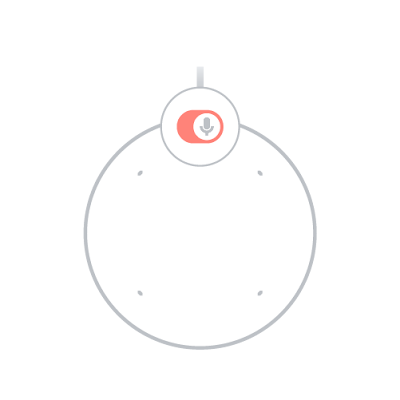
When you turn off the microphone, it prevents the Nest Wifi point from listening or responding to your queries. You can continue to use it as a speaker through Cast or Bluetooth.
Use the switch on the back of the Nest Wifi point next to the power cord to turn off the microphone. You’ll know the microphone is off when the on or off switch shows an orange color.
Turn off the mute light
When the microphone on the Nest Wifi point is off, a glowing orange light appears under the device. To turn off this glowing orange light:
- Open the Google Home app
- Tap Home
- Tap Settings
- Tap Turn off mute light.
