
This document describes how you can use Gemini for Google Cloud, an AI-powered collaborator, to help you to optimize costs.
For information about viewing data on the Optimization page in Cloud Hub, see View resource costs and utilization .
Gemini Cloud Assist can help you to:
- Learn insights about recent cost and utilization changes.
- Get cost or utilization data for a specific application or project.
- For supported resource costs, get an explanation for cost changes.
Gemini Cloud Assist can also proactively research cost anomalies (private preview).
This document is for developers and platform administrators. If you manage billing accounts or budgets in Cloud Billing, see the Cloud Billing cost optimization documentation , for information about using FinOps Hub and Gemini Cloud Assist in Cloud Billing.
Learn how and when Gemini for Google Cloud uses your data .
Before you begin
Required roles
The Cloud Hub Operator role contains most of the required permissions to view data on the Optimization page, including permissions to view Cloud Monitoring data, Cloud Logging data, App Hub application data, Cloud Asset Inventory resource data, and Active Assist recommendations.
To get the permissions that you need to view data in Cloud Hub, ask your administrator to grant you the following IAM roles on the project or management project (for app-enabled folders ):
- View most data in Cloud Hub: Cloud Hub Operator
(
roles/cloudhub.operator) - View cost data:
(
roles/viewer) or a custom role with thebilling.resourceCosts.getpermission - Use Gemini Cloud Assist chat: Gemini Cloud Assist User
(
roles/geminicloudassist.user)
For more information about granting roles, see Manage access to projects, folders, and organizations .
You might also be able to get the required permissions through custom roles or other predefined roles .
Making changes based on your analysis of costs might require additional permissions or coordination with a member of your organization who has the required permissions.
View Gemini generated insights
Gemini Cloud Assist insights about recent changes can help you to quickly get a sense of the overall cost and utilization in your project or application.
-
Open the Optimizationpage.
-
Select the project or application that you want to view:
-
To view data for applications, choose the folder that is configured for application management. Folders configured for application management have an special icon (
 ). The management
project for the folder also has a special icon
(
). The management
project for the folder also has a special icon
( ) and the project name is in the
format
) and the project name is in the
format FOLDER-NAME -mp. If you choose the management project instead of the folder, then the project picker automatically changes the selection to the folder. -
To view data for an individual project, choose the project that contains the resources you want to view.
-
-
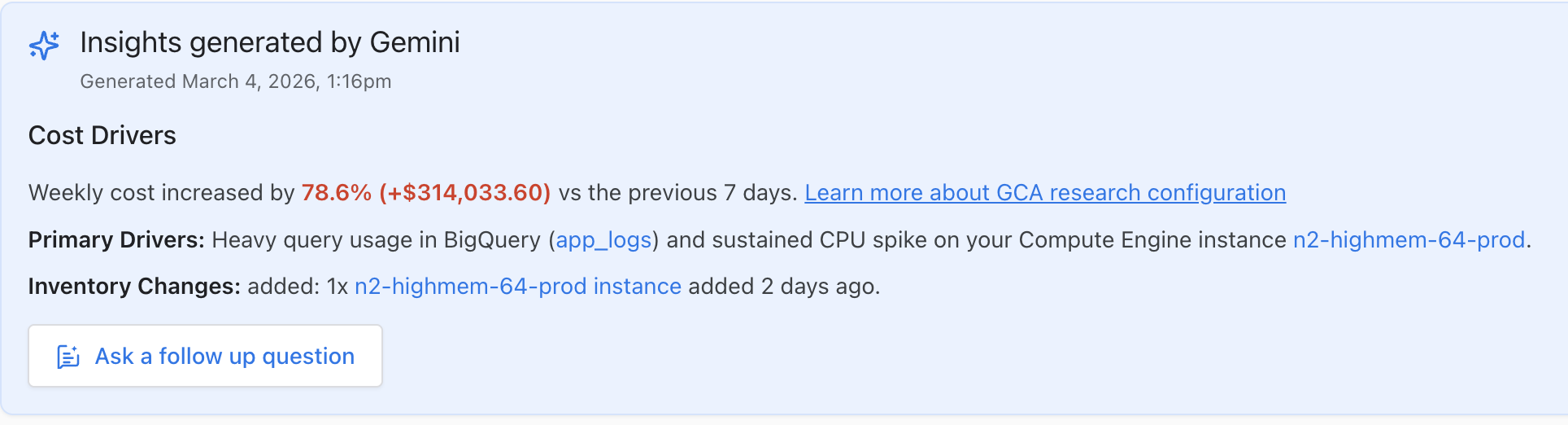
Expand the Insights generated by Geminisection. Gemini Cloud Assist summarizes cost changes and resource usage that might have contributed to the cost change.
The following example shows a 78.6% increase in costs compared to the previous 7 days primarily driven by heavy query usage in BigQuery and a sustained spike in a Compute Engine instance.
-
To ask a question about the insights, click Ask a follow up question. The Cloud Assistpanel opens.
-
Enter a prompt. For examples of questions you can ask, see Prompt examples
Learn about costs in Gemini Cloud Assist chat
You can start a cost analysis directly from Gemini Cloud Assist chat:
-
In the Google Cloud console, go to any page—for example, the Optimizationpage.
-
Select the project or application that you want to view:
-
To view data for applications, choose the folder that is configured for application management. Folders configured for application management have an special icon (
). The management
project for the folder also has a special icon
() and the project name is in the
format FOLDER-NAME -mp. If you choose the management project instead of the folder, then the project picker automatically changes the selection to the folder. -
To view data for an individual project, choose the project that contains the resources you want to view.
-
-
In the Google Cloud console toolbar, click spark Open or close Gemini Cloud Assist chat. The Cloud Assistpanel opens.
-
Enter a prompt. For examples of questions you can ask, see Prompt examples
Prompt guidelines and examples
In Gemini Cloud Assist chat, you can get assistance by using natural language prompts (questions or statements).
Gemini Cloud Assist uses data from the App Optimize API for cost-related questions about utilization, the same API that provides data for the Cloud Hub Optimization page.
For details about cost and utilization data that the App Optimize API provides to Gemini Cloud Assist, see About resource costs .
Prompt guidelines
Use the following information to help you write your prompts:
- Dates- You can specify date ranges, such as
2025-10-1 to 2025-10-31.- If you don't specify a date range, the default date range is the previous 7 days.
- Prompts for data from the previous week set the date range to the last Monday to Sunday period.
- Prompts for data from the previous month set the date range to the last calendar month.
- Applications- For App Hub applications, you must specify
the application name in your prompt, even if you are viewing a page in
Google Cloud console that is showing data for an application. The application name
is the unique identifier for the application, such as
web-store. If you use the display name for the application, such as "Web store", Gemini Cloud Assist might parse your prompt incorrectly. - If you ask about multiple projects or applications in a single chat session, include the project ID or application name in follow up questions so that the context is clear. If you don't specify a project in your prompt, Gemini Cloud Assist uses the project you selected in the project picker.
- Cost analysis data: Gemini Cloud Assist can suggest explanations for cost changes based on resource usage or Cloud Billing SKU usage for supported resources .
Prompt examples
This section provides examples of prompts for analyzing costs.
Get cost and utilization data
The following example prompts show general questions about cost and utilization:
| Prompt | Type of response |
| "How much did I spend on this project last month?" | A summary of costs in the last calendar month for the selected project. |
"How much did my GKE cluster my-cluster-id
cost me last
month?" |
A summary of costs for the cluster my-cluster-id
in the last
calendar month. |
| "Show me my costs in us-central1." | A summary of resource costs in the selected project in the region us-central1
over the last 7 days. |
"What were the least cost efficient resources last month for my app my-favourite-app
?" |
A list of the least cost efficient resources in the application my-favourite-app
in the last month. |
| "What are my most overprovisioned resources that are costing me the most?" | A list of the most overprovisioned resources in the selected project in the last 7 days. |
Analyze cost changes
To learn more about a cost change, you can use prompts such as:
- "Compare my costs between 2026-02-01 and 2026-03-01"
- "Why did my costs go up in the last 5 days?"
- "Why is the cost change so large today?"
- "Can you explain why prod-cluster cost more this week?"
As Gemini Cloud Assist generates a response, the research process is displayed in the chat panel. You can hide this information by clicking Hide process.
Consider an example situation where a developer creates a new
Cloud Run service called orchestrator-app
with autoscaling and
forgets to set the maximum number of instances on the service. An unexpected
spike in traffic leads to hundreds of newly created instances.
The manager of the team notices the spike in cost on the Optimization page and enters the following prompt:
Why did the Cloud Run service orchestrator-app cost me so much more yesterday?
After performing an analysis, Gemini Cloud Assist provides two suggestions.
 The cost of Cloud Run service `orchestrator-app` increased by 300% over
the last 72 hours because the service scaled to 300 instances to handle a
traffic surge. Because no Max Instances limit was defined, the service scaled
without limit, resulting in additional compute charges. This service was
initially deployed with these scaling parameters on 2026-02-07.

Another possible reason could be that someone configured the requests per
instance for the Cloud Run service to be a low number, which
led to an increase in the number of instances and costs.
