

A Google Cloud Search schema is a JSON structure that defines objects, properties, and options for indexing and querying data. Your content connector uses the registered schema to structure and index repository data.
You create a schema by providing a JSON schema object to the API. You must register a schema for each repository before indexing data.
This document covers schema creation basics. To optimize the search experience, see Improve search quality .
Create a schema
Follow these steps to create your Cloud Search schema:
- Identify expected user behavior
- Initialize a data source
- Define your objects
- Define object properties
- Register your schema
- Index your data
- Test your schema
- Tune your schema
Identify expected user behavior
Anticipating how users search helps define your schema strategy. For a movie database, users might search for "movies starring Robert Redford." Your schema must support queries for movies with a specific actor.
To align your schema with user behavior:
- Evaluate diverse queries from different users.
- Identify logical data sets, or objects , such as a "movie."
- Identify properties (attributes) like title or release date.
- Identify valid values for properties, such as "Raiders of the Lost Ark."
- Determine sorting and ranking needs, like chronological order or audience ratings.
- Identify context properties, such as job role, to improve autocomplete suggestions.
- List these objects, properties, and example values. Use this list to define operator options .
Initialize your data source
A data source represents indexed repository data stored in Google Cloud. See Manage third-party data sources . When a user clicks a result, Cloud Search directs them to the item using the URL from the indexing request.
Define your objects
The object is the fundamental unit of a schema. Logical structures like "movie" or "person" are objects. Each object has properties like title, duration, or name.
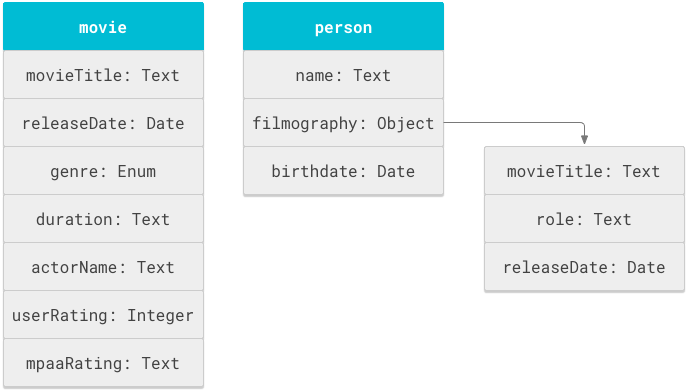
A schema
is a list of
object definitions in the objectDefinitions
tag.
  {

 "objectDefinitions"
 :

 [

 {

 "name"
 :

 "movie"

 },

 {

 "name"
 :

 "person"

 }

 ]
 }
Use unique names for each object, such as movie
. The schema service uses these
names as keys. See ObjectDefinition
.
Define object properties
Define properties, like title and release date, in the propertyDefinitions
section. Use options
for freshnessOptions
(ranking) and displayOptions
(UI labels).
  {

 "objectDefinitions"
 :

 [{

 "name"
 :

 "movie"
 ,

 "propertyDefinitions"
 :

 [

 {

 "name"
 :

 "movieTitle"
 ,

 "isReturnable"
 :

 true
 ,

 "textPropertyOptions"
 :

 {

 "retrievalImportance"
 :

 {

 "importance"
 :

 "HIGHEST"

 },

 "operatorOptions"
 :

 {

 "operatorName"
 :

 "title"

 }

 },

 "displayOptions"
 :

 {

 "displayLabel"
 :

 "Title"

 }

 },

 {

 "name"
 :

 "releaseDate"
 ,

 "isReturnable"
 :

 true
 ,

 "isSortable"
 :

 true
 ,

 "datePropertyOptions"
 :

 {

 "operatorOptions"
 :

 {

 "operatorName"
 :

 "released"
 ,

 "lessThanOperatorName"
 :

 "releasedbefore"
 ,

 "greaterThanOperatorName"
 :

 "releasedafter"

 }

 }

 }

 ]

 }]
 }
A PropertyDefinition includes:
- A
namestring. - Type-agnostic options (e.g.,
isReturnable). - A type and type-specific options (e.g.,
textPropertyOptions). -
operatorOptionsfor search operators. -
displayOptionsfor UI labels.
You can reuse property names across different objects. For example, movieTitle
can appear in both a movie
object and a person
object's filmography.
Add type-agnostic options
PropertyDefinition
includes boolean options to configure search functionality for a property,
regardless of its type. These options default to false
and must be set to true
to be used.
-
isReturnable: Set totrueif the property data should be returned in search results using the Query API. Non-returnable properties can be used for searching or ranking without appearing in results. -
isRepeatable: Set totrueif the property can have multiple values. For example, a movie has one release date but multiple actors. -
isSortable: Set totrueif the property can be used for sorting. Cannot betrueifisRepeatableistrueor if the property is inside a repeatable sub-object. -
isFacetable: Set totrueif the property can be used for generating facets (attributes used to refine search results).- Requires
isReturnableto betrue. - Supported only for enum, boolean, and text properties.
- Requires
-
isWildcardSearchable: Set totrueto allow users to perform wildcard searches on this property. This option is only available on text properties and its behavior depends on theexactMatchWithOperatorsetting:- If
exactMatchWithOperatoristrue: The text value is treated as a single token. A query likescience-*matches the valuescience-fiction. - If
exactMatchWithOperatorisfalse: The text value is tokenized. A query likesci*orfi*matchesscience-fiction, butscience-*does not.
- If
Define type
Set the data type by defining the appropriate property options object (e.g., textPropertyOptions
). Use enums ( enumPropertyOptions
) if you know all
possible values. A property can have only one data type.
Define operator options
operatorOptions
describe how a property functions as a search operator.
Every operatorOptions
needs an operatorName
(e.g., title
). This is the
parameter users type in queries (e.g., title:titanic
). Use intuitive names
and expose them to users.
You can share an operatorName
across properties of the same type. Queries
using that name retrieve results from all matching properties.
Sortable properties can include lessThanOperatorName
and greaterThanOperatorName
for comparison queries. Text properties can use exactMatchWithOperator
to treat the entire value as a single token.
Add display options
The optional displayOptions
section contains a displayLabel
. This is a
user-friendly label shown in search results.
Add suggestion filtering operators
Use suggestionFilteringOperators[]
to define a property that filters
autocomplete suggestions (e.g., filtering movie suggestions by a user's
preferred genre). You can only define one suggestions filter.
Register your schema
Register your schema with the schema service using your data source ID. Issue an UpdateSchema request:
PUT https://cloudsearch.googleapis.com/v1/indexing/{name=datasources/*}/schema
Use validateOnly: true
to test your schema without registering it.
Index your data
After registration, populate the data source using Index calls, typically with a connector .
Example indexing request:
  {

 "name"
 :

 "datasource/<data_source_id>/items/titanic"
 ,

 "metadata"
 :

 {

 "title"
 :

 "Titanic"
 ,

 "objectType"
 :

 "movie"

 },

 "structuredData"
 :

 {

 "object"
 :

 {

 "properties"
 :

 [{

 "name"
 :

 "movieTitle"
 ,

 "textValues"
 :

 {

 "values"
 :

 [
 "Titanic"
 ]

 }

 }]

 }

 },

 "itemType"
 :

 "CONTENT_ITEM"
 }
Test your schema
Test with a small repository before production. Create an ACL that limits results to a test user.
- Generic query: Search for a string (e.g., "titanic") to see all matching items.
- Operator query: Use an operator (e.g.,
actor:Zane) to limit results.
Tune your schema
Monitor user feedback and adjust your schema. You might index new fields or rename operators to be more intuitive.
Reindex after a schema change
You don't need to reindex for changes to:
- Operator names.
- Numeric limits.
- Ordered ranking.
- Freshness or display options.
You must reindex for:
- Adding or removing properties or objects.
- Changing
isReturnable,isFacetable, orisSortabletotrue. - Marking a property
isSuggestable.
Disallowed property changes
Changes that break the index or cause inconsistent results are disallowed, including:
- Property data type or name.
-
exactMatchWithOperatororretrievalImportancesettings.
Make a complex schema change
To make a disallowed change, migrate properties from an old definition to a new one:
- Add a new property with a different name to the schema.
- Register the schema with both new and old properties.
- Backfill the index using only the new property.
- Delete the old property from the schema.
- Update your query code to use the new property name.
Cloud Search records deleted items for 30 days to prevent reuse issues.
Size limitations
- Maximum 10 top-level objects.
- Maximum depth of 10 levels.
- Maximum 1000 fields per object (including nested fields).
