


Page Summary
-
Custom native ad formats are loaded using
GADAdLoaderobjects and require including theGADAdLoaderAdTypeCustomNativeconstant. -
The
GADCustomNativeAdLoaderDelegateprotocol is used for loading custom formats, including methods to specify format IDs and handle loaded ads. -
Custom native ad formats are identified by unique format IDs found in the Ad Manager UI.
-
Displaying custom native ads involves using methods like
imageForKey:andstringForKey:to access assets by name, as there are no dedicated ad view classes or view registration requirements. -
For custom native ad formats, you are responsible for rendering the AdChoices icon and handling clicks, and for manually recording impressions and reporting clicks to the SDK using specific methods.

Custom ad formats
Like their system-defined counterparts, custom native ad formats are loaded
using GADAdLoader
objects. Including the GADAdLoaderAdTypeCustomNative
constant in the adTypes
array when
initializing a GADAdLoader
will configure it to request custom native formats
when loading ads.
GADCustomNativeAdLoaderDelegate
The protocol for loading custom formats has two methods. The first is used by GADAdLoader
to find out which format IDs it should request:
Swift
 public

 func

 customNativeAdFormatIDs
 (
 for

 adLoader
 :

 AdLoader
 )

 ->

 [
 Any
 ]
Objective-C
 -
 (
 NSArray

 *
 )
 customNativeAdFormatIDsForAdLoader:
 (
 AdLoader

 *
 )
 adLoader
 ;
Every custom native ad format has a corresponding format ID that identifies it. When this method is called, your app should return an array containing the format IDs of the ads it's prepared to display.
The second message is sent when the custom native ad has loaded, much like those for system-defined formats:
Swift
 public

 func

 adLoader
 (
 _

 adLoader
 :

 AdLoader
 ,

 didReceive

 customNativeAd
 :

 CustomNativeAd
 )
Objective-C
 -
 (
 void
 )
 adLoader:
 (
 AdLoader

 *
 )
 adLoader

 didReceiveCustomNativeAd
 :(
 CustomNativeAd

 *
 )
 customNativeAd
 ;
Format IDs
The format IDs used to uniquely refer to custom native ad formats can be found in the Ad Manager UI under the Nativesection inside the Deliverydropdown:
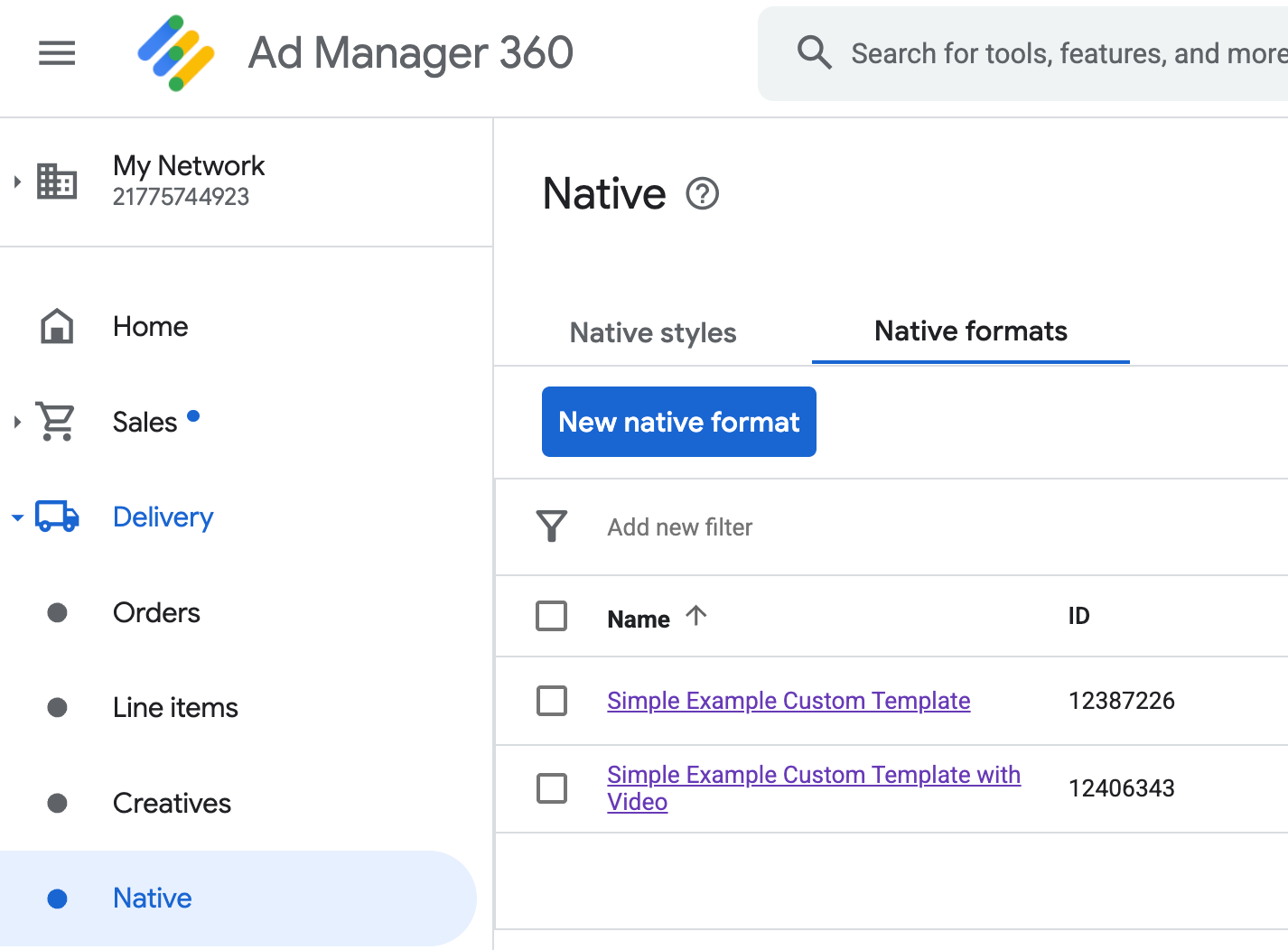
Each custom native ad's format ID appears beside its name. Clicking on one of the names brings you to a details screen showing information about the format's fields:
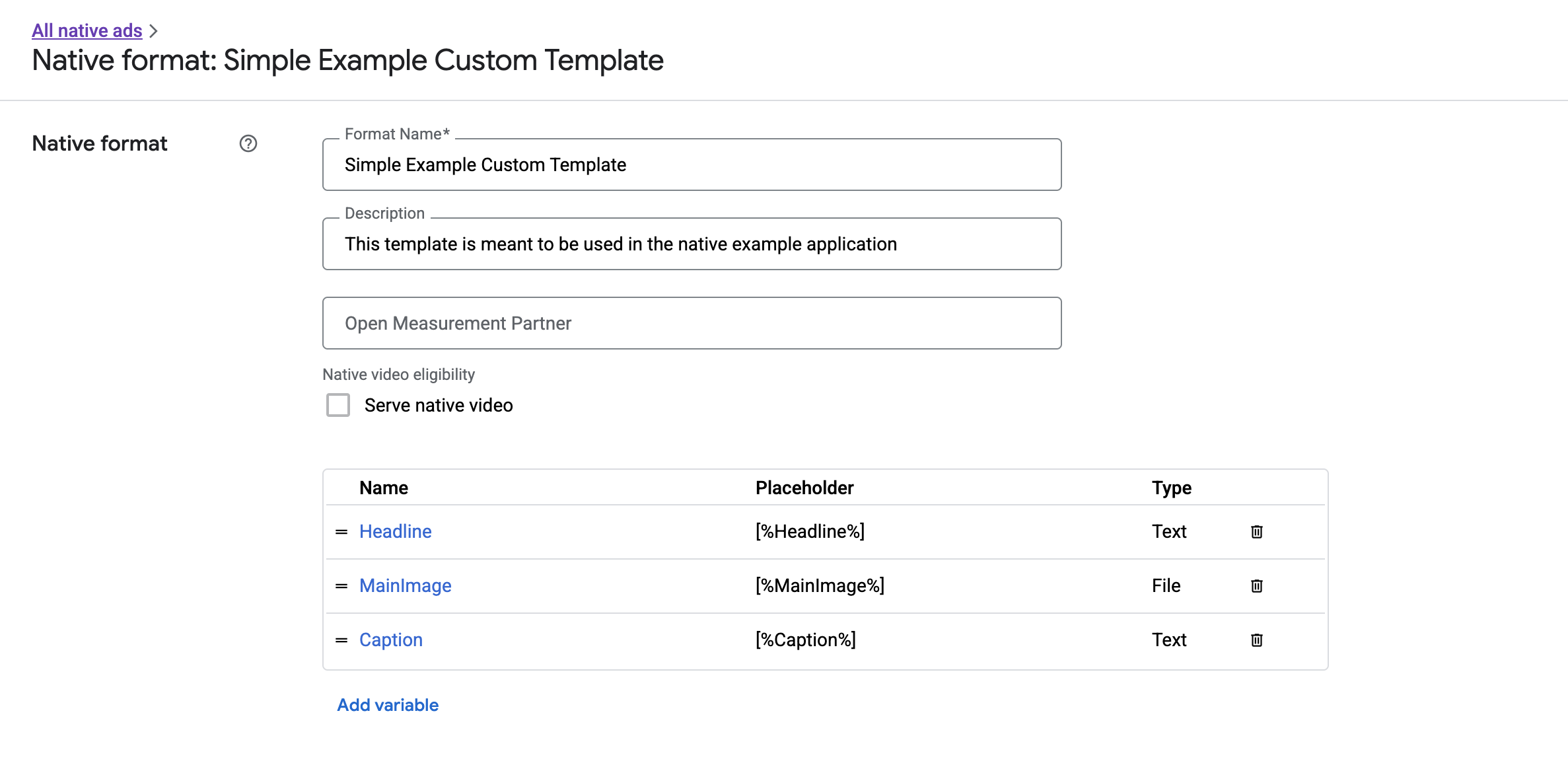
From here, individual fields can be added, edited, and removed. Note the Nameof each of the assets. The name is the key used to get the data for each asset when displaying your custom native ad format.
Displaying custom native ad formats
Custom native ad formats differ from system-defined ones in that publishers have the power to define their own list of assets that make up an ad. Because of this, the process for displaying custom native ads differs from the one for system-defined formats in a few ways:
- Because
GADCustomNativeAdis meant to handle any of the custom native ad formats you create, it doesn't have named asset accessors. Instead, it offers methods likeimageForKey:andstringForKey:that take the name of the field as an argument. - There is no dedicated ad view class like
GADNativeAdViewto use withGADCustomNativeAd. You are free to use whatever view that makes sense for your user experience. - Because there is no dedicated ad view class, you do not need to register any of the views you use to display the ad's assets.
Here is an example of an ad view capable of displaying a simple custom native ad:
MySimpleNativeAdView.h
Swift
 import

 UIKit
 import

 GoogleMobileAds
 /// Custom native ad view class with format ID 10063170.
 class

 MySimpleNativeAdView
 :

 UIView

 {

 /// Weak references to this ad's asset views.

 @IBOutlet

 weak

 var

 headlineView
 :

 UILabel
 !

 @IBOutlet

 weak

 var

 mainImageView
 :

 UIImageView
 !

 @IBOutlet

 weak

 var

 captionView
 :

 UILabel
 !

 ...

 /// Populates the ad view with the custom native ad object.

 func

 populateWithCustomNativeAd
 (
 _

 customNativeAd
 :

 CustomNativeAd
 )

 {

 ...

 }
 }
Objective-C
 @import

 UIKit
 ;
 @import

 GoogleMobileAds
 ;
 /// View representing a custom native ad format with format ID 10063170.
 @interface
 MySimpleNativeAdView
: UIView
 // Weak references to this ad's asset views.
 @property
 (
 weak
 ,

 nonatomic
 )

 IBOutlet

 UILabel

 *
 headlineView
 ;
 @property
 (
 weak
 ,

 nonatomic
 )

 IBOutlet

 UIImageView

 *
 mainImageView
 ;
 @property
 (
 weak
 ,

 nonatomic
 )

 IBOutlet

 UILabel

 *
 captionView
 ;
 /// Populates the ad view with the custom native ad object.
 -
 (
 void
 )
 populateWithCustomNativeAd:
 (
 GADCustomNativeAd

 *
 )
 customNativeAd
 ;
 @end
MySimpleNativeAdView.m (excerpt)
Swift
 ...
 func

 populateWithCustomNativeAd
 (
 _

 customNativeAd
 :

 CustomNativeAd
 )

 {

 self
 .
 customNativeAd

 =

 customNativeAd

 // Populate the custom native ad assets.

 headlineView
 .
 text

 =

 self
 .
 customNativeAd
 .
 stringForKey
 (
 "Headline"
 )

 mainImageView
 .
 image

 =

 self
 .
 customNativeAd
 .
 imageForKey
 (
 "MainImage"
 )?.
 image

 captionView
 .
 text

 =

 self
 .
 customNativeAd
 .
 stringForKey
 (
 "Caption"
 )
 }
 ...
Objective-C
 ...
 -

 (
 void
 )
 populateWithCustomNativeAd
 :
 (
 GADCustomNativeAd

 *
 )
 customNativeAd

 {

 self
 .
 customNativeAd

 =

 customNativeAd
 ;

 // Populate the custom native ad assets.

 self
 .
 headlineView
 .
 text

 =

 [
 customNativeAd

 stringForKey
 :
 @"Headline"
 ];

 self
 .
 mainImageView
 .
 image

 =

 [
 customNativeAd

 imageForKey
 :
 @"MainImage"
 ].
 image
 ;

 self
 .
 captionView
 .
 text

 =

 [
 customNativeAd

 stringForKey
 :
 @"Caption"
 ];
 }
 ...
Render the AdChoices icon
As part of Supporting the Digital Services Act (DSA) , reservation ads served in the European Economic Area (EEA) require an AdChoices icon and a link to Google's About This Ad page . When implementing custom native ads, you are responsible for rendering the AdChoices icon. It is important you take steps to render and set the click listener for the AdChoices icon when rendering the main ad assets.
The following example renders the AdChoices icon and configure the appropriate click behavior.
Swift
  class

 MySimpleNativeAdView
 :

 UIView

 {

 @IBOutlet

 weak

 var

 adChoicesView
 :

 UIImageView
 !

 override

 func

 awakeFromNib
 ()

 {

 super
 .
 awakeFromNib
 ()

 // Enable clicks on AdChoices.

 adChoicesView
 .
 addGestureRecognizer
 (

 UITapGestureRecognizer
 (

 target
 :

 self
 ,

 action
 :

 #selector
 (
 performClickOnAdChoices
 (
 _
 :))))

 adChoicesView
 .
 isUserInteractionEnabled

 =

 true

 }

 @objc

 func

 performClickOnAdChoices
 (
 _

 sender
 :

 UIImage
 !)

 {

 customNativeAd
 .
 performClickOnAsset
 (
 withKey
 :

 NativeAssetIdentifier
 .
 adChoicesViewAsset
 .
 rawValue
 )

 }

 func

 populate
 (
 withCustomNativeAd

 customNativeAd
 :

 CustomNativeAd
 )

 {

 // Render the AdChoices image.

 let

 adChoicesKey

 =

 NativeAssetIdentifier
 .
 adChoicesViewAsset
 .
 rawValue

 let

 adChoicesImage

 =

 customNativeAd
 .
 image
 (
 forKey
 :

 adChoicesKey
 )?.
 image

 adChoicesView
 .
 image

 =

 adChoicesImage

 adChoicesView
 .
 isHidden

 =

 adChoicesImage

 ==

 nil

 ...

 }
 }
Objective-C
  @interface
 MySimpleNativeAdView

 ()
 @property
 (
 nonatomic
 ,

 weak
 )

 IBOutlet

 UIImageView

 *
 adChoicesView
 ;
 @end
 @implementation
 MySimpleNativeAdView
 -
 (
 void
 )
 awakeFromNib

 {

 [
 super

 awakeFromNib
 ];

 // Enable clicks on AdChoices.

 [
 self
 .
 adChoicesView

 addGestureRecognizer
 :
 [[
 UITapGestureRecognizer

 alloc
 ]

 initWithTarget
 :
 self

 action
 :
 @selector
 (
 performClickOnAdChoices
 :
 )]];

 self
 .
 adChoicesView
 .
 userInteractionEnabled

 =

 YES
 ;
 }
 -
 (
 void
 )
 performClickOnAdChoices:
 (
 UITapGestureRecognizer

 *
 )
 sender

 {

 [
 self
 .
 customNativeAd

 performClickOnAssetWithKey
 :
 GADNativeAdChoicesViewAsset
 ];
 }
 -
 (
 void
 )
 populateWithCustomNativeAd:
 (
 GADCustomNativeAd

 *
 )
 customNativeAd

 {

 // Render the AdChoices image.

 GADNativeAdImage

 *
 adChoicesAsset

 =

 [
 customNativeAd

 imageForKey
 :
 GADNativeAdChoicesViewAsset
 ];

 self
 .
 adChoicesView
 .
 image

 =

 adChoicesAsset
 .
 image
 ;

 self
 .
 adChoicesView
 .
 hidden

 =

 (
 adChoicesAsset

 ==

 nil
 );

 ...
 }
Native video for custom native ad formats
When creating a custom format , you have the option to make the format eligible for video.
In your app implementation, you can use the GADCustomNativeAd.mediaView
property to get the video's view. Then add this view to your
view hierarchy. If the ad doesn't have video content, make alternate plans
to show the ad without a video.
The example below checks if the ad has video content, and displays an image in its place if a video is not available:
Swift
 ...

 /// Populates the ad view with the custom native ad object.

 func

 populate
 (
 withCustomNativeAd

 customNativeAd
 :

 CustomNativeAd
 )

 {

 if

 customNativeAd
 .
 videoController
 .
 hasVideoContent
 (),

 let

 mediaView

 =

 customNativeAd
 .
 mediaView

 {

 updateMainView
 (
 mediaView
 )

 }

 else

 {

 // Assumes your native format has an image asset with the name MainImage.

 let

 image
 :

 UIImage
 ?

 =

 customNativeAd
 .
 image
 (
 forKey
 :

 "MainImage"
 )?.
 image

 updateMainView
 (
 UIImageView
 (
 image
 :

 image
 ))

 }

 }

 private

 func

 updateMainView
 (
 _

 mainView
 :
 UIView
 )

 {

 // Assumes you have a placeholder view for your media content.

 // Remove all the placeholder's subviews.

 for

 subview
 :

 UIView

 in

 mainPlaceholder
 .
 subviews

 {

 subview
 .
 removeFromSuperview
 ()

 }

 mainPlaceholder
 .
 addSubview
 (
 mainView
 )

 // Size the media view to fill our container size.

 mainView
 .
 translatesAutoresizingMaskIntoConstraints

 =

 false

 let

 viewDictionary
 :

 [
 AnyHashable
 :

 Any
 ]

 =

 [
 "mainView"
 :
 mainView
 ]

 mainPlaceholder
 .
 addConstraints
 (
 NSLayoutConstraint
 .
 constraints
 (

 withVisualFormat
 :

 "H:|[mainView]|"
 ,

 options
 :

 [],

 metrics
 :

 nil
 ,

 views
 :

 viewDictionary

 as
 ?

 [
 String

 :

 Any
 ]

 ??

 [
 String

 :

 Any
 ]()))

 mainPlaceholder
 .
 addConstraints
 (
 NSLayoutConstraint
 .
 constraints
 (

 withVisualFormat
 :

 "V:|[mainView]|"
 ,

 options
 :

 [],

 metrics
 :

 nil
 ,

 views
 :

 viewDictionary

 as
 ?

 [
 String

 :

 Any
 ]

 ??

 [
 String

 :

 Any
 ]()))

 }
 ...
Objective-C
 ...
 -

 (
 void
 )
 populateWithCustomNativeAd
 :
 (
 GADCustomNativeAd

 *
 )
 ad

 {

 UIView

 *
 mainView

 =

 nil
 ;

 if

 (
 ad
 .
 videoController
 .
 hasVideoContent
 )

 {

 mainView

 =

 ad
 .
 mediaView
 ;

 }

 else

 {

 // Assumes your native format has an image asset with the name MainImage.

 UIImage

 *
 image

 =

 [
 ad

 imageForKey
 :
 @"MainImage"
 ].
 image
 ;

 mainView

 =

 [[
 UIImageView

 alloc
 ]

 initWithImage
 :
 image
 ];

 }

 // Assumes you have a placeholder view for your media content.

 for

 (
 UIView

 *
 subview

 in

 self
 .
 mainPlaceholder
 .
 subviews
 )

 {

 [
 subview

 removeFromSuperview
 ];

 }

 [
 self
 .
 mainPlaceholder

 addSubview
 :
 mainView
 ];

 // Size the main view to fill our container size.

 [
 mainView

 setTranslatesAutoresizingMaskIntoConstraints
 :
 NO
 ];

 NSDictionary

 *
 viewDictionary

 =

 NSDictionaryOfVariableBindings
 (
 mainView
 );

 [
 self
 .
 mainPlaceholder

 addConstraints
 :[
 NSLayoutConstraint

 constraintsWithVisualFormat
 :
 @"H:|[mainView]|"

 options
 :
 0

 metrics
 :
 nil

 views
 :
 viewDictionary
 ]];
 }
 ...
See GADVideoController for more information on how you can customize a custom native ad's video experience.
Download the Ad Manager Custom Rendering example for a working example of native video in action.
Handling custom native ad clicks and impressions
For custom native ad formats, your app is responsible for recording impressions and for reporting click events to the SDK.
Recording impressions
To record an impression for a custom native ad, just call the recordImpression
method on the corresponding GADCustomNativeAd
:
Swift
 myCustomNativeAd
 .
 recordImpression
 ()
Objective-C
 [
 myCustomNativeAd

 recordImpression
 ];
The SDK prevents duplicate impressions from being recorded for a single request, should your app accidentally call the method multiple times for the same ad.
Reporting clicks
To report to the SDK that a click has occurred on an asset view, call the performClickOnAssetWithKey:
method on the corresponding GADCustomNativeAd
and pass in the name of the asset that was clicked.
For example, if you had an asset in your custom format called "MainImage"
and wanted to report a click on the view that corresponded to that asset,
your code would look like this:
Swift
 myCustomNativeAd
 .
 performClickOnAsset
 (
 withKey
 :

 "MainImage"
 )
Objective-C
 [
 myCustomNativeAd

 performClickOnAssetWithKey
 :
 @"MainImage"
 ];
Note that you don't need to call this method for every asset view associated
with your ad. If you had another asset called "Caption," for instance, that was
meant to be displayed but not clicked or tapped on by the user, your app would
not need to call performClickOnAssetWithKey:
for that view.
Responding to custom click actions
GADCustomNativeAd
has a property customClickHandler
which is of type GADNativeAdCustomClickHandler
Swift
 typealias

 NativeAdCustomClickHandler

 =

 (
 assetID
 :

 String
 )

 ->

 Void
Objective-C
 typedef

 void

 (
 ^
 GADNativeAdCustomClickHandler
 )(
 NSString

 *
 assetID
 );
This is a block (Objective-C) / closure (Swift) that accepts an assetID
as an
input parameter, which identifies the asset that has been clicked on.
When a click is performed on a custom native ad, there are three possible responses from the SDK, attempted in this order:
- Invoke the
customClickHandlerblock in Objective-C or closure in Swift, if one was set. - Loop through the ad's Deeplink URLs and open the first one for which a matching app can be found.
- Open a browser and navigate to the ad's traditional Destination URL.
The customClickHandler
property accepts a block in Objective-C and a closure
in Swift. If you set a block or closure, the SDK will run it and take no further
action. If you set a nil value, however, the SDK will fall back to the deeplink
and/or destination URLs registered with the ad.
Custom click handlers allow your app to decide for itself the best action to take in response to a click, whether it's updating the UI, presenting another view controller, or merely logging the click. Here's an example that shows an alert:
Swift
 myCustomNativeAd
 .
 customClickHandler

 =

 {

 assetID

 in

 if

 assetID

 ==

 "MainImage"

 {

 let

 alertView

 =

 UIAlertView
 (
 title
 :

 "Custom Click"
 ,

 message
 :

 "You just clicked on the image!"
 ,

 delegate
 :

 self
 ,

 cancelButtonTitle
 :

 "OK"
 )

 alertView
 .
 alertViewStyle

 =

 .
 default

 alertView
 .
 show
 ()

 }
 }
 myCustomNativeAd
 .
 performClickOnAsset
 (
 withKey
 :

 "MainImage"
 )
Objective-C
 [
 self
 .
 customNativeAd

 setCustomClickHandler
 :^
 (
 NSString

 *
 assetID
 ){

 if

 ([
 assetID

 isEqualToString
 :
 @"MainImage"
 ])

 {

 [[[
 UIAlertView

 alloc
 ]

 initWithTitle
 :
 @"Custom Click"

 message
 :
 @"You just clicked on the image!"

 delegate
 :
 self

 cancelButtonTitle
 :
 @"OK"

 otherButtonTitles
 :
 nil
 ]

 show
 ];

 }
 }];
 [
 self
 .
 customNativeAd

 performClickOnAssetWithKey
 :
 @"MainImage"
 ];
Testing native ad code
Direct-sold ads
If you'd like to test out what direct-sold native ads are like, you can make use of this Ad Manager ad unit ID:
/21775744923/example/native
It's configured to serve sample app install and content ads, as well as a custom native ad format with the following assets:
- Headline (text)
- MainImage (image)
- Caption (text)
Native backfill ads
To test the behavior of native backfill ads, use this Ad Manager ad unit:
/21775744923/example/native-backfill
It will serve sample app install and content ads that include the AdChoices overlay.
Remember to update your code to refer to your actual ad unit and format IDs before going live!
