

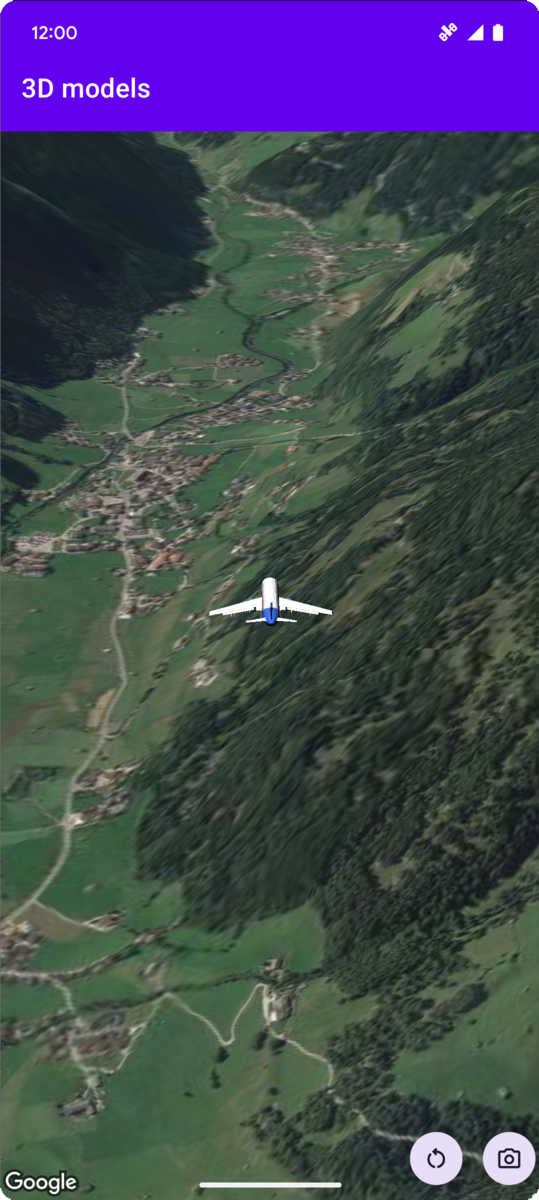
The following code sample demonstrates how to add a 3D model and position it
in 3D space by calling the addModel
method. To use this code sample, follow the instructions in Setup
and Add a 3D map to your
app
to set up your
Android Studio project with a basic 3D map. Then, add the following code to the MainActivity.kt
file:
  // Add imports and define constants
 import

 com.google.android.gms.maps3d.model.latLngAltitude
 val

 PLANE_URL

 =

 "https://storage.googleapis.com/gmp-maps-demos/p3d-map/assets/Airplane.glb"
 val

 PLANE_SCALE

 =

 0.05
 // Add to the onMap3DViewReady method, after the googleMap3D object has been initialized
 googleMap3D
 .
 setCamera
 (

 camera

 {

 center

 =

 latLngAltitude

 {

 latitude

 =

 47.133971

 longitude

 =

 11.333161

 altitude

 =

 2200.0

 }

 heading

 =

 221.0

 tilt

 =

 65.0

 range

 =

 1
 _200
 .
 0

 }
 )
 googleMap3D
 .
 addModel
 (

 modelOptions

 {

 id

 =

 "plane_model"

 position

 =

 latLngAltitude

 {

 latitude

 =

 47.133971

 longitude

 =

 11.333161

 altitude

 =

 2200.0

 }

 altitudeMode

 =

 AltitudeMode
 .
 ABSOLUTE

 orientation

 =

 orientation

 {

 heading

 =

 41.5

 tilt

 =

 -
 90.0

 roll

 =

 0.0

 }

 url

 =

 PLANE_URL

 scale

 =

 vector3D

 {

 x

 =

 PLANE_SCALE

 y

 =

 PLANE_SCALE

 z

 =

 PLANE_SCALE

 }

 }
 )
Listen for 3D model click events
To listen for click events on a 3D model, call setClickListener
on the model object. The following example shows
how to set a click listener on a 3D model:
  model
 .
 setClickListener

 {

 lifecycleScope
 .
 launch
 (
 Dispatchers
 .
 Main
 )

 {

 Toast
 .
 makeText
 (
 this
 @ModelsActivity
 ,

 "Model clicked"
 ,

 Toast
 .
 LENGTH_SHORT
 ).
 show
 ()

 }
 }
Note that the click handler does not run on the Main (or UI) thread. If you
want to make changes to the UI (such as showing a Toast message), you must
switch to the Main thread. For Kotlin, you can do this using lifecycleScope.launch(Dispatchers.Main)
.
