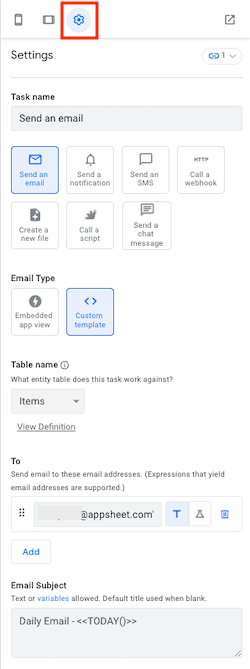
Use the app preview to interact with and make changes
to your live app, as shown below. When you select an automation component within a bot in the main pane, you can also configure automation settings
in this pane.
Remember that you are interacting with the live app. Any data changes you make while interacting with the app preview are saved.
As highlighted in the figure, using app preview you can:
- Turn on the Edittoggle to use the visual editing tools while previewing the live app. Turn off the Edittoggle to preview the live app without showing the visual editing tools.
- Click the mobile, tablet, or desktop icon to preview the live app in the selected format.
- Open the app in a browser.
- Set the email to use when previewing the live app. See Test apps .
- Access the view or table currently displayed.
See also Explore the AppSheet app editor.
If the new desktop design is turned on,  desktop is displayed in the top banner and when you click to open the app in a browser, AppSheet displays the new desktop design.
If the new desktop design is turned off, then desktop is not displayed in the top banner and when you click to open the app in a browser, AppSheet displays the legacy desktop experience.
Use the visual editing tools
The visual editing tools are only available in the improved app editor
. They are being rolled out gradually to all AppSheet users.
Turn on the Edittoggle to use the visual editing tools while previewing the live app.
As shown above, when Editis turned on as you position your cursor over a component in the visual editor, you can click to edit settings for the component. In some cases, a drop-down list displays to allow you to edit data, column settings, and column order, or view type-specific settings and data sources.
Turn off the Editoption to preview the live app without showing the visual editing tools.
Configure automation settings
When you select an automation component within a bot in the main pane, for a subset of components you can click Settings(gear icon) to configure related settings. The Settings pane replaces the app preview.