


If for some reasons, you want to delete all your Firefox bookmarks at once, to start afresh, follow me through the steps below:
==> Launch Mozilla Firefox on your computer==> Click the Bookmarks icon
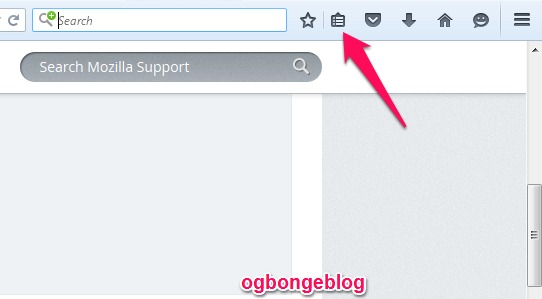
==> Scroll down and click “ Show All Bookmarks ” to open the Library window
==> Click “ All Bookmarks ” in the left navigation menu pane
==> Click “ Bookmarks Menu ” to view your bookmarks in the right pane

==> Hold the “Ctrl” key and click each bookmark you want to remove to select multiple bookmarks.
==> Press “Delete” to remove the bookmarks and then close the Library window.
Alternatively, you can start Firefox in safe mode ( aka “Restart with Add-Ons Disabled”) and reset your bookmarks to default. You can try the trick below if your version of FireFox will support it.
==> Start > All Programs > Mozilla Firefox : Mozilla Firefox (Safe Mode)==> “Reset Bookmarks to firefox defaults”
I hope this helps.
Recommended: How I BackUp FireFox Bookmarks and Transfer To Another Computer







Leave a Reply