
Skip to content
new ogbongeblog logo
  • Advertise
  • Blog
  • Contact

Wp Encrypt : WordPress Plugin That Generates Free LetsEncrypt SSL Certificate For HTTPS

June 18, 2017

·

Uncategorized
jidetheblogger Avatar
jidetheblogger

If you would like to secure your WordPress site with https using letsencrypt free ssl certificate , you can get it done easily if your hosting company supports one-click letsencrypt installation via cPanel. Else, you can consider using the wp-encrypt wordpress plugin.

WP Encrypt is an easy-to-use client for Let’s Encrypt which provides free SSL certificates for everyone. Using the plugin, you can quickly acquire a letsencrypt ssl certificate for your WordPress site. Once generated, you can install the certificate and switch your site to HTTPS.  I’ve successfully used the plugin for Letsencryt Namecheap integration on some WordPress sites.

And with this plugin you don’t even need to worry about the 90 days expiration of letsencrypt ssl certificates, the plugin will automatically renew the certificates before they expire (as long as you want it to).

How To Use WP Encrypt Plugin To Set Up WordPress Site for HTTPS

Install and activate the WP encrypt plugin.

Fill out required info, select the additional settings and click “Save Changes”

letsencrypt wordpress ssl plugin

If changes are saved successfully, the “register account” button will appear. Click on it.
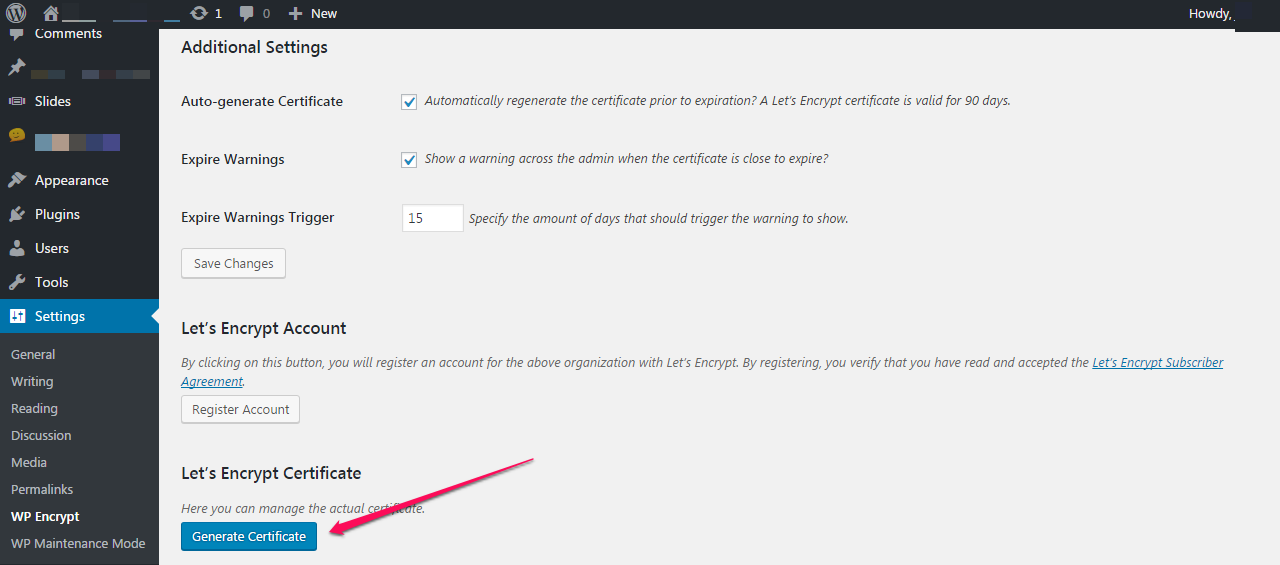
generate ssl certificate for wordpress

Thereafter, you should see the “Generate Certificate” button. Click on it.

If it generates your letsencrypt certificate successfully, you should see the locations of the certificate and private key as highlighted below:
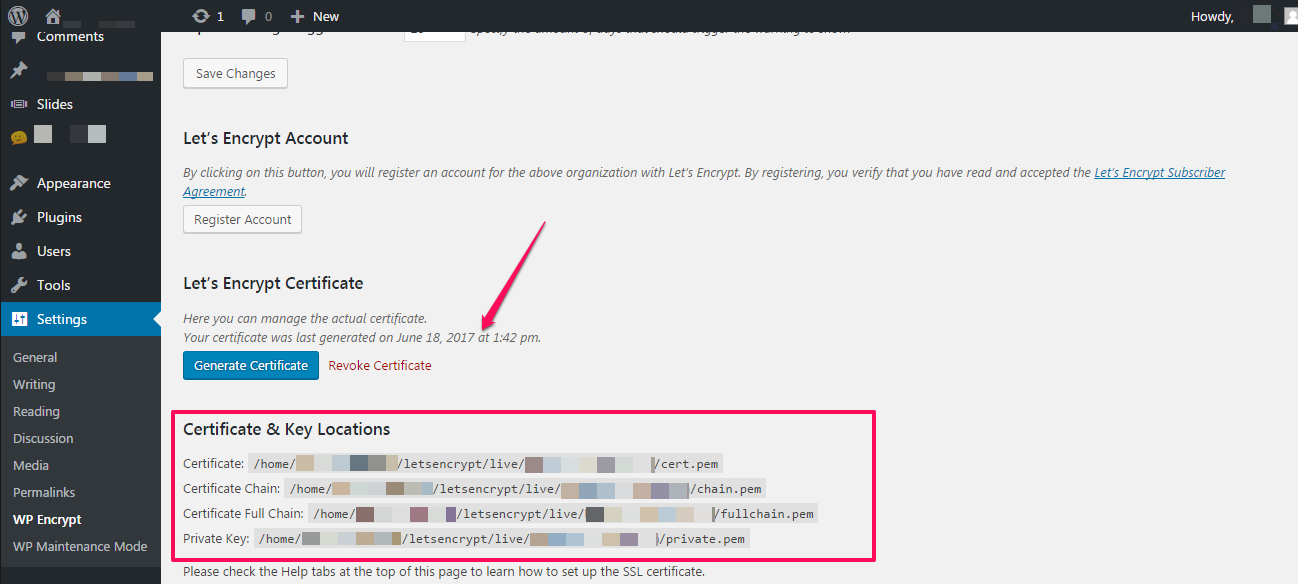
wordpress ssl certificate private keys files

Sign in to your cPanel, navigate to the locations of cert.pem, private.pem and chain.pem files and download them.

Now navigate to “ssl/tls” > “install and manage SSL for your site” in cPanel as explained here .

Use Notepad++ to open the cert.pem, private.pem and chain.pem files.

Copy and paste the content into the Certificate (CRT),  Private Key (KEY) and Certificate Authority Bundle (CABUNDLE) fields respectively.

Click “Install Certificate”.

If the letsencrypt ssl certificate installs successfully, your site should now be accessible via https://

What Next?

Install “ Really Simple SSL ” plugin to configure your website to run over https and test your ssl certificate. If the test result shows that there are mixed content errors, you can use “ SSL Insecure Content Fixer ” plugin to fix that.

Thereafter, change your site property and view settings url to https in Google Analytics and submit https versions of your site at Google Webmasters. If you’ve added your sitemap to your WordPress robots.txt file, update the url of the sitemap to it’s https version.

NB :  This WP Encrypt plugin requires you to run at least PHP 5.3 on your server. You also need to have the cURL and OpenSSL extensions active. So if this plugin doesn’t work for you, ask your hosting provider if your server meets these requirements.

If any errorcomes up while trying to generate your ssl certificate, check out this fix .

I hope this helps.

Please Share :
ssl wordpress wordpress plugins

Like What You Read?

Sign Up to get similar articles delivered to your email inbox.

Leave a Reply Cancel reply

Your email address will not be published. Required fields are marked *

14 responses to “Wp Encrypt : WordPress Plugin That Generates Free LetsEncrypt SSL Certificate For HTTPS”

  1. Dillip Avatar
    Dillip
    June 19, 2017

    Hi Jide,This is a very useful information. i had been trying to install lets encrypt in my blog but due to the hosting server(hostgator) is not accepting the terms and conditions for the same. i will try to get this plugin and will try to install the SSL cert.

    Loading…
    Reply
  2. Dillip Avatar
    Dillip
    June 19, 2017

    Does it work for hostgator hosting provider as well?

    Loading…
    Reply
    1. Jide Oguns Avatar
      Jide Oguns
      June 19, 2017

      Try it bro. It worked with Namecheap, who also doesn't offer support for Letsencrypt ssl certificate. If it doesn't work, you can also try the sslforfree option.

      Loading…
      Reply
  3. EarnBAse Avatar
    EarnBAse
    June 19, 2017

    I tried it on my blog, but broke the site. So, I have to uninstall the plugin to restore my website. I will advise you try this at night when you have less traffic on your website. Thanks BABA JIDE for this info

    Loading…
    Reply
    1. EarnBase Avatar
      EarnBase
      June 19, 2017

      The blog is http://www.earnbase.com

      Loading…
      Reply
    2. Jide Oguns Avatar
      Jide Oguns
      June 19, 2017

      Maybe your server doesn't support it. It's clearly stated above that the plugin requires you to run at least PHP 5.3 on your server. The cURL and OpenSSL extensions must also be active.

      Loading…
      Reply
  4. OSHEYtv Avatar
    OSHEYtv
    June 19, 2017

    wow… i love this post,, drop more bruh…

    Loading…
    Reply
  5. Anonymous Avatar
    Anonymous
    June 19, 2017

    Wow, this is extremely awesome, I'll give a try to this asap

    TechvsEntz

    Loading…
    Reply
  6. Ijeoma Alexis Avatar
    Ijeoma Alexis
    June 19, 2017

    Wonderful Tutorial

    Loading…
    Reply
  7. Skycoded Avatar
    Skycoded
    June 20, 2017

    Nice one bro

    Loading…
    Reply
  8. Fabinfos Avatar
    Fabinfos
    June 22, 2017

    Well explained tutorial..

    Successfully changed my blog to https. Thumbs up boss

    Loading…
    Reply
  9. Ehis Sorison Avatar
    Ehis Sorison
    June 23, 2017

    Created a wordpress site for a client using whogohost for the host and domain name and the url turned out to be https. Could it be the that the plugin was pre-installed?

    Loading…
    Reply
  10. Miracle Avatar
    Miracle
    July 8, 2017

    What an amazing article , i will bookmark this page and read it over again when i want to appear on my wp blog gistgallery.com and i hope ipage will allow it

    Loading…
    Reply
  11. Stephen Avatar
    Stephen
    July 30, 2018

    @Jide Can Whogohost do it?

    Loading…
    Reply

WANT TO ADVERTISE?

Chat on WhatsApp

RELATED POSTS

  • Namecheap Letsencrypt SSL Integration : How I Do It
  • A2Hosting Letsencrypt Free SSL Works!a2hosting web hosting
  • Remove Expired Comodo SSL Certificate From WordPress Site And Replace With Free LetsEncryptsiteground let's encrypt tool for ssl

FEATURED


  • CREDICORP launches C.L.I.C.K.D. Scheme with FG’s 3MTT Programme, expanding affordable consumer credit for locally-assembled laptops and devices for digital workers

    CREDICORP launches C.L.I.C.K.D. Scheme with FG’s 3MTT Programme, expanding affordable consumer credit for locally-assembled laptops and devices for digital workers

  • What Happens to Your Online Accounts When You Die?

    What Happens to Your Online Accounts When You Die?

JOIN AI WEB DESIGN GROUP


  • AI Website Design Training Whatsapp Group by Jidetheblogger

    AI Website Design Training Whatsapp Group by Jidetheblogger

← How To Install SSL Certificate and Private Key Via cPanel
AWS Free Tier : How To Check Usage, Limits and Expiry Date →

Join 25,000+ subscribers

Receive our latest blog posts in your inbox.

Search

Social

Facebook

Instagram

Twitter

new ogbongeblog logo

Copyright © 2026 | About | Advertise | Featured | Sitemap | Privacy Policy | Powered by WordPress

Your cart (items: 0)

Products in cart

Product
Details
Total
Subtotal ₦0.00
Shipping and discounts calculated at checkout.
View my cart
Go to checkout

Your cart is currently empty!

Start shopping

Notifications

%d

    LIKE My Fan Page

    Privacy Policy | Copyright © 2012,OgbongeBlog.All Rights Reserved. Powered by Blogger .
    Create a Mobile Site
    View Site in Mobile | Classic
    Share by:


