
UPDATE (5/20/26 @ 7:30am AZ time):
The GCU Library's updated version of LopeCat, the library’s online catalog, is live! For more details on what has changed, visit the What's New Guide .
Nursing & Health Sciences: Searching Nursing Databases
InterLibrary Loan (ILL)
If you have the citation information for an article or book but can't find the full text, you can submit an InterLibrary Loan (ILL) request.
Interlibrary loan service is for current students, faculty, and staff. For alumni resources, visit: Alumni Resources

Searching in Library Databases
Below are general tips for using all databases, including how to using Boolean searches, the basic search method research databases operate on.
Recommended databases are also below, along with search tips and instructions for the Library's most widely used databases: CINAHL, Cochrane Library, Joanna Briggs Institute EBP,and PubMed. For instructions on using Lippincott Advisor or Lippincott Procedures, please see the Lippincott page.
CINAHL is the recommended starting point for nursing research.

Tips for Using Library Databases
New to research in databases? View the tips below for the basics of what databases are and how they work.
A library database is a collection of information, organized to make the storage and retrieval of resources easier and accessible to more people. Basically, it’s an electronic catalog or index for published materials. These materials most commonly include magazine, newspaper, and journal articles. Often, other items like books and videos are also included in databases. The database is like the bookcase that holds all these materials.
Databases are highly organized and allow searching for information on a topic by keyword, subject, author, title, and short phrases. Most databases at the GCU Library provide access to full-text content, which means that you will find entire articles available, not just the abstracts or summaries of articles.
Scholarly Resources: Scholarly resources are written with a focus on a specific subject discipline and usually written by an expert in the same subject field. Scholarly resources are written for an academic audience.
Examples of Scholarly Resources include: Academic journals, books written by experts in a field, and formally published encyclopedias and dictionaries.
Primary Sources: “Original records created by participants or observers at the time historical events occurred or well after events, as in memoirs and oral histories." ( ALA 2008 ).
Examples of Primary Sources include:Photographs, letters, historical documents, data sets, and audio recordings.
Peer Reviewed Journals: Peer Reviewed journals are evaluated prior to publication by experts in the journal’s subject discipline. This process ensures that the articles published within the journal are academically rigorous and meet the required expectations of an article in that subject discipline.
Empirical Article : This type of scholarly resource is a subset of scholarly articles that reports the original finding of an observational and/or experimental research study. Common aspects found within an empirical article include: literature review, methodology, results, and discussion.
Boolean Operators

The Boolean Operator ‘ and’ retrieves articles that contain ALL terms
Narrowsthe search

The Boolean Operator ‘ or’
retrieves articles with either/any of the terms
Broadensthe search

The Boolean Operator ‘ not’ eliminates articles that have this term
Narrowsthe search
How They Are Used

AND
cat AND dogUsing AND, this search would retrieve results with cats AND dogs

OR
cat OR dogUsing OR, this search would retrieve results with cats, with dogs, and with both

NOT
cat NOT dogUsing NOT, this search would retrieve results with cats, and exclude those with dogs, or cats and dogs
Boolean Operators in Action
Boolean operators (AND, OR, NOT) can be typed into the search line with your search terms, like this: cat AND
dog, cat OR
dog, cat NOT
dog.
This image shows what it looks like in the database search box:

You can also use the dropdown box the database has provided, and type a term (cat) in the first line, change the dropdown box to the Boolean term you want to use ( AND, OR, NOT ), and put your second term (dog) in the box beside the dropdown menu. This image shows what this technique looks like in the database search box:

You can also combine the truncation technique with the Boolean operator. This image shows cat* AND dog* (truncated with the asterisk at the end of the root of your search term to include all possible endings for cat and dog).

To broaden our search even more we can include synonyms, truncation, and Boolean operators. In this search we have searched for: [cat* or feline or kitten*] AND [dog or canine or pup*].

Truncation
What is it?
Truncation is an easy way to search for multiple versions of a word.
How does it work?
Remove the end of the word (leaving the root of the word) and replace the ending with an asterisk *.
Why should I use truncation?
It saves time, and will expand your search to include all versions of the word. When you search in a database you are trying to identify keywords and subject terms; truncating a word will give you a greater chance of finding articles on your topic.
How To Do It
For our example , we'll use the word nurse:
An article about nurses might say nurse, nurses, or nursing.
We will keep the root word, nurs, and replace the possible endings with an asterisk: nurs*.
Another example: leadership.
An article about leadership might talk about leader, leaders, or leadership.
We will keep the root word, leader, and replace the possible endings with an asterisk: leader*.
Truncation In Action
When you break your topic down to keywords, it's likely that there are many versions of that word. Including all of the possible versions will help make sure you find articles on that topic. This example shows multiple forms of the word leader (leader, leaders, leadership):

Truncation means you shorten the word to the root, and replace the endings with an asterisk. In this example we have only the word leader*, and we will get the same results as before when we included all forms of that term.

In this example, we are starting with multiple forms of the word nurse (nurse, nurses, nursing):

And we can truncate the word to nurs* and get the same results:

Don't search for full sentences. Search with keywords and synonyms instead, and always check your spelling --For example, if my assignment question is 'How do libraries help college students?' I would search for the terms library, college or university or higher education, and students - this image shows how this can be put into the search box:
This example uses Boolean operators and truncation - two search tools you can use to improve your search technique.
Limiting Search Results
Many databases provide a menu next to each search box where a field limiter can be selected. Each search box has its own field menu, so you can search different fields for each of your terms.

This can help narrow down results by restricting your keywords to just the title, abstract, or subject tags.
Most databases also have a set of filters to narrow down your results.

In particular look for Published Date, Full Text, and Peer Reviewed as limits on your search results.

CINAHL Ultimate
- CINAHL Ultimate This link opens in a new windowFull Text
CINAHL Ultimate is the definitive resource for nursing and allied health research, providing full text for more of the most used journals in the CINAHL index than any other database. It covers more than 50 nursing specialties, from ambulatory care and gerontologic nursing to physical therapy and psychiatric nursing. Also included are quick lessons, evidence-based care sheets, CEU modules, and research instruments.
- Nursing Video Collection This link opens in a new windowDemonstrations of nursing techniques and procedures included in CINAHL.
Tutorials and Search Tips for CINAHL
- CINAHL Tutorial This link opens in a new window
 EBSCO's user guide and tutorial for CINAHL.
The main page in the Cinahl Ultimate database is the advanced search page. Under the search options, there are a variety of options to customize your search. While some like Full Text appear in most database, several are unique to CINAHL.
Options to keep in mind for CINAHL Searches:

Any Author is Nurse-
- Use this field to limit a search to articles written by a nurse. This is only needed when an assignment specifies finding articles written by a nurse. This applies to articles added from November 2009 to present.

Journal Subset
- This will limit a search to only articles published in journals in a subfield such as nursing. This is only needed, for instance, when an assignment specifies finding an article from a nursing journal. The nursing subset searches over 1,000 journals.

Publication Type
- To search for specific types of articles such as systematic review or meta-analysis.

Age Groups-
- This field is helpful for limiting a search to a specific age group. For example, a search can be limited to newborn infants for a research topic about this specific age group.

Special Interest-
- This field has groupings of journals by general topic. It is one way to search for evidence-based practice.
Personal Accounts: Many databases allow you to create a free personal account. When logged into your personal account, you can:
- Save and retrieve your search history
- Create bookshelves
- Save preferences
- Organize your research with folders
- Email and export saved citations
Note: You will need to create a personal MyEBSCO Account in order to create search alerts in EBSCO databases. This account is separate from your GCU Library account.
Creating a personal EBSCO account
- Locate the MyEBSCO link in the purple bar at the top of the EBSCO search screen.

- Click on Create an account.
- Fill out the form.
- You can use any email address that you would like.
- You do not need to use your GCU username and password.
- Click on Create account.
CINAHL includes a citation tool like other EBSCO databases and the LopeSearch. Database citation tools are automatically generated-- which means that a person doesn't double check them for accuracy. They can have mistakes, and don't always keep up with the latest rules. It is your responsibility to review your citations.
Always double check a computer created reference against a style guide.
Especially look for mistakes in capitalization, punctuation, information that shouldn't be included, and missing information.
Click on the title of the article to access the detailed record, with the tools menu at the top.

Click the Cite button on the tools menu, which looks like a quotation mark.
Select the citation style you need from the drop down menu.

Highlight the reference, then copy and paste it into your paper.
Don't forget to double check the formatting!
PubMed
- PubMed This link opens in a new windowPubMed is a free database of more than 30 million citations for published articles in the fields of biomedicine and health. PubMed includes the MEDLINE® database; citations for articles in the PubMed Central (PMC) free full text archive, including articles that report on research funded by the National Institutes of Health (NIH); and citations for books from the NCBI online Bookshelf. Citations may include links to full-text content from PubMed Central, publisher websites, and the Library's subscriptions.

Use the Library's access link for PubMed to have PubMed display a link to access through GCU Library's full text or Tipasa interlibrary loan service. You must have cookies enabled on your browser, or accept a cookie for "Link to Full Text" to link to GCU correctly. We recommend creating a My NCBI account and linking to GCU for best results, see the instructions in the 'Creating a PubMed NCBI Account' section.
Tutorials and Search Tips for PubMed
- PubMed Essentials: New Quick Tours and On-Demand Class This link opens in a new windowTutorials and online classes from the National Library of Medicine on the new PubMed interface.
- The PubMed User Guide This link opens in a new windowA complete user guide for New PubMed.
- PubMed’s “New and Noteworthy” This link opens in a new windowCheck out the latest updates and new features for PubMed.
- The New NCBI Overview in 2 Minutes This link opens in a new windowA video overview of new features for My NCBI accounts.

Click on "Advanced" after the main search box on the homepage to access the advanced search page.

Advanced Search Page

- Enter keywords for your topic one at a time. Make sure to click "ADD"
after a term to add it to the search builder.

- There are 3 options with "ADD".
- Use Add with AND to connect different concepts.
- Use Add with OR to connect similar keywords.
- Use Add with NOT to exclude keywords.
- Use the asterisk to include all variations on the end of a word.
- Change the field to narrow down the search to a specific part of the record. This is particularly useful for adding authors, specific journals, or MeSH terms. We do not recommend using "Date"in the advanced search builder. Limit by date on the search results page instead.

- The complete search will display in the Query box. Edit in this box to remove any terms. Once you have adjusted your search, click search to see results.

- View History to see previous searches.
MeSH (Medical Subject Headings) are the controlled vocabulary created by the National Library of Medicine. It is used for indexing articles. These are the official subject terms for medical terminology.
- Search with MeSH terms to create a more detailed, specific search.
- Select the MeSH database to search by MeSH terms.

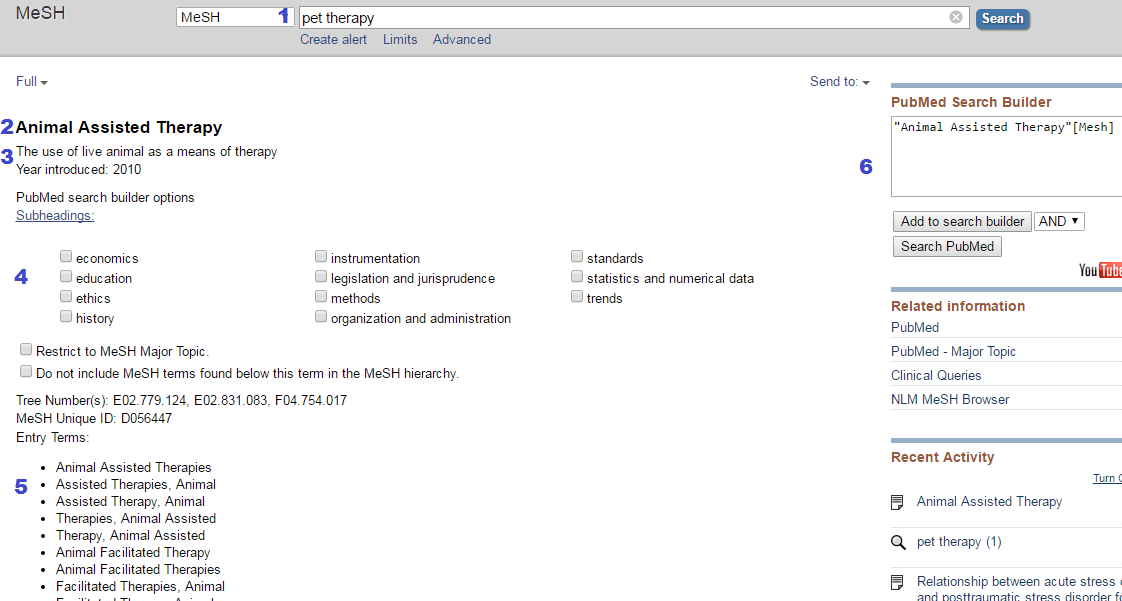
MeSH Term Page
Enter keywords in the search box at the top of the page.
- The MeSH term will be listed in bold, large print near the top.
- The definition of the term is directly below this.
- Most MeSH terms will have subheadings available.
- The subheadings for the term are listed alphabetically. Checking one of these will search for that specific subheading.
- All of the keywords associated with the MeSH term are provided. Typing any of these keywords in a search will bring up articles with that MeSH term.
- To add a MeSH term or subheading to a search, click "Add to search builder".
The search results page in PubMed has limiters that can be used to focus your search. Click on a check box to turn options on or off, a checkmark will display when a filter is on. You can remove all filters by clicking Reset all Filtersat the bottom of the limits column.
| Search Results Page Option | Description |
|---|---|
 |
Article Types- Select a type of article. Use Clinical Trial for research articles. Select Additional Filters at the end of the limits column for additional options, such as Clinical Study, Comparative Study, Controlled Clinical Trial, Observational Study, Pragmatic Clinical Trial, Randomized Controlled Trial, and Twin Study. |
 |
Text Availability - To view only articles that are immediately available to read, select Free full text. |
 |
Publication Date - Use this to quickly set a date limit. For most nursing assignments, resources need to be from the last 5 years. You can set a more specific date range by adjusting the slider at the top of the limits column. |
There are many additional options on the Additional Filters popup:
- Language, to locate only articles in English.
- Age, to specify an age group for the study.
- Species, to select human or non-human.
- Selecting options on this popup window will add them as options to the side column on the search page after you select Show. You must then check them off on the search page to turn them on.

Personal Accounts: This account is completely separate from your GCU login. When logged into your personal account, you can:
- Save and retrieve your search history
- Create email alerts
- Save searches and articles
- Organize your research with folders
- Save preferences
- Email and export saved citations
Creating a personal account in PubMed
- Click on the "Login" link found in the upper right corner of the PubMed search page.
- Click "New here? Sign up" or choose Login With a Google Account to use a Gmail to create an account. Other 3rd party options are also available.

- Fill out the registration form and click Create Account. This will create your account and sign you in. However, some NCBI features are not available to you until you confirm your email address. Check your email for a message from NCBI with a link to confirm your email address.
Linking the Outside Tool to GCU
Use the Library's access link for PubMed to have PubMed display a link to access through GCU Library's full text or Tipasa interlibrary loan service. We recommend creating a My NCBI account and linking to GCU following the instructions below for best results:
- Log in to your My NCBI account.
- Click your name at the top of the page. Choose "dashboard" from the menu. Then choose "NCBI site preferences" at the top of the page.

- On the list of options, locate and click on 'Outside Tool'.

- Click the 'G' on the alphabet at the top and then locate Grand Canyon University in the list. Click the radio button to select.

- Click 'Save' at the bottom.
Persistent Links to Searches With Link to GCU
- After searching within PubMed, copy the URL in your browser’s search bar, and paste it wherever needed. It should look something like the following: https://pubmed.ncbi.nlm.nih.gov/?term=type+2+diabetes
- Next, insert the following phrase directly after the question mark in the URL:
- otool=azgculib&
-
- Your URL should now look something like the following: https://pubmed.ncbi.nlm.nih.gov/?otool=azgculib&term=type+2+diabetes
- When you follow this persistent link to your search results, articles you choose will have the GCU 360 Link to check for full text as a full text option.
Persistent Links to Articles With Link to GCU
- Once you have picked the article you would like to link to, copy the URL in your browser’s search bar, and paste it wherever needed. It should look something like the following: https://pubmed.ncbi.nlm.nih.gov/25249787/
- Next, insert the following at the very end of the URL:
- ?otool=azgculib
-
- Your URL should now look something like the following: https://pubmed.ncbi.nlm.nih.gov/25249787/?otool=azgculib
- When you follow this persistent link, it will lead directly to the article, with the GCU 360 Link to check for full text as a full text option.
PubMed has a citation tool in the new version. As with other automatic citation tools, you will need to examine the computer generated citation against the format for accuracy, especially in punctuation and capitalization.
- Click on "Cite"in the side column.
- On the Citation popup, make sure to change the 'Format' to APA.The default is AMA which will not be correct.
- Click "Copy"to copy the citation to the clipboard, then paste into your document.
- Double check the citation for accuracy and fix any typos.

APA (both 6th and 7th edition) format for journal articles with a DOI:
Example:
You can also find all of this information on the abstract page in PubMed.
Cochrane Library
- Cochrane Library This link opens in a new windowFull Text
The Cochrane Library is a collection of six databases that contain different types of high-quality, independent evidence to inform healthcare decision-making, and a seventh database that provides information about groups in the Cochrane Collaboration. Databases include: Cochrane Database of Systematic Reviews (leading resource for systematic reviews in health care), Cochrane Central Register of Controlled Trials, Cochrane Methodology Register, Database of Abstracts of Reviews of Effects, Health Technology Assessment Database, and NHS Economic Evaluation Database.
Tutorials and Search Tips for Cochrane Library
- Cochrane Library User Guide This link opens in a new windowAn extensive tutorial resource from Cochrane Library.
There are 2 ways to search in Cochrane- either through browse or advanced search. To browse through resources, click on "Browse"at the top of the page. You can then select a topic. This will take you to the search results page, where you will have options to further refine the search. The options listed below are the search options to which you should pay the most attention.
| Results Page Options | Description |
|---|---|
 |
Topics- This limiter is used to narrow the search down to a more specific topic. |
 |
Date- Use this to set a specific date range. For most nursing assignments, resources need to be from the last 5 years. |
 |
Stage- Limit the search to either a protocol or review. The protocol describes the rationale, objectives, and methods that will be used in the systematic review. A full review is complete with results and discussion, possibly including meta-analyses to combine results across studies. |
 |
Type- The type can be narrowed down to diagnostic, intervention, or overview. |
The advanced search in Cochrane can be used to search for specific terms or keywords. To locate the advanced search page, click on "Advanced Search"at the top of the home page. On the advanced search page, use the search boxes to enter keywords for your topic. Click the plus sign to add additional search boxes. Select "Search Limits" for additional options.

The Search Limits provide you with options to further customize your search. To limit the search to only systematic reviews, select "Review."To retrieve current articles, use "Publication Year"to set a publication date range. Notice the other limiters available in this section as well.

Cochrane Library is another health sciences database that does not contain a citation button. Furthermore, this database contains a specific type of resource, systematic reviews conducted by Cochrane, that have a unique citation format. Cochrane is the publisher of the systematic reviews found in the database, and will need to be included in the citation.
APA 7th Edition format:
Example:
Singh, J., Kour, K., & Jayaram, M. B. (2012). Acetylcholinesterase inhibitors for schizophrenia. Cochrane Database of Systematic Reviews . https://doi.org/10.1002/14651858.CD007967.pub2
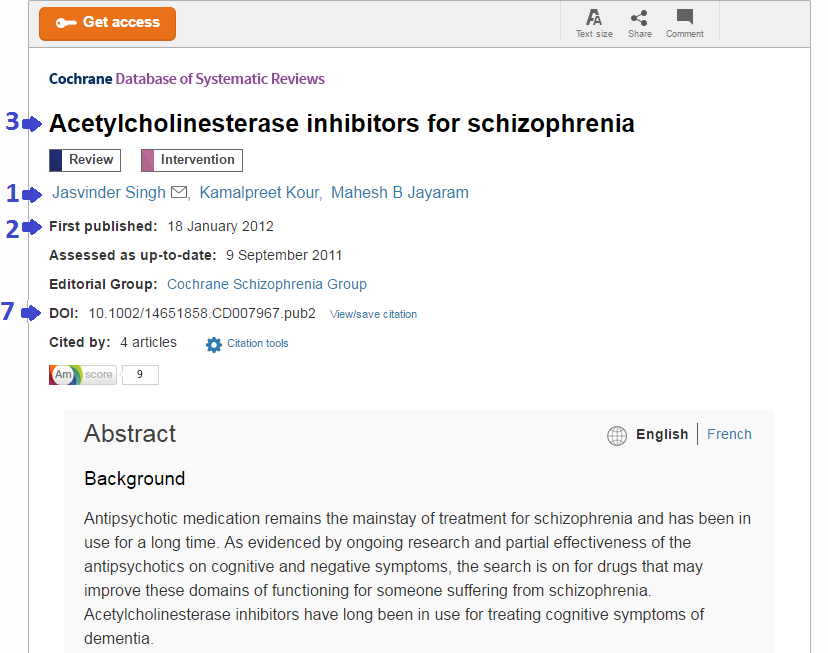
1. The author(s) are listed here.
2. Year the article was published.
3. Article title. Make sure the title is capitalized correctly, according to APA guidelines. Only capitalize the first word at the beginning of the title, the subtitle (if there is one), any proper nouns, and abbreviations.
4. Journal title. For systematic reviews found in Cochrane, the journal title is always Cochrane Database of Systematic Reviews .
7. DOI (Digital Object Identifier)
JBI Best Practice
- JBI Best Practice This link opens in a new windowFull Text
Joanna Briggs Institute (JBI), is a recognized global leader in evidence-based healthcare resources. The JBI Best Practice database includes more than 3,000 records across seven publication types. These types include Evidence Summaries, Evidence-Based Recommended Practices, Best Practice Information Sheets, Systematic Reviews, Consumer Information Sheets, Systematic Review Protocols, and Technical Reports.
Tutorials and Search Tips for Joanna Briggs Institute EBP
- An Introduction to the JBI Database This link opens in a new windowAn in-depth online tutorial for the Joanna Briggs Institute EBP database.
The main search page of the JBI database is the basic search. When searching, use AND to connect different concepts (neoplasm and treatment). Use OR to connect synonyms (hand washing or hand hygiene). Use NOT to exclude keywords (child not infant). Use the asterisk to include all variations on the end of a word (nurs* will retrieve articles that use the keywords nursing, nurses, nurse, ect...).

For more search boxes, use the Multi-Field Search. This search will have several rows of search boxes, allowing for a more detailed search. Use the search tips mentioned above. Change the field to narrow down the search. Click "Add New Row" to add more search boxes.

Click on Limitson the main search page to view additional options to refine the search. These options will allow you to further customize the search, leading to highly relevant search results.
Publication Year- Use this field to limit a search to current information. Having current information is critical in health sciences because information in the field is constantly changing.
Publication Types- Limit a search to a specific type of publication. Some options include best practice information sheets, systematic reviews, systematic review protocols, and evidence summaries.
Subject Area Nodes- Select a subject area to retrieve articles that are aligned with your topic. This list includes paediatrics, chronic disease, rehabilitation, wound healing, surgical services, emergency and trauma, and general medicine.

Joanne Briggs Institute (JBI) does not contain a citation button that formats in a specific style. Furthermore, JBI is the publisher of the articles found in the database, and will need to be included in the citation as these articles are not found anywhere else.
- Joanna Briggs has multiple kinds of resources in it, though all are published only in JBI. Systematic Reviews and information sheets are published as journal articles, evidence summaries and practice sheets as reports.
- The database labels items in the "Source" or " Publication Type" field in the record.
- You may need to view the PDF to locate the DOI if one is present.
APA 7th Edition format:
Author, A. A. (Year). Title of review. Journal Title , volume (issue), xxx-xxx.
Example:
Watson, K., Chang, E., & Johnson, A. (2012). The efficacy of complementary therapies for agitation among older people in residential care facilities: A systematic review. JBI Database of Systematic Reviews & Implementation Reports , 10 (53), 3414-3486.
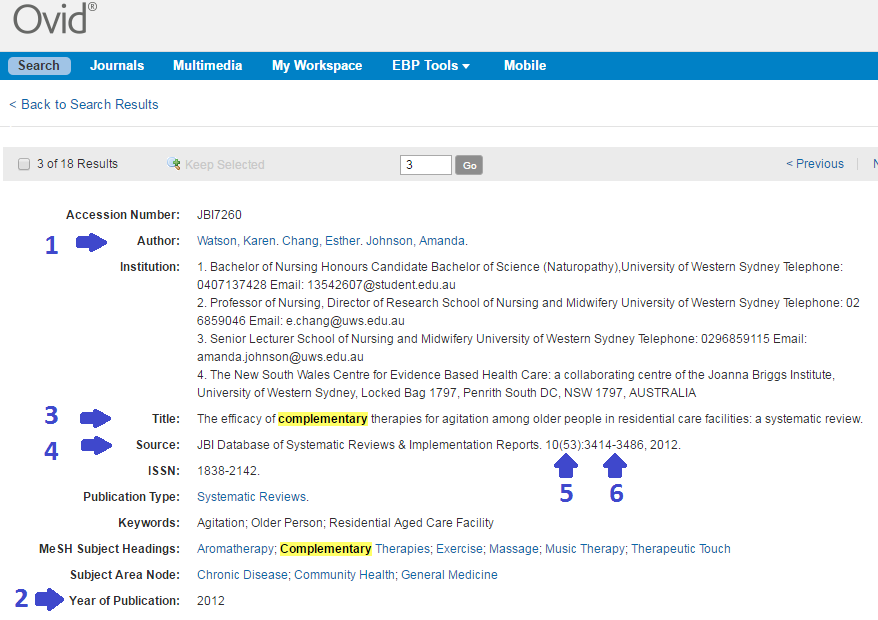
1. The author(s) are listed here.
2. Year the article was published.
3. Article title. Make sure the title is capitalized correctly, according to APA guidelines. Only capitalize the first word at the beginning of the title, the subtitle (if there is one), any proper nouns, and abbreviations.
4. Journal title. Most articles found in the JBI database are published in JBI Database of Systematic Reviews & Implementation Reports.
5. The volume and issue numbers go next, do not put a space between the volume and issue number.
6. Page numbers for the article.
Recommended Additional Databases
- NatMed Pro This link opens in a new windowFull Text
NatMed Pro (formerly Natural Medicines) provides high quality, evidence-based information on dietary supplements (including herbs, vitamins, and minerals), functional foods, diets, complementary practices (modalities), exercises, and medical conditions. Grades reflect the level of available scientific data for or against the use of each therapy for a specific medical condition.
Citing information from the Natural Medicines database requires a unique citation format because it contains specific types of resources.
All of the information in Natural Medicines is considered to be in the form of a monograph, which is a detailed written study or specialized aspect of it. In the database, information is not written by specific people, but rather by the database as a whole. The title of the entry will be the title of the drug/supplement/medicine/ food/disease/condition.
APA 7th Edition format:
Example:

- Nursing & Allied Health Database This link opens in a new windowFull Text
ProQuest's Nursing & Allied Health Database supports students, instructors, researchers, and nurses around the world with its diverse mix of scholarly literature, clinical training videos, reference materials, and evidence-based resources, including dissertations and systematic reviews.
Database citation tools are computer created--meaning that a person doesn't double check them for accuracy. They can have mistakes, and don't always keep up with the latest rules. It is your responsibility to review your citations. Take care to check which citation style and edition is required.
Always double check a computer created reference against a style guide.
Especially look for mistakes in capitalization, punctuation, information that shouldn't be included, and missing information.
Click on the title of an article.
There will be a tool menu on the upper right.

Click Cite. A box will open in the middle of the screen.
Change the menu to the citation style you need.

Copy and paste the citation into your paper.
Don't forget to double check the formatting!
- Ovid Nursing Essential Collection This link opens in a new windowFull Text
Access to over 125 full-text nursing journal titles covering a wide range of nursing topics and including premier titles from the highly respected Lippincott Williams & Wilkins.
Ovid has a citation tool to help with citing. Remember that computer generated citations are usually not perfect. You will need to compare the citation to the correct format to check for errors. Ovid has not updated to APA 6th edition, you will need to adjust the formatting.
- Click on the title of the article.
- Click on 'Cite' on the tools menu.

- Click "Copy" next to the APA style citation.

- Paste the citation into your document.
- Double check the citation for errors in punctuation, capitalization, or format.
- ProQuest One Health & Nursing This link opens in a new windowFull Text
ProQuest One Health & Nursing is a multiformat resource of biomedical, healthcare, and nursing research materials, including extensive and in-depth coverage of healthcare, public health, health professions, pharmacology, and other topics. Users will find a wide range of materials, including peer-reviewed journals, clinical skills videos, reference materials, and trade publications, among many others.
