UPDATE (5/20/26 @ 7:30am AZ time):
The GCU Library's updated version of LopeCat, the library’s online catalog, is live! For more details on what has changed, visit the What's New Guide .
Google Scholar: Citations & Search Alerts
Creating Citations in Google Scholar
Like the GCU Library, Google Scholar has a built-in citation tool. Here's how to use it:
- Click the " (Quotation Marks), outlined below.

2. A new box will pop up. Copy and paste the required format into your document.
3. Always double check the citation for accuracy and proper formatting.

Exporting References from Google Scholar
To export a reference from Google Scholar into citation management software:
- Click the " (Quotation Marks) outlined below.
2. A new box will pop up. The citation managers will be listed at the bottom of the box. Click your preferred citation manager.
3. Follow the prompts to complete the export.

Google Scholar
Linking to GCU
Google Scholar can be linked to the GCU Library databases, making it a "one-stop shop" for finding articles. Here’s how to do so:
1. Start at the Google Scholar homepage: http://scholar.google.com
2. Click on the Menu icon in the upper left corner.

3. Click on the Gear cog in the right corner of the menu. On some browsers this may appear as Settings below Advanced Search instead.

4. Click on Library links to the left.

5. Type Grand Canyon University into the search bar and click the search button.
6. Click the box next to Grand Canyon University - Full-Text @ GCU to add a check mark.

7. Once you see Grand Canyon University - Full-Text @ GCU listed with a check mark next to it, click the Save button.
Now you will be able to see which results in Google Scholar are freely available through the GCU library. Review the Accessing Articles and Accessing Books tabs for examples.
Note: You can create an alert without creating a Google account. If you create an alert without having a Google account, you will not be able to modify your alerts. You will only be able to delete your alerts through the alert confirmation email.
Create a Personal Google Account
- Go to http://scholar.google.com .
- Click on the SIGN INbutton in the upper right corner of the page.
- Click on the Create Accountlink.
- Fill out the form.
- Click on the Next step button.
This will log your in to your Google Account.
Create a Google Scholar Alert
- Enter your search terms, set limiters, and modify your search until you are happy with the results.
- Click on Create alertin the left side of the search results.

- You will see your search terms in the Alert queryfield.<
- Your email address will be shown in the Emailfield. You can change the email address if you want to receive alerts in a different email box. If you are not signed in, you need to type the email address that alerts should be sent to.
- Click on CREATE ALERT.

- If you are not logged in to your Google account, you will be challenged to prove you are not a robot.
- If you are not signed in or used the different email address to receive alerts from your Google account:
- You will receive a confirmation email from Google Scholar Alerts. Once you receive this email, click on the link to confirm the request. If you cannot find the confirmation email, check your spam folder
- You will receive a confirmation email from Google Scholar Alerts. Once you receive this email, click on the link to confirm the request. If you cannot find the confirmation email, check your spam folder
- If you are signed in and used the same email address to receive alerts as your Google account:
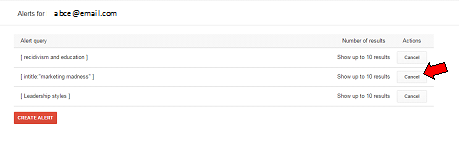
- You will see the list of alerts you created. To cancel an alert, click on the Cancelbutton below Actions.
- If you would like to create another alert, click on CREATE ALERT.
Manage Your Google Scholar Alerts
After a time, you may find that you no longer want to continue receiving alerts for some searches you created in Google Scholar.
To delete an alert:
- Log in to you Google Scholar account.
- Click on the Menu in the upper left of the Google Scholar page and then click on Alerts.

- In the list of Alerts that displays, click ont he Cancel button next to the search you wish to delete.