


Deploy an app to GKE using Cloud Deploy
This page shows you how to use Cloud Deploy to deliver a sample application
image named nginx
to a sequence of two Google Kubernetes Engine clusters.
In this quickstart, you'll do the following:
-
Create the two clusters.
-
Create a Skaffold configuration and a Kubernetes manifest to specify the (pre-built) container image to deploy.
-
Define your Cloud Deploy delivery pipeline and deployment targets , which point to the two clusters.
-
Instantiate your delivery pipeline by creating a release, which automatically deploys to the first target.
-
Promote the release to the second target.
-
View both rollouts in Google Cloud console.
Before you begin
- Sign in to your Google Cloud account. If you're new to Google Cloud, create an account to evaluate how our products perform in real-world scenarios. New customers also get $300 in free credits to run, test, and deploy workloads.
-
In the Google Cloud console, on the project selector page, select or create a Google Cloud project.
Roles required to select or create a project
- Select a project : Selecting a project doesn't require a specific IAM role—you can select any project that you've been granted a role on.
- Create a project
: To create a project, you need the Project Creator role
(
roles/resourcemanager.projectCreator), which contains theresourcemanager.projects.createpermission. Learn how to grant roles .
-
If you're using an existing project for this guide, verify that you have the permissions required to complete this guide . If you created a new project, then you already have the required permissions.
-
Verify that billing is enabled for your Google Cloud project .
-
Enable the Cloud Deploy, Cloud Build, GKE, and Cloud Storage APIs.
Roles required to enable APIs
To enable APIs, you need the Service Usage Admin IAM role (
roles/serviceusage.serviceUsageAdmin), which contains theserviceusage.services.enablepermission. Learn how to grant roles . -
Install the Google Cloud CLI.
-
If you're using an external identity provider (IdP), you must first sign in to the gcloud CLI with your federated identity .
-
To initialize the gcloud CLI, run the following command:
gcloud
init
-
In the Google Cloud console, on the project selector page, select or create a Google Cloud project.
Roles required to select or create a project
- Select a project : Selecting a project doesn't require a specific IAM role—you can select any project that you've been granted a role on.
- Create a project
: To create a project, you need the Project Creator role
(
roles/resourcemanager.projectCreator), which contains theresourcemanager.projects.createpermission. Learn how to grant roles .
-
If you're using an existing project for this guide, verify that you have the permissions required to complete this guide . If you created a new project, then you already have the required permissions.
-
Verify that billing is enabled for your Google Cloud project .
-
Enable the Cloud Deploy, Cloud Build, GKE, and Cloud Storage APIs.
Roles required to enable APIs
To enable APIs, you need the Service Usage Admin IAM role (
roles/serviceusage.serviceUsageAdmin), which contains theserviceusage.services.enablepermission. Learn how to grant roles . -
Install the Google Cloud CLI.
-
If you're using an external identity provider (IdP), you must first sign in to the gcloud CLI with your federated identity .
-
To initialize the gcloud CLI, run the following command:
gcloud
init
Required roles
To ensure that the Cloud Deploy service account has the necessary permissions to run Cloud Deploy operations and deploy to Cloud Run, ask your administrator to grant the following IAM roles to the Cloud Deploy service account on your project:
- Google Kubernetes Engine Developer
(
roles/container.developer) - IAM Service Account User
(
roles/iam.serviceAccountUser) - Cloud Deploy Job Runner
(
roles/clouddeploy.jobRunner)
For more information about granting roles, see Manage access to projects, folders, and organizations .
Your administrator might also be able to give the Cloud Deploy service account the required permissions through custom roles or other predefined roles .
Create your Google Kubernetes Engine clusters
Create two clusters: qsdev
and qsprod
, with default settings. The clusters'
Kubernetes API endpoints must be network-reachable from the public internet.
GKE clusters are externally accessible by default.
 gcloud
container
clusters
create-auto
quickstart-cluster-qsdev
--project =
 PROJECT_ID

--region =
us-central1 &&
gcloud
container
clusters
create-auto
quickstart-cluster-qsprod
--project =
 PROJECT_ID

--region =
us-central1
Prepare your Skaffold configuration and Kubernetes manifest
Cloud Deploy uses Skaffold to provide the details for what to deploy and how to deploy it properly for your separate targets .
In this quickstart, you create a skaffold.yaml
file, which identifies the
Kubernetes manifest to be used to deploy the sample app.
-
Open a terminal window.
-
Create a new directory, named
deploy-gke-quickstartand navigate into it.mkdir deploy-gke-quickstart cd deploy-gke-quickstart -
Create a file named
skaffold.yamlwith the following contents:apiVersion : skaffold / v4beta7 kind : Config manifests : rawYaml : - k8s -* deploy : kubectl : {}This file is a minimal Skaffold config, identifying your manifest. For this quickstart, you create the file. But you can also have Cloud Deploy create one for you , for simple, non-production applications.
See the
skaffold.yamlreference for more information about this file. -
Create a file named
k8s-pod.yaml, with the following contents:apiVersion : v1 kind : Pod metadata : name : getting - started spec : containers : - name : nginx image : my - app - imageThis file is a basic Kubernetes manifest , which is applied to the cluster to deploy the application. The container image to deploy is set here as a placeholder,
my-app-image, which is replaced with the specific image when you create the release .
Create your delivery pipeline and targets
You can define your pipeline and targets in one file or in separate files. In this quickstart, you create a single file.
-
In the
deploy-gke-quickstartdirectory, create a new file:clouddeploy.yaml, with the following contents:apiVersion : deploy.cloud.google.com/v1 kind : DeliveryPipeline metadata : name : my-gke-demo-app-1 description : main application pipeline serialPipeline : stages : - targetId : qsdev profiles : [] - targetId : qsprod profiles : [] --- apiVersion : deploy.cloud.google.com/v1 kind : Target metadata : name : qsdev description : development cluster gke : cluster : projects/ PROJECT_ID /locations/us-central1/clusters/quickstart-cluster-qsdev --- apiVersion : deploy.cloud.google.com/v1 kind : Target metadata : name : qsprod description : production cluster gke : cluster : projects/ PROJECT_ID /locations/us-central1/clusters/quickstart-cluster-qsprod -
Register your pipeline and targets with the Cloud Deploy service:
  gcloud

 deploy

 apply

 --
 file
 =
 clouddeploy
 .
 yaml

 --
 region
 =
 us
 -
 central1

 --
 project
 =
  PROJECT_ID
You now have a pipeline, with targets, ready to deploy your application to your first target.
-
Confirm your pipeline and targets:
In the Google Cloud console, navigate to the Cloud Deploy Delivery pipelinespage to view of list of your available delivery pipelines.
Open the Delivery pipelines page
The delivery pipeline you just created is shown, and the two targets are listed in the Targetscolumn.

Create a release
A release is the central Cloud Deploy resource representing the changes being deployed. The delivery pipeline defines the lifecycle of that release. See Cloud Deploy service architecture for details about that lifecycle.
Run the following command from the deploy-gke-quickstart
directory to create a release
resource that represents the container image to deploy:
  gcloud

 deploy

 releases

 create

 test
 -
 release
 -
 001

 \

 --project= PROJECT_ID
\

 --region=us-central1 \

 --delivery-pipeline=my-gke-demo-app-1 \

 --images=my-app-image=gcr.io/google-containers/nginx@sha256:f49a843c290594dcf4d193535d1f4ba8af7d56cea2cf79d1e9554f077f1e7aaa
Notice the --images=
flag
, which
you use to replace the placeholder ( my-app-image
) in the manifest
with
the specific, SHA-qualified image. Google recommends that you templatize your
manifests this way, and that you use SHA-qualified image names at release
creation.
As with all releases (unless they include --disable-initial-rollout
),
Cloud Deploy automatically creates a rollout
resource too. The application is
automatically deployed into the first target in the progression.
Promote the release
-
From the Delivery pipelinespage, click the
my-gke-demo-app-1pipeline.Open the Delivery pipelines page
The Delivery pipeline details page shows a graphical representation of your delivery pipeline's progress. In this case, it shows that the release was deployed to the
qsdevtarget.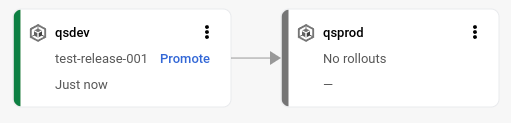
-
On the first target in the delivery pipeline visualization, click Promote.
The Promote releasedialog is shown. It shows the details of the target you're promoting to.
-
Click Promote.
The release is now queued for deployment into
qsprod. When deployment is complete, the delivery pipeline visualization shows it as deployed:
View the results in Google Cloud console
-
In the Google Cloud console, navigate to the Cloud Deploy Delivery pipelinespage to view your my-gke-demo-app-1delivery pipeline.
-
Click the name of your delivery pipeline "my-gke-demo-app-1".
The pipeline visualization shows the app's progress through the pipeline.
And your release is listed on the Releasestab under Delivery pipeline details.
-
Click the release name,
test-release-001.Your rollouts appear under Rollouts. You can click a rollout to view its details, including the deployment log.

Clean up
To avoid incurring charges to your Google Cloud account for the resources used on this page, follow these steps.
-
Delete the
qsdevcluster:gcloud container clusters delete quickstart - cluster - qsdev -- region = us - central1 -- project = PROJECT_ID -
Delete the
qsprodcluster:gcloud container clusters delete quickstart - cluster - qsprod -- region = us - central1 -- project = PROJECT_ID -
Delete the delivery pipeline, targets, release and rollouts:
gcloud deploy delete -- file = clouddeploy . yaml -- force -- region = us - central1 -- project = PROJECT_ID -
Delete the Cloud Storage buckets that Cloud Deploy created.
One ends with
_clouddeploy, and the other is[region].deploy-artifacts.[project].appspot.com.
That's it, you completed this quickstart!
