
Data Studio Pro licenses are available at no cost to Looker users as part of a Data Studio Pro subscription. To get started using Data Studio Pro, you need to set up a Data Studio Pro subscription, accept your Looker account's complimentary licenses, and assign the licenses to Looker users.
The number of complimentary Data Studio Pro licenses that are allocated to your Looker account is determined by the number of Looker licenses that are included in your Looker agreement. For more information about the terms of this offer, see the Complimentary Data Studio Pro licenses offer details documentation page.
This page describes how to perform the following tasks for a Looker instance:
- Accept the complimentary Data Studio Pro licenses that have been allocated to your Looker instance
- Specify the Google Cloud project that hosts your Data Studio Pro content
- Add Looker users to your Data Studio Pro subscription
Before you begin
If you don't already have a Data Studio Pro subscription, we recommend that you set up the Google Cloud project for your Data Studio content before you accept your account's allotted complimentary licenses. For more information about Google Cloud project requirements and setting a new Data Studio Pro subscription, see the Start a new Pro subscription documentation page.
Each user with a Looker Viewer
( roles/looker.viewer
) role who will use Data Studio Pro must also be a Google Workspace or Cloud Identity user with a Managed Google account
.
Required roles
Different permissions are required to perform the following tasks:
To get the permission that you need to accept complimentary Data Studio Pro licenses and update Looker (Google Cloud core) instance information, ask your administrator to grant you an IAM role containing the looker.instances.update
permission for the Google Cloud project that your Looker (Google Cloud core) instance resides in. The Looker Admin
( roles/looker.admin
) IAM role contains this permission by default, but you may be able to get this permission with custom roles
or other predefined roles
.
To get the permission that you need to set up a self-service subscription to Data Studio Pro, ask your administrator to grant you an IAM role containing the lookerstudio.pro.manage
permission for the Google Cloud project that your Looker (Google Cloud core) instance resides in. The Owner
( roles/owner
) IAM role and the Looker Studio Pro Manager
( roles/lookerstudio.proManager
) role contain this permission by default, but you may be able to get this permission with custom roles
or other predefined roles
.
Accept Data Studio Pro licenses
Looker (Google Cloud core) instances are granted 50 complimentary Data Studio Pro licenses by default.
To accept these licenses, follow these steps in the Google Cloud console:
- Navigate to the Instances page for the Google Cloud project in which your Looker (Google Cloud core) instance resides.
- Select the name of the Looker (Google Cloud core) instance that you want to use with Data Studio Pro.
- Select the Data Studio Protab.
- Select Accept Data Studio Pro licenses.
Select a Google Cloud project
After you have accepted the complimentary Data Studio Pro licenses, you must associate your Looker (Google Cloud core) instance with the Google Cloud project that your Data Studio Pro subscription uses. To specify your Data Studio Pro Google Cloud project, follow these steps in the Data Studio Protab of your Looker (Google Cloud core) instance settings:
- Click Select project.
- In the Select a resourcedialog, select your project from the list, and click Select project.
- In the Data Studio Protab of your Looker (Google Cloud core) instance settings, click Save.
The Project namefield now displays the selected Google Cloud project ID.
Add users to your Data Studio Pro subscription
To finish setting up your new Data Studio Pro subscription, add users to your subscription and assign their licenses. You can complete these steps in either the Google Cloud console or Data Studio, per your preference. If you had already completed the setup for your Data Studio Pro subscription before you accepted your complimentary licenses, your licenses have been applied automatically to your existing Data Studio Pro users.
Console
To finish setting up your new Data Studio Pro subscription in the Google Cloud console, follow these steps starting on the Data Studio Propage or tab for your Looker instance:
- Click Add users, which opens the Data Studio Pro homepage within the Google Cloud console.
- Click Subscribeto open the Buy Data Studio Pro licensespanel:
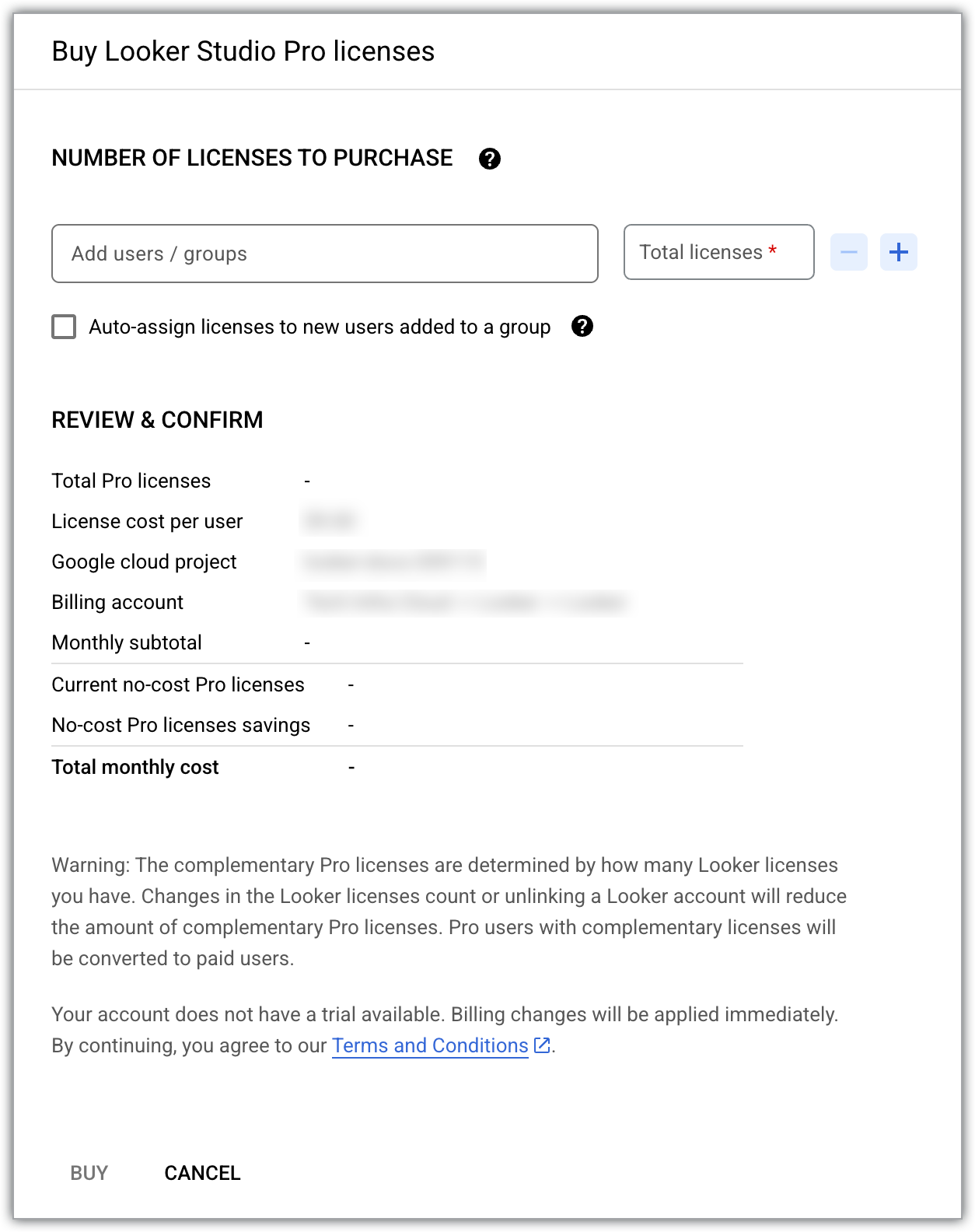
- The Current no-cost Pro licensesline item displays the number of complimentary Data Studio Pro licenses that have been allocated to your Looker (Google Cloud core) instance.
- In the Add users / groupsfield, add the email addresses of users or groups to your subscription.
- The Total licensesfield displays the total number of licenses that are required to support the number of users that you have added.
- Select Auto-assign licenses to new users added to a groupto assign available licenses to users who are added to Google Groups under the Data Studio subscription.
- Click Buy.
Data Studio
To finish setting up your new Data Studio Pro subscription in Data Studio, follow these steps from the Data Studio Propage or tab for your Looker instance:
- Click add users in Data Studio Pro.
- Add users to your subscription by following the steps described on the Add people to the subscription documentation page.
Remove licenses or users
Each Data Studio Pro user requires a Data Studio Pro license. If you need to decrease the number of licenses that are used with your Data Studio Pro subscription, you will also need to remove the corresponding number of users.
To remove licenses and users from your Data Studio Pro subscription in the Google Cloud console, follow these steps:
- In the Google Cloud project that hosts your Data Studio Pro subscription content, navigate to the Data Studiopage.
- Select Manage access.
- Select the user or group that you want to remove from the subscription.
- Select delete Delete. In the resulting dialog, select Deleteagain.
- Close the Manage accesswindow.
- Select Add / remove licenses.
- Next to the Total licensesfield, select remove Decrement license countto decrease the number of licenses under the Data Studio Pro subscription.
- Select Confirm.
For more information, see Remove users from a Pro subscription .
Transfer complimentary Data Studio Pro licenses to a different subscription
After you have saved the project that you selected for your Data Studio Pro licenses in your Looker instance, we strongly recommend that you don't modify the project selection. Your complimentary licenses must be associated with the same Google Cloud project as your Data Studio Pro subscription. If you need to transfer your licenses from one Data Studio Pro subscription to another, follow these steps:
- Set up a new Data Studio Pro subscription based on a different project.
- Add users to your new subscription .
- Transfer ownership for any "ownerless" content that resides in team workspaces that are associated with the old subscription.
- Cancel the old subscription .
Next, to associate your complimentary Data Studio Pro licenses with the new Data Studio Pro subscription, follow these steps:
- Navigate to the Data Studio Protab of your Looker (Google Cloud core) instance settings.
- Click Select project.
- In the Select a resourcedialog, choose your new selection from the list, and click Select project.
- Select a Google Cloud project that is associated with the new Data Studio Pro subscription.
- In the Data Studio Protab of your Looker (Google Cloud core) instance settings, click Save.
The Project namefield now displays the Google Cloud project ID that is associated with the new Data Studio Pro subscription.
Effects of canceling a Data Studio Pro subscription
If the Data Studio Pro subscription is canceled, Looker will no longer recognize the subscription. Although the Google Cloud console will continue to reflect that the Looker instance and the Data Studio Pro subscription are linked, you will no longer be billed for Data Studio Pro usage on the Google Cloud project. Your Looker instance's Data Studio Pro licenses are still available if you reinstate your subscription (within the 30-day grace period ) or if you initiate a new subscription. The no-cost version of Data Studio is also available for use.
For more information about the effects of canceling a Data Studio Pro subscription or deleting a Google Cloud project that is associated with a canceled subscription, see Cancel a Data Studio Pro subscription .
Troubleshooting complimentary licenses
Errors may occur when you accept complimentary Data Studio Pro licenses or add users to a Data Studio Pro subscription. See the following table for steps on how to troubleshoot errors that are related to accepting licenses.
You have reached your license limit. To add more users, either delete some existing users/groups or purchase additional licenses.
- In Data Studio, select Pro subscriptionsfrom the left navigation to open the list of Data Studio Pro subscriptions.
- Data Studio displays the number of complimentary licenses that are available for the Google Cloud project that hosts your Looker (Google Cloud core) instance. For that project, under Actions, select Manage subscription.
- Navigate to the Review and confirm Data Studio Pro licensesstep, and review the number of licenses in the Number of licenses to buyfield.
- Enter the total number of licenses that you want to use, including the number of complimentary licenses that are available for the subscription.
