


The Bincalculated field type lets you create ad hoc numeric tiers for numeric dimensions without needing to develop CASE WHEN
expressions in calculated fields or logic in SQL.
The Bincalculated field type can be helpful when you want to quickly group values into specific integer ranges to adjust the granularity of your data.
This page explains how to create and edit custom bins, and includes the following sections:
- Configure a custom bin
- Create a custom bin in your data source
- Edit a custom bin in your data source
- Create a chart-specific custom bin
- Edit a chart-specific custom bin
- Reuse a chart-specific custom bin
Create a custom bin in a reusable data source
You can use custom bins that exist in a reusable data source in any report that includes that data source. To create a custom bin in a data source, follow these steps:
-
Click
 ADD A FIELD.
 -
Select Add bin.
-
Configure the bin options. For more information, see Configure a custom bin .
-
Click Save.
Create a custom bin in a data source while editing a report
Alternatively, you can create a custom bin in either a reusable or an embedded data source by following these steps:
-
Create or edit your report .
-
In the Datapanel, click
Add a field. -
Select Add bin.
-
Configure the bin options. For more information, see Configure a custom bin .
-
Click Save.
Edit a custom bin in your data source
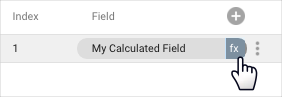
Custom bins and calculated fields appear in the data source with an fxsymbol. To edit the formula, click fxnext to the field name to open the formula editor, where you can adjust the field as needed.
Create a chart-specific custom bin
Chart-specific custom bins exist only in the chart in which you create them.
To create a chart-specific custom bin, follow these steps:
-
Create or edit your report .
-
Add a new chart or select an existing chart.
-
In the Setuptab of the Propertiespanel, click + Add dimension.
-
At the bottom of the field list, click + ADD BIN.
-
Configure the bin options. For more information, see Configure a custom bin .
-
Click Save.
Configure a custom bin
When you create a custom bin, you can configure several options to define how Looker Studio groups the data:
- Selected field to bin by: Select an existing numeric field to bin by from the Selected field to bin bydrop-down menu.
- Bin field format: Select a format for the bin from the Bin field formatdrop-down menu. Options include the following:
- Interval "[x,y)"—This format displays the range that includes x and up to but not including y.
- Integer "x to y"—You must use this format with discrete integer values (such as age).
- Relational ">=x and < y"—This format works best with continuous numbers (such as dollars).
- New field name: Specify a name in the New field namefield.
- This name is the default name that appears in your reports. You can change this name for individual charts by editing the name in the dimension picker.
- The field name must be unique.
- You can't use a reserved keyword as the field name.
- New field ID: If you are creating a custom bin in a data source, you can edit the default ID in the New field IDfield, if needed. Looker Studio uses this ID to identify a field as an alternative to the field name.
- Refresh field info: As an optional starting point, click Refresh field infoto learn more about the values for the dimension for which you're creating custom bins, including the dimension's minimum and maximum values. Having this information can be helpful in determining the way in which you specify value bins.
- Apply automatic values: Click Apply automatic valuesto automatically populate the Bin size, Minimum value, and Maximum valuefields for Equal Sizedbins.
- Bin type: Specify a Bin type:
- Select Equal Sizedto bin numeric values into equal integer ranges. For example, tiers of values ranging from 0-10, 10-20, and 20-30.
- Select Custom Sizedto create custom bin sizes of varying integer ranges. For example, tiers of values ranging from 0-15, 15-75, and 75-100.
-
Bin sizes and ranges: Customize the bin sizes and ranges:
- If the selected Bin typeis Equal Sized, enter values in the Bin size, Minimum value, and Maximum valuefields.
- If the selected Bin typeis Custom Sized, specify the tier breakpoints in ascending order in the Bin breakpointsbox, separated either by commas or by pressing the Enterkey (PC) or Returnkey (Mac). You can also use the Tabkey.
-
Bin remaining values: Configure how Looker Studio displays values outside of the specified minimum and maximum bin values:
- If you select the Bin remaining values outside the min and max as separate binscheckbox, Looker Studio groups values that are less than the minimum bin value into one bin, and values that are greater than the maximum bin value into another bin. The label for these bins depends on the Bin field formatthat you select (for example,
[-inf, min)and(max, inf]). - If you don't select this checkbox, each value outside of the minimum and maximum values appears as its own bin.
- If you select the Bin remaining values outside the min and max as separate binscheckbox, Looker Studio groups values that are less than the minimum bin value into one bin, and values that are greater than the maximum bin value into another bin. The label for these bins depends on the Bin field formatthat you select (for example,
Edit a chart-specific custom bin
Chart-specific calculated fields appear in the chart Propertiespanel on the Setuptab.
When you hold the pointer over the field type next to the field name, an fxsymbol will appear. To edit the formula, click fxto bring up the formula editor, where you can adjust the field as needed.
Reuse a chart-specific custom bin
Chart-specific calculated fields exist only in the chart in which you create them. You can't directly reuse a chart-specific calculated field or reference it in other calculated fields.
However, you can copy a chart that contains chart-specific calculated fields. The copy will contain any calculated fields defined in the original. You can then edit them as needed in the new chart.
