


Page Summary
-
This guide details using the Google Mobile Ads SDK with Unity Ads mediation for waterfall integrations on iOS.
-
The mediation adapter supports both bidding and waterfall integrations, as well as banner, interstitial, rewarded, and native ad formats.
-
Requirements include an iOS deployment target of 12.0 or higher, the latest Google Mobile Ads SDK, and completing the mediation Get started guide.
-
Setting up involves configuring settings in the Unity Ads UI, such as creating a project, ad units, and placements, and setting up demand in the Ad Manager UI by adding Unity Ads as a company and configuring ad unit mapping.
-
Proper implementation requires importing the Unity Ads SDK and adapter, implementing privacy settings for GDPR and US state regulations, and adding required code including SKAdNetwork integration.

This guide shows you how to use Google Mobile Ads SDK to load and display ads from Unity Ads using mediation , covering bidding and waterfall integrations. It covers how to add Unity Ads to an ad unit's mediation configuration, and how to integrate the Unity Ads SDK and adapter into an iOS app.
Supported integrations and ad formats
The mediation adapter for Unity Ads has the following capabilities:
Requirements
-
iOS deployment target of 13.3 or higher
-
[For bidding]: To integrate all supported ad formats in bidding, use Unity adapter 4.14.1.1 or higher ( latest version recommended )
-
Latest Google Mobile Ads SDK
-
Complete the mediation Get started guide
Step 1: Set up configurations in Unity Ads UI
Sign up or log in to Unity Ads.
Create a project
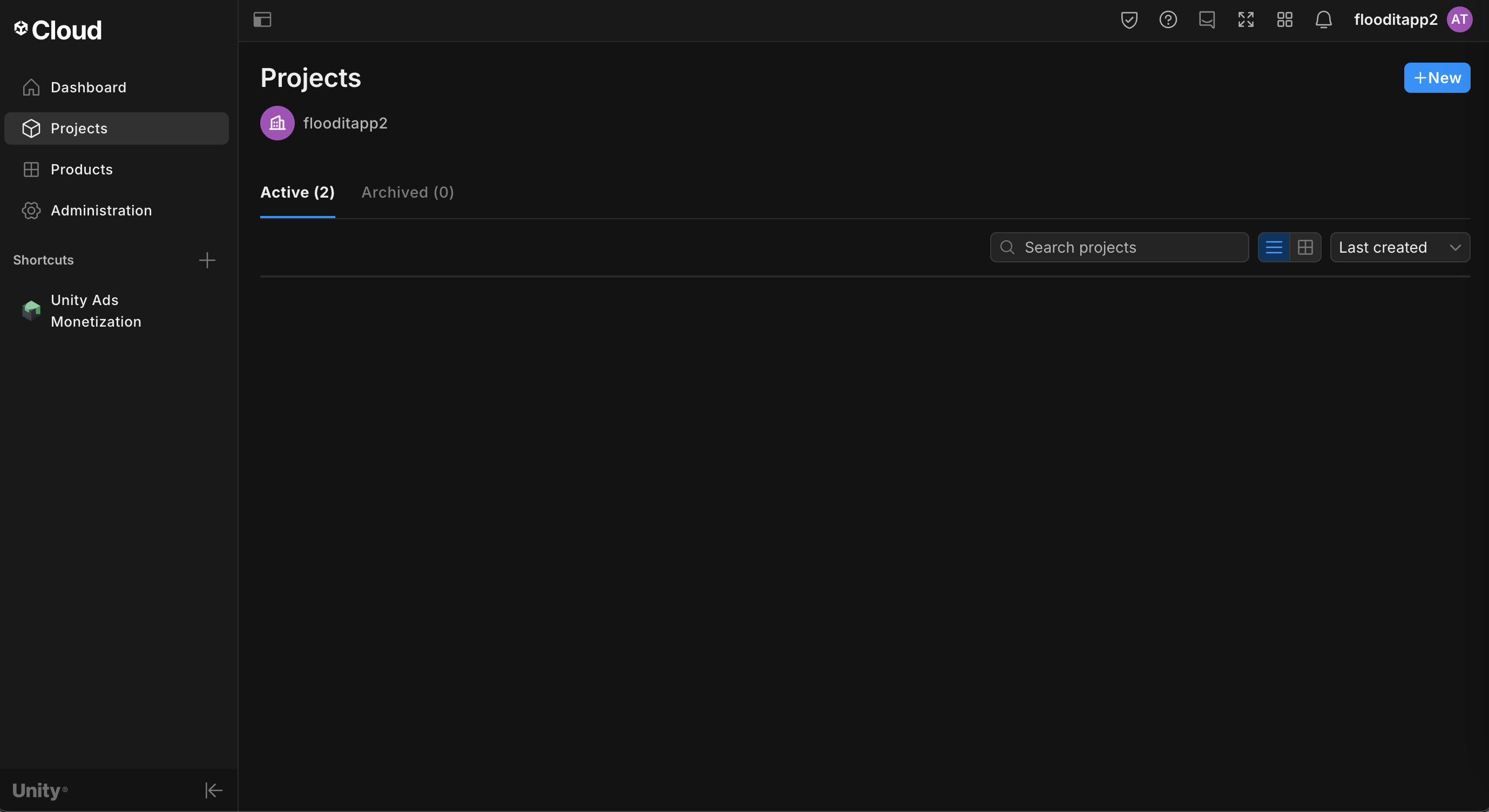
On the Unity Ads dashboard , navigate to Projectsand click New.
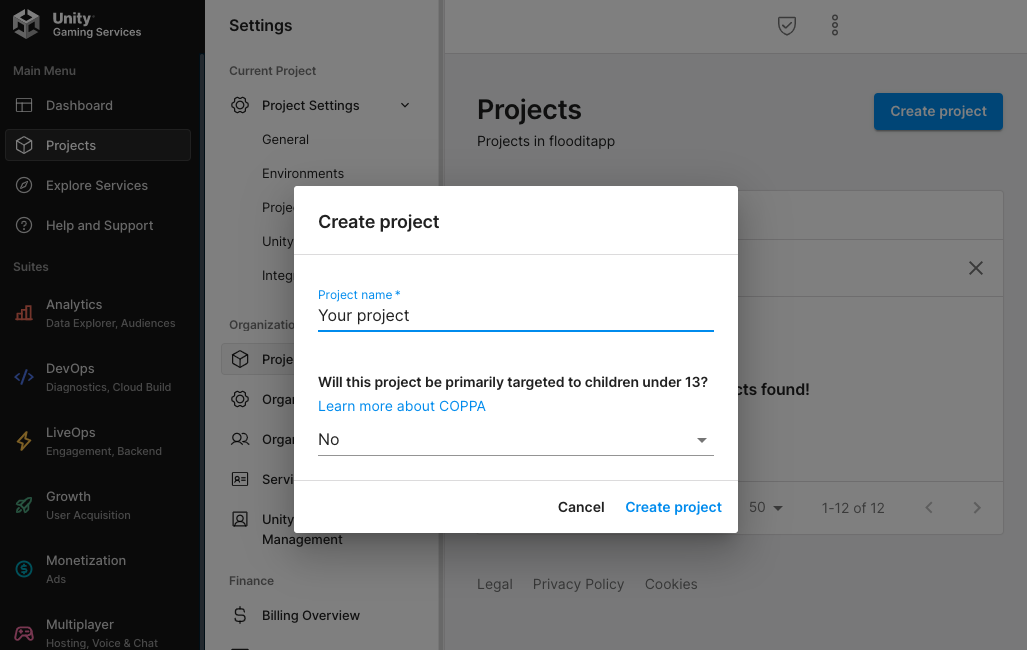
Fill out the form and click Createto add your project.
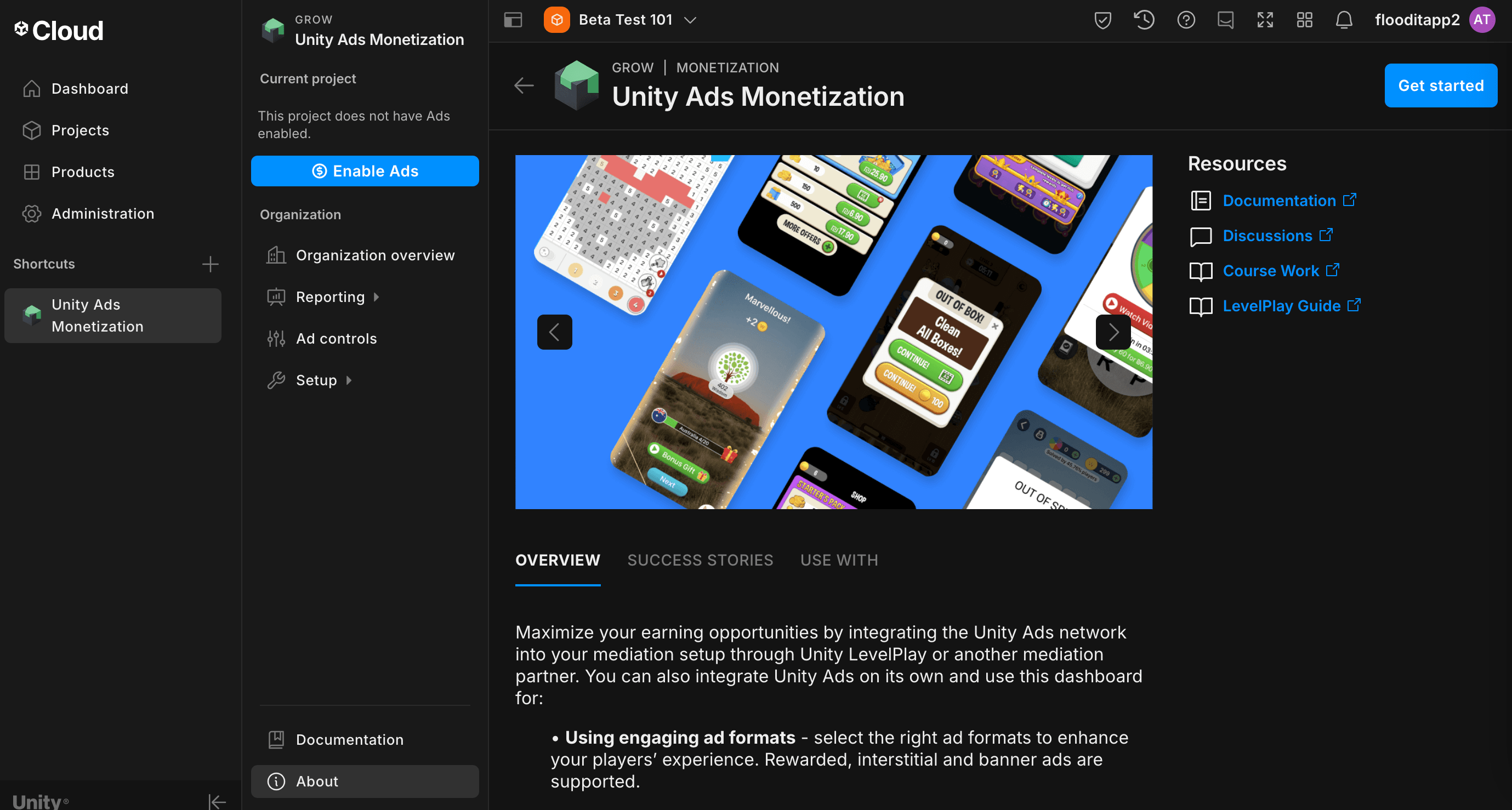
Navigate to Unity Ads Monetization, then click Get started.
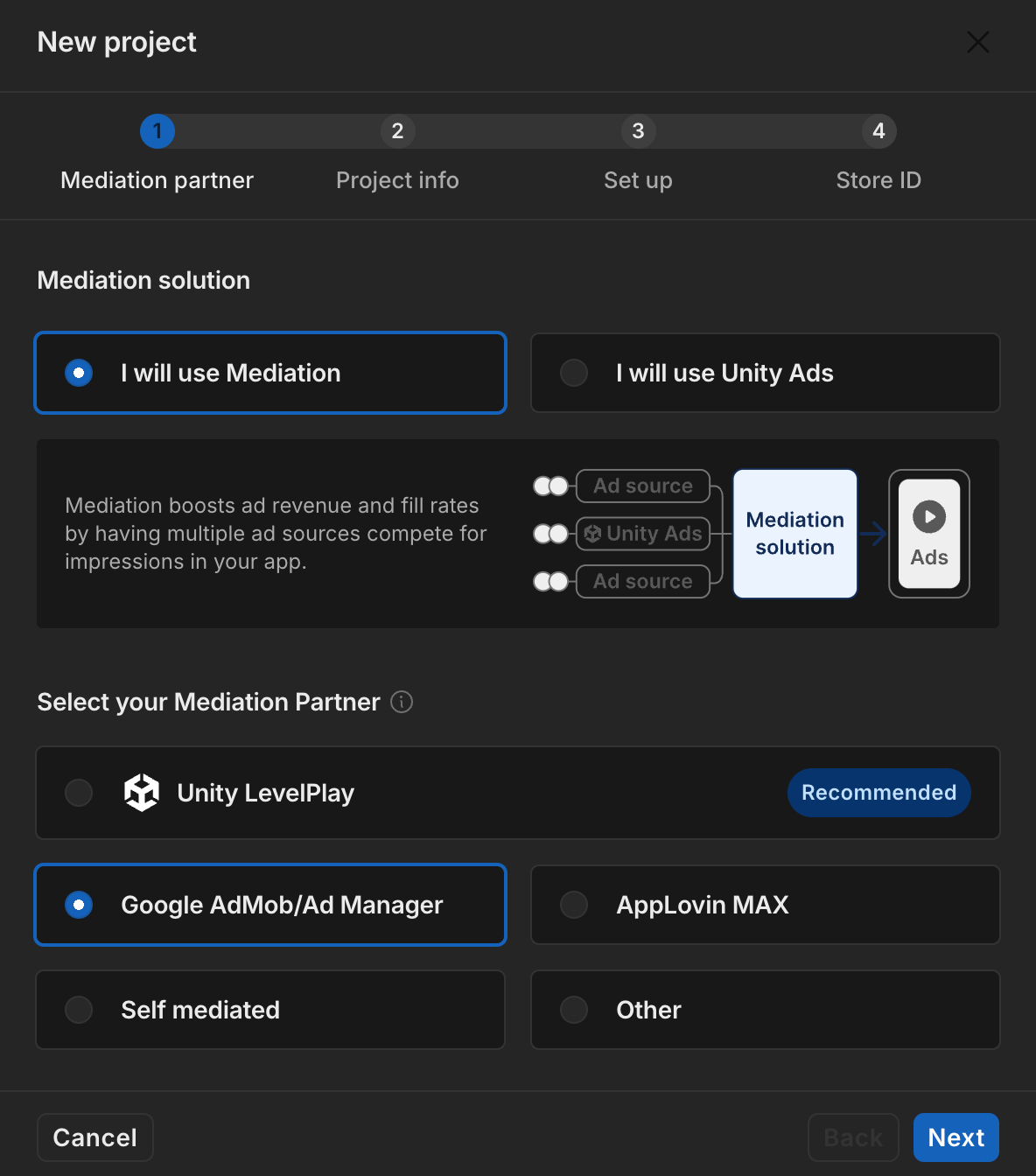
In the New Projectmodal, select I will use Mediationand Google Admobfor Mediation Partner, then click Next.
Select the option for ad settings, then click Next.

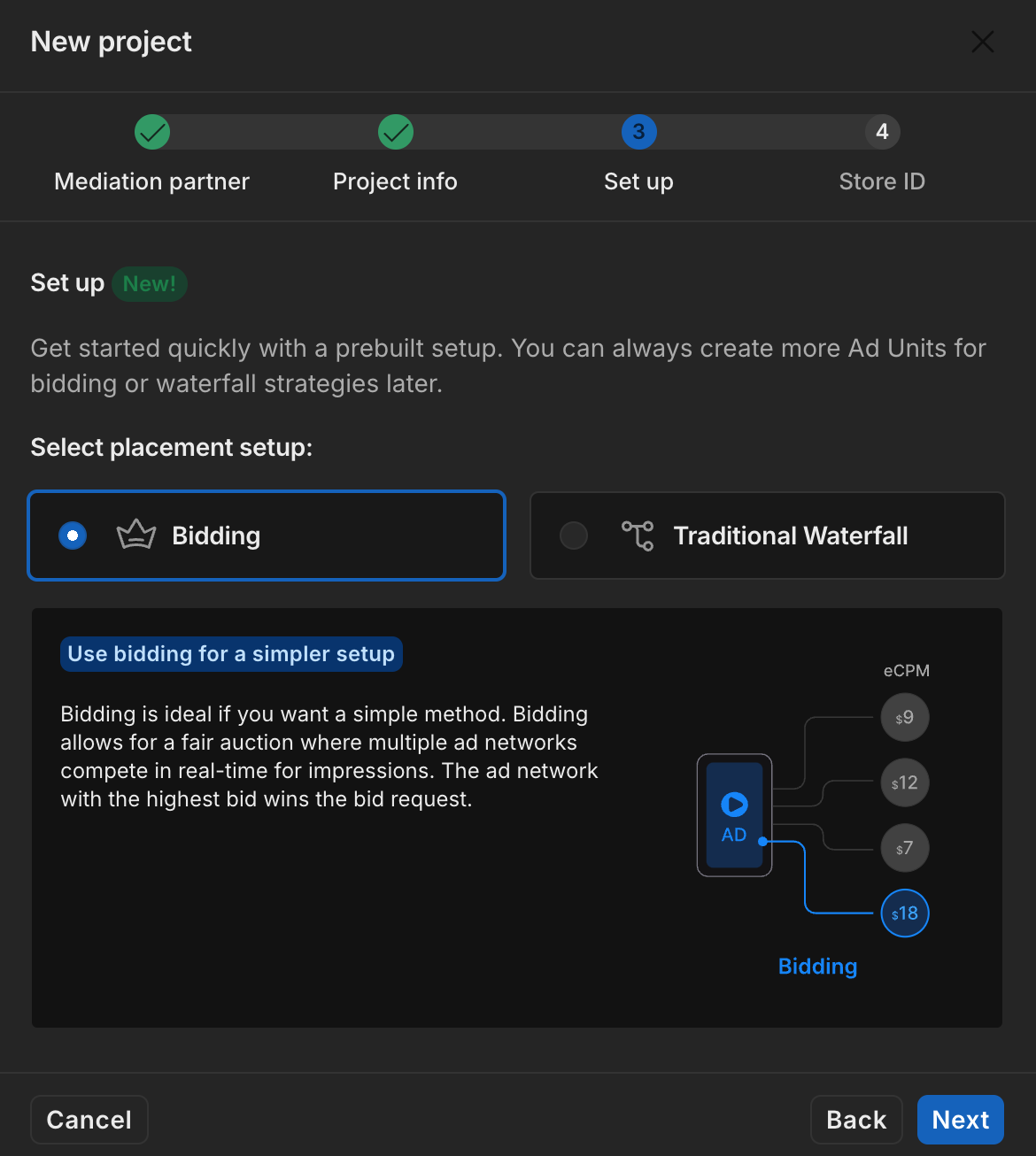
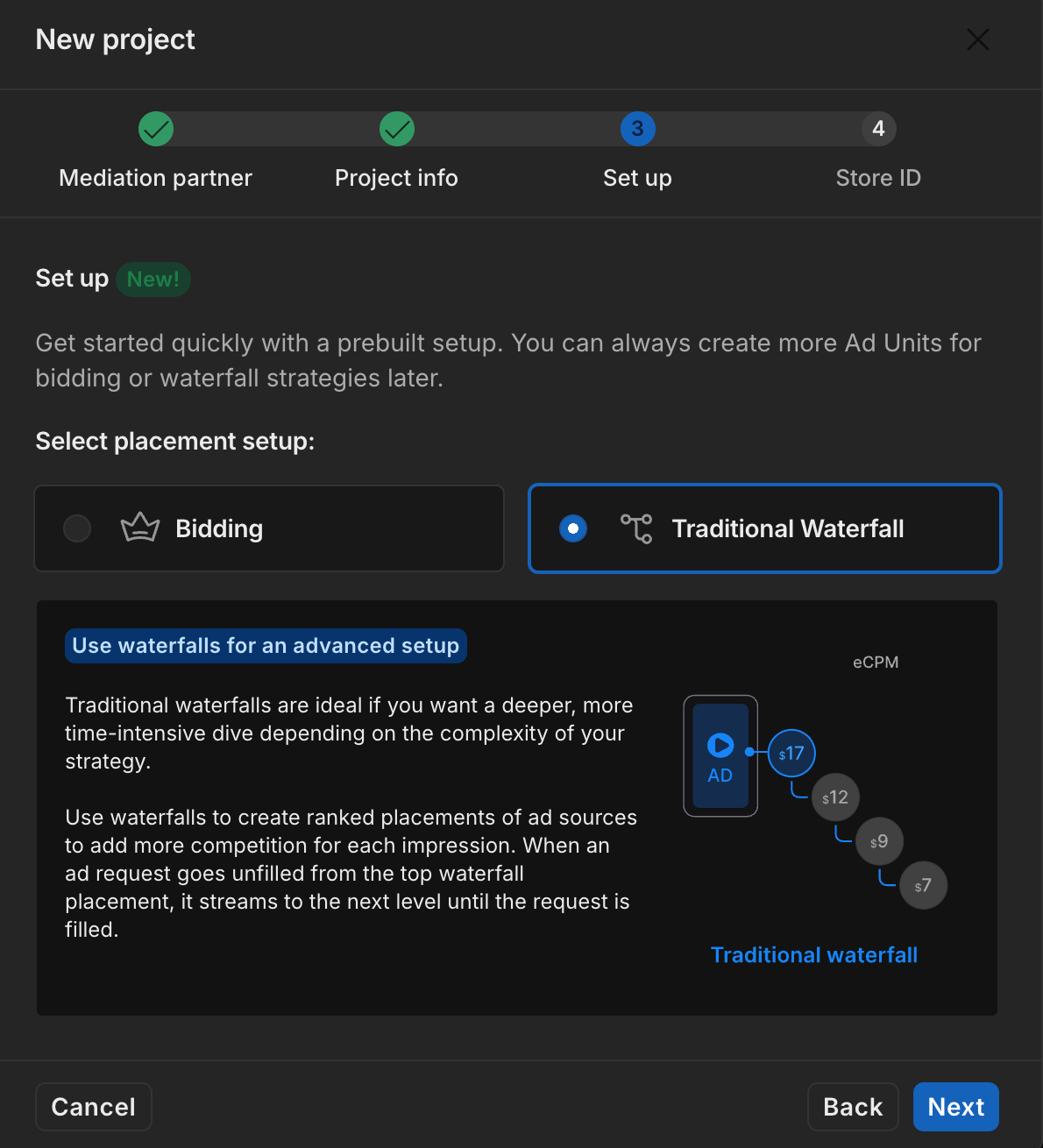
Select your placement setup, then click Next.
Bidding
Waterfall
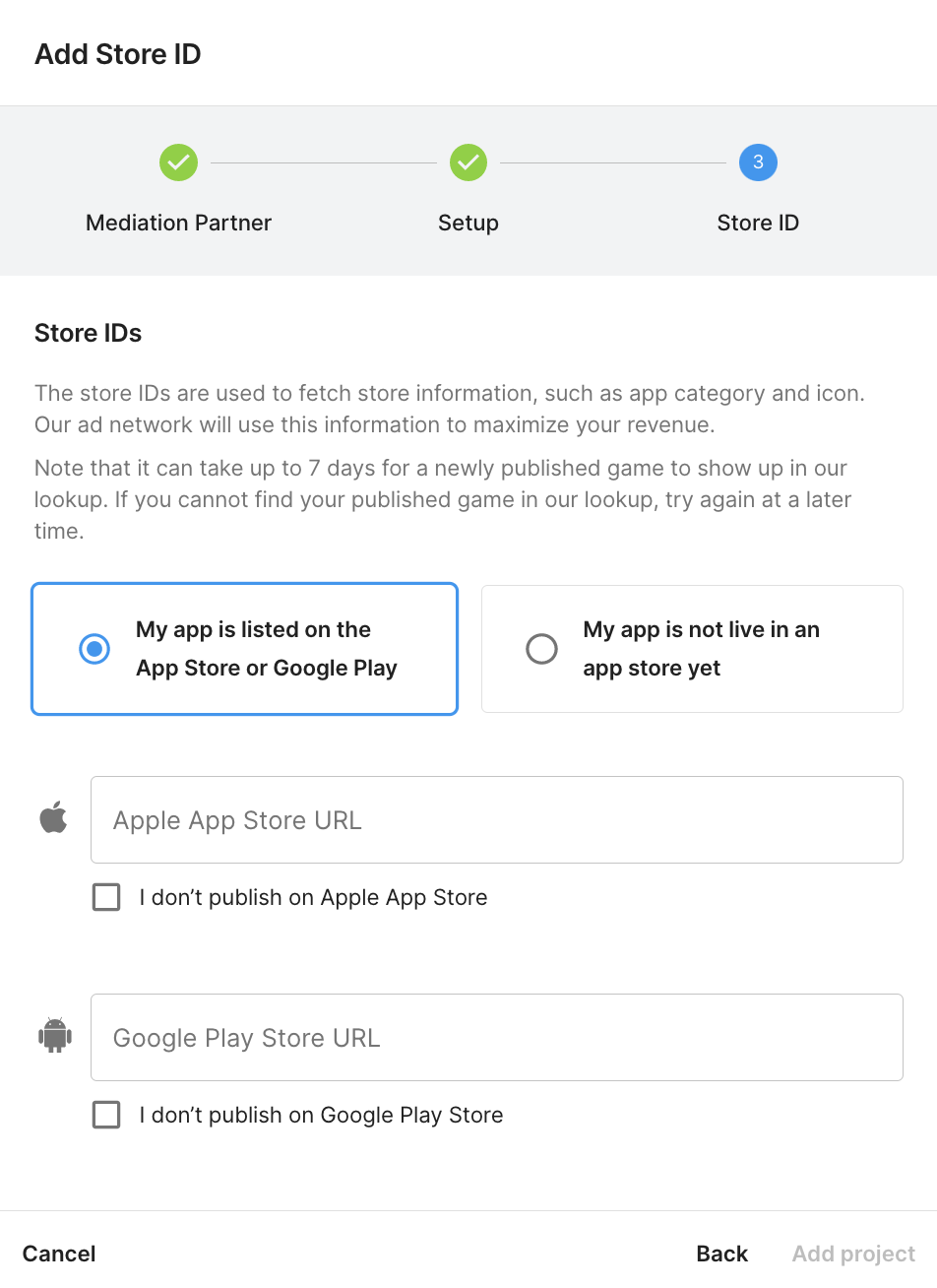
Fill out the form, then click Add project.
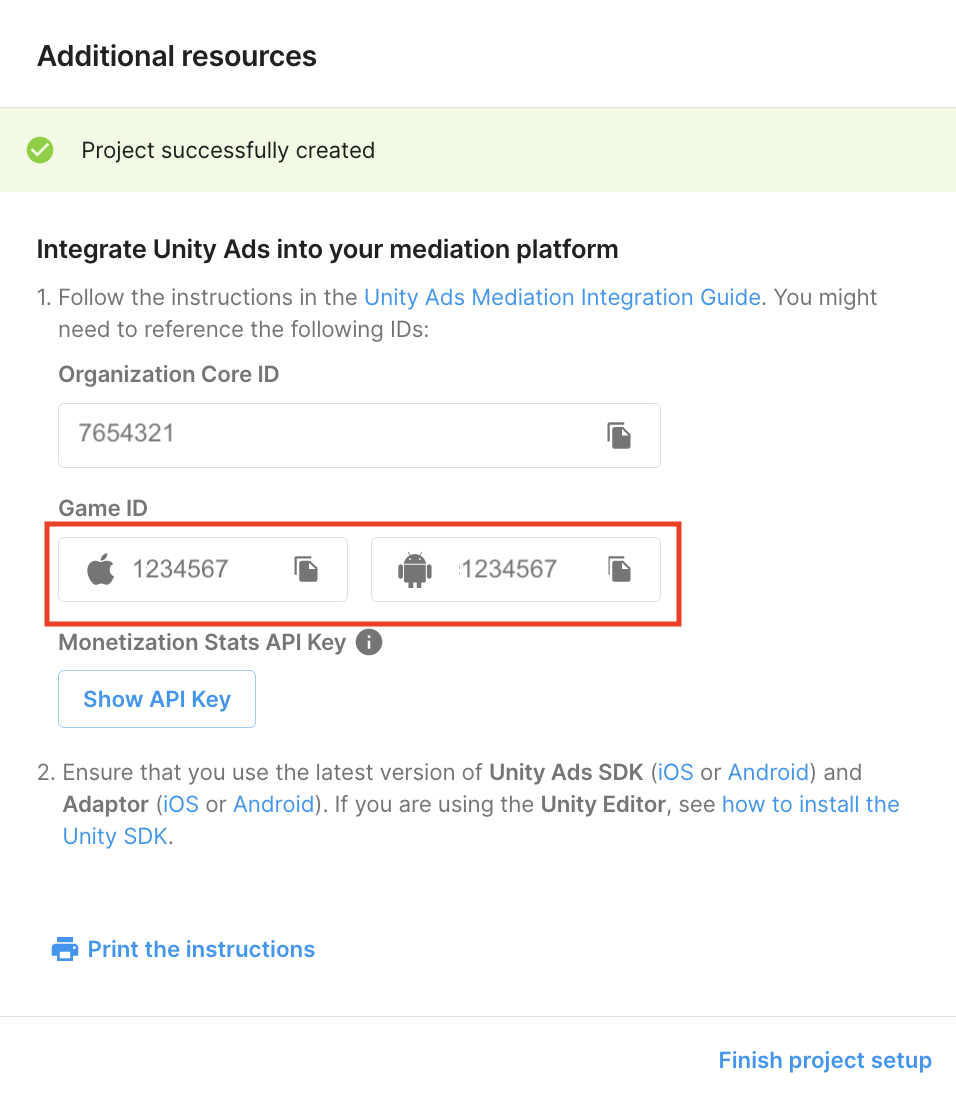
Take note of the Game ID.
Create ad units and placements
Navigate to Unity Ads Monetization> Placements, then select your project and click Add ad unit.
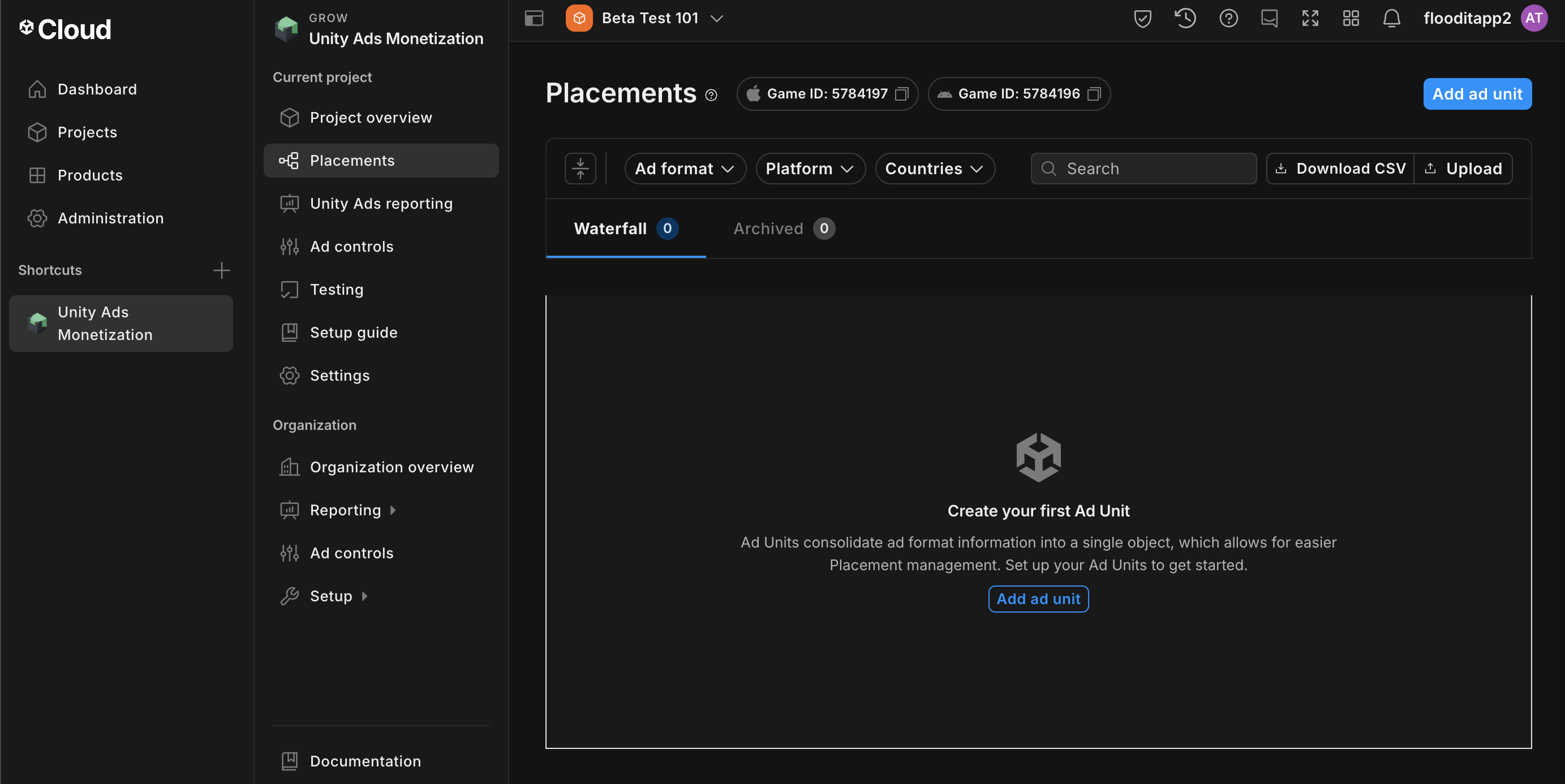
Enter an Ad unit name, then select your Platformand Ad format.
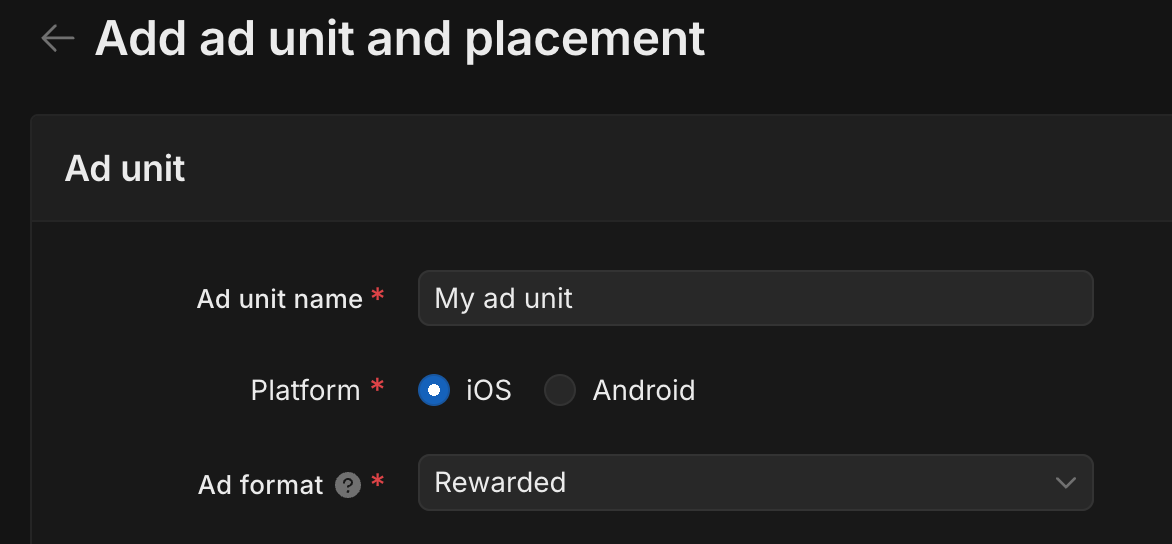
Navigate to Monetization> Placements, then click Add Ad Unit.
Enter an Ad Unit Name, then select your Platformand Ad Format.
Select Waterfallfor the Setup. Under Placement, enter the Placement name, GEO Taggingand Target.
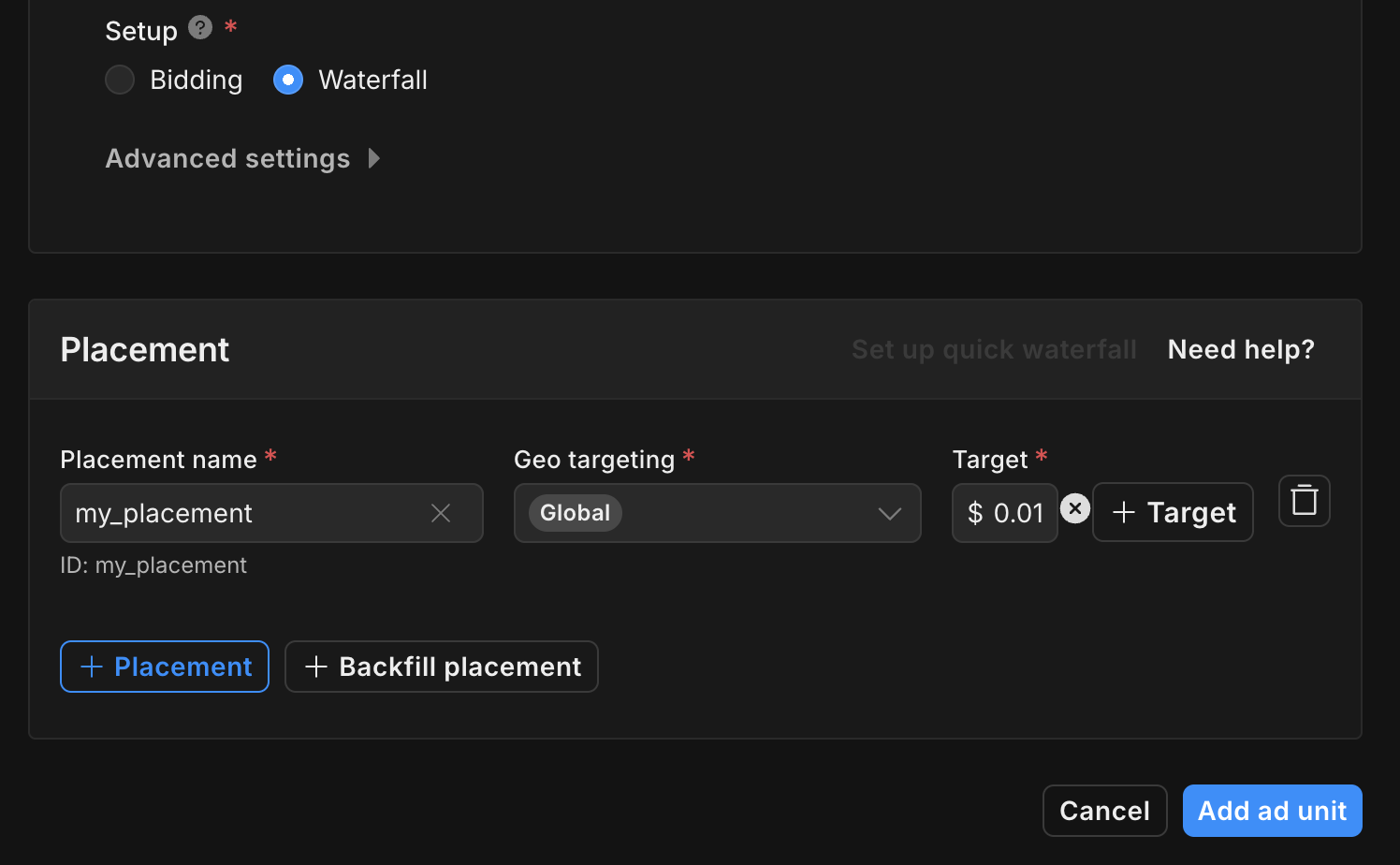
Take note of the Placement ID.
Finally, click Add ad unitto save your ad unit and placement.
Locate Unity Ads Reporting API key
Bidding
This step isn't required for bidding integrations.
Waterfall
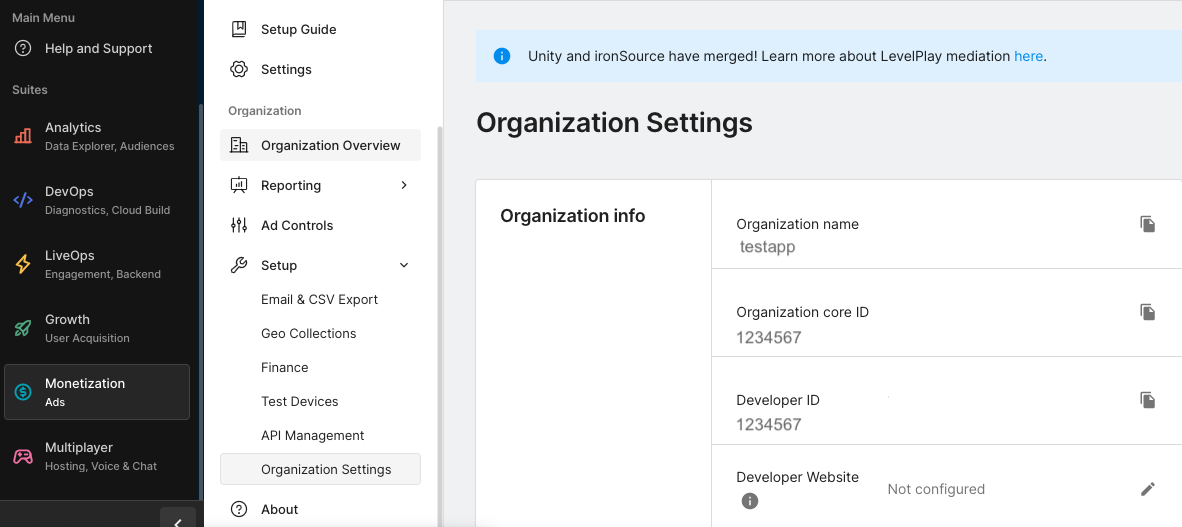
Navigate to the Unity Ads Monetization> API managementand take note of the API Keyin Monetization Stats API Access.
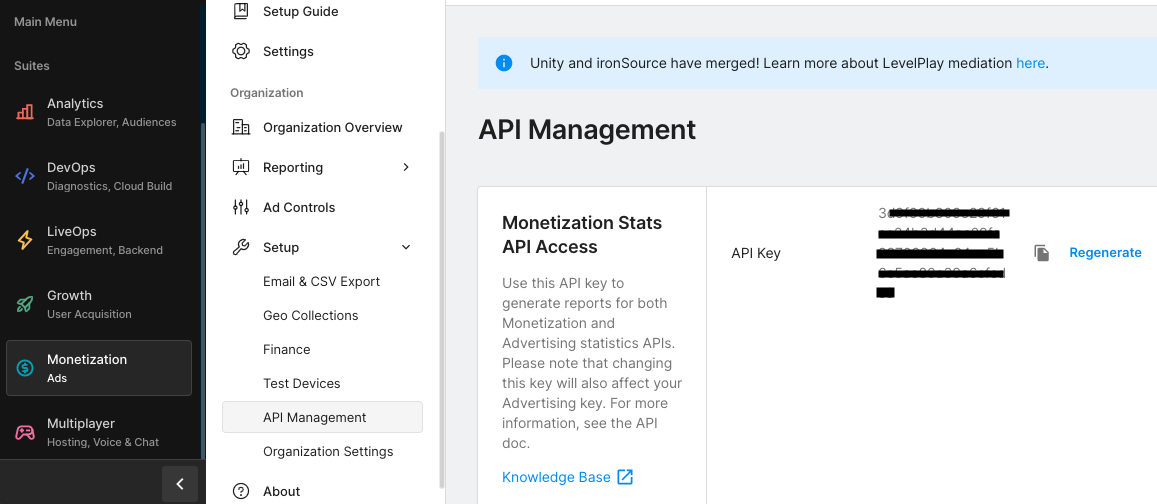
Then, navigate to the Unity Ads Monetization> Organization Settingsand take note of the Organization core ID.
Update your app-ads.txt
Authorized Sellers for Apps app-ads.txt
is an IAB Tech Lab initiative that helps ensure your
app ad inventory is only sold through channels you've identified as authorized. To prevent a
significant loss in ad revenue, you'll need to implement an app-ads.txt
file.
If you haven't done so already, create an app-ads.txt file for Ad Manager
.
To implement app-ads.txt
for Unity Ads, see setting up app-ads.txt for the first time
.
Turn on test mode
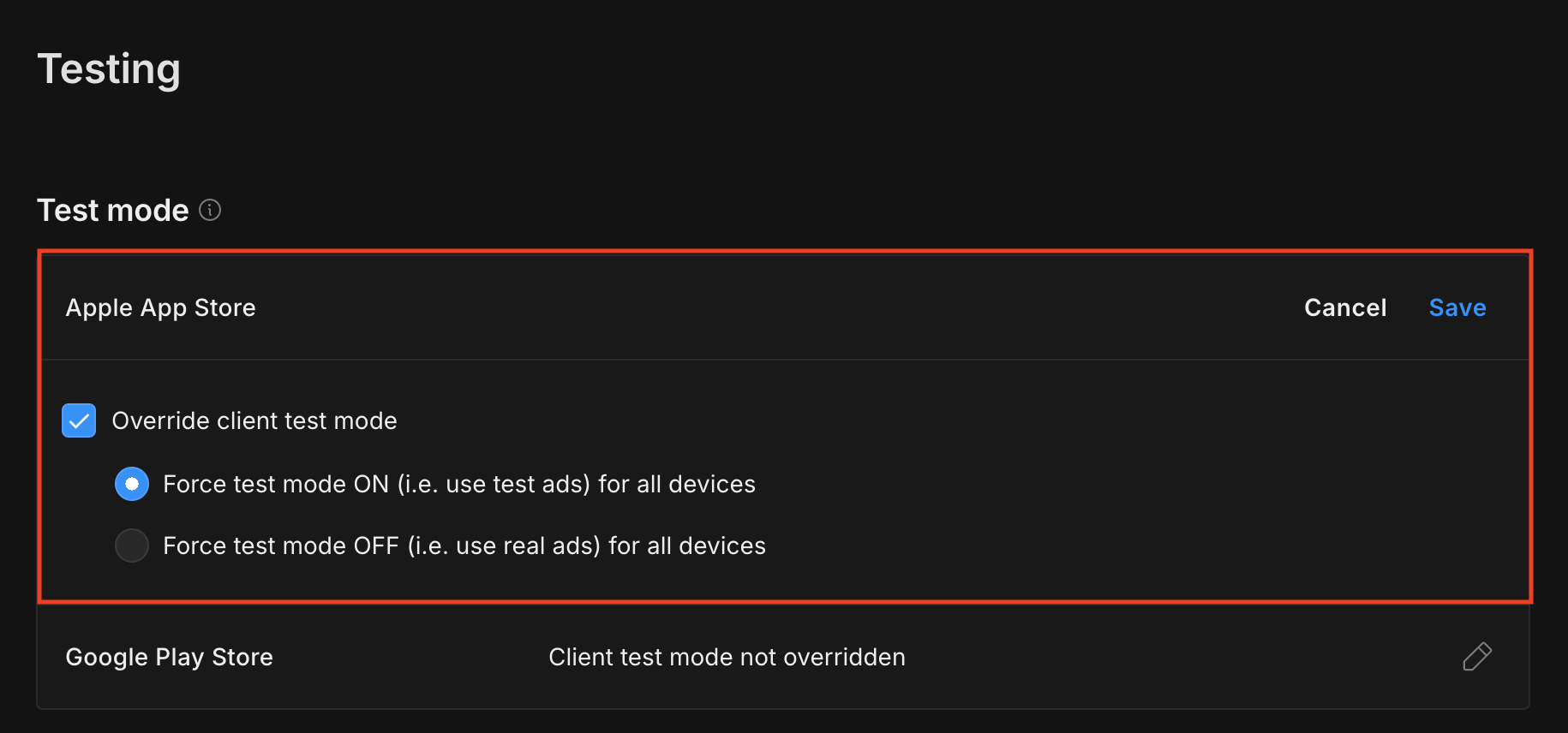
Test mode can be enabled from the Unity Ads dashboard . Navigate to Unity Ads Monetization> Testing.
You can force test mode for your app by clicking the edit button beside Apple App Store, enabling Override client test modeand selecting Force test mode ON (i.e. use test ads) for all devices.
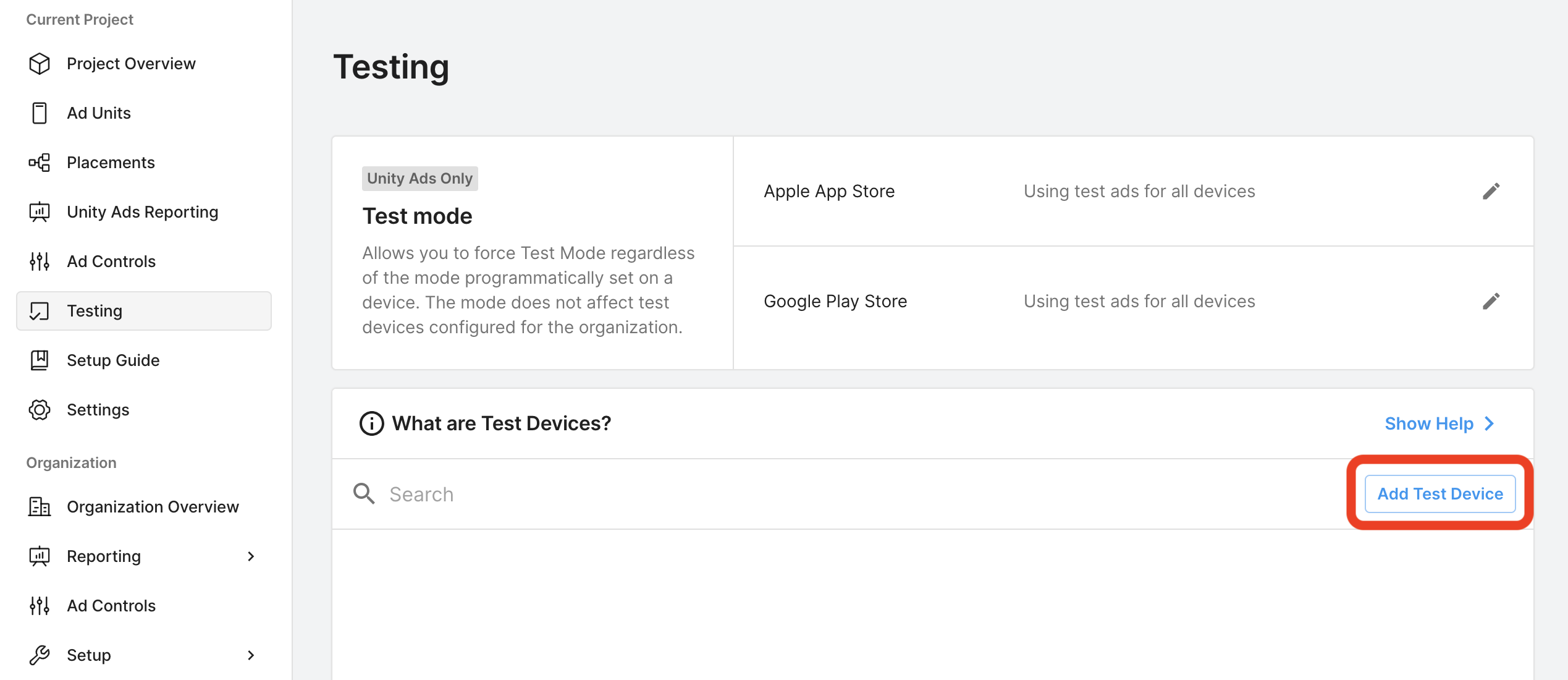
Alternatively, you can enable test mode for specific devices by clicking Add Test Device.
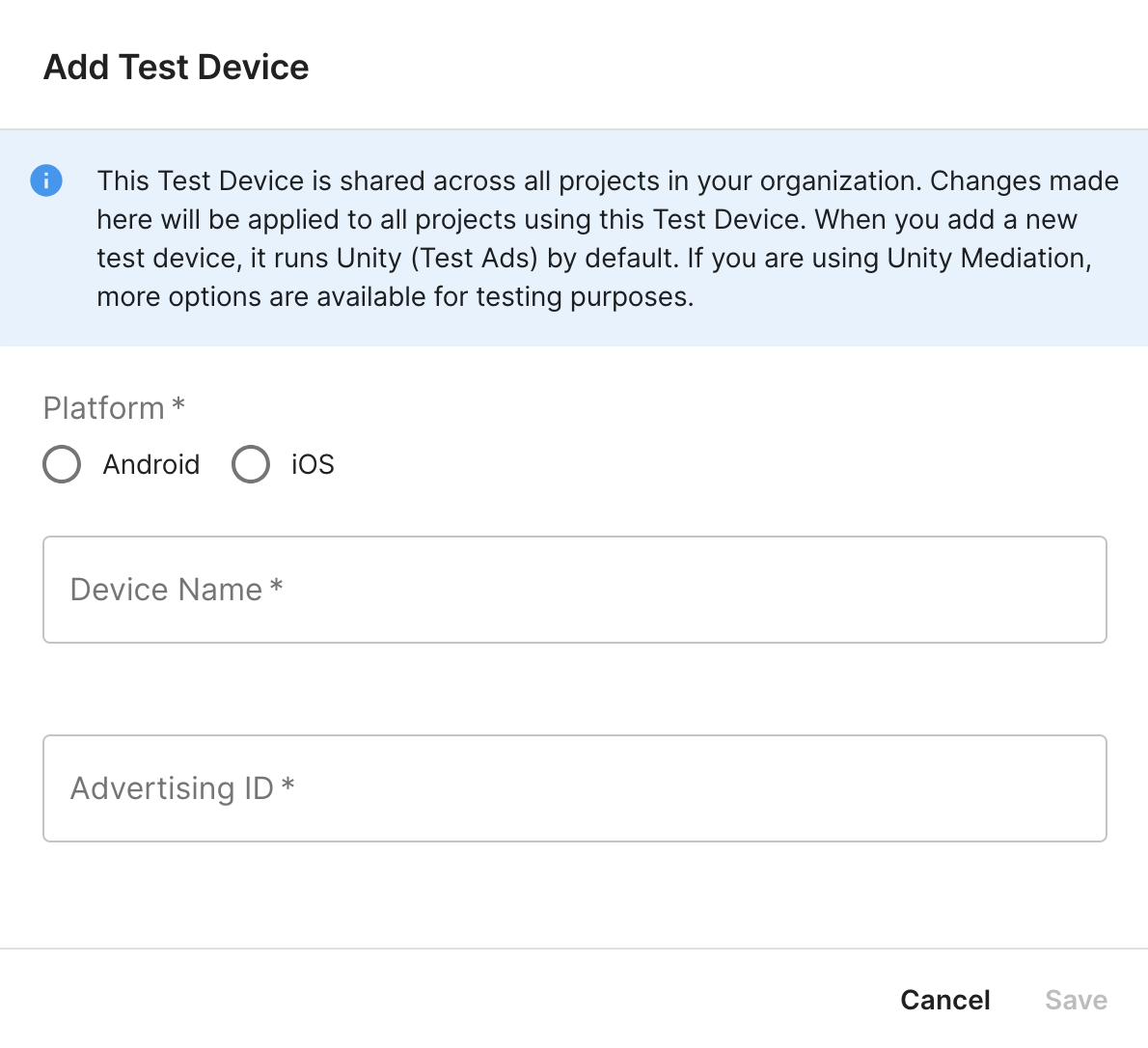
Enter your test device details, then click Save.
Step 2: Set up Unity Ads demand in Ad Manager UI
Sign in to your Ad Manager account .
Add Unity Ads in Companies
Bidding
This step isn't required for bidding integrations.
Waterfall
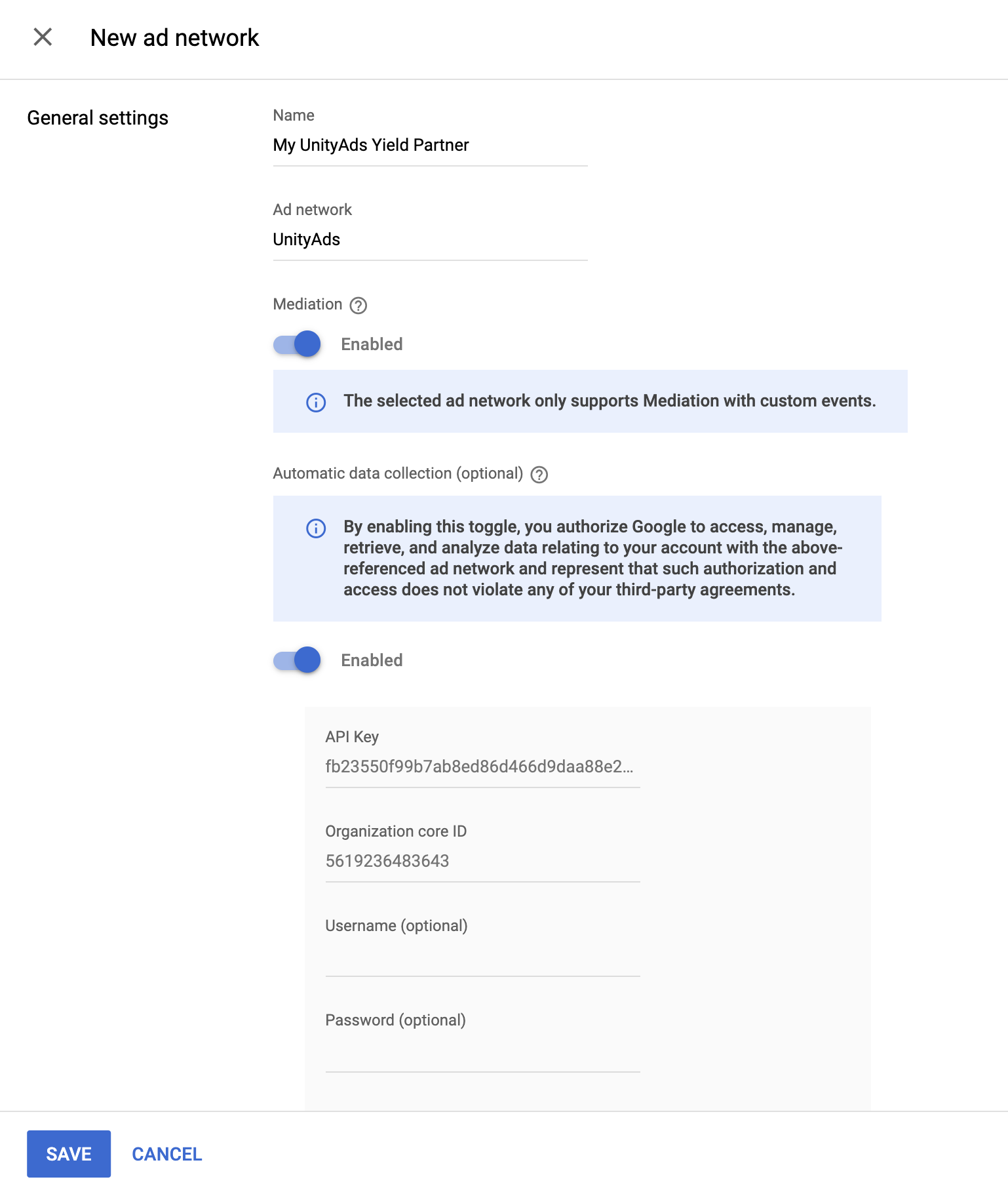
Navigate to Admin> Companies, then click the New companybutton in the All companiestab. Select Ad network.

Select Unity Adsas the Ad network, enter a unique Nameand enable Mediation. Turn on Automatic data collection, and enter the API Key and Organization core ID obtained in the previous section.
You don't need to enter a Usernameor Password. Click Savewhen done.
Enable secure signal sharing
Bidding
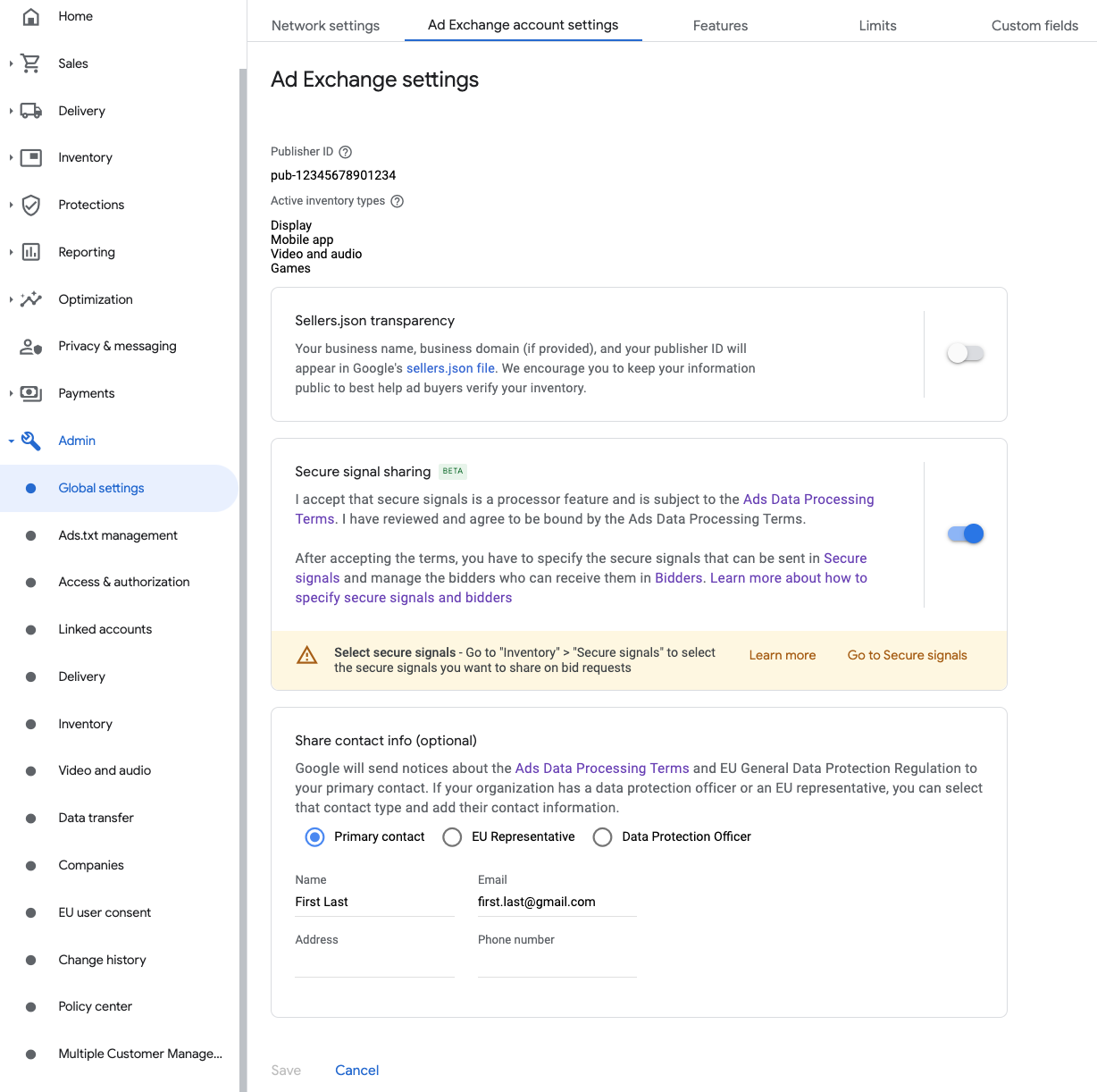
Navigate to Admin> Global settings. Go to the Ad Exchange account settingstab and review and toggle on Secure signal sharing. Click Save.
Waterfall
This step isn't required for waterfall integrations.
Share secure signal on bid requests
Bidding
Navigate to Inventory> Secure Signals. Under Secure signals, search for Unity Adsand toggle on Enable app integration.

Click Save.
Waterfall
This step isn't required for waterfall integrations.
Allow secure signal sharing for SDK Bidding
Bidding
Navigate to Delivery> Demand channel settings. In the Default settingstab, toggle on Allow secure signal sharingfor SDK Bidding.
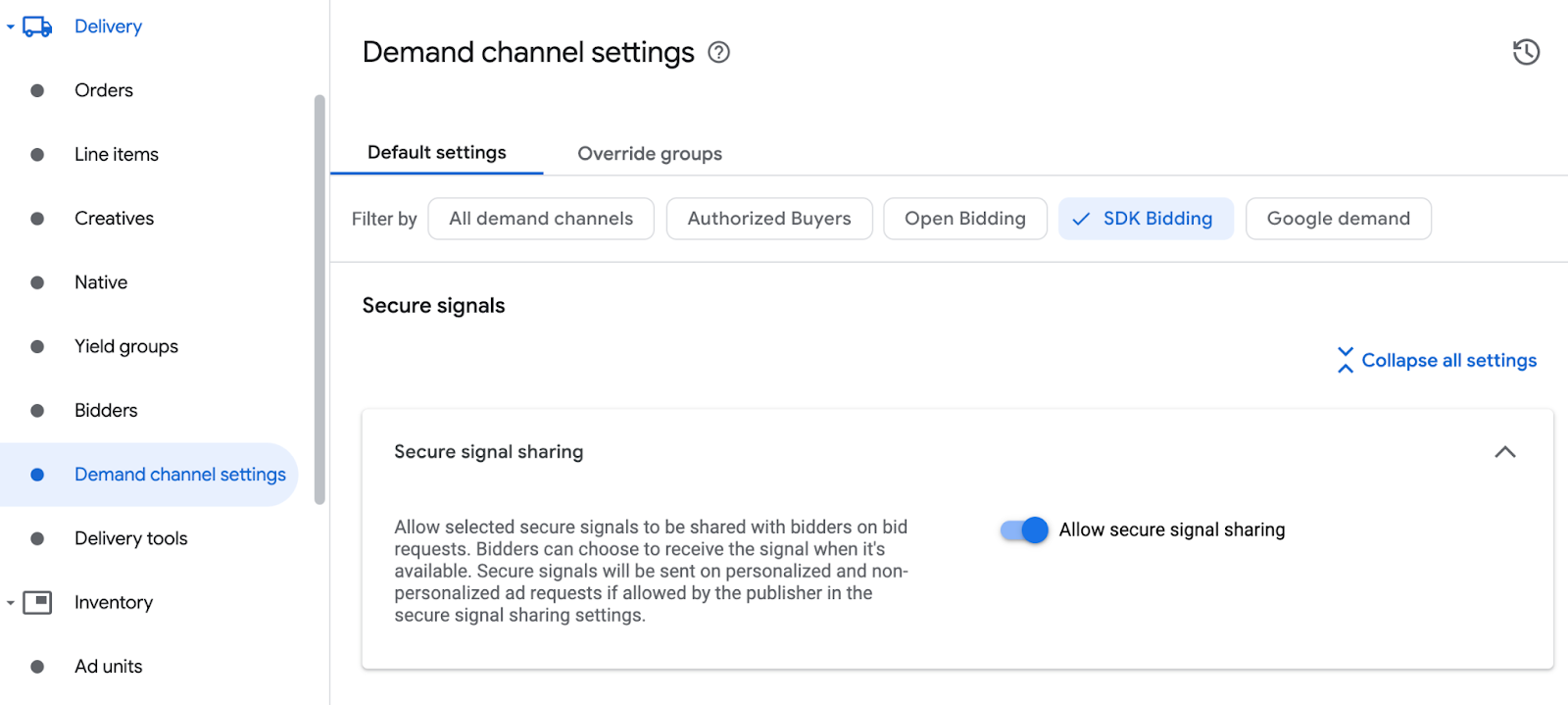
Click Save.
Waterfall
This step isn't required for waterfall integrations.
Configure Unity Ads bidding
Bidding
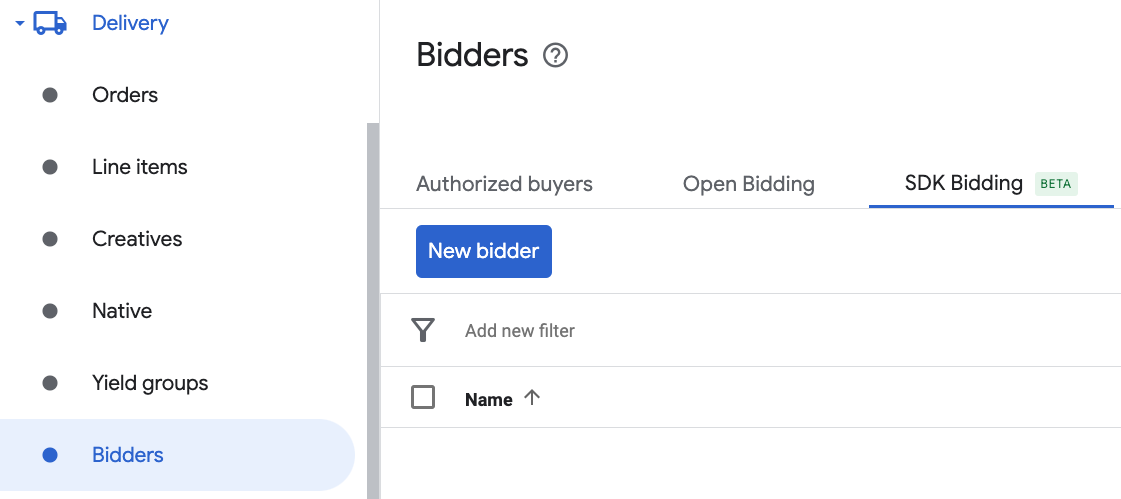
Navigate to Delivery> Bidders, and click Go to SDK Bidding.
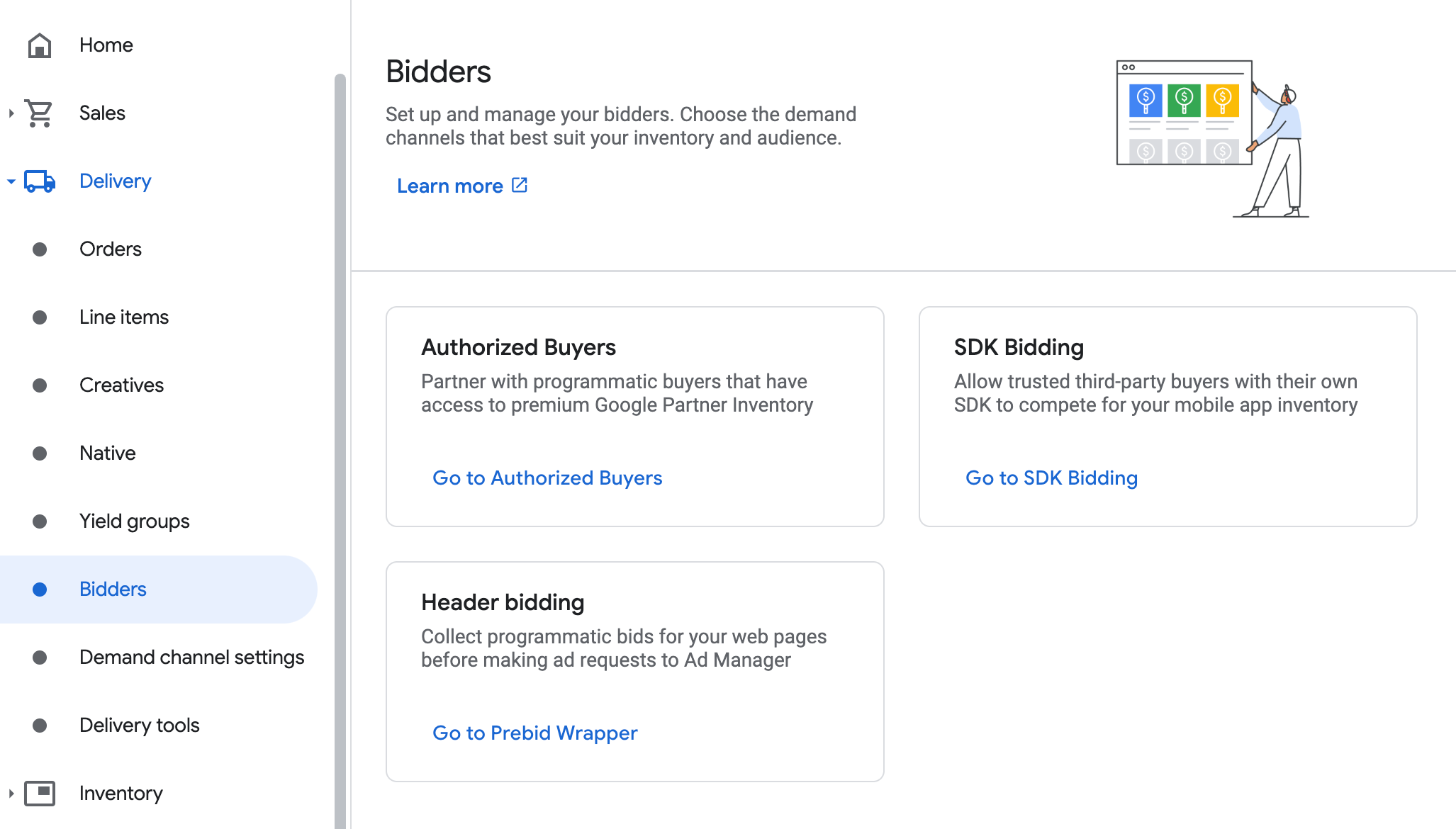
Click New bidder.
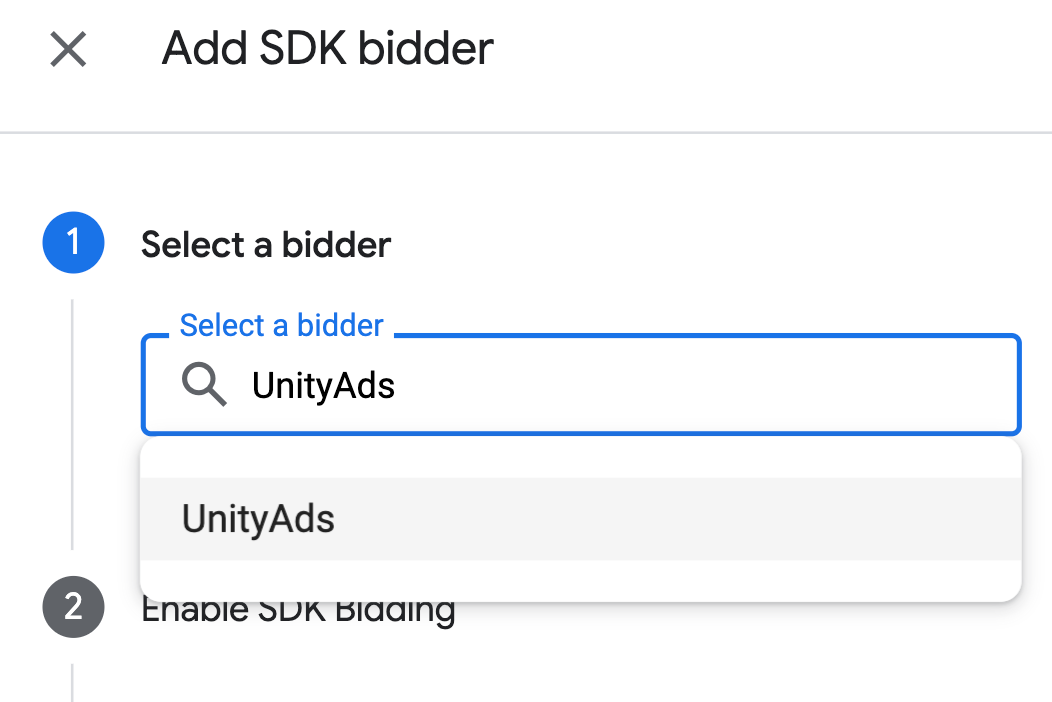
Select Unity Adsas the bidder.
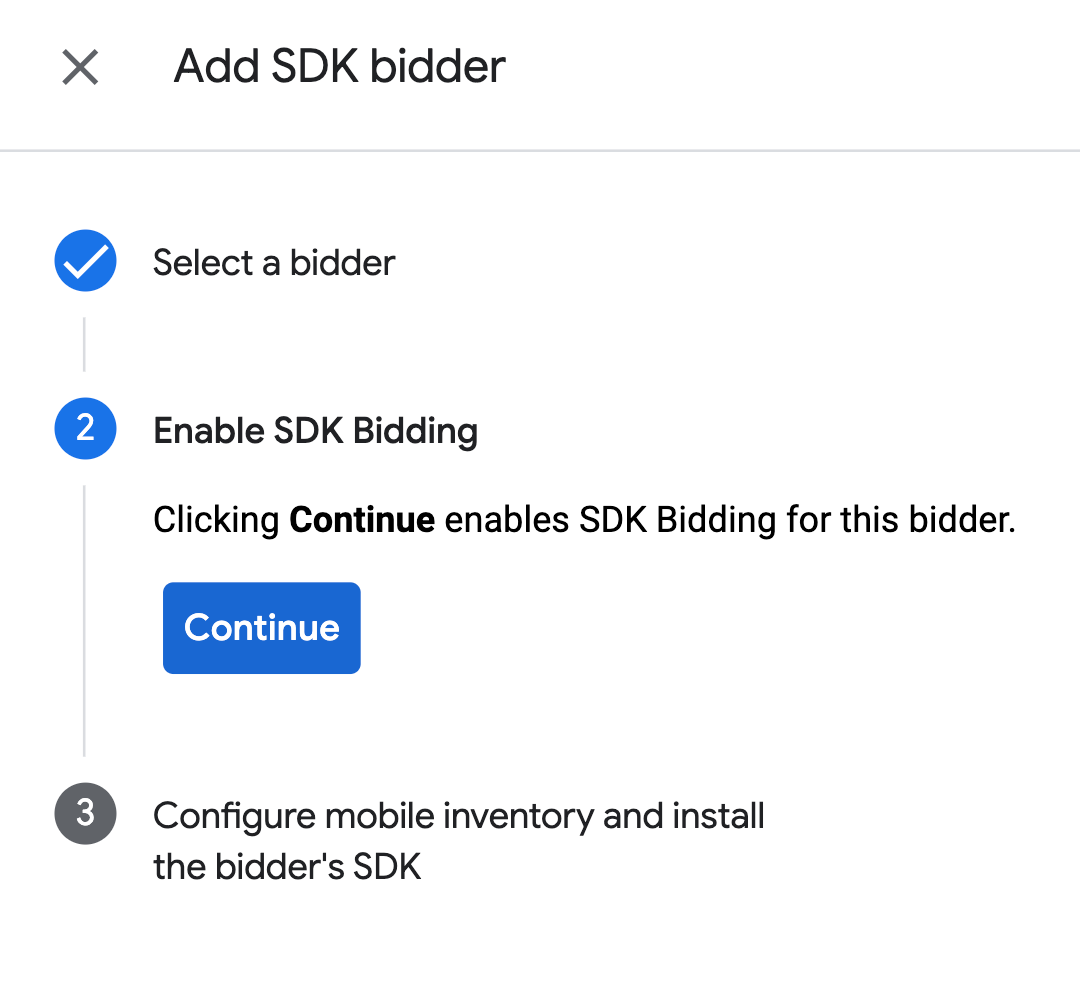
Click Continueto enable SDK Bidding for this bidder.
Click Done.
Waterfall
This step isn't required for waterfall integrations.
Configure ad unit mapping
Bidding
Navigate to Delivery> Bidders, and click Go to SDK Bidding.
Select the company for Unity Ads.
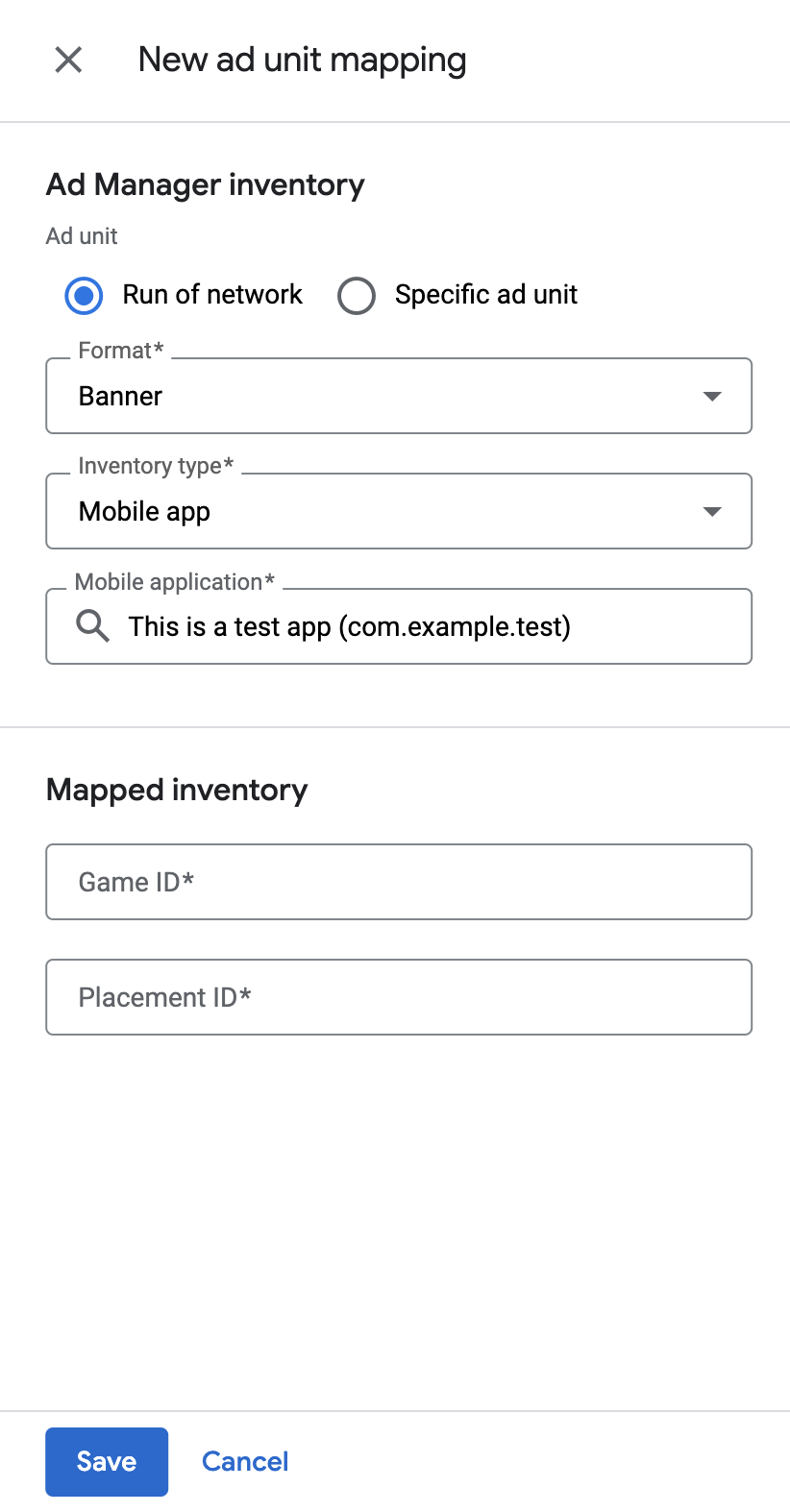
Go to the Ad unit mappingtab and click New ad unit mapping.
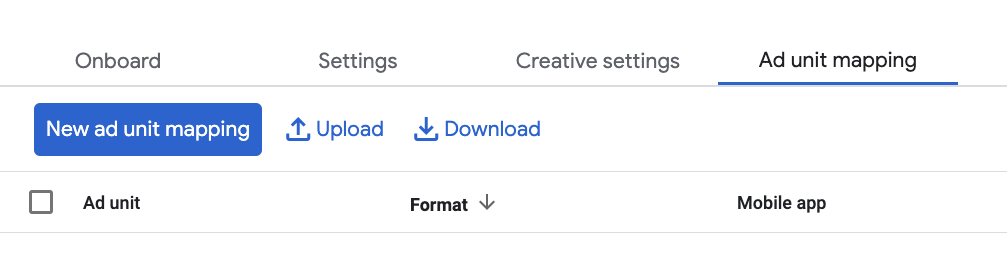
Choose Specific ad unit. Select an ad unit and format, Mobile appas the Inventory type, and your Mobile application. Then, enter Game ID and Placement ID obtained in the previous section.
Finally, click Save.
Waterfall
Navigate to Delivery> Yield groupsand click the New yield groupbutton. Select your Mobile application.
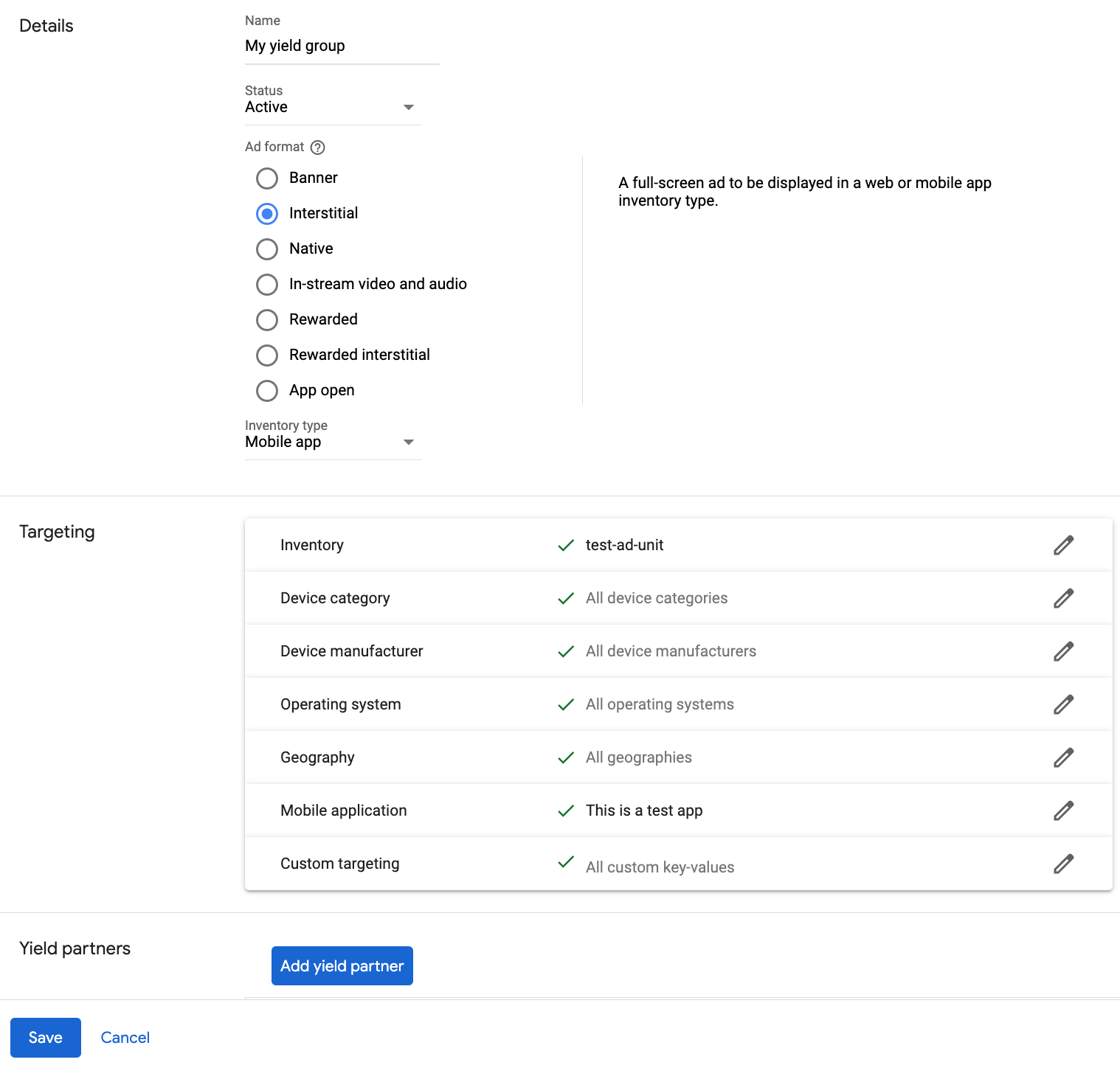
Scroll down and click Add yield partner.

Select the company you created for Unity Ads in the previous section. Choose Mobile SDK mediationas the Integration type, iOSas the Platform, and Activeas the Status.
Enter the Game ID and Placement ID obtained in the previous section, and the Default CPMvalue. Click Save.
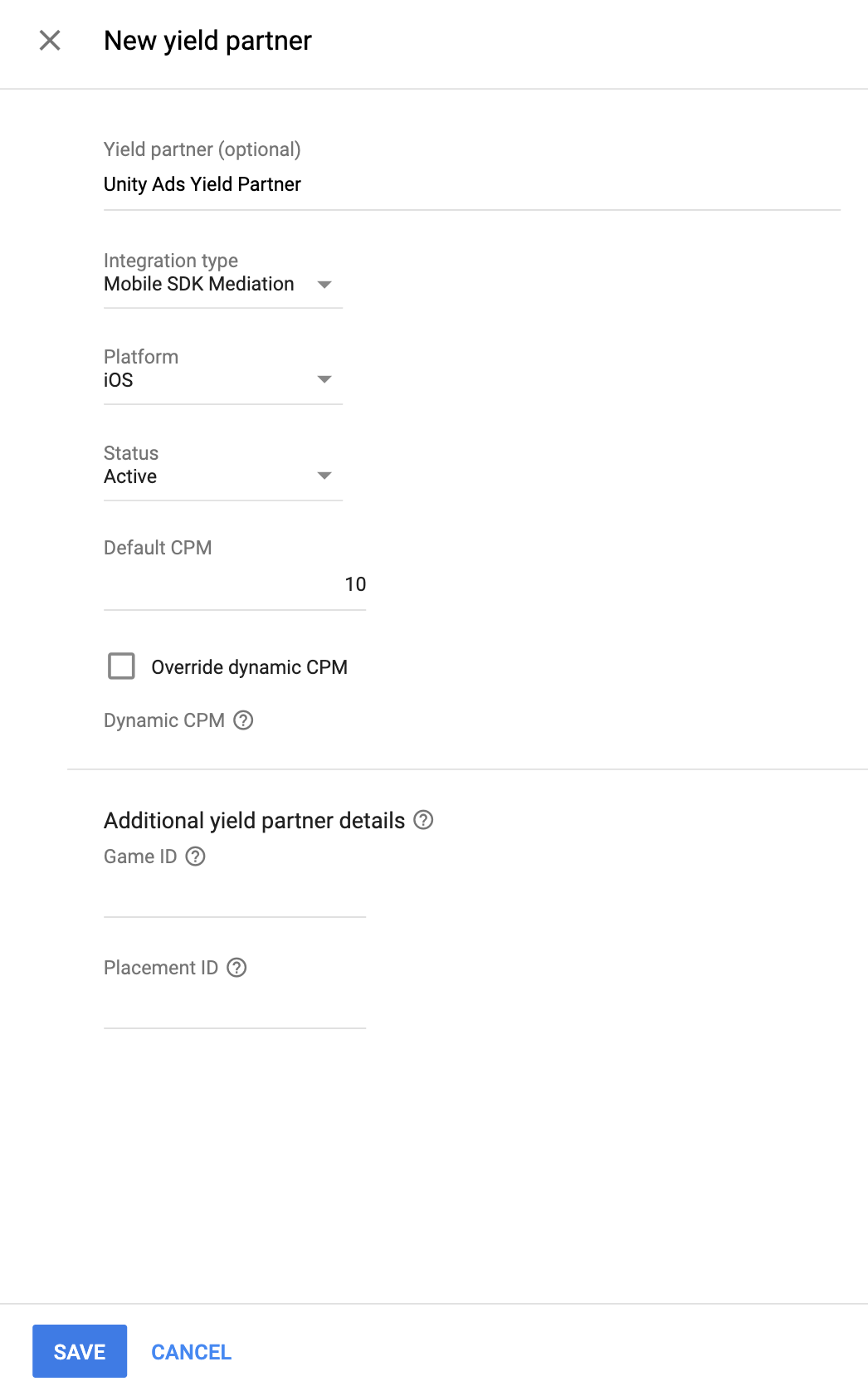
Note: Automatic data collection takes a few days to gather data before it can accurately calculate a Dynamic CPM value for a mediation network. Once the eCPM can be calculated, it is automatically updated on your behalf.
Add Unity Ads to GDPR and US state regulations ad partners list
Follow the steps in European regulations settings and US state regulations settings to add Unity Adsto the European and US state regulations ad partners list in the Ad Manager UI.
Step 3: Import the Unity Ads SDK and adapter
Use Swift Package Manager
Before you continue, you must have the minimum supported adapter version 4.16.0.0.
To add a package dependency to your project, follow these steps:
-
In Xcode, navigate to File > Add Package Dependencies....
-
In the prompt that appears, search the following package URL:
https://github.com/googleads/googleads-mobile-ios-mediation-unity.git -
In Dependency Rule, select Branch.
-
In the text field, enter
main.
Use CocoaPods
-
Add the following line to your project's Podfile:
pod 'GoogleMobileAdsMediationUnity' -
From the command line run:
 pod
install
--repo-update
Manual integration
-
Download the latest version of the Unity Ads SDK , and link UnityAds.frameworkin your project.
-
Download the latest version of the Unity Ads adapter from the download link in the Changelog and link UnityAdapter.frameworkin your project.
Step 4: Implement privacy settings on Unity Ads SDK
EU consent and GDPR
To comply with Google EU User Consent Policy , you must make certain disclosures to your users in the European Economic Area (EEA), the UK, and Switzerland, and obtain their consent for the use of cookies or other local storage where legally required, and for the collection, sharing, and use of personal data for ads personalization. This policy reflects the requirements of the EU ePrivacy Directive and the General Data Protection Regulation (GDPR). You are responsible for verifying consent is propagated to each ad source in your mediation chain. Google is unable to pass the user's consent choice to such networks automatically.
In SDK version 2.0.0, Unity Ads added an API to support privacy settings. The following sample code shows how to pass this consent information to the Unity Ads SDK. Should you choose to pass consent information to the Unity Ads SDK manually, it is recommended that this code is called prior to requesting ads through the Google Mobile Ads SDK .
Swift
let
gdprMetaData
=
UADSMetaData
()
gdprMetaData
.
set
(
"gdpr.consent"
,
value
:
true
)
gdprMetaData
.
commit
()
Objective-C
UADSMetaData
*
gdprMetaData
=
[[
UADSMetaData
alloc
]
init
];
[
gdprMetaData
set
:
@"gdpr.consent"
value
:
@YES
];
[
gdprMetaData
commit
];
See Unity Ads' GDPR Compliance for more details and the values that can be provided in each method.
US states privacy laws
US states privacy laws require giving users the right to opt out of the "sale" of their "personal information" (as the law defines those terms), with the opt-out offered through a prominent "Do Not Sell My Personal Information" link on the "selling" party's homepage. The US states privacy laws compliance guide offers the ability to enable restricted data processing for Google ad serving, but Google is unable to apply this setting to each ad network in your mediation chain. Therefore, you must identify each ad network in your mediation chain that may participate in the sale of personal information and follow guidance from each of those networks to ensure compliance.
In SDK version 2.0.0, Unity Ads added an API to support privacy settings. The following sample code shows how to pass this consent information to the Unity Ads SDK. Should you choose to pass consent information to the Unity Ads SDK manually, it is recommended that this code is called prior to requesting ads through Google Mobile Ads SDK .
Swift
let
ccpaMetaData
=
UADSMetaData
()
ccpaMetaData
.
set
(
"privacy.consent"
,
value
:
true
)
ccpaMetaData
.
commit
()
Objective-C
UADSMetaData
*
ccpaMetaData
=
[[
UADSMetaData
alloc
]
init
];
[
ccpaMetaData
set
:
@"privacy.consent"
value
:
@YES
];
[
ccpaMetaData
commit
];
See Unity Ads' Consumer privacy act compliance for more details and the values that can be provided in each method.
Set age treatment
Unity Ads mediation adapter version 4.16.6.0 and later forwards the child-directed setting and users under the age of consent setting to Unity Ads.
To process these signals on a per-user basis, Unity Ads requires you to enable the Mixed Audiencedesignation in the Unity Monetization dashboard. For more information about enabling a mixed audience designation on your project, see Setting game-level age designations .
Step 5: Add required code
Implement SKAdNetwork
Follow Unity Ads's documentation
to add the SKAdNetwork identifiers to your project's Info.plist
file.
Compile errors
Swift
No additional code is required for Swift integrations.
Objective-C
For Unity Ads adapter 4.4.0.0 or higher, you must follow the integration steps in the Unity documentation .
Step 6: Test your implementation
Enable test ads
Make sure you register your test device for Ad Manager and enable test mode in Unity Ads UI.
Verify test ads
To verify that you are receiving test ads from Unity Ads, enable single ad source testing in ad inspector using the Unity Ads (Bidding) and Unity Ads (Waterfall)ad source(s).
Error codes
If the adapter fails to receive an ad from Unity Ads,
publishers can check the underlying error from the ad response using GADResponseInfo.adNetworkInfoArray
under the following classes:
  GADMAdapterUnity
 GADMediationAdapterUnity
Here are the codes and accompanying messages thrown by the UnityAds adapter when an ad fails to load:
| Error code | Reason |
|---|---|
| 0-9 | UnityAds SDK returned an error. See Unity's documentation for more details. |
| 101 | UnityAds server parameters configured in the Ad Manager UI are missing/invalid. |
| 102 | Device not supported by UnityAds. |
| 103 | UnityAds finished presenting with error state kUnityAdsFinishStateError
. |
| 104 | The Unity ad object is nil after calling its initializer. |
| 105 | Failed to show Unity Ads due to ad not ready. |
| 107 | UnityAds called a placement changed callback with placement state kUnityAdsPlacementStateDisabled
. |
| 108 | An ad was already loaded for this placement. UnityAds SDK does not support loading multiple ads for the same placement. |
| 109 | The banner ad returned by UnityAds does not match with the requested size. |
| 110 | UnityAds returned an initialization error. |
| 111 | Unsupported ad format. |
Unity Ads iOS Mediation Adapter Changelog
Next Version
- Update the minimum iOS version to relax Google Mobile Ads SDK dependency to allow minor versions.
Version 4.18.1.0
- Verified compatibility with Unity Ads SDK 4.18.1.
Built and tested with:
- Google Mobile Ads SDK version 13.4.0.
- Unity Ads SDK version 4.18.1.
Version 4.18.0.0
- Verified compatibility with Unity Ads SDK 4.18.0.
Built and tested with:
- Google Mobile Ads SDK version 13.3.0.
- Unity Ads SDK version 4.18.0.
Version 4.17.0.0
- Verified compatibility with Unity Ads SDK 4.17.0.
Built and tested with:
- Google Mobile Ads SDK version 13.1.0.
- Unity Ads SDK version 4.17.0.
Version 4.16.6.1
- Updated the Google Mobile Ads SDK dependency to version 13.0.0.
- Fixed an issue in version 4.16.6.0 where the podspec incorrectly pointed to the 4.16.5.0 binary.
Built and tested with:
- Google Mobile Ads SDK version 13.0.0.
- Unity Ads SDK version 4.16.6.
Version 4.16.6.0
- Verified compatibility with Unity Ads SDK 4.16.6.
- Added support for forwarding the
tagForUnderAgeOfConsentGoogle Mobile Ads SDK parameter to the Unity Ads SDK.
Built and tested with:
- Google Mobile Ads SDK version 13.0.0.
- Unity Ads SDK version 4.16.6.
Version 4.16.5.0
- Verified compatibility with Unity Ads SDK 4.16.5.
Built and tested with:
- Google Mobile Ads SDK version 12.14.0.
- Unity Ads SDK version 4.16.5.
Version 4.16.4.0
- Verified compatibility with Unity Ads SDK 4.16.4.
Built and tested with:
- Google Mobile Ads SDK version 12.13.0.
- Unity Ads SDK version 4.16.4.
Version 4.16.3.0
- Verified compatibility with Unity Ads SDK 4.16.3.
Built and tested with:
- Google Mobile Ads SDK version 12.12.0.
- Unity Ads SDK version 4.16.3.
Version 4.16.2.0
- Updated ad loading methods to wait for the Unity Ads SDK to be fully initialized before attempting to load an ad.
- Resolved a race condition where completion callbacks could potentially be dropped if multiple initializations are in progress.
- Verified compatibility with Unity Ads SDK 4.16.2.
Built and tested with:
- Google Mobile Ads SDK version 12.12.0.
- Unity Ads SDK version 4.16.2.
Version 4.16.1.0
- Verified compatibility with Unity Ads SDK 4.16.1.
Built and tested with:
- Google Mobile Ads SDK version 12.9.0.
- Unity Ads SDK version 4.16.1.
Version 4.16.0.0
- Now requires minimum iOS version
13.0. - Verified compatibility with Unity Ads SDK 4.16.0.
Built and tested with:
- Google Mobile Ads SDK version 12.8.0.
- Unity Ads SDK version 4.16.0.
Version 4.15.1.0
- Verified compatibility with Unity Ads SDK 4.15.1.
Built and tested with:
- Google Mobile Ads SDK version 12.6.0.
- Unity Ads SDK version 4.15.1.
Version 4.15.0.0
- Added error code
111: Unsupported ad format. - Verified compatibility with Unity Ads SDK 4.15.0.
Built and tested with:
- Google Mobile Ads SDK version 12.5.0.
- Unity Ads SDK version 4.15.0.
Version 4.14.2.0
- Verified compatibility with Unity Ads SDK 4.14.2.
Built and tested with:
- Google Mobile Ads SDK version 12.3.0.
- Unity Ads SDK version 4.14.2.
Version 4.14.1.1
- For bidding, the adapter no longer checks the banner ad size.
- For waterfall, the adapter now checks whether the loaded Unity Ads banner ad aspect ratio matches with the requested banner ad size.
Built and tested with:
- Google Mobile Ads SDK version 12.2.0.
- Unity Ads SDK version 4.14.1.
Version 4.14.1.0
- Verified compatibility with Unity Ads SDK 4.14.1.
Built and tested with:
- Google Mobile Ads SDK version 12.2.0.
- Unity Ads SDK version 4.14.1.
Version 4.14.0.0
- Enabled
-fobjc-arcand-fstack-protector-allflags. - Verified compatibility with Unity Ads SDK 4.14.0.
Built and tested with:
- Google Mobile Ads SDK version 12.2.0.
- Unity Ads SDK version 4.14.0.
Version 4.13.2.0
- Verified compatibility with Unity Ads SDK 4.13.2.
Built and tested with:
- Google Mobile Ads SDK version 12.1.0.
- Unity Ads SDK version 4.13.2.
Version 4.13.1.1
- Now requires Google Mobile Ads SDK version 12.0.0 or higher.
Built and tested with:
- Google Mobile Ads SDK version 12.0.0.
- Unity Ads SDK version 4.13.1.
Version 4.13.1.0
- Added the
GADMediationAdapterUnity.testModeproperty to indicate whether the Unity Ads SDK should be initialized in test mode. This flag must be set before initializing the Google Mobile Ads SDK. - Updated to report the Unity Ads SDK's error code when an ad fails to load.
Built and tested with:
- Google Mobile Ads SDK version 11.13.0.
- Unity Ads SDK version 4.13.1.
Version 4.13.0.0
- Verified compatibility with Unity Ads SDK 4.13.0.
Built and tested with:
- Google Mobile Ads SDK version 11.13.0.
- Unity Ads SDK version 4.13.0.
Version 4.12.5.0
- Verified compatibility with Unity Ads SDK 4.12.5.
Built and tested with:
- Google Mobile Ads SDK version 11.12.0.
- Unity Ads SDK version 4.12.5.
Version 4.12.4.0
- Verified compatibility with Unity Ads SDK 4.12.4.
Built and tested with:
- Google Mobile Ads SDK version 11.12.0.
- Unity Ads SDK version 4.12.4.
Version 4.12.3.1
- Updated
CFBundleShortVersionStringto have three components instead of four.
Built and tested with:
- Google Mobile Ads SDK version 11.10.0.
- Unity Ads SDK version 4.12.3.
Version 4.12.3.0
- Verified compatibility with Unity Ads SDK 4.12.3.
Built and tested with:
- Google Mobile Ads SDK version 11.10.0.
- Unity Ads SDK version 4.12.3.
Version 4.12.2.0
- Verified compatibility with Unity Ads SDK 4.12.2.
Built and tested with:
- Google Mobile Ads SDK version 11.7.0.
- Unity Ads SDK version 4.12.2.
Version 4.12.1.0
- Verified compatibility with Unity Ads SDK 4.12.1.
Built and tested with:
- Google Mobile Ads SDK version 11.6.0.
- Unity Ads SDK version 4.12.1.
Version 4.12.0.0
- Verified compatibility with Unity Ads SDK 4.12.0.
Built and tested with:
- Google Mobile Ads SDK version 11.5.0.
- Unity Ads SDK version 4.12.0.
Version 4.11.3.1
- Added bidding support for banner, interstitial and rewarded ad formats.
Built and tested with:
- Google Mobile Ads SDK version 11.5.0.
- Unity Ads SDK version 4.11.3.
Version 4.11.3.0
- Verified compatibility with Unity Ads SDK 4.11.3.
Built and tested with:
- Google Mobile Ads SDK version 11.4.0.
- Unity Ads SDK version 4.11.3.
Version 4.11.2.0
- Verified compatibility with Unity Ads SDK 4.11.2.
Built and tested with:
- Google Mobile Ads SDK version 11.4.0.
- Unity Ads SDK version 4.11.2.
Version 4.10.0.0
- Verified compatibility with Unity Ads SDK 4.10.0.
Built and tested with:
- Google Mobile Ads SDK version 11.2.0.
- Unity Ads SDK version 4.10.0.
Version 4.9.3.0
- Verified compatibility with Unity Ads SDK 4.9.3.
- Now requires minimum iOS version 12.0.
- Now requires Google Mobile Ads SDK version 11.0 or higher.
- Included
Info.plistin the frameworks withinUnityAdapter.xcframework.
Built and tested with:
- Google Mobile Ads SDK version 11.0.1.
- Unity Ads SDK version 4.9.3.
Version 4.9.2.0
- Verified compatibility with Unity Ads SDK 4.9.2.
Built and tested with:
- Google Mobile Ads SDK version 10.13.0.
- Unity Ads SDK version 4.9.2.
Version 4.9.1.0
- Verified compatibility with Unity Ads SDK 4.9.1.
Built and tested with:
- Google Mobile Ads SDK version 10.12.0.
- Unity Ads SDK version 4.9.1.
Version 4.9.0.0
- Removed
GADMAdNetworkAdapterconformance and dependency from the Unity adapter. - Added report impression method invocation in
unityAdsShowStartdelegate method. - Verified compatibility with Unity Ads SDK 4.9.0.
Built and tested with:
- Google Mobile Ads SDK version 10.12.0.
- Unity Ads SDK version 4.9.0.
Version 4.8.0.0
- Added support for impression events for banner ads.
- Verified compatibility with Unity Ads SDK 4.8.0.
Built and tested with:
- Google Mobile Ads SDK version 10.7.0.
- Unity Ads SDK version 4.8.0.
Version 4.7.1.0
- Verified compatibility with Unity Ads SDK 4.7.1.
Built and tested with:
- Google Mobile Ads SDK version 10.5.0.
- Unity Ads SDK version 4.7.1.
Version 4.7.0.0
- Verified compatibility with Unity Ads SDK 4.7.0.
- Now requires minimum iOS version 11.0.
- Now requires Google Mobile Ads SDK version 10.4.0 or higher.
Built and tested with:
- Google Mobile Ads SDK version 10.4.0.
- Unity Ads SDK version 4.7.0.
Version 4.6.1.0
- Verified compatibility with Unity Ads SDK 4.6.1.
Built and tested with:
- Google Mobile Ads SDK version 10.2.0.
- Unity Ads SDK version 4.6.1.
Version 4.6.0.0
- Verified compatibility with Unity Ads SDK 4.6.0.
- Added support for forwarding COPPA information to the Unity Ads SDK.
- Removed support for the
armv7architecture. - Now requires Google Mobile Ads SDK version 10.0.0 or higher.
Built and tested with:
- Google Mobile Ads SDK version 10.2.0.
- Unity Ads SDK version 4.6.0.
Version 4.5.0.0
- Verified compatibility with Unity Ads SDK 4.5.0.
Built and tested with:
- Google Mobile Ads SDK version 9.14.0.
- Unity Ads SDK version 4.5.0.
Version 4.4.1.0
- Verified compatibility with Unity Ads SDK 4.4.1.
Built and tested with:
- Google Mobile Ads SDK version 9.11.0.
- Unity Ads SDK version 4.4.1.
Version 4.4.0.0
- Updated the adapter to use the
didRewardUserAPI. - Now requires Google Mobile Ads SDK version 9.8.0 or higher.
- Verified compatibility with Unity Ads SDK 4.4.0.
Built and tested with:
- Google Mobile Ads SDK version 9.10.0.
- Unity Ads SDK version 4.4.0.
Version 4.3.0.0
- Verified compatibility with Unity Ads SDK 4.3.0.
Built and tested with:
- Google Mobile Ads SDK version 9.8.0.
- Unity Ads SDK version 4.3.0.
Version 4.2.1.0
- Verified compatibility with Unity Ads SDK 4.2.1.
Built and tested with:
- Google Mobile Ads SDK version 9.4.0.
- Unity Ads SDK version 4.2.1.
Version 4.1.0.0
- Verified compatibility with Unity Ads SDK 4.1.0.
Built and tested with:
- Google Mobile Ads SDK version 9.2.0.
- Unity Ads SDK version 4.1.0.
Version 4.0.1.0
- Verified compatibility with Unity Ads SDK 4.0.1.
Built and tested with:
- Google Mobile Ads SDK version 9.0.0.
- Unity Ads SDK version 4.0.1.
Version 4.0.0.2
- Added support for the arm64 simulator architecture.
Built and tested with:
- Google Mobile Ads SDK version 9.0.0.
- Unity Ads SDK version 4.0.0.
Version 4.0.0.1
- Verified compatibility with Google Mobile Ads SDK version 9.0.0.
- Now requires Google Mobile Ads SDK version 9.0.0 or higher.
Built and tested with:
- Google Mobile Ads SDK version 9.0.0.
- Unity Ads SDK version 4.0.0.
Version 4.0.0.0
- Verified compatibility with Unity Ads SDK 4.0.0.
- Now requires minimum iOS version 10.0.
Built and tested with
- Google Mobile Ads SDK version 8.13.0.
- Unity Ads SDK version 4.0.0.
Version 3.7.5.0
- Verified compatibility with Unity Ads SDK 3.7.5.
Built and tested with
- Google Mobile Ads SDK version 8.8.0.
- Unity Ads SDK version 3.7.5.
Version 3.7.4.0
- Verified compatibility with Unity Ads SDK 3.7.4.
Built and tested with
- Google Mobile Ads SDK version 8.7.0.
- Unity Ads SDK version 3.7.4.
Version 3.7.2.0
- Verified compatibility with Unity Ads SDK 3.7.2.
- Relaxed dependency to Google Mobile Ads SDK version 8.0.0 or higher.
Built and tested with
- Google Mobile Ads SDK version 8.5.0.
- Unity Ads SDK version 3.7.2.
Version 3.7.1.0
- Verified compatibility with Unity Ads SDK 3.7.1.
- Now requires Google Mobile Ads SDK version 8.4.0 or higher.
Built and tested with
- Google Mobile Ads SDK version 8.4.0.
- Unity Ads SDK version 3.7.1.
Version 3.6.2.0
- Updated the adapter to use the
.xcframeworkformat. - Verified compatibility with Unity Ads SDK 3.6.2.
- Now requires Google Mobile Ads SDK version 8.2.0 or higher.
Built and tested with
- Google Mobile Ads SDK version 8.2.0.
- Unity Ads SDK version 3.6.2.
Version 3.6.0.0
- Verified compatibility with Unity Ads SDK 3.6.0.
- Now requires Google Mobile Ads SDK version 7.69.0 or higher.
Built and tested with
- Google Mobile Ads SDK version 7.69.0.
- Unity Ads SDK version 3.6.0.
Version 3.5.1.1
- Fixed a crash that sometimes occurred when the Unity Ads SDK finished initializing.
Built and tested with
- Google Mobile Ads SDK version 7.68.0.
- Unity Ads SDK version 3.5.1.
Version 3.5.1.0
- Verified compatibility with Unity Ads SDK 3.5.1.
Built and tested with
- Google Mobile Ads SDK version 7.68.0.
- Unity Ads SDK version 3.5.1.
Version 3.5.0.0
- Verified compatibility with Unity Ads SDK 3.5.0.
- Added support for Adaptive Banner ads.
- Now requires Google Mobile Ads SDK version 7.68.0 or higher.
Built and tested with
- Google Mobile Ads SDK version 7.68.0.
- Unity Ads SDK version 3.5.0.
Version 3.4.8.0
- Verified compatibility with Unity Ads SDK 3.4.8.
- Now requires Google Mobile Ads SDK version 7.63.0 or higher.
Built and tested with
- Google Mobile Ads SDK version 7.63.0.
- Unity Ads SDK version 3.4.8.
Version 3.4.6.0
- Verified compatibility with Unity Ads SDK 3.4.6.
- Now requires Google Mobile Ads SDK version 7.60.0 or higher.
Built and tested with
- Google Mobile Ads SDK version 7.60.0.
- Unity Ads SDK version 3.4.6.
Version 3.4.2.2
- Added standardized adapter error codes and messages.
- Updated the minimum required Google Mobile Ads SDK version to 7.59.0.
Built and tested with
- Google Mobile Ads SDK version 7.59.0.
- Unity Ads SDK version 3.4.2.
Version 3.4.2.1
- Improved forwarding of Unity's errors to recognize initialization and ad load failures earlier and reduce timeouts.
- Removed support for the i386 architecture.
Built and tested with
- Google Mobile Ads SDK version 7.57.0.
- Unity Ads SDK version 3.4.2.
Version 3.4.2.0
- Verified compatibility with Unity Ads SDK 3.4.2.
Built and tested with
- Google Mobile Ads SDK version 7.55.1.
- Unity Ads SDK version 3.4.2.
Version 3.4.0.0
- Verified compatibility with Unity Ads SDK 3.4.0.
- Now supports loading multiple banner ads at once.
Built and tested with
- Google Mobile Ads SDK version 7.53.0.
- Unity Ads SDK version 3.4.0.
Version 3.3.0.0
- Verified compatibility with Unity Ads SDK 3.3.0.
- Now supports loading multiple banner ads at once.
Built and tested with
- Google Mobile Ads SDK version 7.51.0.
- Unity Ads SDK version 3.3.0.
Version 3.2.0.1
- Verified compatibility with Unity Ads SDK 3.2.0.
- Now requires Google Mobile Ads SDK version 7.46.0 or higher.
- Fixed an issue where Unity Banner ads would fail to show when loaded.
- Fixed an issue where the adapter was not properly forwarding the
unityAdsReadycallback.
Version 3.2.0.0
- Release was removed due to a regression on no-fill reporting.
Version 3.1.0.0
- Verified compatibility with Unity Ads SDK 3.1.0.
Version 3.0.3.0
- Verified compatibility with Unity Ads SDK 3.0.3.
- Now requires Google Mobile Ads SDK version 7.42.2 or higher.
- Added support for flexible banner ad sizes.
- Fixed an issue where Unity Banner ads would only successfully load once per session.
Version 3.0.1.0
- Verified compatibility with Unity Ads SDK 3.0.1.
- Fixed a crash that occurred when deallocating rewarded ads.
Version 3.0.0.3
- Updating adapter to use new rewarded API.
- Now requires Google Mobile Ads SDK version 7.41.0 or higher.
Version 3.0.0.2
- Added support for banner ads.
Version 3.0.0.1
- Fixed an issue where the adapter stores the 'placementId' of previous request.
Version 3.0.0.0
- Verified compatibility with Unity Ads SDK 3.0.0.
Version 2.3.0.0
- Verified compatibility with Unity Ads SDK 2.3.0.
Version 2.2.1.1
- Added
adapterDidCompletePlayingRewardBasedVideoAd:callback to the adapter.
Version 2.2.1.0
- Verified compatibility with Unity Ads SDK 2.2.1.
Version 2.2.0.0
- Verified compatibility with Unity Ads SDK 2.2.0.
Version 2.1.2.0
- Verified compatibility with Unity Ads SDK 2.1.2.
- Removed the support for 'armv7s' architecture.
Version 2.1.1.0
- Verified compatibility with Unity Ads SDK 2.1.1.
Version 2.1.0.0
- Updated the adapter to make it compatible with Unity Ads SDK 2.1.0.
Version 2.0.8.0
- Verified compatibility with Unity Ads SDK 2.0.8.
Version 2.0.7.0
- Adapter now tracks Unity Ads clicks so the AdMob and the Unity Ads click statistics can match up.
- Apps now get
interstitialWillLeaveApplication:andrewardBasedVideoAdWillLeaveApplication:callbacks.
Version 2.0.6.0
- Verified compatibility with Unity Ads SDK 2.0.6.
Version 2.0.5.0
- Verified compatibility with Unity Ads SDK 2.0.5.
Version 2.0.4.0
- Changed the version naming system to [Unity Ads SDK version].[adapter patch version].
- Updated the minimum required Unity Ads SDK to v2.0.4.
- Updated the minimum required Google Mobile Ads SDK to v7.10.1.
Version 1.0.2
- Made the user reward item's key non nil. The reward key will always be an empty or a valid string.
Version 1.0.1
- Fixed bug where the
rewardBasedVideoAdDidOpen:callback wasn’t getting called.
Version 1.0.0
- Supports interstitial and reward-based video ads.
