

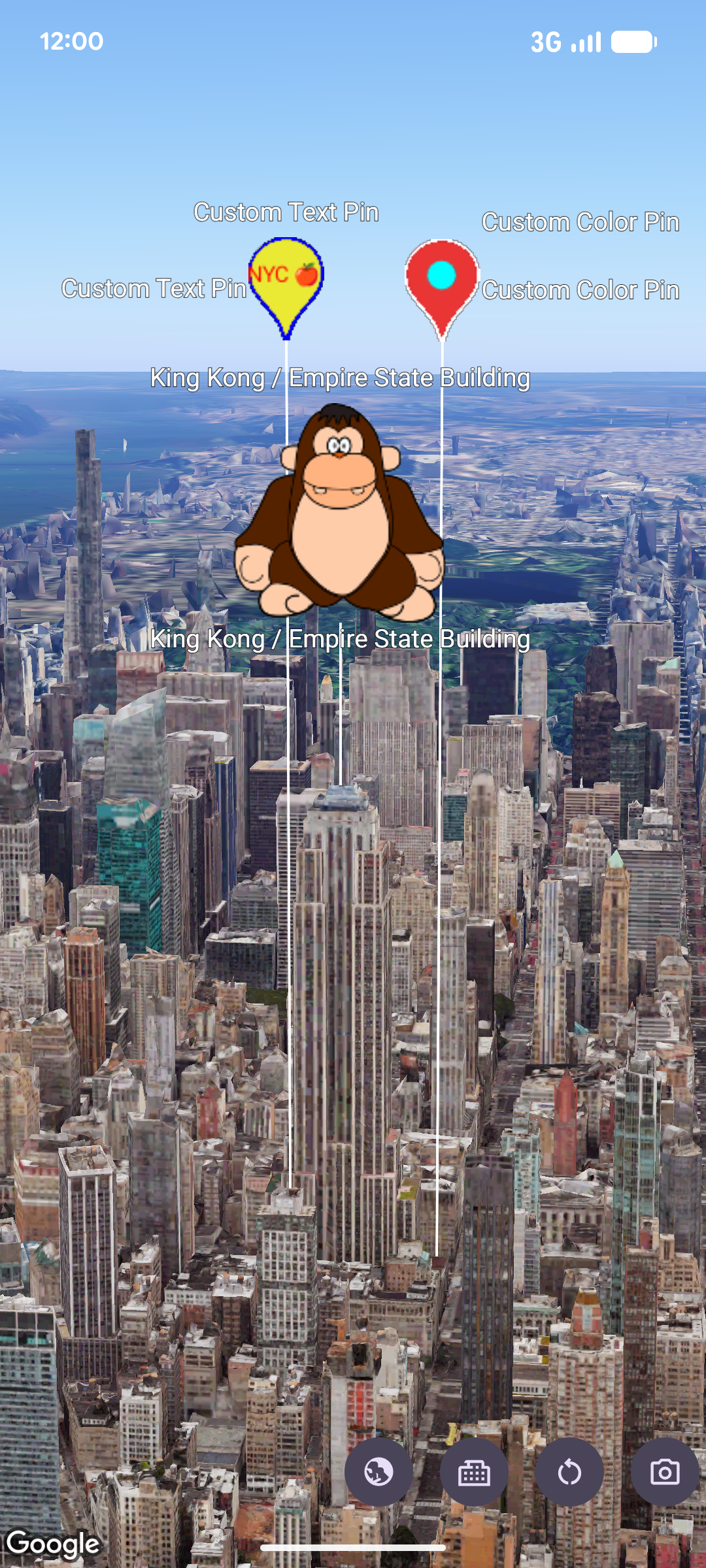
You can customize the appearance of markers using the pinConfiguration
constructor. The pinConfiguration
constructor provides methods for changing
the background and border colors, glyph text and color, altitude, image to be
used, and more options for additional customization.
The following code sample shows how to create a new marker and style it using some of the available customization options:
  map
 .
 addMarker
 (

 markerOptions

 {

 position

 =

 sanFrancisco

 style

 =

 pinConfiguration

 {

 backgroundColor

 =

 Color
 .
 GREEN

 borderColor

 =

 Color
 .
 GREEN

 glyph

 =

 Glyph
 .
 fromColor
 (
 Color
 .
 RED
 )

 }

 }
 )
This page shows you how to customize markers in the following ways:
- Scale the marker
- Change the background color
- Change the border color
- Add text to a glyph
- Use an image as a marker
- Remove markers
Scale the marker
To scale a marker, use the scale
option:
  map
 .
 addMarker
 (

 markerOptions

 {

 position

 =

 sanFrancisco

 style

 =

 pinConfiguration

 {

 scale

 =

 3.14

 }

 }
 )
Change the background color
Use the PinElement.background
option to change the background color of a
marker during construction:
  map
 .
 addMarker
 (

 markerOptions

 {

 position

 =

 sanFrancisco

 style

 =

 pinConfiguration

 {

 backgroundColor

 =

 Color
 .
 GREEN

 }

 }
 )
Change the border color
Use the markerOptions.borderColor
option to change the border color of a
marker during contstruction:
  map
 .
 addMarker
 (

 markerOptions

 {

 position

 =

 sanFrancisco

 style

 =

 pinConfiguration

 {

 borderColor

 =

 Color
 .
 GREEN

 }

 }
 )
Add text to a glyph
Use the markerOptions.glyph
method to replace the default glyph with a text
character. The text glyph of the marker scales with the marker:
  map
 .
 addMarker
 (

 markerOptions

 {

 position

 =

 sanFrancisco

 style

 =

 pinConfiguration

 {

 glyph

 =

 Glyph
 .
 fromText
 (
 "G"
 )

 }

 }
 )
Use an image as a marker
  Map
 .
 addMarker
 (
 markerOptions

 {

 position

 =

 latLngAltitude

 {

 latitude

 =

 40.7484

 longitude

 =

 -
 73.9857

 altitude

 =

 100.0

 }

 zIndex

 =

 1

 label

 =

 "Empire State Building"

 isExtruded

 =

 true

 isDrawnWhenOccluded

 =

 true

 altitudeMode

 =

 AltitudeMode
 .
 RELATIVE_TO_MESH

 setStyle
 (
 ImageView
 (
 R
 .
 drawable
 .
 ook
 ))
 })
Remove markers
Use Marker.remove()
to remove markers from the map:
  marker
 .
 remove
 ();
